Quote shipping on a sales order or quote
When you take an order by phone, email or in person, Quote shipping tells you what it will cost to ship. SKU.io packs the order's products into parcels, gets rates from the carriers on your EasyPost account, and adds the rate you pick, with any markup, to the order as a Shipping charge. Quotes work the same way.
Before you begin
- Connect EasyPost. Until you do, Quote shipping opens a prompt to connect it instead of rates.
- The order has a ship-to address and at least one product line. For a quote, the ship-to comes from the quote or, failing that, the customer's shipping address.
- Your products have a weight. Dimensions make the rates more accurate but are optional.
- The order was created in SKU.io. Orders from a sales channel already carry the shipping the customer paid, so they don't show Quote shipping.
- The order is still open and not invoiced, or the quote hasn't been sent yet. To change shipping on a sent quote, revise it first.
Open Quote shipping
On a sales order, Quote shipping is in the header of Revenue Lines, on the Lines tab. On a quote, it's in the header of the Revenue Lines card, on the Overview tab. See Charge shipping on a quote. When the order is waiting for a shipping price, the banner at the top of the order has a Quote shipping button too (see Orders waiting for a shipping price).
When Quote shipping is greyed out, hover over it to see why: the order has no ship-to address or no products, or it's closed, cancelled or invoiced.
Get rates
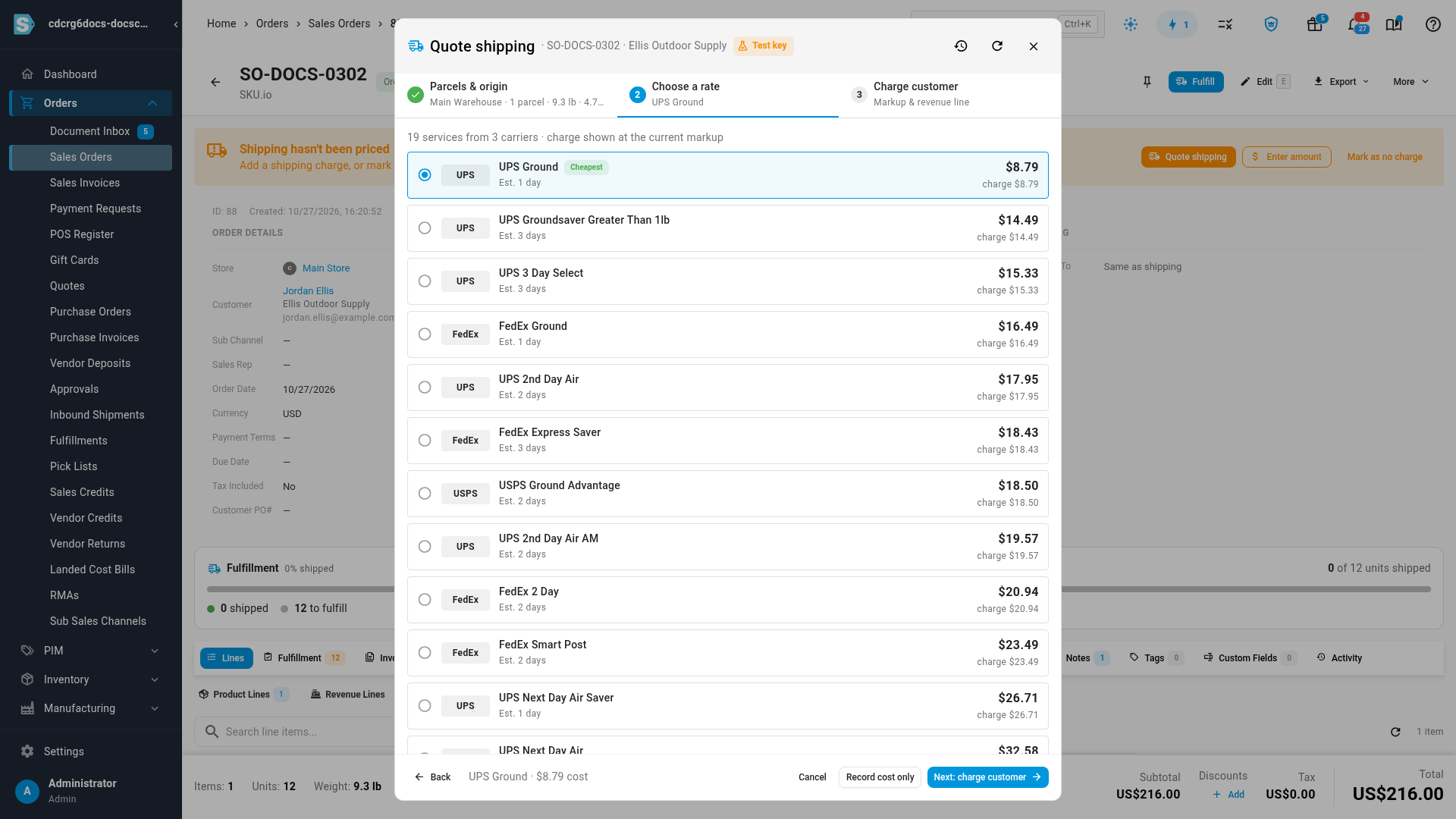
The dialog has three steps: Parcels & origin, Choose a rate and Charge customer. When SKU.io can build the parcels on its own, it gets the rates straight away and opens on Choose a rate.
- Check Parcels & origin. It shows the warehouse the order ships from and the parcels SKU.io built from your product weights and case packs, up to 50 lb per parcel. If the warehouse will pack it differently, change the parcels there, then click Get rates.
- On Choose a rate, pick a rate. Rates are listed cheapest first, each with its carrier, service and estimated delivery time. Cheapest and Fastest mark the obvious choices.
- Click Next: charge customer.
When the order ships from more than one warehouse, SKU.io prices each warehouse's parcels separately and adds them up. A service is offered only when every warehouse can use it.
If a product has no weight, the dialog lists it instead of rates. Click Add weight to fill it in on the product, or Enter parcels manually to type the parcels for this order.
Rates are kept for 15 minutes, so reopening the dialog doesn't ask EasyPost again. Click the refresh button at the top of the dialog to get fresh rates. Test key at the top means EasyPost returned sample rates. See Test keys and production keys.
Charge the customer
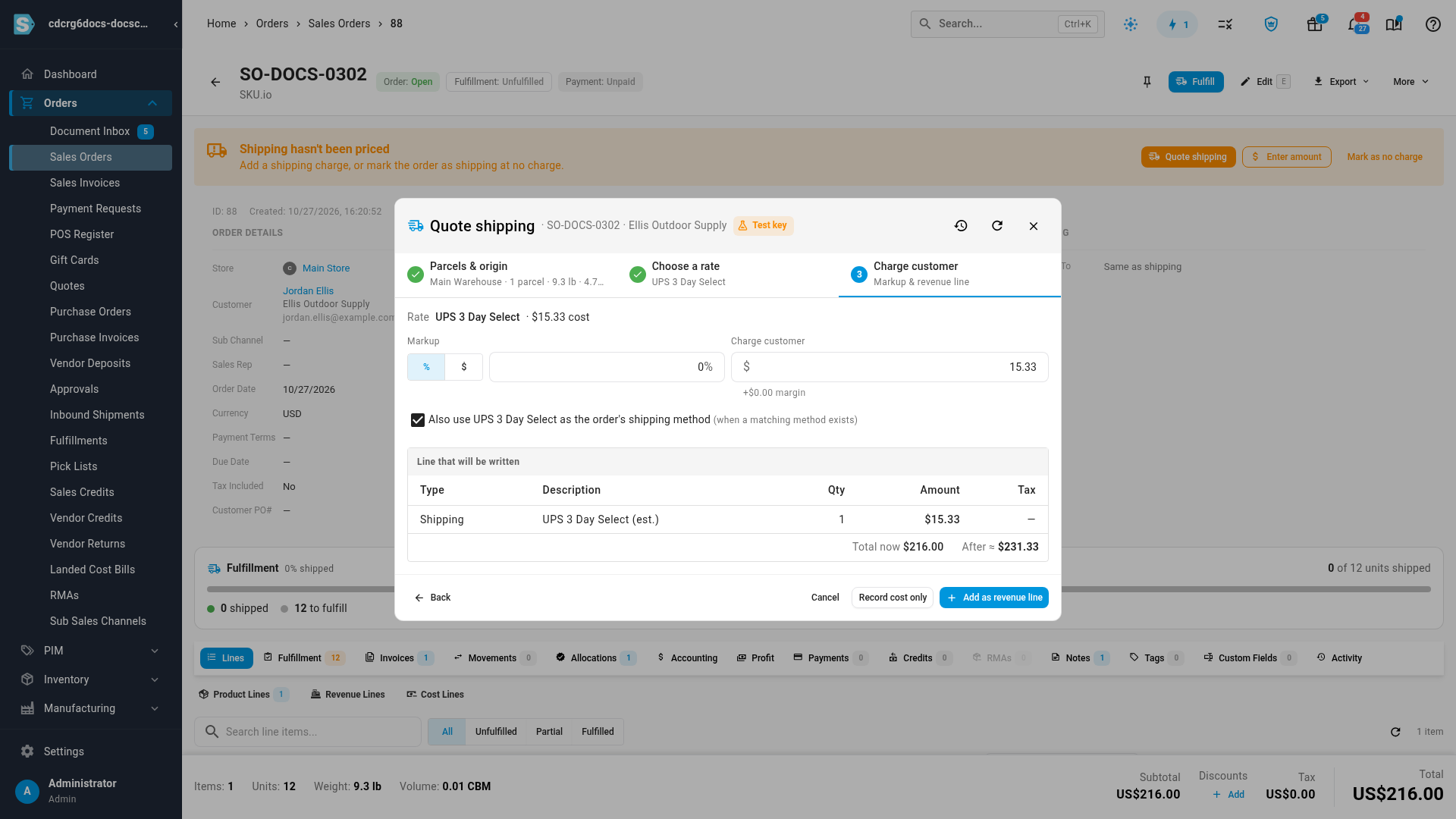
- Under Markup, choose % or $ and enter how much to add to the carrier rate. Charge customer shows the result, and you can type a different charge there instead.
- Leave Also use … as the order's shipping method ticked to set the order's shipping method too. It applies only when you have a shipping method that matches the carrier and service.
- Check Line that will be written: a Shipping line named after the service, with "(est.)" at the end. The total before and after is shown underneath.
- Click Add as revenue line.
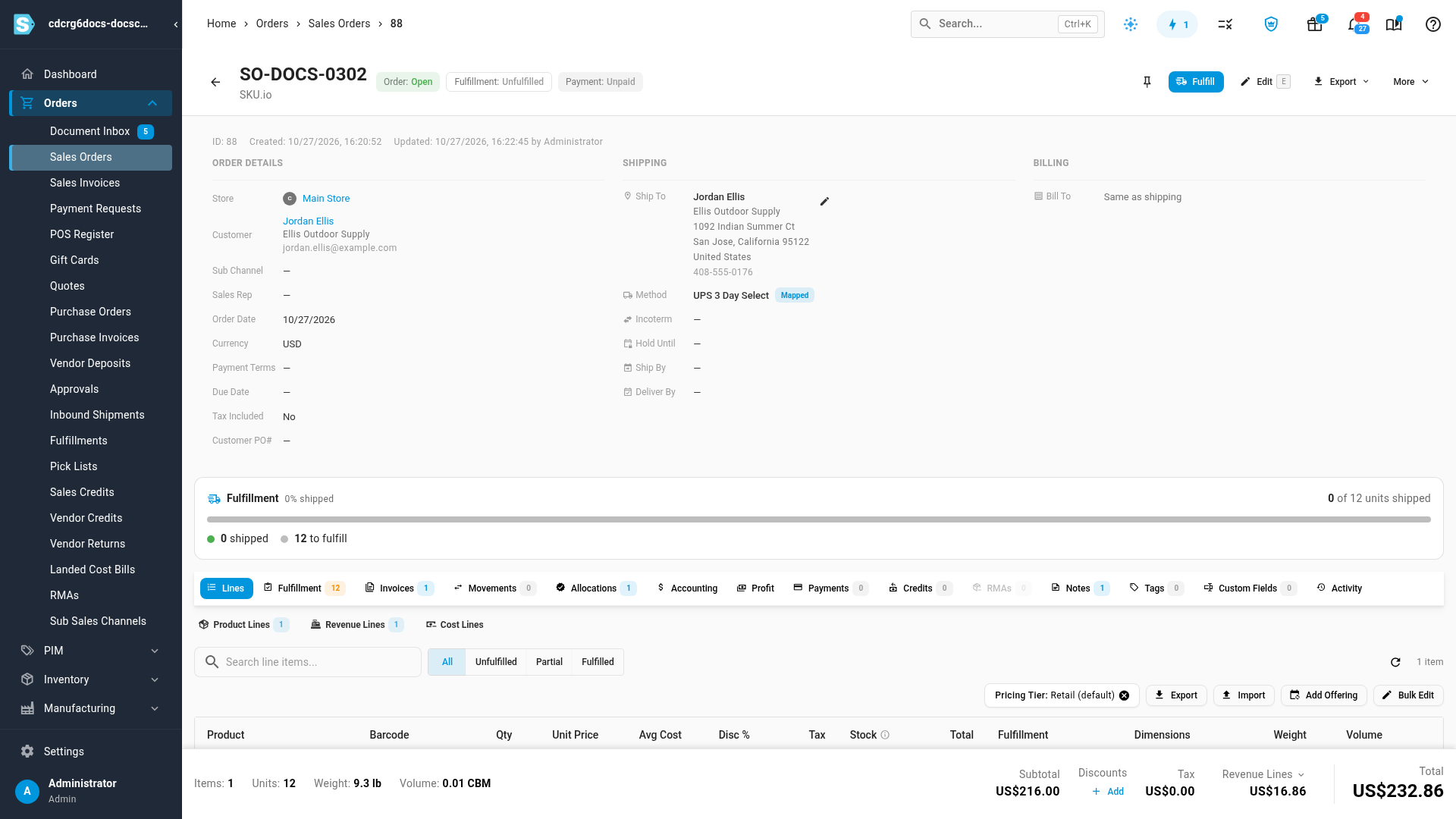
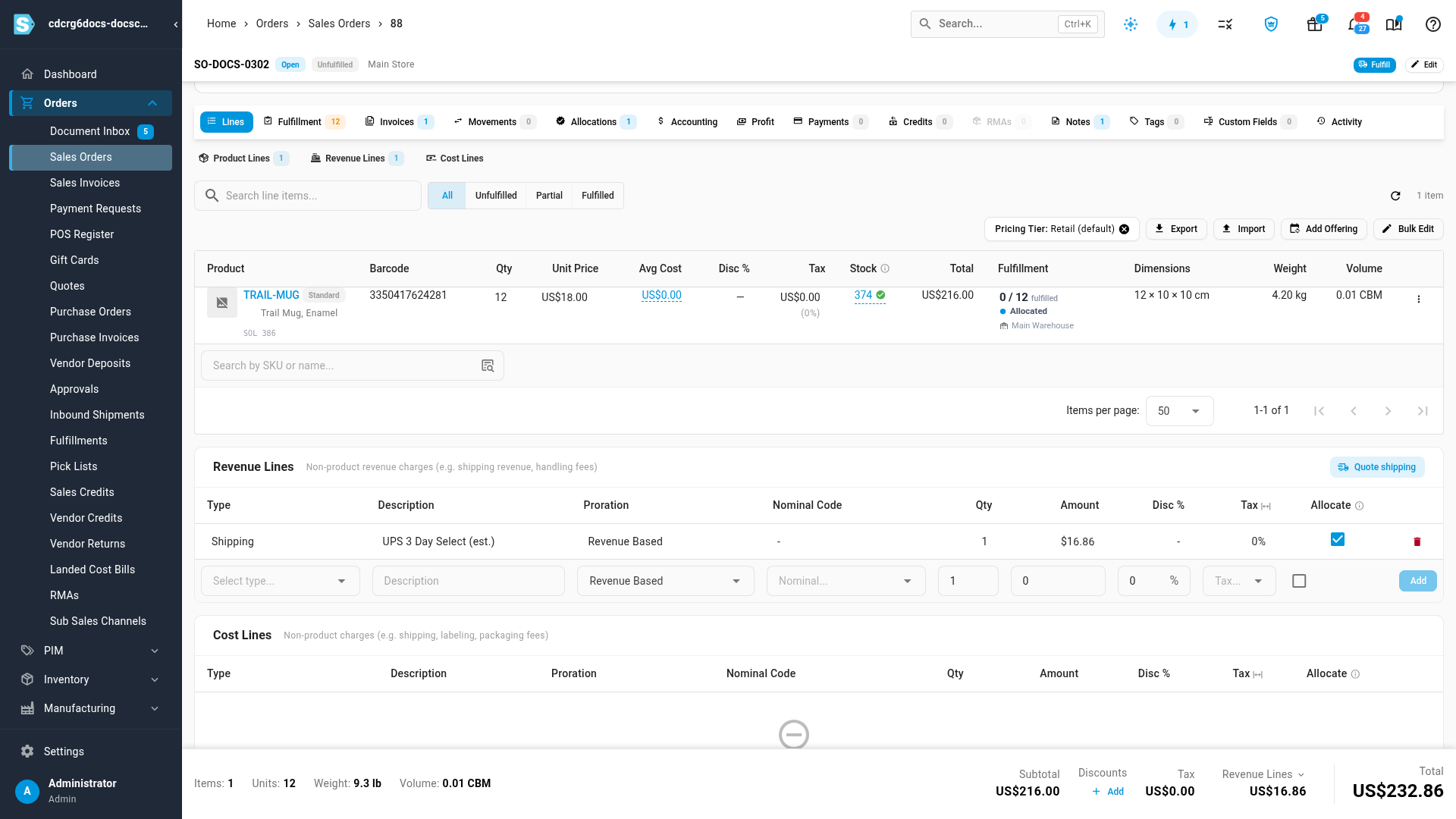
The Shipping line is added under Revenue Lines, and the order total goes up by the charge plus any tax the order applies to shipping.
To keep a note of what shipping cost without charging the customer (for example, when you offer free shipping), click Record cost only instead. The rate is saved under Past estimates, the history button at the top of the dialog, and no line is added.
Change the shipping charge
Run Quote shipping again and add a new rate. It replaces the Shipping line you added before, rather than adding a second one. When the order has more than one Shipping line, the charge step asks which one to replace, or whether to add a new line.
A Shipping line that has already been invoiced is never changed. If you edit the order's products after quoting, a note on the order says the items changed since shipping was estimated, and the shipping charge stays as it was until you quote again.
When a quote becomes a sales order, its Shipping line, ship-to address and shipping method carry over to the order.
Orders waiting for a shipping price
An order placed on the Customer Portal with a shipping method you set to On review arrives without a shipping charge. The order shows Shipping hasn't been priced, with the method the customer chose, and three ways to settle it:
- Quote shipping gets rates and adds the charge, as above.
- Enter amount adds a Shipping line you price yourself.
- Mark as no charge settles it without a charge.
The banner goes away as soon as the order has a Shipping charge. To find every order still waiting, add the Shipping Pending Review filter (under Shipping in Advanced Filters) to the sales orders list.
Next steps
- Price shipping on the Customer Portal — decide what buyers pay for shipping when they order themselves.
- Add discounts and charges — other charges on an order.
- Charge shipping on a quote: the quote version of this dialog, step by step.
- Create and send a quote
Video transcript
This order has no shipping charge yet, so a banner says shipping hasn't been priced. You can enter an amount yourself, mark the order as shipping at no charge, or quote it. Click Quote shipping, and SKU.io gets rates for this order. The rates open in a dialog, on top of the order. SKU.io builds the parcels from your product weights, and gets rates from your own carriers. The first step shows where it ships from and how many parcels there are. Each rate shows the carrier, the service and the estimated delivery time, cheapest first. Pick the rate you want to charge for. Then click Next, charge customer, to set what the customer pays. Add a markup if you want to charge more than the carrier rate. Here, we add ten percent. The preview shows the Shipping line that will be added and the order total after it. Click Add as revenue line, and the shipping charge is added to the order. The dialog closes, and the order updates straight away. The banner is gone, because the order now has a shipping charge. Under Revenue Lines, the new Shipping line carries the service name, marked as an estimate. To change it later, click Quote shipping here. Applying a new rate replaces this line.