Price shipping on the Customer Portal
When a buyer checks out on the Customer Portal, they choose one of your shipping methods. Portal shipping decides what each method costs them: a live rate from your carriers, a flat amount, free, or a price you add after the order arrives. Buyers always see a real price or an honest label. A method is never shown as $0.00 unless it is free.
Before you begin
- Your shipping methods exist under Settings → General → Shipping Methods. Each one's ship-to countries decide where it's offered.
- For live rates, connect EasyPost with a production key. Buyers never see rates from a test key.
- Live rates need your products' weights. The Products with weight tile shows how many portal products have one.
Open Portal shipping
Go to Contacts → Customers, open the Portal tab, then Portal settings, and choose Shipping.
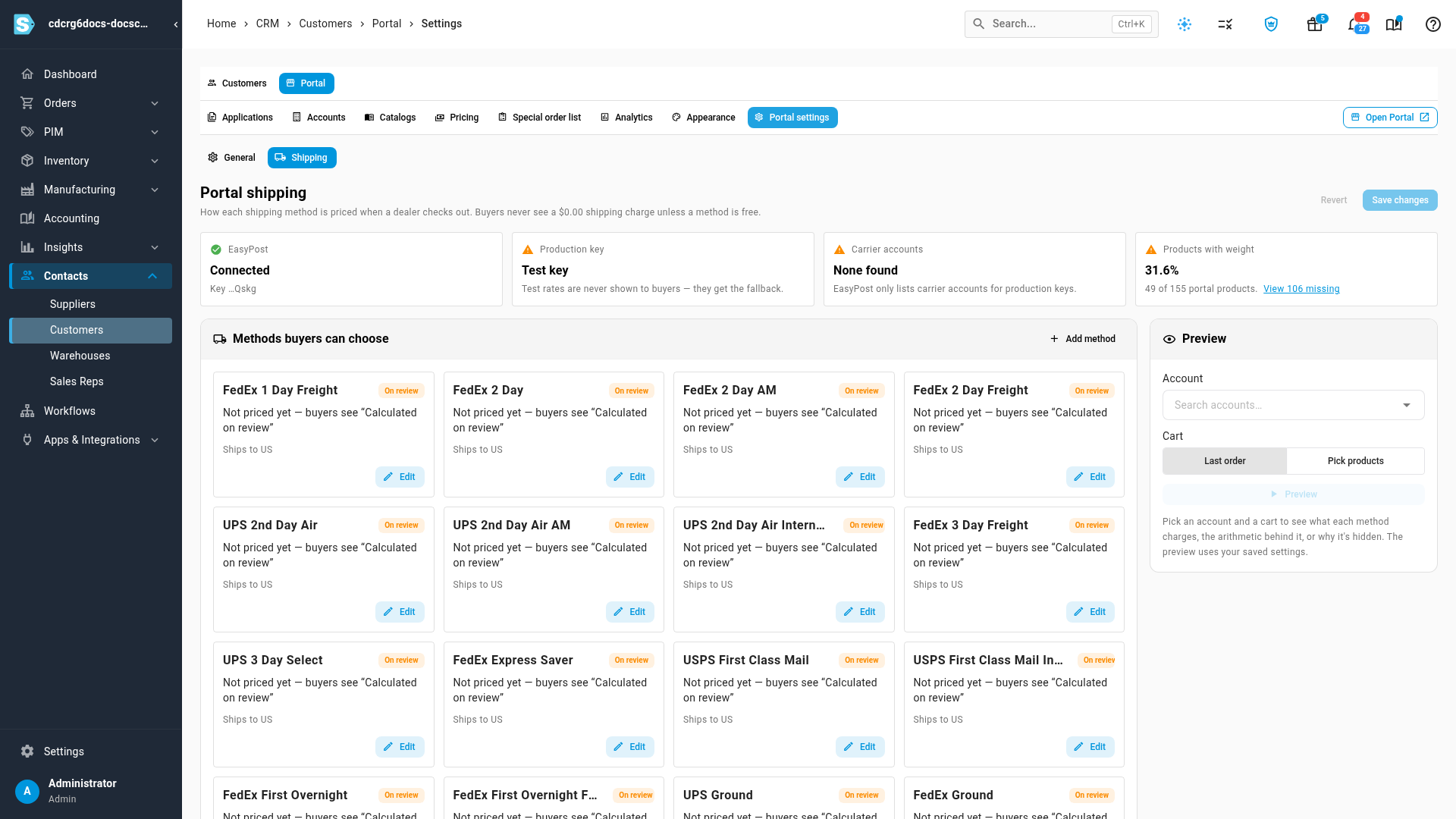
Four tiles at the top tell you whether live rates will work:
| Tile | What it checks |
|---|---|
| EasyPost | Your EasyPost account is connected. If it isn't, a prompt to connect it appears above the tiles. |
| Production key | The key is a production key. With a test key, buyers get your fallback price instead of rates. |
| Carrier accounts | Your EasyPost account has carriers to rate with. |
| Products with weight | The share of portal products that have a weight. View … missing lists the ones that don't. |
Choose how each method is priced
Methods buyers can choose shows a card for each shipping method, with how it's priced and when it's shown. A method you haven't priced yet says Not priced yet: buyers see Calculated on review, but its orders aren't flagged for a shipping price. Price every method you offer.
-
Click Edit on a method.
-
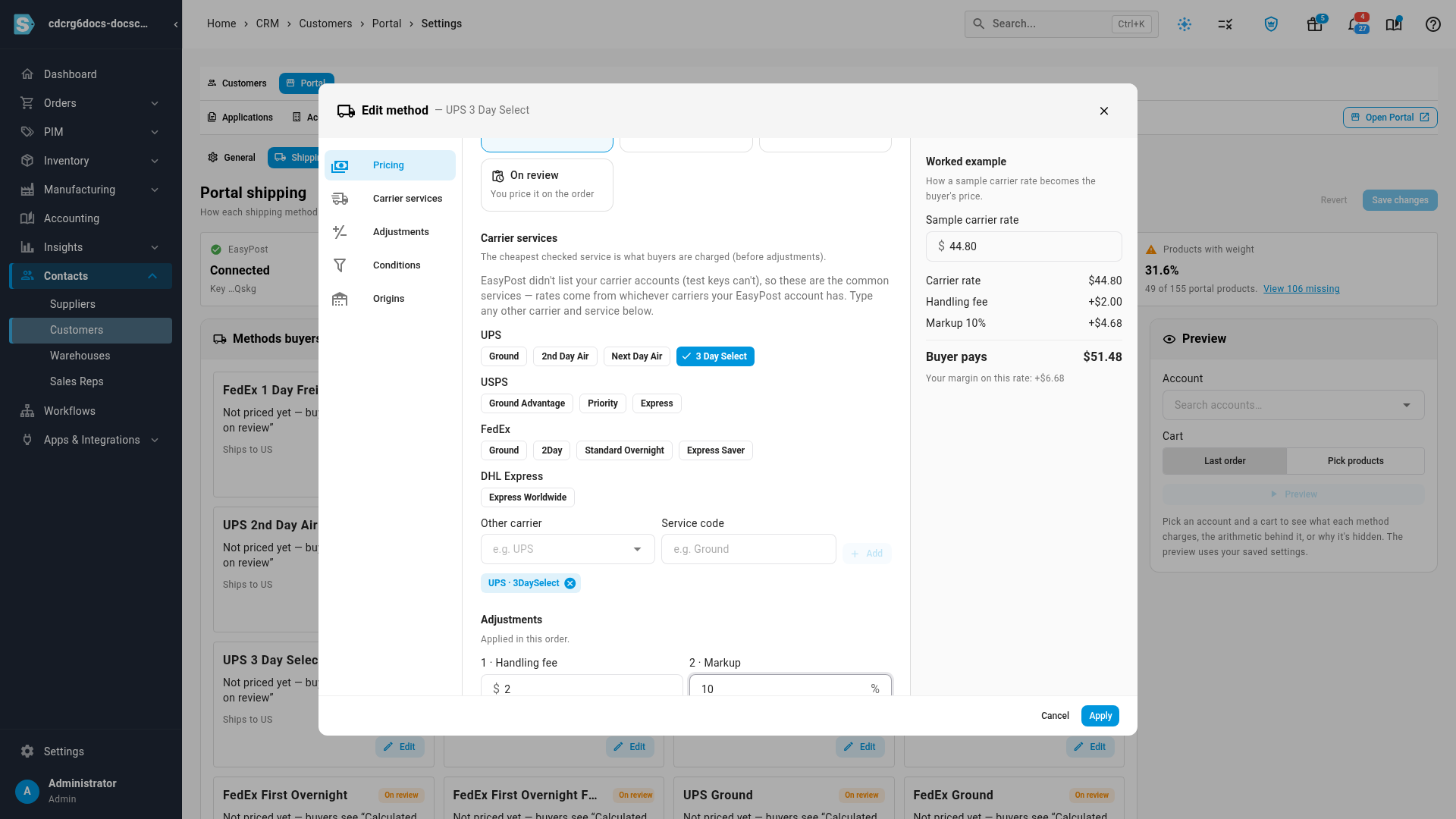
Under Pricing, choose one:
Pricing What the buyer sees Live rate The rate from your EasyPost carriers for this cart, with any adjustments below. Marked Estimated. Flat A fixed Amount, Charged per order, per unit or per case. Free Free. No shipping line is added to the order. On review Calculated on review. The order arrives without a shipping charge, and you price it on the order. -
For Live rate, under Carrier services, tick the services this method stands for. When you tick more than one, the buyer is charged the cheapest. With a test key EasyPost can't list your carriers, so you pick from the common services instead.
-
Under Adjustments, set what to add to a live rate. They apply in this order: Handling fee, Markup, Rounding (up to the next $0.50 or $1.00), then Cap (max charge).
-
Check Worked example on the right: it shows how a sample carrier rate becomes the buyer's price, and your margin on it.
-
Under Conditions, set when the method is offered: a Subtotal min, a Subtotal max, or an Order weight max (for example, hide parcel services above 150 lb so heavy orders go to freight). The method is hidden from buyers when any condition fails.
-
Under Origins, limit the method to some warehouses when it only ships from those.
-
Click Apply. The card shows Unsaved until you save the tab.
Set free shipping and the fallback
Under Free shipping & fallback:
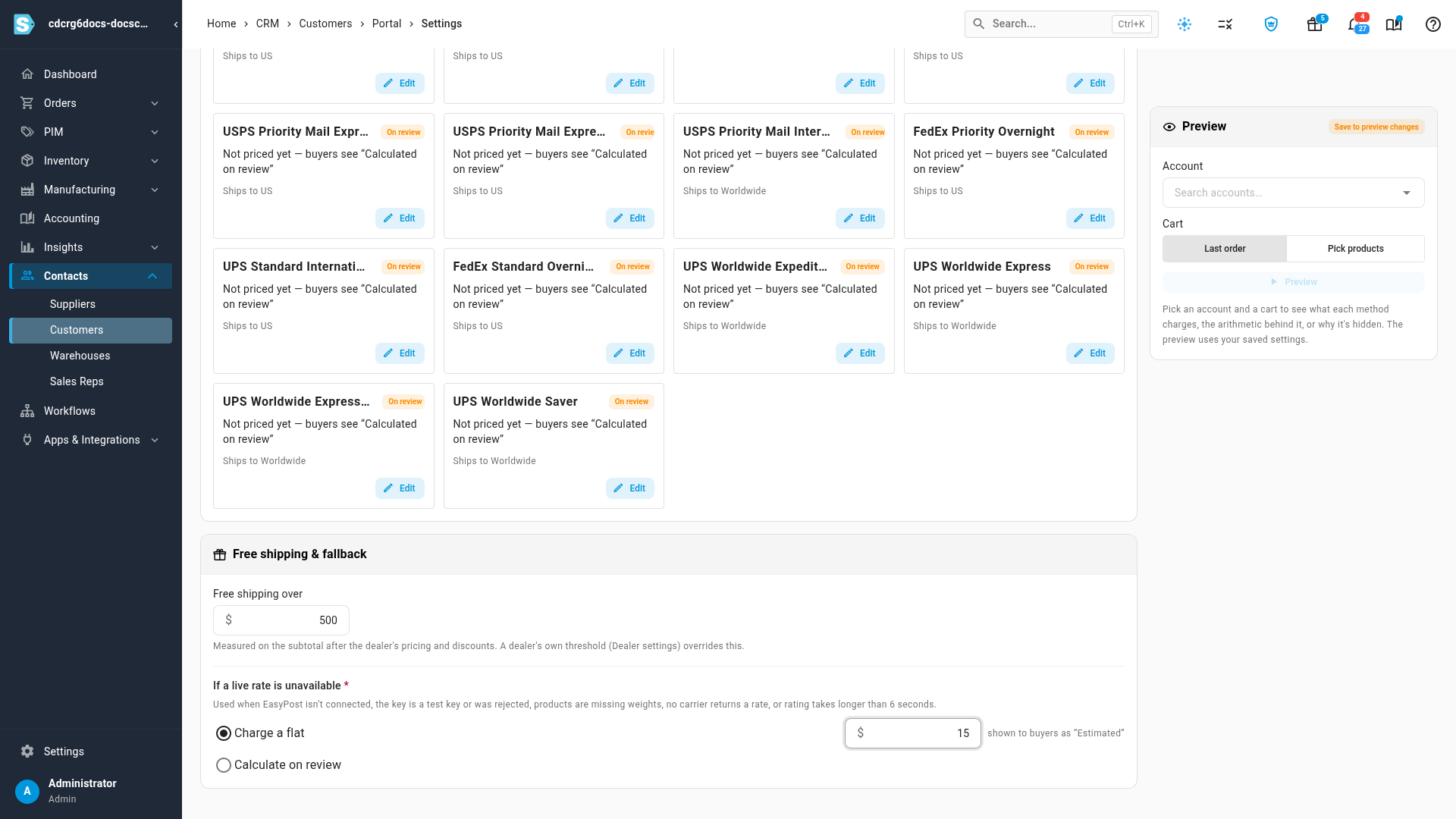
- In Free shipping over, enter the order subtotal at which shipping becomes free. It's measured after the buyer's own pricing and discounts. Leave it blank for no free shipping. The tip underneath shows your portal's average order value: a threshold a little above it encourages bigger orders.
- Under If a live rate is unavailable, choose what buyers pay when a live rate can't be had: Charge a flat amount, shown as Estimated, or Calculate on review. This is required as soon as one method uses live rates. It's used when EasyPost isn't connected, the key is a test key or was rejected, products have no weight, no carrier returns a rate, or rating takes longer than 6 seconds.
- Click Save changes.
Preview what a buyer will pay
Preview shows each method's price for a real account and cart before buyers see it.
- In Account, pick a portal account.
- Under Cart, choose Last order to use that account's most recent order, or Pick products to build a cart.
- Click Preview.
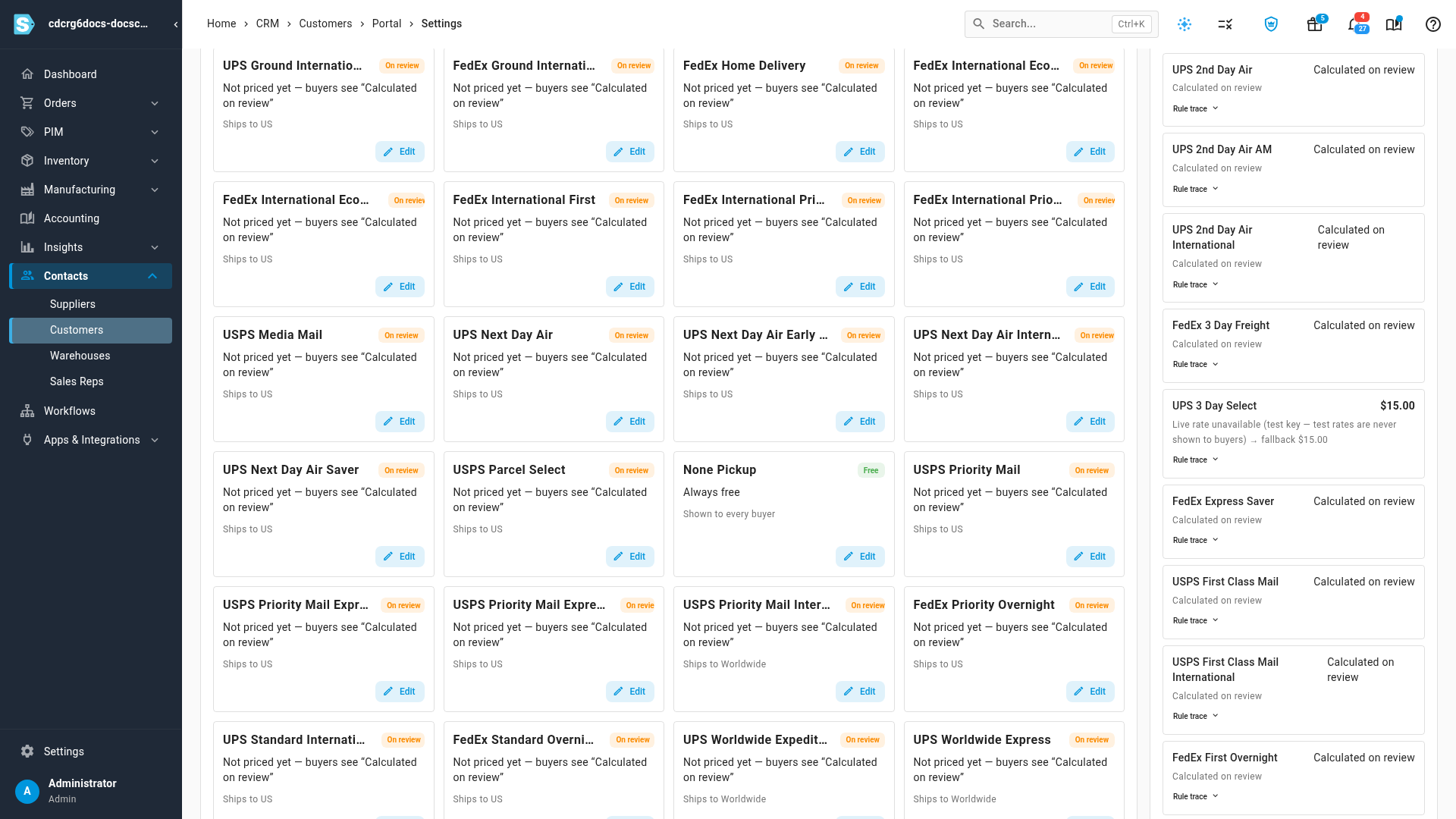
The preview names the cart and where it ships to, and says how far the cart is from free shipping. Each method then shows its price and how it was worked out, for example the carrier rate plus the handling fee and markup, the fallback price and why it was used, or why the method is hidden for this cart. The preview uses your saved settings, so save first.
Free shipping for one account
To give one account free shipping, or its own threshold, open the account under Portal → Accounts and click Dealer settings. Under Shipping:
- Turn on Free shipping for this dealer to make every method free for them. No shipping line is added to their orders.
- Or enter a Free-shipping threshold of their own. Leave it blank to use the portal's threshold.
What buyers see at checkout
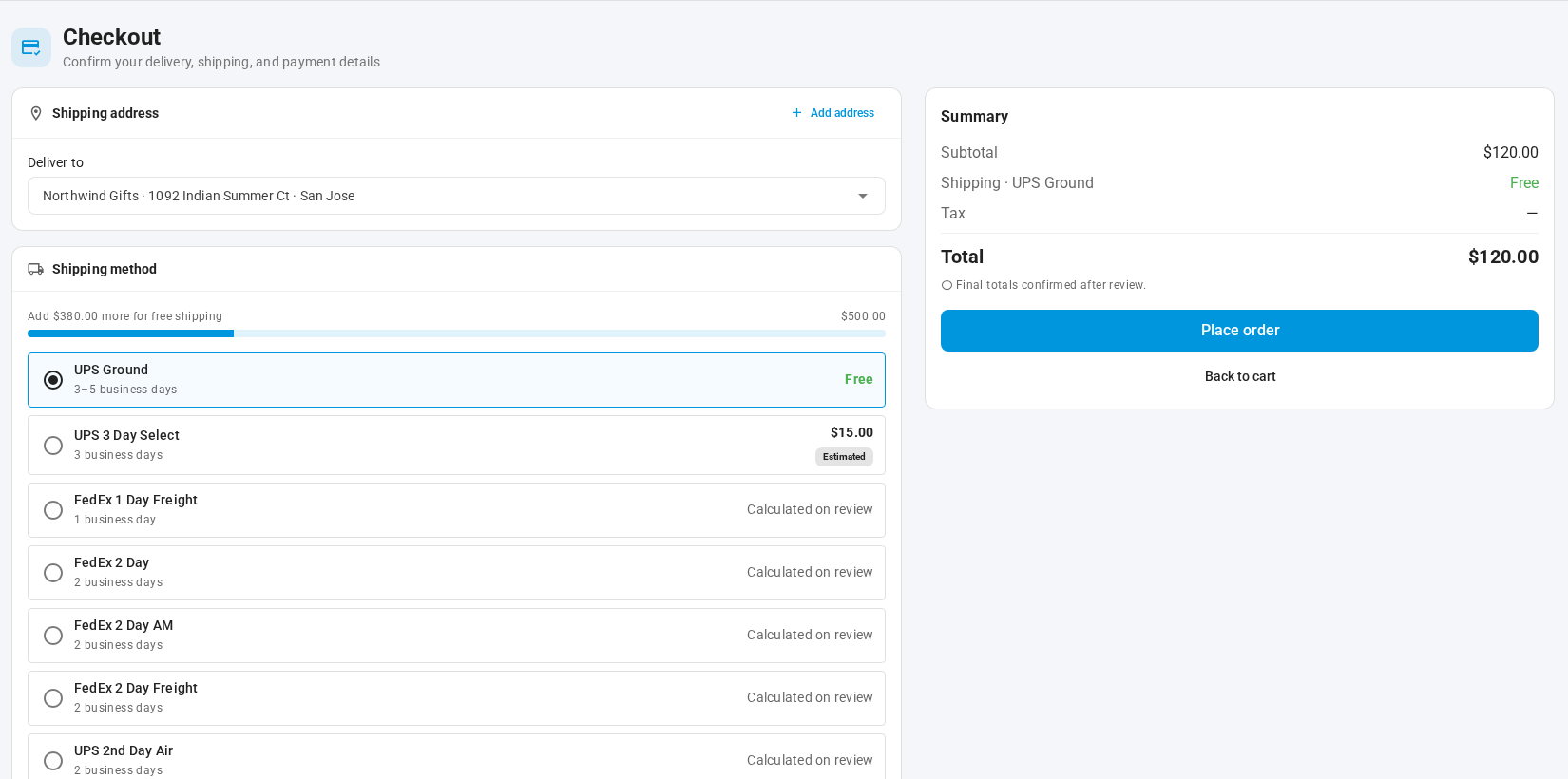
At checkout, each shipping method shows its delivery time and its price: an amount, Free, or Calculated on review. A live-rate price, or the fallback standing in for one, carries an Estimated chip, and a note under the list says Shipping is an estimate; your final invoice may differ. The order summary shows the chosen method's price, with "(est.)" after an estimate. When you set a free-shipping threshold, a bar above the methods shows how much more the buyer needs to add, for example Add $380.00 more for free shipping.
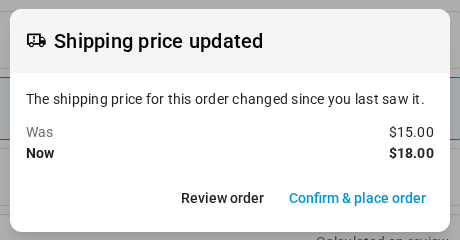
If the chosen method's price changes between the time the buyer sees it and the moment they place the order, for example because a carrier's rate moved or you changed the fallback, the buyer sees Shipping price updated with the old and new prices. They can go back with Review order, or accept with Confirm & place order.
Buyers never see EasyPost, your carrier accounts, or an error. When a method's rate fails, it uses your fallback price instead.
What arrives on the order
| Buyer chose | On the sales order |
|---|---|
| A live-rate or flat method | A Shipping line with the method's name and the charged amount, marked "(est.)" |
| A free method, or shipping became free | No shipping line |
| A method you set to On review, or a live rate that fell back to Calculate on review | No shipping line, and the order shows Shipping hasn't been priced until you add a charge. See Orders waiting for a shipping price. |
| A method you haven't priced yet | No shipping line, and no flag. Buyers see Calculated on review, as before. Price your methods so these orders don't slip through. |
Next steps
- Quote shipping on a sales order or quote — price an order that's waiting for shipping.
- Restrict what buyers see with portal catalogs
- View the portal as a buyer
Video transcript
Here's how to set what wholesale buyers pay for shipping when they order online. First, in the sidebar, open the Contacts menu, and choose Customers from the list. Open the Portal tab, and then Portal settings. Now choose the Shipping tab, next to General. The tiles at the top show if live carrier rates will work for your buyers. Each card is a shipping method buyers can choose. Click Edit on the one you want to price. Choose Live rate, and then tick the carrier service that this method stands for. If you tick more than one, buyers pay the cheapest. Further down, under Adjustments, type a handling fee of two dollars. Then type a markup of ten percent. The worked example shows what the buyer pays. Click Apply to keep the changes to this method. Below the methods, enter the order value at which shipping becomes free. Here, five hundred dollars, so larger orders ship for free. Then choose a fallback price, which is used whenever a live rate can't be had, for example when a product has no weight. Here, a flat fifteen dollars. At checkout, buyers see that fallback price marked as an estimate. Finally, scroll back up, and click Save changes to put it all live. Buyers see the new prices the next time they check out. To check your rules, use the Preview panel. Pick an account to preview. Keep Last order selected, to use that account's most recent order. Then click the Preview button below it. At the top, the preview shows the distance to free shipping for this order. Each method then shows its price for that order, and how it was worked out. With a test key, the live-rate method shows the fallback price, and the preview explains the reason.