Create a stock take from ShipBob discrepancies
Once you've decided a discrepancy is real, a stock take closes it. SKU.io builds an adjustment stock take for each warehouse that moves its on-hand stock by each product's delta, so it ends up matching what ShipBob reports.
It only works in one direction. SKU.io changes and ShipBob doesn't. Nothing is sent to ShipBob and nobody recounts anything. You're accepting ShipBob's number as correct and bringing SKU.io in line with it. That's usually right, because ShipBob holds the stock, but it's still a decision. If the stock-take screens are new to you, start with Stock takes.
Before you begin
- Work through Before you assume ShipBob is wrong. A stock take makes a difference disappear, but it doesn't explain it. If the cause is a wrong mapping, an unmapped fulfillment center, or stock in transit, fix that instead.
- Sync the data. On the Inventory tab, click Sync from ShipBob, wait for the job to finish, then click Reload. A stock take built from old numbers puts old quantities into today's stock.
Steps
-
Open your ShipBob connection, go to the Inventory tab, and open the Discrepancies sub-tab. To work on one warehouse only, choose it in the Warehouse selector first.
-
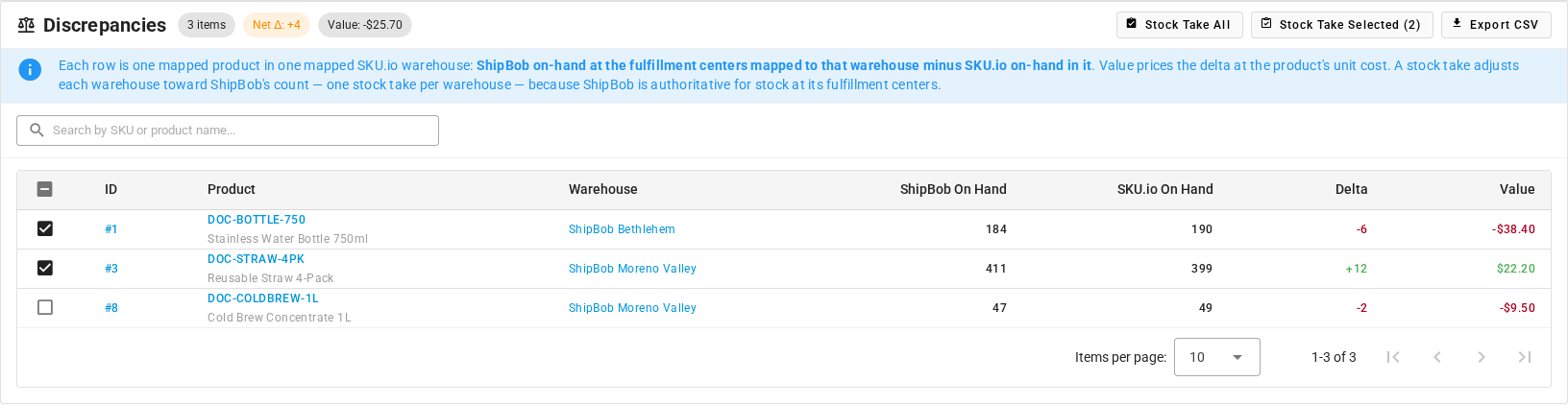
Tick the rows you've checked and want to correct. Stock Take Selected counts them, for example Stock Take Selected (2).
-
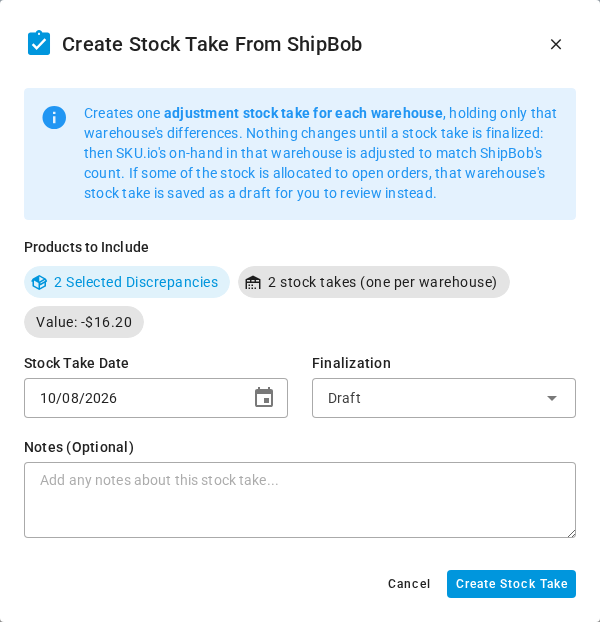
Click Stock Take Selected. To include every discrepancy the sub-tab lists instead, click Stock Take All. The Create Stock Take From ShipBob dialog opens. Under Products to Include, it shows how many rows it covers, how many stock takes it creates, for example 2 stock takes (one per warehouse), and the total Value of the change.
-
Check the Stock Take Date. It defaults to today.
-
Under Finalization, leave Draft, or choose Finalized (Closed). The next section explains the difference.
-
Add Notes (Optional) if you want to record why. If you leave it empty, each stock take's note reads Stock take created from ShipBob inventory discrepancies (ShipBob Fulfillment) for warehouse: {warehouse}.
-
Click Create Stock Take.
While the stock takes are being created, the dialog stays open and can't be closed. When they're done:
- One warehouse: you see Stock take created from discrepancies, and the new stock take opens.
- Several warehouses: you see a message that names them, for example 2 stock takes created — one per warehouse (ShipBob Bethlehem, ShipBob Moreno Valley), and the Stock Takes list opens with the new ones at the top.
Stock Take All and Stock Take Selected each say why they're unavailable: No discrepancies to include in a stock take. when the list is empty, and Select at least one discrepancy to create a stock take. when nothing is ticked.
Stock Take All includes every discrepancy in the chosen warehouse, or in all warehouses, including rows your search hides and rows you haven't looked at. Tick the rows you've actually checked and use Stock Take Selected.
Choose Draft or Finalized
| Option | Subtitle in the list | What happens |
|---|---|---|
| Draft | Save it to review first. Inventory is not changed yet | The stock takes are saved and nothing changes. You review each one and finalize it later |
| Finalized (Closed) | Adjust inventory now. This cannot be undone | Every adjustment is applied as soon as you click Create Stock Take |
When Finalized (Closed) is selected, the dialog warns you: "Finalized" applies every inventory adjustment immediately. This action cannot be undone. There's no undo. Reversing it means creating an opposite stock take by hand.
The dialog starts on Draft. Keep it unless you're sure: you get the same stock takes, plus a chance to check the lines before anything moves.
When it can't be finalized
If some of the stock is allocated to open orders, SKU.io can't apply that warehouse's adjustment straight away. It saves that warehouse's stock take as a draft, finalizes the others, and opens Stock Take Saved as Draft:
Some products have stock allocated to open orders, so the stock take for {warehouse} could not be finalized automatically. It has been saved as a draft for your review.
Click Review Draft Stock Take to open it, or Review Stock Takes when several were created, or Stay Here to come back to it later. Deal with the allocated stock, then finalize the draft from its page.
What ends up in the stock takes
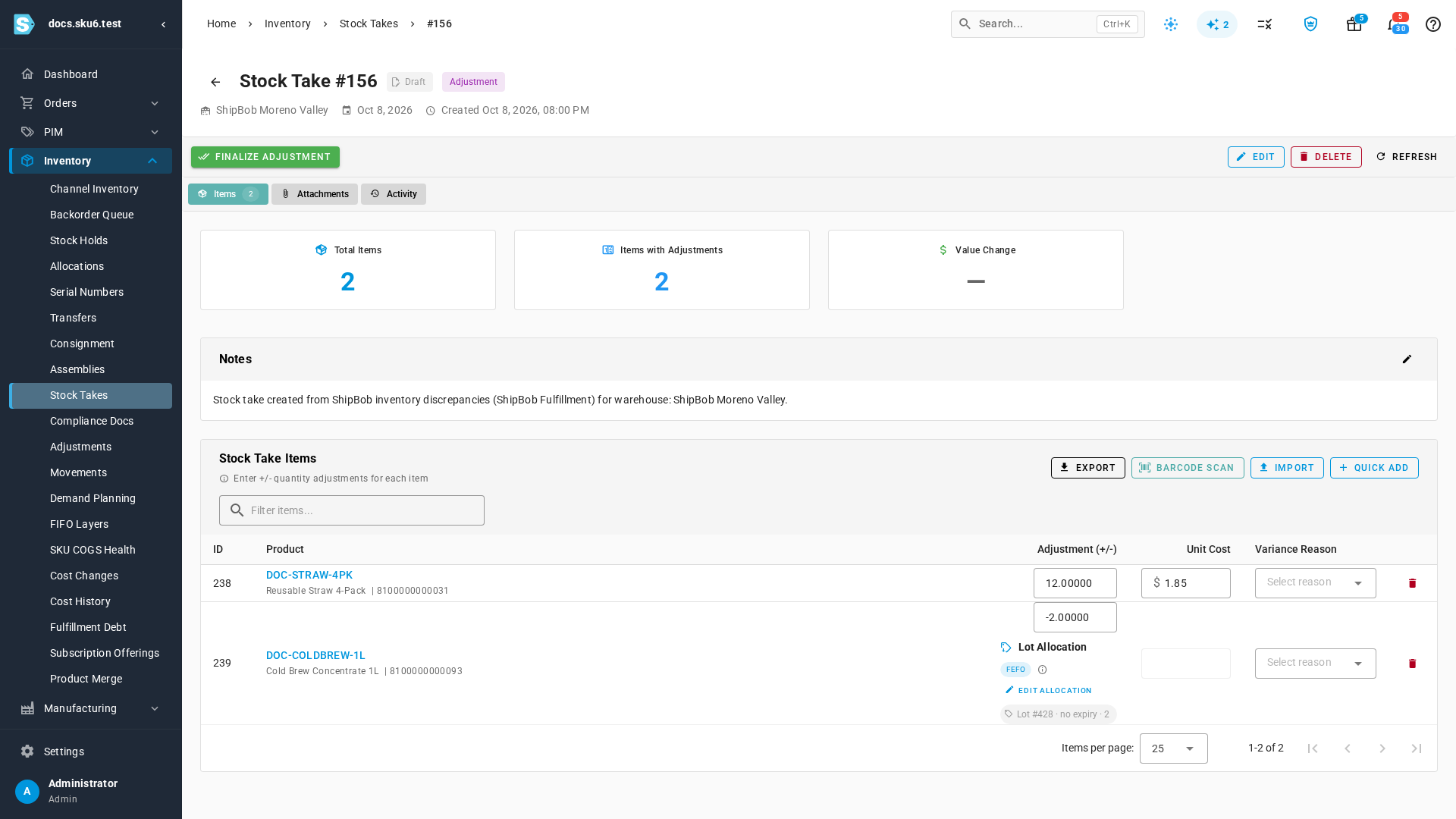
Each stock take is an Adjustment stock take against one SKU.io warehouse, holding only that warehouse's differences. It has one line for each discrepancy you included there, and each line's Adjustment (+/-) is that row's Delta. In the demo data, Stock Take All creates two:
| Warehouse | Lines |
|---|---|
| ShipBob Bethlehem | DOC-BOTTLE-750, -6 |
| ShipBob Moreno Valley | DOC-STRAW-4PK, +12, and DOC-COLDBREW-1L, -2 |
Unmapped products never get a line, because there's no SKU.io product to adjust. Neither do products from the ShipBob Only sub-tab, or stock in a fulfillment center that isn't mapped to a warehouse.
After they exist
- A draft works like any other stock take. Open it, check the lines, set a Variance Reason, and click Finalize Adjustment when you're happy. Nothing changes your stock until you do. See Finalize a stock take. If you decide against it, Delete removes the draft.
- A finalized stock take is already applied. Each product's on-hand stock in that warehouse moves by its delta, and your inventory valuation moves with it. After the next sync from ShipBob, those rows drop off the Discrepancies sub-tab.
If a product keeps coming back to the Discrepancies sub-tab, the cause was never fixed. It could be a wrong mapping, a center you haven't mapped, or a real ongoing problem at ShipBob. Another stock take hides the problem without solving it. Ask ShipBob to look into it.
If the list changed after you opened the dialog, for example because someone synced or remapped a product and the discrepancy is gone, creating the stock take can fail with No inventory discrepancies found for the specified criteria. Reload the page, check the list again, and try again.
When not to use a stock take
- The mapping is wrong. Fix the mapping. Correcting stock to the wrong product's count leaves both products wrong.
- A fulfillment center is unmapped. Map it, sync, and look again. The comparison is incomplete until you do.
- Stock is in transit. A receiving order that's still arriving, or an open transfer, settles on its own.
- You don't know why the numbers differ. Find the cause first.