Check a connection's sync health
When orders stop arriving or stock looks wrong on a channel, the first question is whether the connection is still syncing. Each connection answers it in three places: its status on Apps & Integrations, the Sync Status card on its Dashboard, and its Activity Log.
Before you begin
- The connection exists. See Manage a connected app.
- This guide uses an eBay connection. Shopify, WooCommerce, BigCommerce, Walmart and TikTok Shop connections have the same Dashboard and Activity Log tabs, with the sync types that channel uses.
Check the connection's status
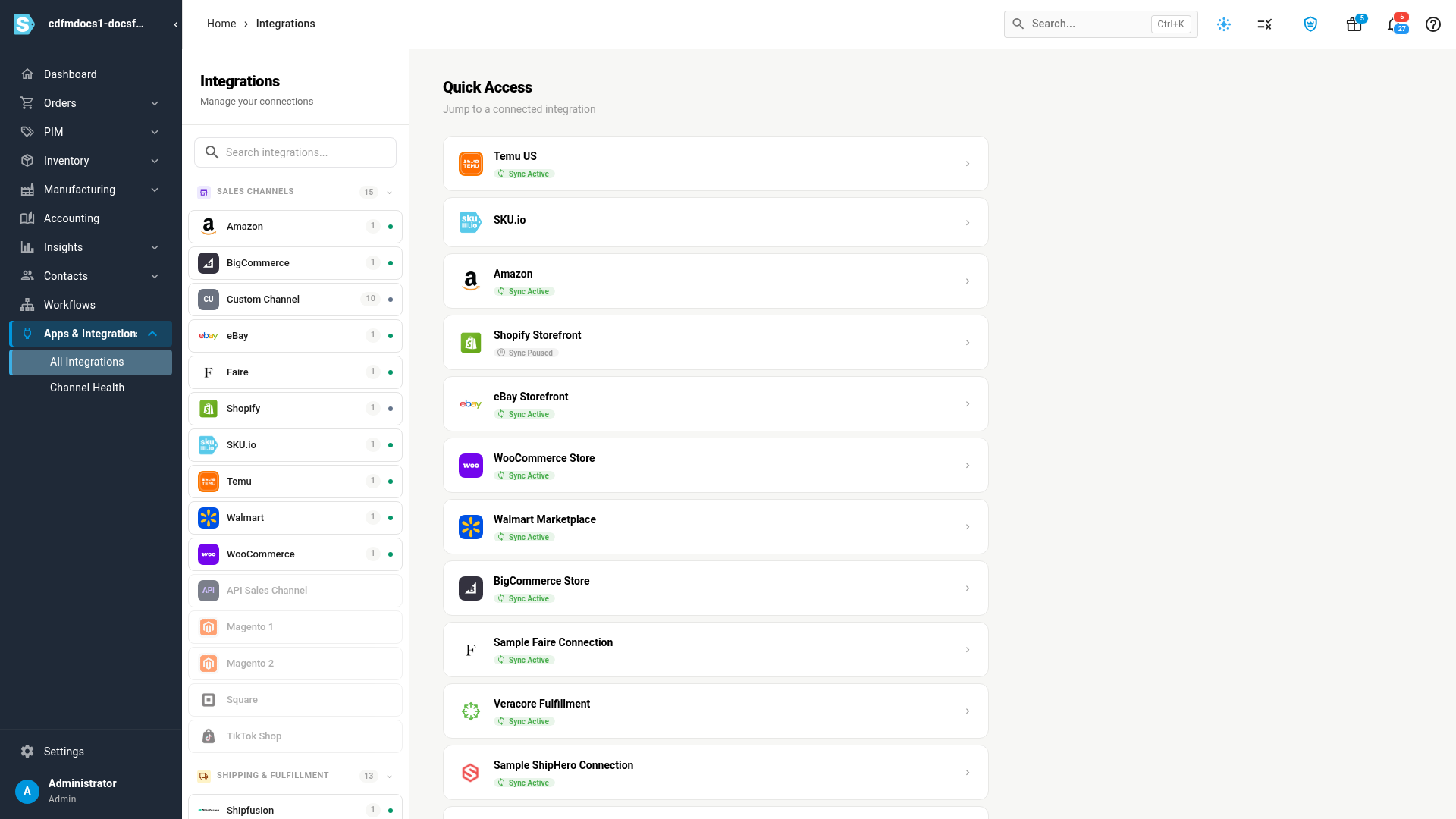
Go to Apps & Integrations. Under Quick Access, each connection shows its status:
| Status | What it means | What to do |
|---|---|---|
| Sync Active | The connection syncs on its schedule. | Nothing. |
| Sync Paused | Someone switched the connection's schedule off. Nothing syncs automatically. | Turn the Sync Schedule back on. See Manage a connected app. |
| Reconnect Required | The channel rejected SKU.io's access, for example because the authorization expired. SKU.io stops calling the channel until you reconnect. | Open the connection's Settings, then Authentication, and reconnect. |
Read the Dashboard
Click a connection to open its Dashboard.
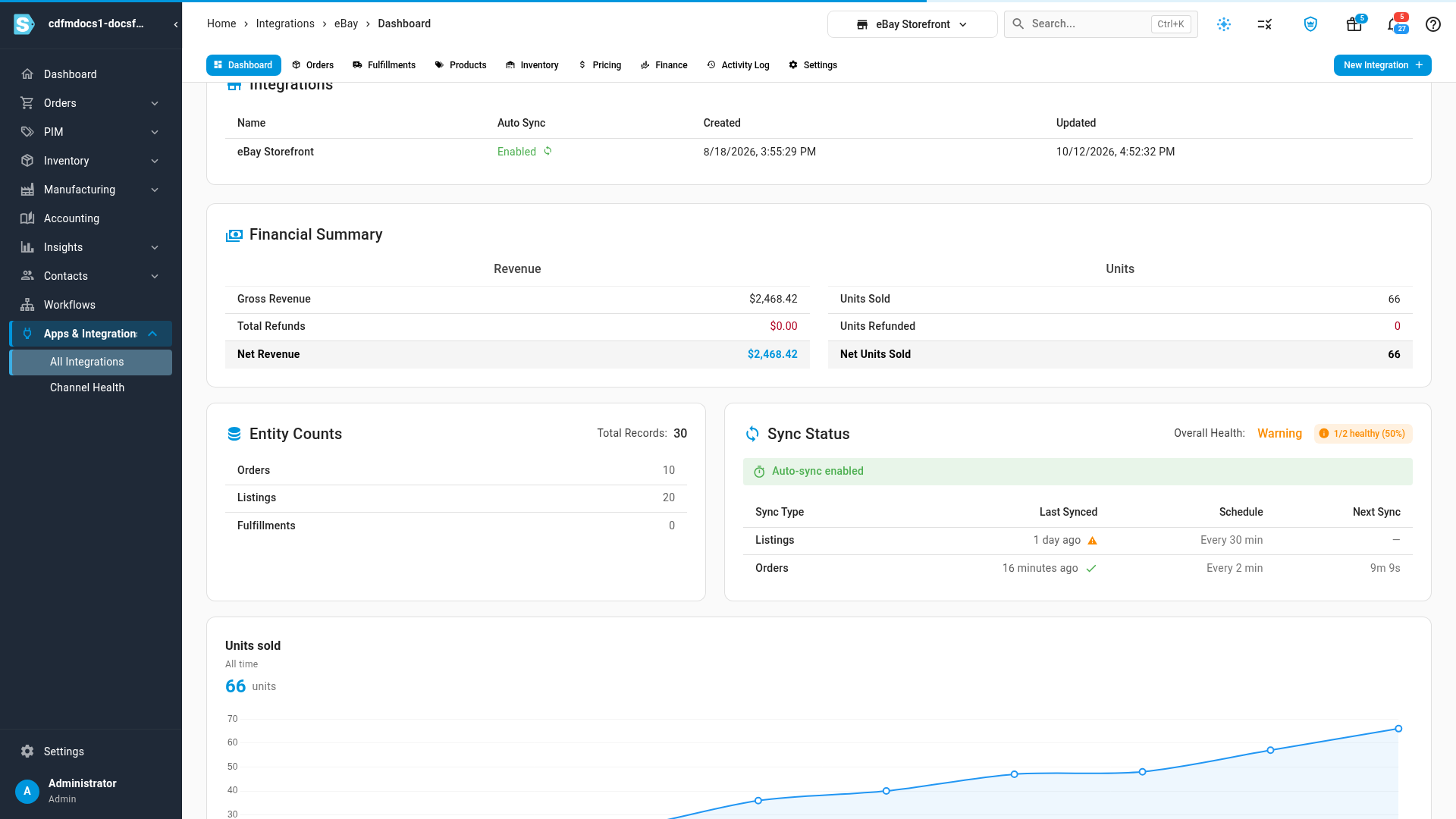
- The cards at the top show when Orders and Products last synced. A ✓ means within the last day. A warning sign means that data hasn't synced for more than a day, or ever.
- Integrations shows whether Auto Sync is Enabled for the connection.
- Financial Summary and Entity Counts total what the connection has brought in. Use All, Today, Last 7 Days, Last 30 Days or Last 90 Days to change the period.
Sync Status
The Sync Status card rates the connection as a whole and lists each kind of data it syncs.
| Part | What it shows |
|---|---|
| Overall Health | Healthy when every sync type has synced within the last day, Warning when some haven't, and Critical when none have. The chip beside it counts the healthy sync types. |
| Auto-sync enabled / Auto-sync disabled | Whether the connection syncs on its own. When it's off, the banner says to enable it in the connection's settings. |
| Sync Type | Each kind of data the connection syncs, such as Listings and Orders |
| Last Synced | How long ago that data last synced. Hover over it for the exact date and time. A warning sign marks data that hasn't synced for more than a day. |
| Schedule | How often that data syncs automatically |
| Next Sync | A countdown to the next automatic sync. Shown while auto-sync is on. |
Refresh now
- Refresh from eBay starts an order and product sync from the channel right away. Follow it in the job tray.
- Refresh from Database recalculates the Dashboard's figures from what SKU.io already holds. It doesn't contact the channel.
Read the Activity Log
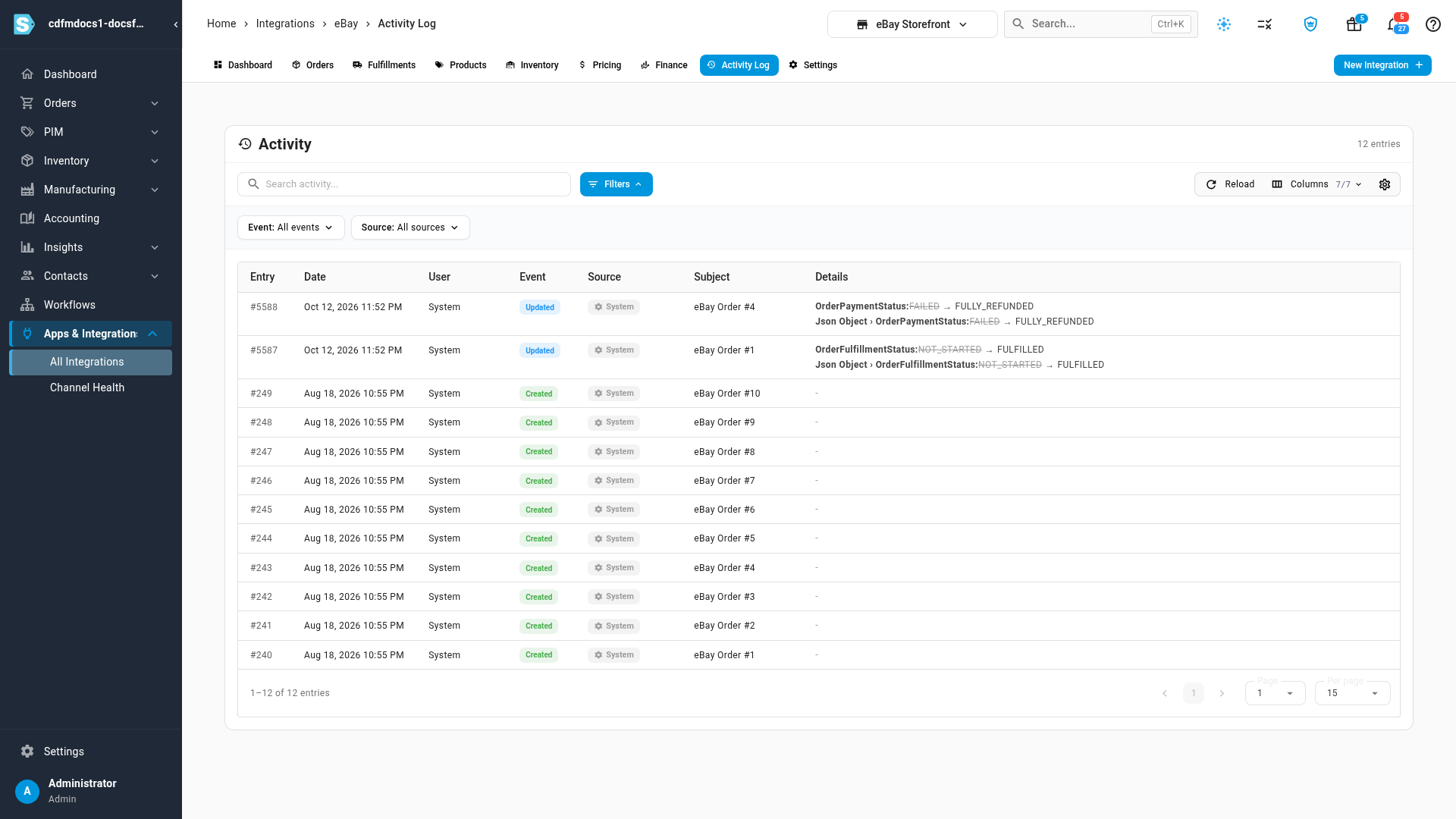
Open the connection's Activity Log tab. It lists every change to the connection's orders as they came in from the channel, newest first.
| Column | What it shows |
|---|---|
| Entry | The entry's number |
| Date | When the change was recorded |
| User | The person who made the change, or System for a change that came from a sync |
| Event | What happened, such as Created, Updated or Deleted |
| Source | What made the change. Changes a person made show Manual. |
| Subject | The channel order that changed |
| Details | Each changed value, from the old value to the new one |
To narrow the list, use Event and Source, or type in Search activity… to find a value such as an order number.
Next steps
- Manage a connected app: pause, resume or stop parts of a connection's syncing.
- Integrations reference: every sync status and control in one place.
- Monitor channel health: Amazon and Walmart seller-performance metrics.
Video transcript
Apps and Integrations lists every connection, each with its sync status. Sync Active means the connection runs on its schedule. Sync Paused means someone has switched its schedule off. Click a connection to open it. The cards at the top show when its orders and products last synced. A warning sign means that data hasn't synced for over a day. Further down, Sync Status rates the connection's overall health. Each sync type lists when it last ran, how often it is scheduled, and when it runs next. Products haven't synced for over a day, so the health shows Warning. To sync right away instead of waiting, use Refresh from eBay at the top of the Dashboard. Refresh from Database only recalculates these figures from what SKU.io already holds. For a history of changes, open the Activity Log tab, in the row of tabs along the top. It lists every change to the connection's orders, newest first. Each row shows the order, and what changed from the old value to the new one. To narrow it down, filter by Event or Source, or search for a value.