Connect another order management system
SKU.io is an order management system (OMS) in its own right. If your business also runs a second one, such as a legacy OMS, a wholesale portal, or an ERP that takes its own orders, there's no ready-made connector to install between the two. Instead you connect it the way any custom system connects:
- Orders into SKU.io arrive through an API Sales Channel. It gives the other system its own token and its own channel, with an event log and SKU mappings, so its orders sit beside your other channels.
- News back out of SKU.io, such as an order shipping or being cancelled, reaches the other system through webhooks.
Someone on your side, or on the other system's side, still writes the code that sends the orders and receives the webhooks. The developer reference lives at developer.sku.io.
Before you begin
- Decide which system owns what. See Decide who owns what below. Two systems that both think they're the master for the same order overwrite each other.
- You need access to Apps & Integrations, and to Settings → Developer for the webhook half.
- If the other system only relays orders from storefronts SKU.io already connects to, such as Shopify or Amazon, connect those storefronts to SKU.io directly instead. A channel connection imports orders and writes tracking back with no custom code.
Decide who owns what
| Pattern | Orders are taken in | SKU.io's job | The other system's job |
|---|---|---|---|
| SKU.io runs fulfillment | The other system | Hold the stock, allocate, fulfill, and record cost of goods | Send each new order to SKU.io, and listen for it shipping |
| SKU.io is the master | SKU.io, or the channels connected to it | Everything: orders, stock, fulfillment | Receive copies of orders and stock changes for its own use |
| Split by channel | Each system keeps its own channels | Run the channels connected to it | Run its own, and read SKU.io's stock so neither system oversells |
Whichever you pick, stock should have one owner. When both systems keep their own stock figures, they drift apart. If the other system needs stock levels, have it read SKU.io's rather than keep its own.
Steps
1. Add the other system as an API Sales Channel
-
Go to Apps & Integrations.
-
Under Sales Channels, choose API Sales Channel, then click Connect API Sales Channel. The API Sales Channels page lists every system that sends you orders this way.
-
Click Add Channel Partner.
-
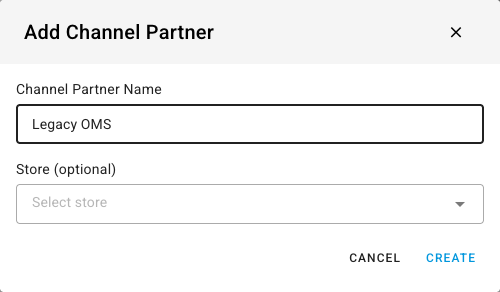
Enter a Channel Partner Name your team will recognise, such as Legacy OMS, and optionally pick the Store its orders belong to.
-
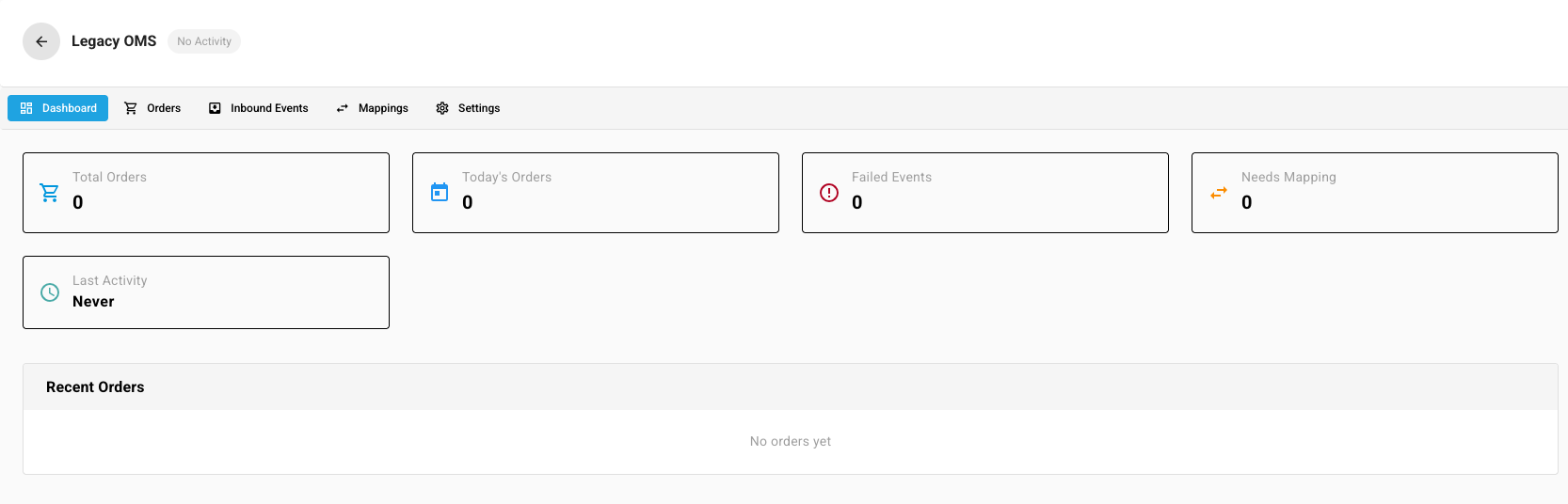
Click Create. The partner's own page opens on its Dashboard, which counts its orders, today's orders, failed events, and items that still need mapping.
2. Give the other system its token
-
Open the partner's Settings tab.
-
Under General Settings, choose what happens When an order arrives from a customer that isn't mapped:
- Create or match automatically (default) — SKU.io finds the customer or creates one.
- Hold order for review until mapped — the order fails in a way you can recover from. Map the customer on the Mappings tab, then reprocess it.
-
Under API Access, type a Token name and click Generate New Token. Copy the token straight into the other system's secret store. The same card shows the address the other system sends its orders to.
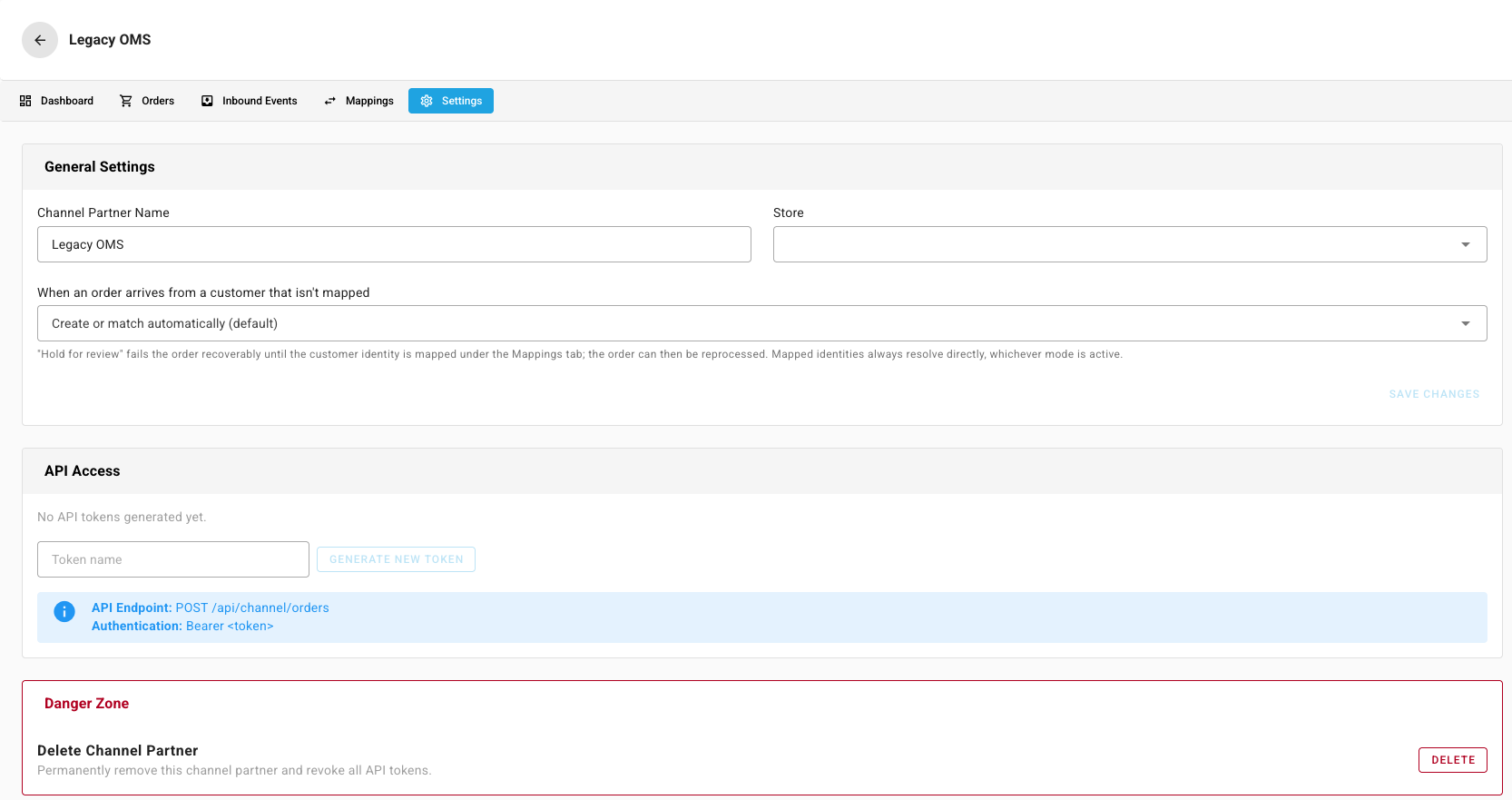
To stop a token working, revoke it from the same card. Delete Channel Partner, in the Danger Zone, removes the partner and revokes all of its tokens.
3. Map the other system's SKUs and customers
When the other system's SKUs match yours, its orders land with no further work. Where they don't, open the Mappings tab and map each of its SKUs to one of your products, one at a time, through Import / Export, or with Auto-Match. A mapping is never required, but when one exists it always wins, even over a SKU that matches directly. Orders that can't be matched are counted under Needs Mapping on the dashboard.
4. Tell the other system when orders change
Go to Settings → Developer → Webhooks and create one subscription per event the other system needs:
| Event | Fires when | Typical use |
|---|---|---|
sales_order.shipped | A sales order is fully shipped | Mark the order complete there, and pass on tracking |
sales_order.cancelled | A sales order is cancelled | Cancel the copy |
sales_order.created | A sales order is created, from any channel or by hand | Copy orders from your other channels into the other system |
inventory.adjusted | Stock is adjusted, transferred, or recounted | Refresh the stock figure the other system shows |
sales_order.shipped fires once per order, when the whole order has shipped.
It doesn't fire for a partial shipment. Each subscription points one event at
one HTTPS address; for the signing secret and a test delivery, follow
Subscribe to webhooks.
If the other system also needs to read from SKU.io, for example stock levels,
give it a separate personal access token
with only the read scopes it needs, such as inventory:read.
5. Watch the connection
- The partner's Inbound Events tab logs every order the other system sent, grouped as Pending, Processing, Processed, and Failed, with the error and the order it created. A failed event is the first place to look when an order is missing.
- The partner's Orders tab lists the sales orders it created. They also appear in Orders → Sales Orders with your other channels.
- Settings → Developer → Webhooks keeps a delivery log for each subscription. A run of failures means the other system isn't accepting events; see Monitor webhook deliveries.
Next steps
- Order events and automation — what else happens inside SKU.io when an order is created, shipped, or cancelled.
- API scopes reference — every scope a read token can carry.
- How channel orders sync — how SKU.io treats orders that come from a channel.