Set the stock each channel sees
Each sales channel can see a different amount of your stock. One channel might sell from every warehouse, another only from your main one. You might show a marketplace no more than 25 units at a time, or keep two units back so a late sync can't oversell. These are the channel's inventory rules, and you set them once per connection on its Inventory Sync settings tab.
Before you begin
- The channel is connected. See Manage a connected app.
- You need permission to update integrations.
- The rules only apply while SKU.io is the channel's Master of Stock. When the channel or Neither owns the quantity, SKU.io doesn't send stock to it.
Open the Inventory Sync settings
- Go to Apps & Integrations and open the connection.
- Click Settings, then the Inventory Sync tab.
If a banner says Inventory pushes are paused, the connection's sync schedule is off. Your rules are saved, but nothing is sent until you turn syncing back on with Manage in Sync settings.
Choose who owns the quantity
Under Master of Stock, choose:
| Option | What happens |
|---|---|
| SKU.io | SKU.io works out the quantity from your warehouses and rules, and sends it to the channel. |
| The channel | The channel keeps its own quantity. On some channels this option is only available through support. |
| Neither | No stock is sent either way. You manage the quantity on each side yourself. |
Choose the stock warehouses
Under Stock Warehouses, choose the warehouses whose stock this channel may sell. Start typing to search, and tick each warehouse you want. Stock in any other warehouse isn't counted in the quantity the channel is sent.
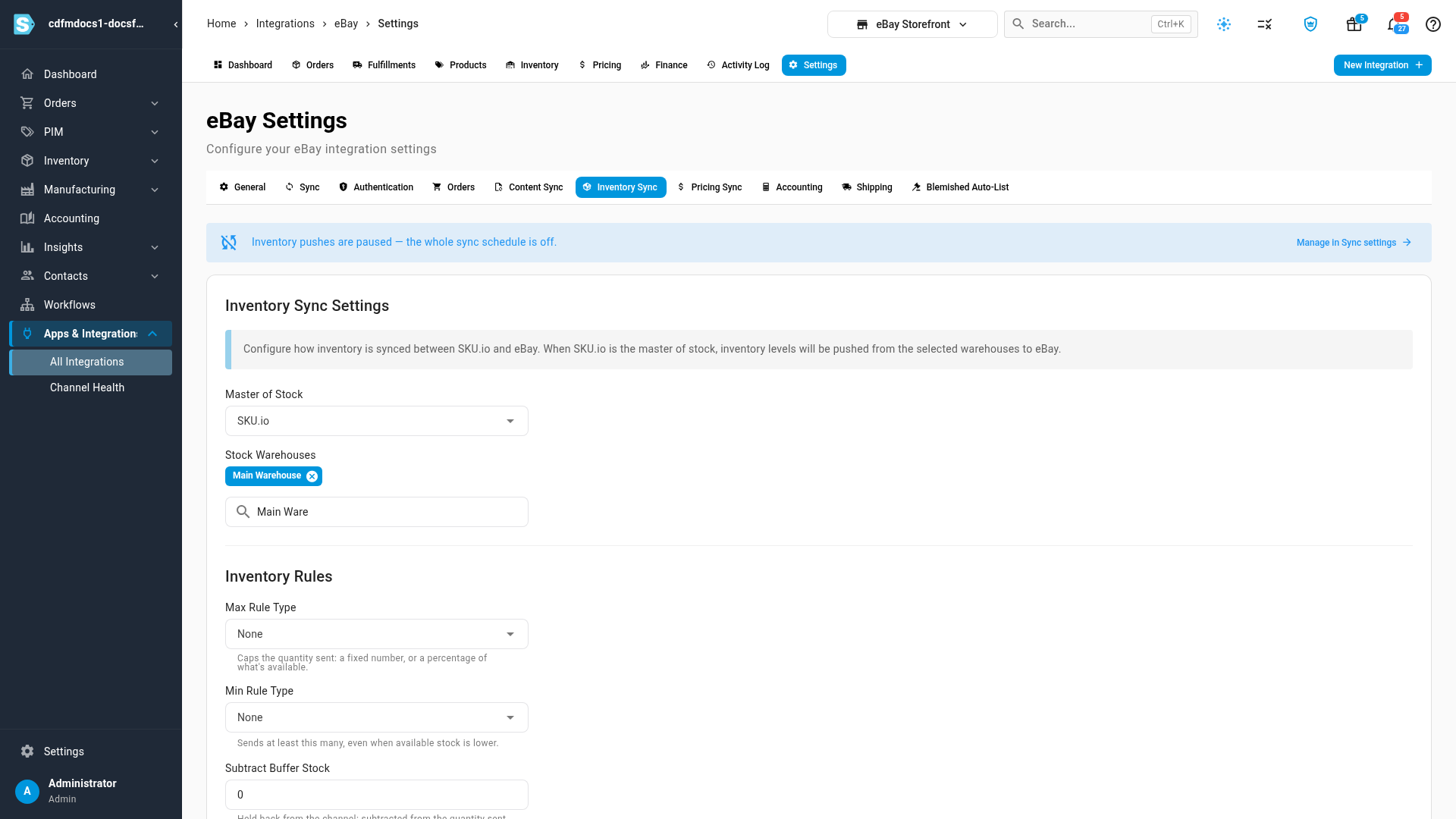
A supplier's warehouse marked Drop-ship can be chosen too, so products your supplier ships for you count toward the channel's quantity.
Set the inventory rules
Under Inventory Rules:
- Max Rule Type caps the quantity sent. Choose Fixed Allocation to never send more than the Value you enter, or % of Available to send only that percentage of your available stock.
- Min Rule Type sets a floor. With Fixed Allocation, the channel is sent at least the Value you enter (less any buffer), even when you have less in stock.
- Subtract Buffer Stock is the number of units to hold back. It's taken off the quantity after the Max and Min rules.
- Click Save Changes.
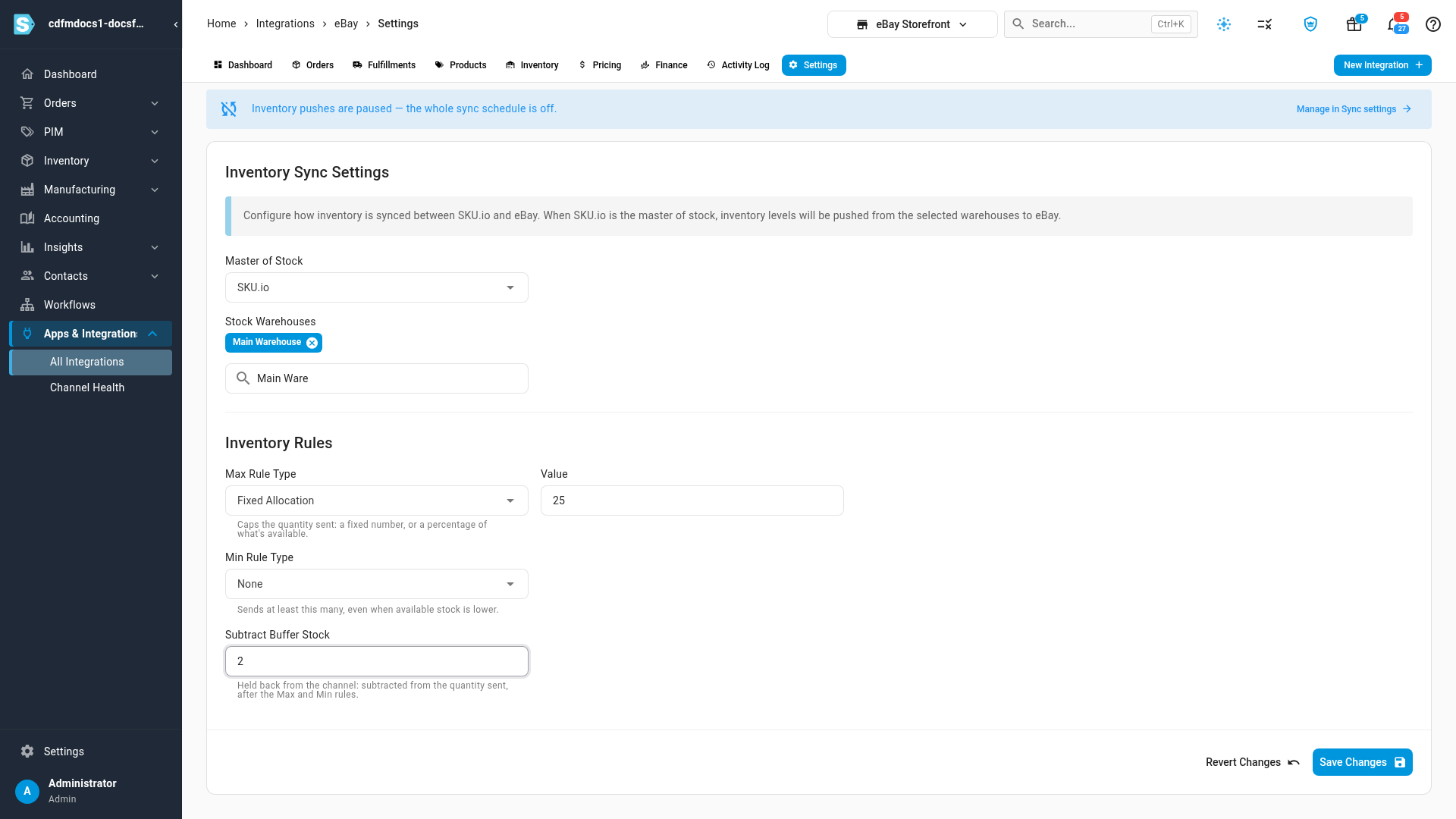
The new quantities go out with the channel's next inventory sync.
A Min rule can send the channel more than you hold, so the channel can take orders you can't fill from stock. Use it only for items you can always get, such as made-to-order or drop-shipped products.
Worked example
Say the stock warehouses hold 100 units of a product available to sell:
| Rules | Quantity sent |
|---|---|
| None | 100 |
| Max: Fixed Allocation 25 | 25 |
| Max: % of Available 80 | 80 |
| Max: Fixed Allocation 25, buffer 2 | 23 |
| Buffer 2 only | 98 |
With only 3 units available, a Max of 25 and a buffer of 2 sends 1.
Channels with several locations
On channels that hold stock in more than one location, such as Shopify, the Inventory Sync tab has a Location-Specific Settings section that overrides the connection's settings for each of the channel's locations. Import the channel's locations first, from its Locations tab.
A single listing can also have its own stock rules instead of the connection's. The listing's Inherit column shows whether it uses the connection's rules. See Listing and channel inventory reference.
Next steps
- Manage a connected app: pause, resume or stop syncing for a connection.
- Listing and channel inventory reference: Master of Stock options and channel inventory sync statuses.
Video transcript
Each channel's stock rules live in its settings, on the Inventory Sync tab. Here we're looking at an eBay store. Master of Stock decides who owns the quantity. With SKU.io selected, SKU.io works out the quantity and sends it to the channel. Under Stock Warehouses, pick the warehouses whose stock this channel may sell. Stock in any other warehouse stays out of the quantity it's sent. To cap what the channel sees, set a Max rule. Fixed Allocation never sends more than the number you enter, however much you hold. The other option sends a percentage of your available stock instead. A Min rule does the opposite, and always sends at least the number you set. Below it, enter a number in Subtract Buffer Stock to hold a few units back from the channel. It comes off the quantity after the Max and Min rules. That way, a slow update can never oversell your last few units. When the rules look right, click Save Changes, at the bottom of the card. The new quantity goes out with the channel's next inventory sync.