Account for Shopify and eBay payouts
By default, each Shopify or eBay order posts to your books as its own invoice for the order total. Your bank sees something else: one payout every few days, net of fees, refunds and adjustments, so the invoices never match the deposit. Per payout accounting posts each payout instead, as invoices and bills whose net equals the deposit exactly. Shopify Payments and eBay payouts work the same way.
Before you begin
- Connect the Shopify store or eBay account. Shopify payouts need Shopify Payments. eBay payouts come from eBay's own payments.
- Set up the accounts you'll post to, such as sales, refunds and payment processing fees, under Accounting → Settings → Nominal Codes.
- Pick the date to start from. Payouts dated before it are left out, so choose the first day of a period your books haven't already covered with per-order invoices.
Open the channel's finance settings
-
Go to Apps & Integrations, open Shopify or eBay, and choose the store in the integration selector.
-
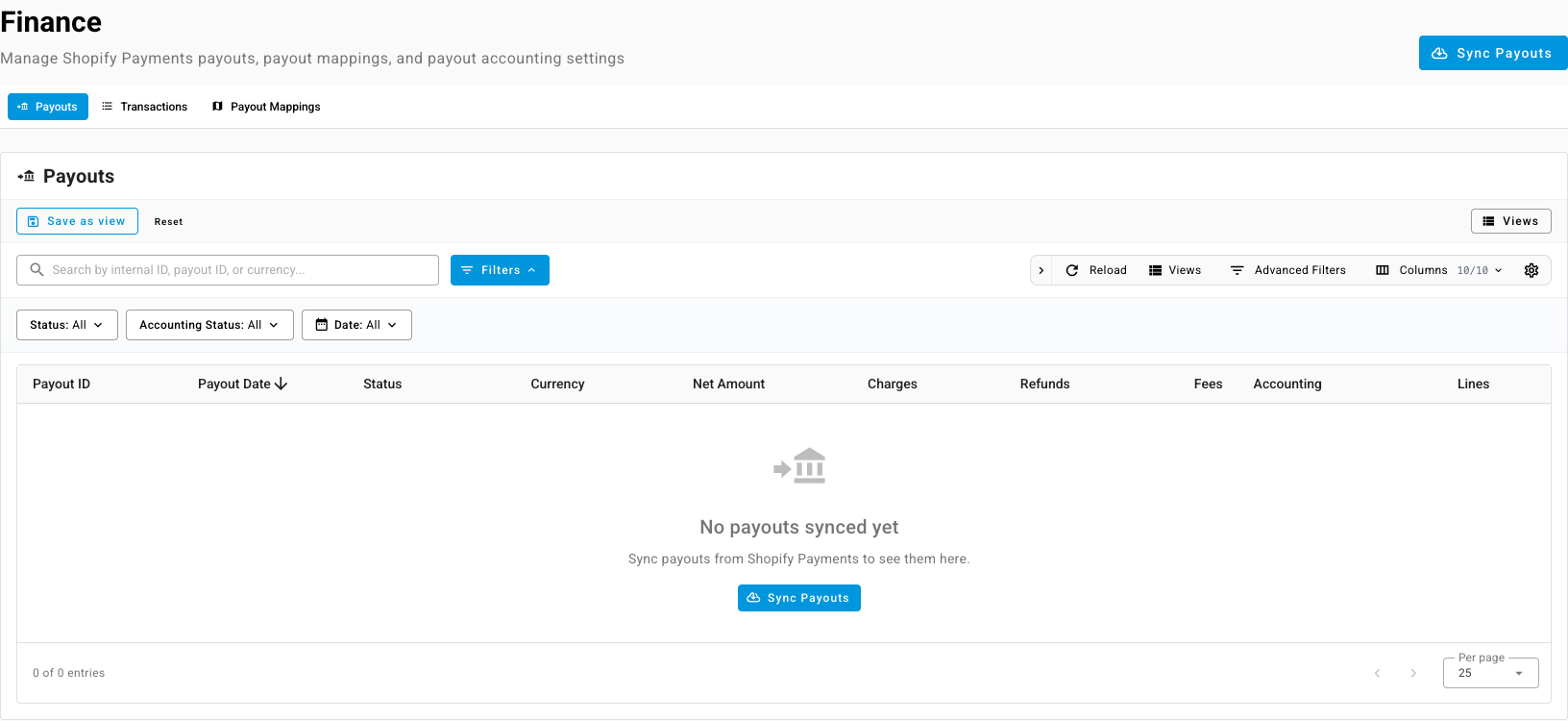
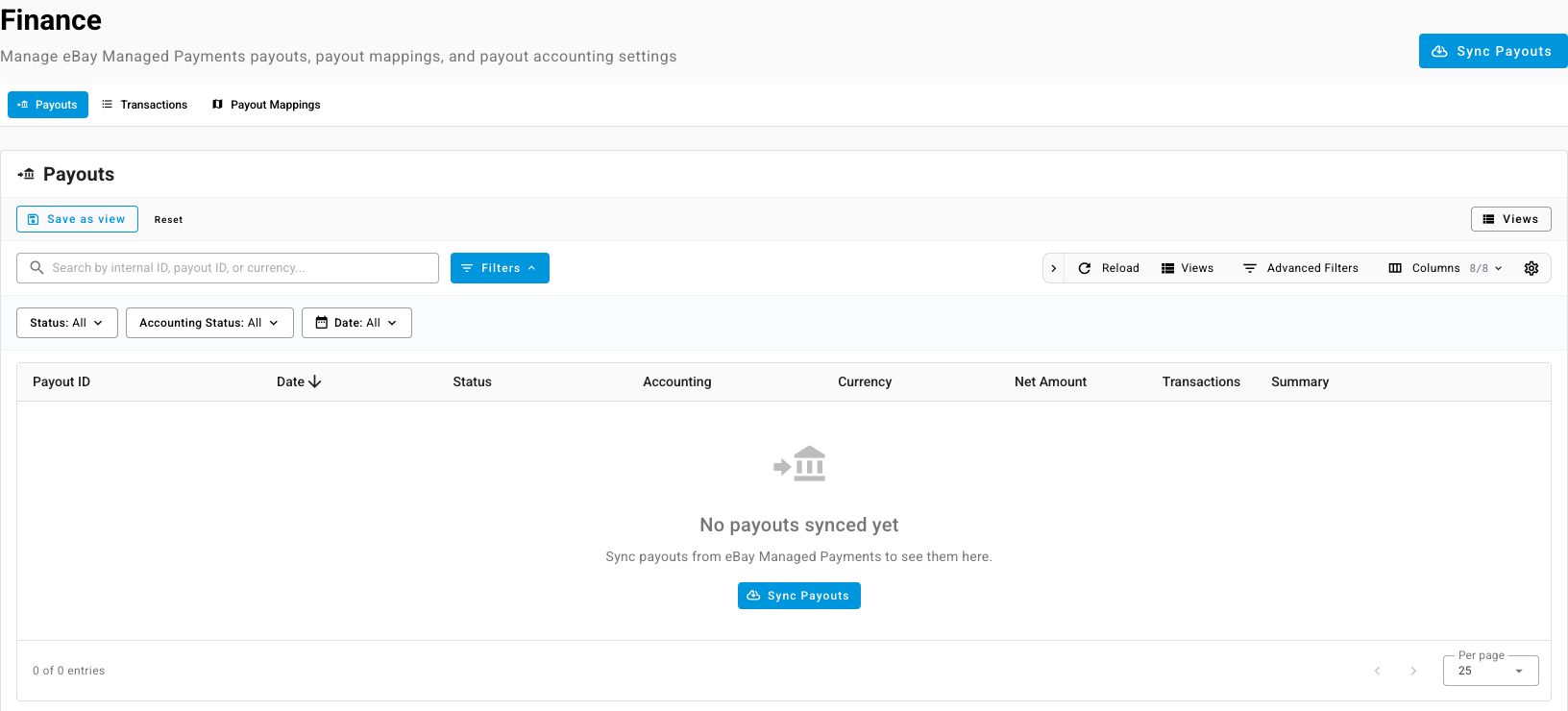
Open the Finance tab. Payouts lists every payout with its date, status, net amount and an Accounting status.
-
If the list is empty, click Sync Payouts to pull them in.
-
Open Payout Mappings.
Set up the mappings
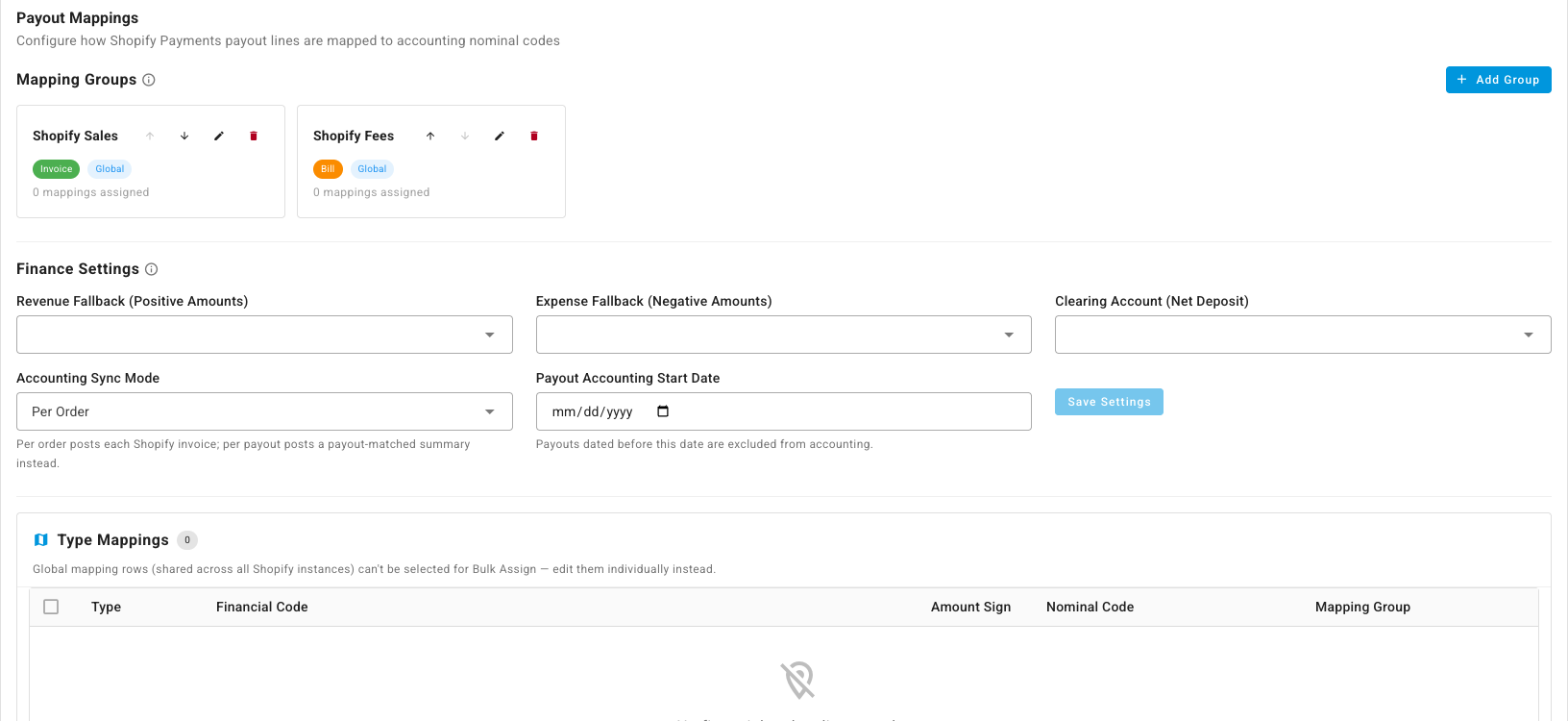
- Under Mapping Groups, check the groups. Each group becomes one document per payout: an Invoice for money you receive, or a Bill for money kept back, such as fees. A new store starts with a sales invoice group and a fees bill group. Click Add Group to add another, and choose whether it applies to every store (Global) or only this one.
- Under Type Mappings, give each kind of payout line, such as charges, refunds, fees and adjustments, a Nominal Code and a Mapping Group. A mapping for this store overrides a global one.
- Under Finance Settings, set Revenue Fallback (Positive Amounts) and Expense Fallback (Negative Amounts). Any line you haven't mapped posts to these, so a new kind of line never holds a payout up.
Switch the store to per-payout accounting
- In Finance Settings, set Payout Accounting Start Date.
- Change Accounting Sync Mode from Per Order to Per Payout.
- Click Save Settings, read the warning, and confirm.
From then on, the store's own order invoices and credits stop syncing to your accounting provider, because each payout already carries that revenue. Orders still post inside SKU.io.
SKU.io doesn't void order invoices that were already sent to your accounting provider. If any of them fall after the start date, review them in Accounting and void them in your provider, or set the start date after the last order you synced.
Check each payout posts
Each payout's Accounting status shows where it is:
| Status | What it means |
|---|---|
| Pending | The payout isn't paid out yet, or it's dated before your start date. |
| Ready | It can post on the next run. |
| Posted | Its documents are in your ledger. |
| Held | Something blocks it, such as an unmapped line with no fallback, or a missing exchange rate. |
| Error | Posting failed. |
Open a payout to see its breakdown, ending in Net (= bank deposit), and the lines behind it.
A payout only posts when its documents add up to the deposit to the cent. A difference of up to one cent is absorbed; anything larger holds the payout.
Match the payout to your bank
- Shopify: in Statement Match, a bank line can match a whole Shopify payout in one step. See Match bank statement lines.
- eBay: the payout's documents are matched one at a time. Statement Match doesn't offer an eBay payout as a single match yet.
Next steps
- How entries are grouped by sales channel: how a channel's entries reach your books.
- Map Amazon settlements to your accounts: the same idea for Amazon.