Check how far your costs and counts can be trusted
Cost of goods sold and inventory value are only as good as the costs and stock counts behind them. A cost can be present and still be a guess. Go-live readiness checks that your costs and counts exist. Its Costs and counts group also shows how far they can be trusted: where each cost comes from, what each warehouse's stock rests on month by month, and how complete your 3PL's records are. Your accountant sees the same figures beside your reports.
Nothing in this group blocks accounting from turning on. These are warnings for you and your accountant to read.
Before you begin
- Permissions come from your role, under Accounting in Settings → Users & Permissions → Roles. To view the figures you need List. To run the check you need Sync. To set your confidence, enter your own figures or rate a 3PL you need Manage Settings.
- Run the main check first. See Check your data before you turn on accounting.
Open the trust checks
-
Go to Accounting → Settings, and open Go-live readiness.
-
Select Run check, or Re-run if it has run before.
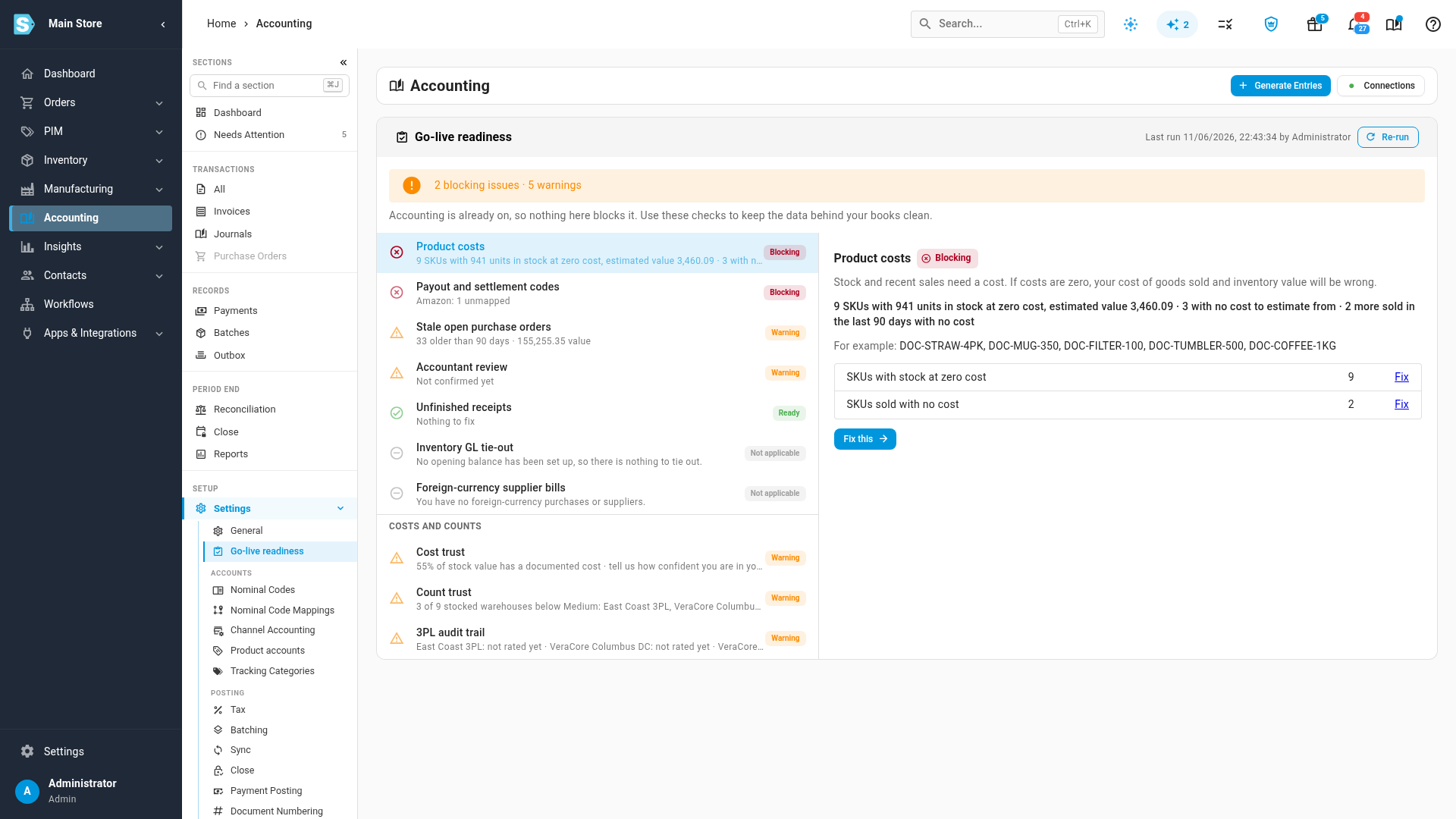
The Costs and counts group lists three checks: Cost trust, Count trust and 3PL audit trail. Product costs, listed before them, checks that your costs exist at all.
Read your cost trust
-
Select Cost trust.
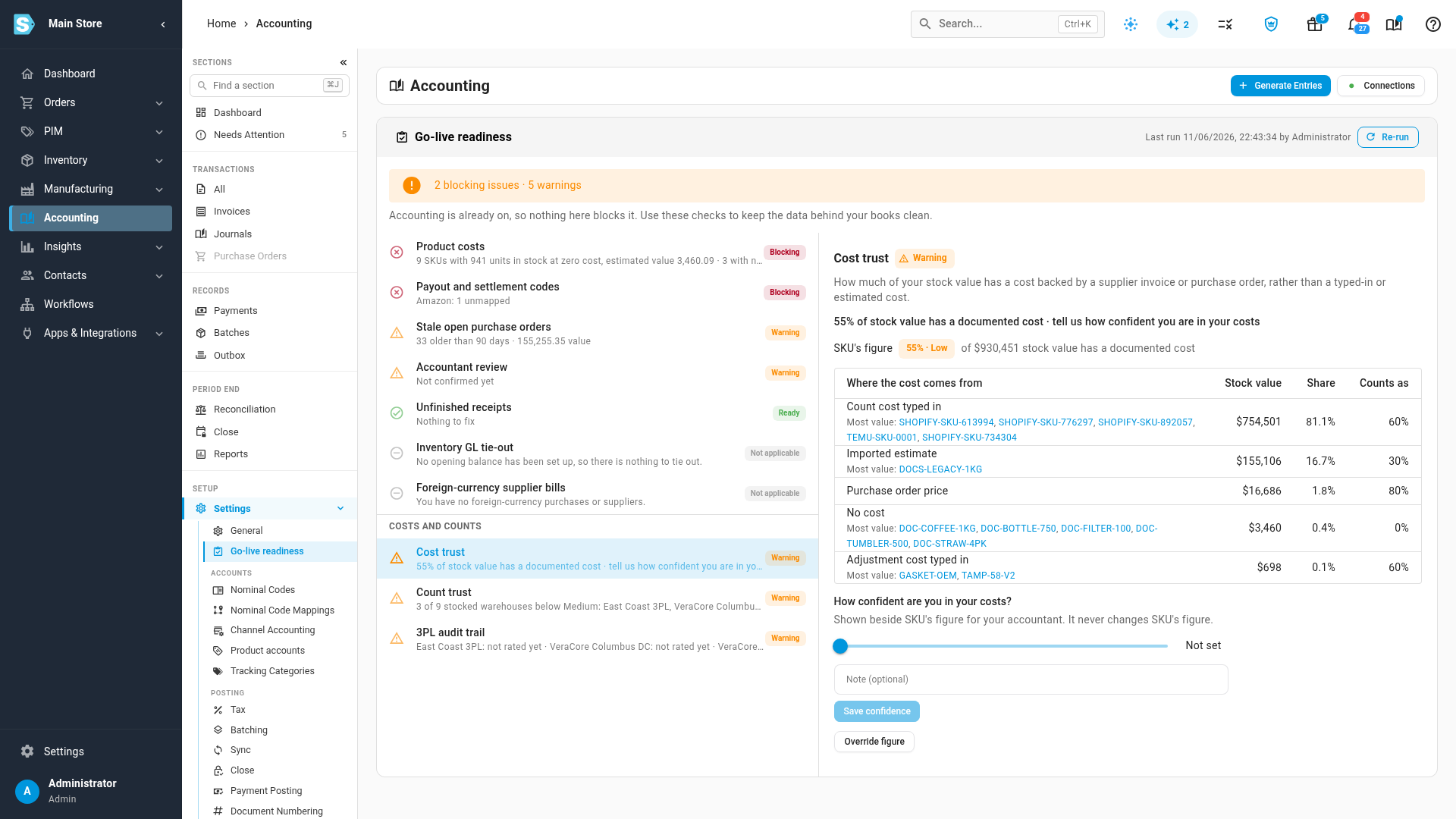
SKU's figure is the share of your stock value whose cost is documented, weighted by where each cost comes from. The table shows how much stock value comes from each source.
-
Look at the sources that count for less. Each one lists the SKUs holding the most value; select one to open the product.
| Where the cost comes from | Counts as |
|---|---|
| Supplier invoice | 100% |
| Purchase order price (received, no supplier invoice yet) | 80% |
| Transfers and manufacturing | 80% |
| Customer returns | 80% |
| Estimated landed cost (freight or duty still estimated) | 70% |
| Adjustment cost typed in | 60% |
| Count cost typed in | 60% |
| Average or backfilled cost | 40% |
| Imported estimate | 30% |
| No cost | 0% |
The figure is labelled High (85% or more), Medium (60–84%), Low (30–59%) or Estimate (under 30%). Consignment stock isn't counted. Stock with no cost on the product either is valued at nothing, so it can't raise or hide the figure.
The check warns when the figure is under 60%, or when nobody has stated their confidence yet.
Say how confident you are
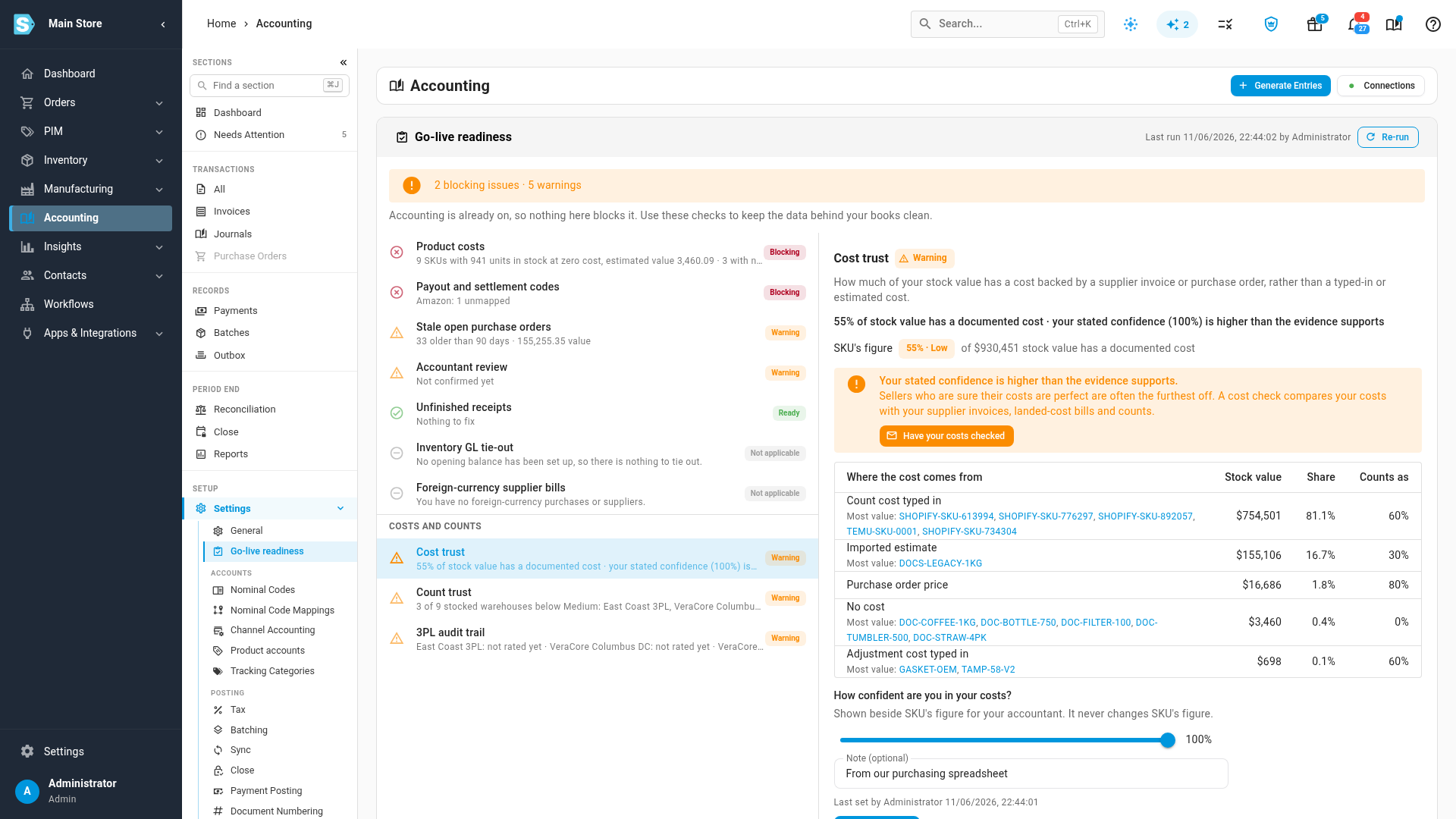
- Under How confident are you in your costs?, move the slider to how confident you are that your costs are right.
- Add a note if it helps, such as where your costs come from.
- Select Save confidence.
Your confidence is shown beside SKU's figure and never changes it. When you say 95% or more but the evidence is under 60%, the page says Your stated confidence is higher than the evidence supports, with Have your costs checked. It opens an email to the SKU.io team to ask for a cost check against your supplier invoices, landed-cost bills and counts.
To remove your answer, select Clear.
Check your counts by month
-
Select Count trust.
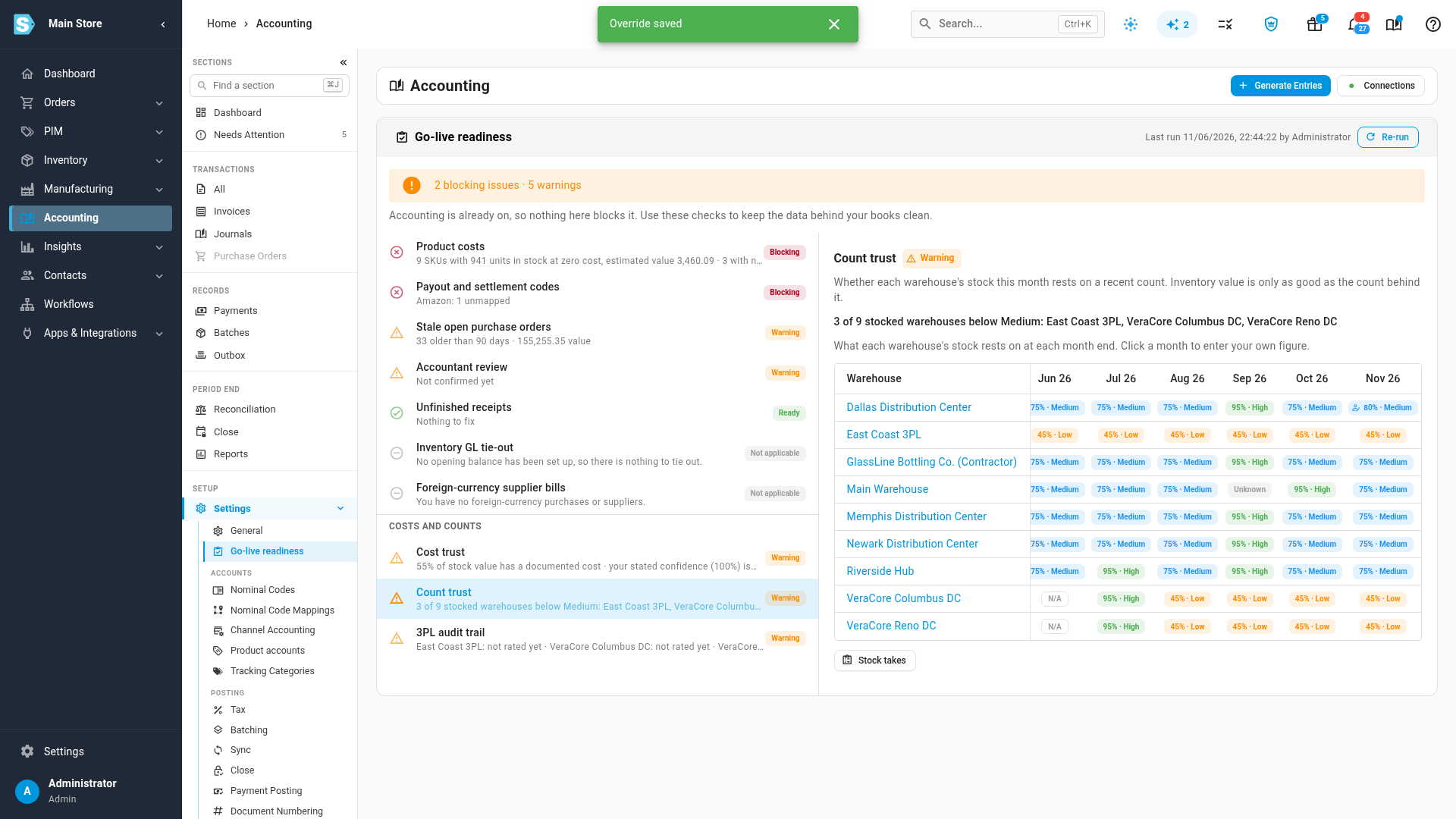
Each row is a warehouse, and each column is a month end. The table opens on the most recent month. Hover over a month to see what it rests on.
| What a month rests on | Figure |
|---|---|
| A full count that month | 95% |
| Counts that month covering at least half of the warehouse's stock value | 85% |
| A full count in the previous 3 months | 75% |
| A 3PL or fulfillment network (such as FBA) with records rated Complete | 70% |
| A 3PL whose records are rated Partial or not rated | 45% |
| Nothing | Unknown |
Only physical counts count. A stock take that accepts a 3PL's reported quantities, an adjustment, or one made to catch up or correct stock isn't a count. A count that covers at least 90% of a warehouse's stock value is treated as a full count. A count taken bin by bin is only treated as full when it's marked as one. A month before a warehouse held any stock shows N/A.
The check warns when any warehouse holding stock is below Medium this month.
Use your own figure for a month
When you know better than the records, for example a count done on paper:
- Select the month in the warehouse's row.
- Enter the figure, and a reason of at least 10 characters.
- Select Save override.
The month shows your figure with an adjusted mark. SKU's own figure, your reason, your name and the date stay in its tooltip. To remove it, select the month again and select Remove override. Cost trust has the same option, Override figure.
Rate your 3PL's records
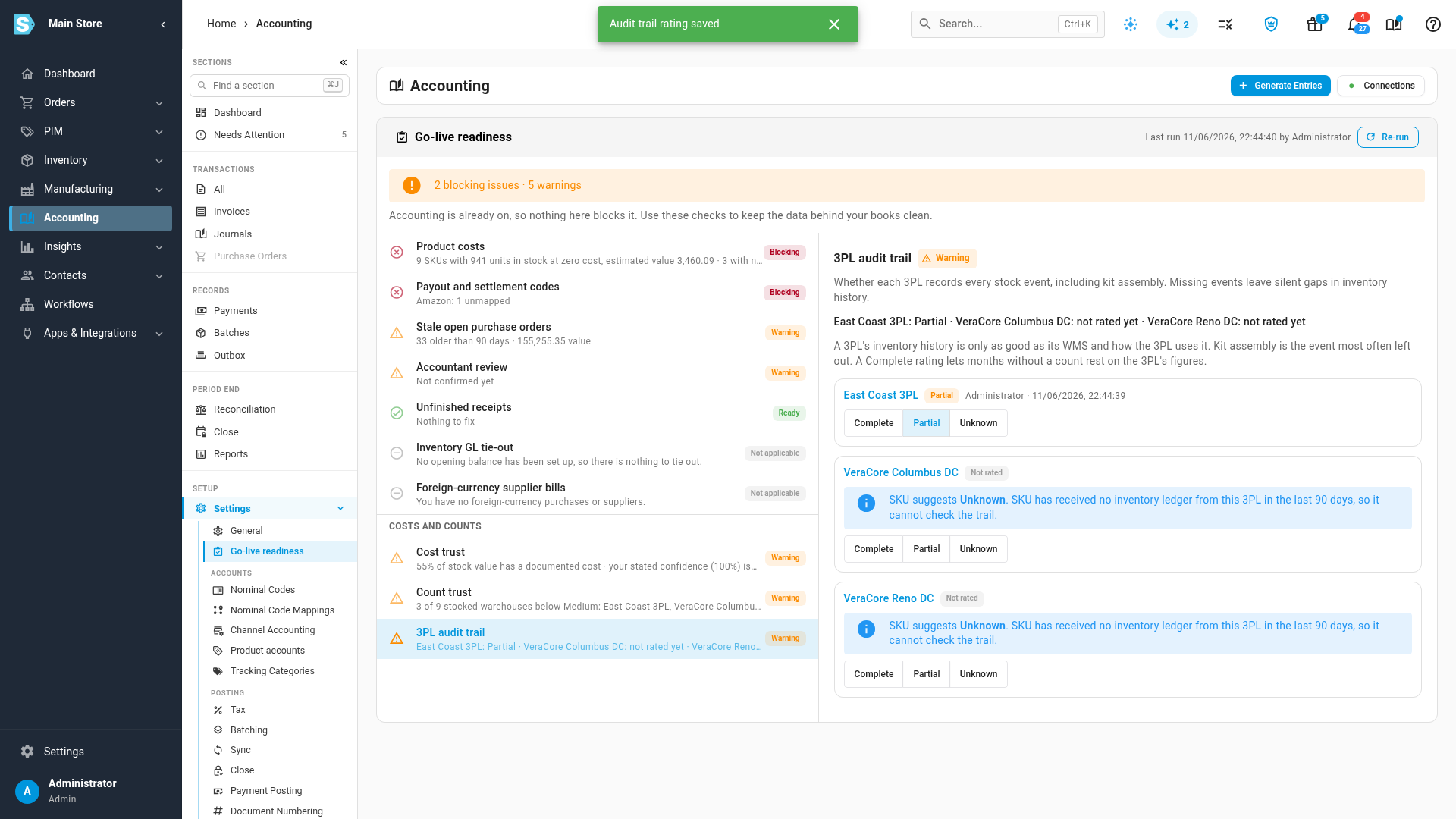
A history built from a 3PL's records is only as complete as those records. Some 3PLs don't record every event, and kit assembly is the one most often left out.
-
Select 3PL audit trail.
Each 3PL warehouse shows its rating and SKU's suggestion, with the evidence for it. SKU suggests Partial when a warehouse holds kits or kit components and its 3PL's records show no kit assembly in the last 90 days, or when no records have arrived from the 3PL to check.
-
Choose Complete, Partial or Unknown.
The check warns until every 3PL warehouse is rated Complete. A Complete rating lets months without a count rest on the 3PL's quantities at 70% instead of 45%.
See trust in your reports
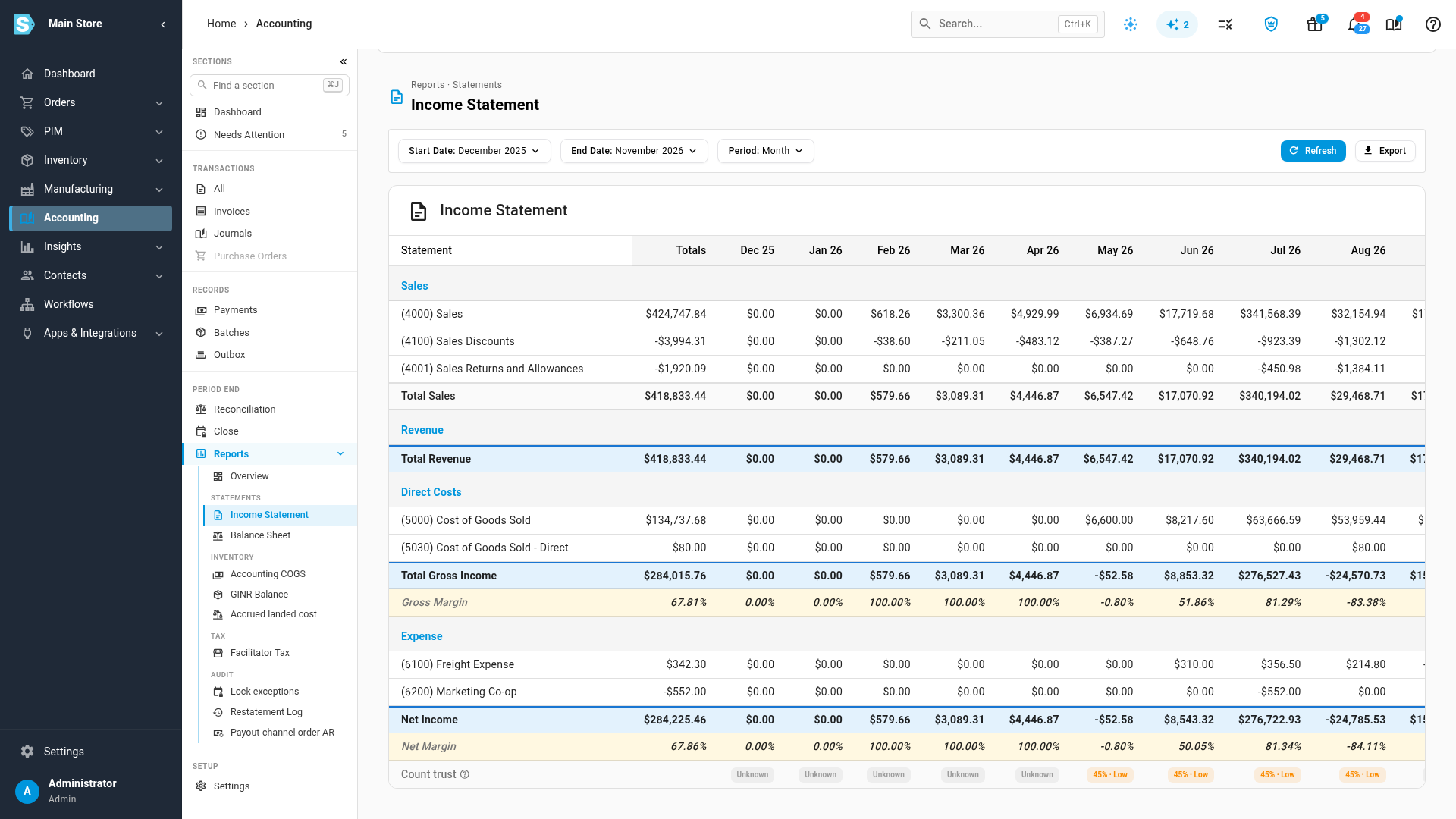
- Income Statement: under Accounting → Reports → Income Statement, with Period set to Month, a Count trust row shows each month's figure. It's the lowest of your warehouses that month; hover over it to see each warehouse and today's cost trust. The row is in the export too, as Count trust % and Count trust label.
- Inventory Valuation: after you select Generate Report, Count trust at the top shows the figure for the month of the report's date.
Stock held at Amazon (FBA and AWD) isn't part of these figures yet.
Next steps
Video transcript
Go-live readiness looks at more than whether your costs exist. Select Run check. The Costs and counts group shows how far your costs and stock counts can be trusted.
Select Cost trust. It weighs your stock value by the source of each price. A supplier invoice counts in full. Typed-in or estimated prices carry less weight.
Next, set how confident you are in your costs, and add a note. Your answer sits beside the evidence and never changes the result. When yours is much higher, the check flags the gap. Here, the stated confidence runs well ahead of the evidence.
Next, select Count trust, in the same group. It shows what each warehouse's stock rests on at every month end. To use your own figure, select a cell, enter it, and give a reason. The original stays in view, beside yours. That month is marked as adjusted.
Select 3PL audit trail. The check looks at whether your 3PL records kit assembly. Choose the rating that matches what you know. A complete one lets uncounted months lean on your 3PL. Your choice is saved straight away, and the check updates to match.
Open Reports, then the Income Statement. It lays out your sales and costs over the year, period by period. Under the figures, a count trust row rates every period.