Check your data before you turn on accounting
Your first accounting entries are built from your product costs, purchase orders, receiving, and sales channel payouts. If those are wrong when you start, the mistakes land in your books, and they're much harder to correct once they reach Xero or QuickBooks. Go-live readiness checks that data for you, shows what to fix, and links to the exact records.
Run it before you turn accounting on for the first time. You can run it again whenever you like.
Before you begin
- Set up your chart of accounts. See Chart of accounts reference.
- Permissions come from your role, under Accounting in Settings → Users & Permissions → Roles. To run the check you need Sync. To change its settings or record your accountant's review you need Manage Settings. To turn accounting on over a blocking item you also need Period Override.
- Ask your accountant to look over your setup with you. Correcting entries after they reach your accounting software is much harder than fixing the data first.
Run the check
-
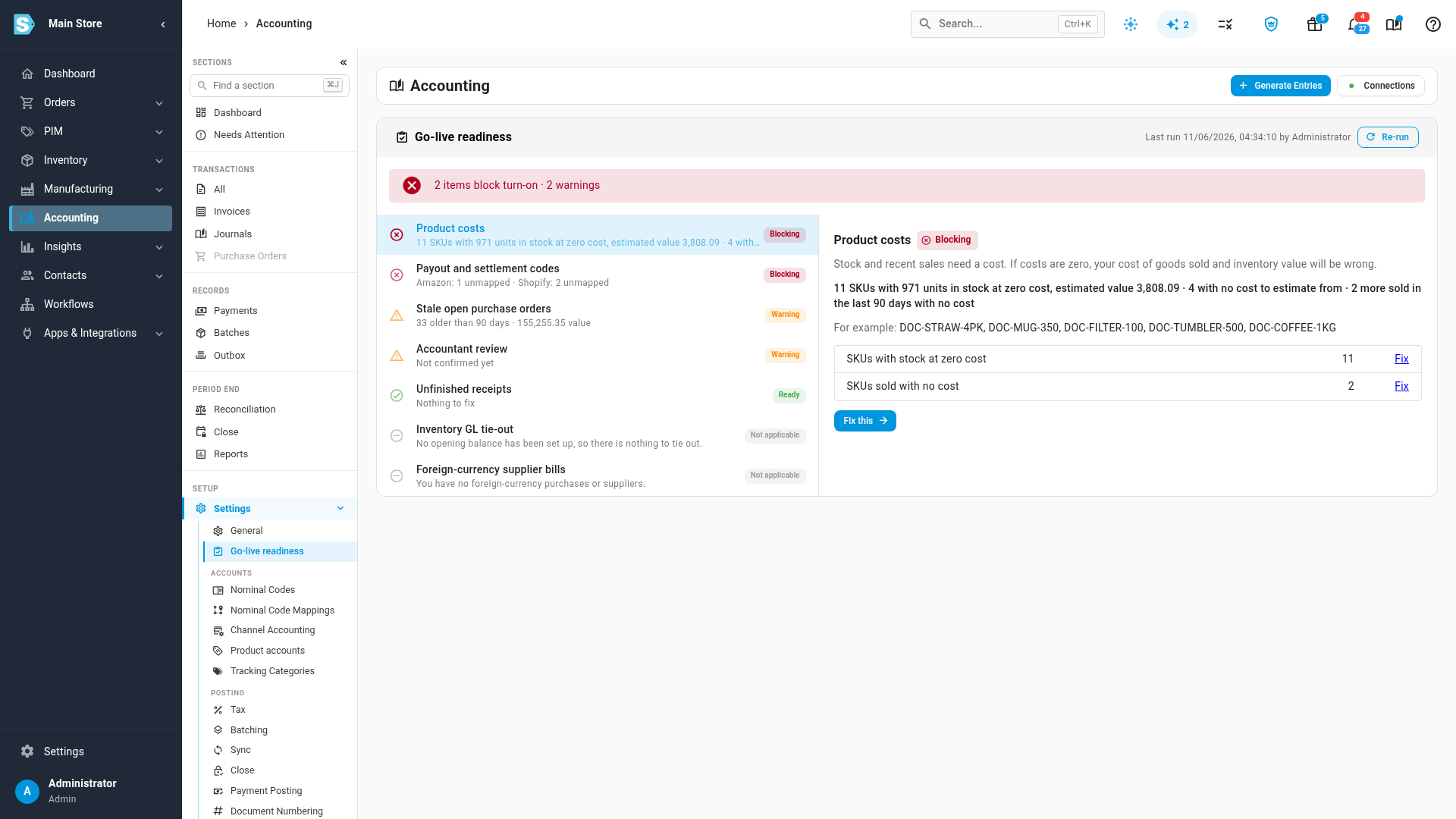
Go to Accounting → Settings, and open Go-live readiness.
-
Select Run check.
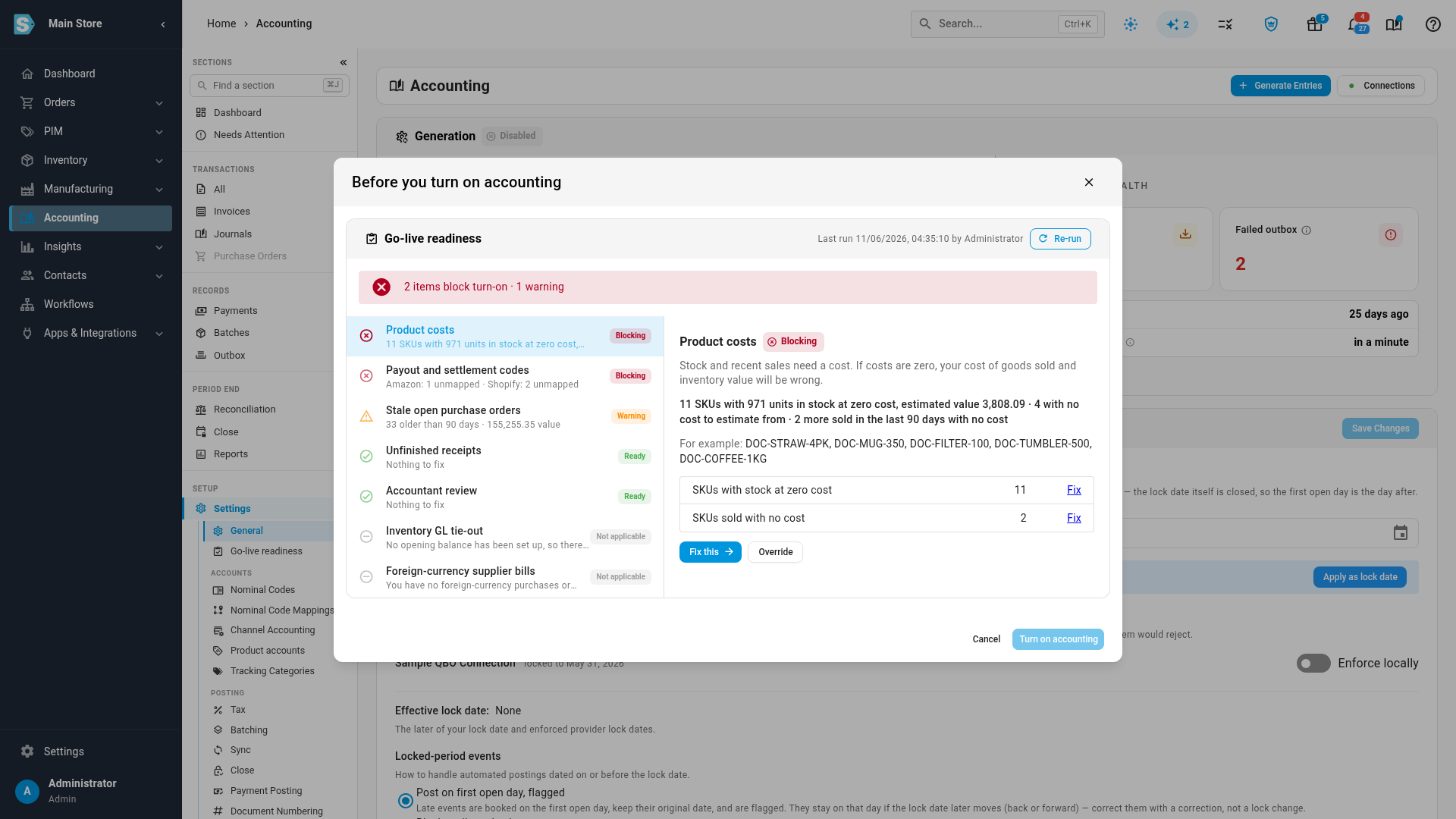
The results list every check. Blocking items stop accounting from turning on for the first time. Warning items never stop it, but read each one. Checks that don't apply to your account show Not applicable.
-
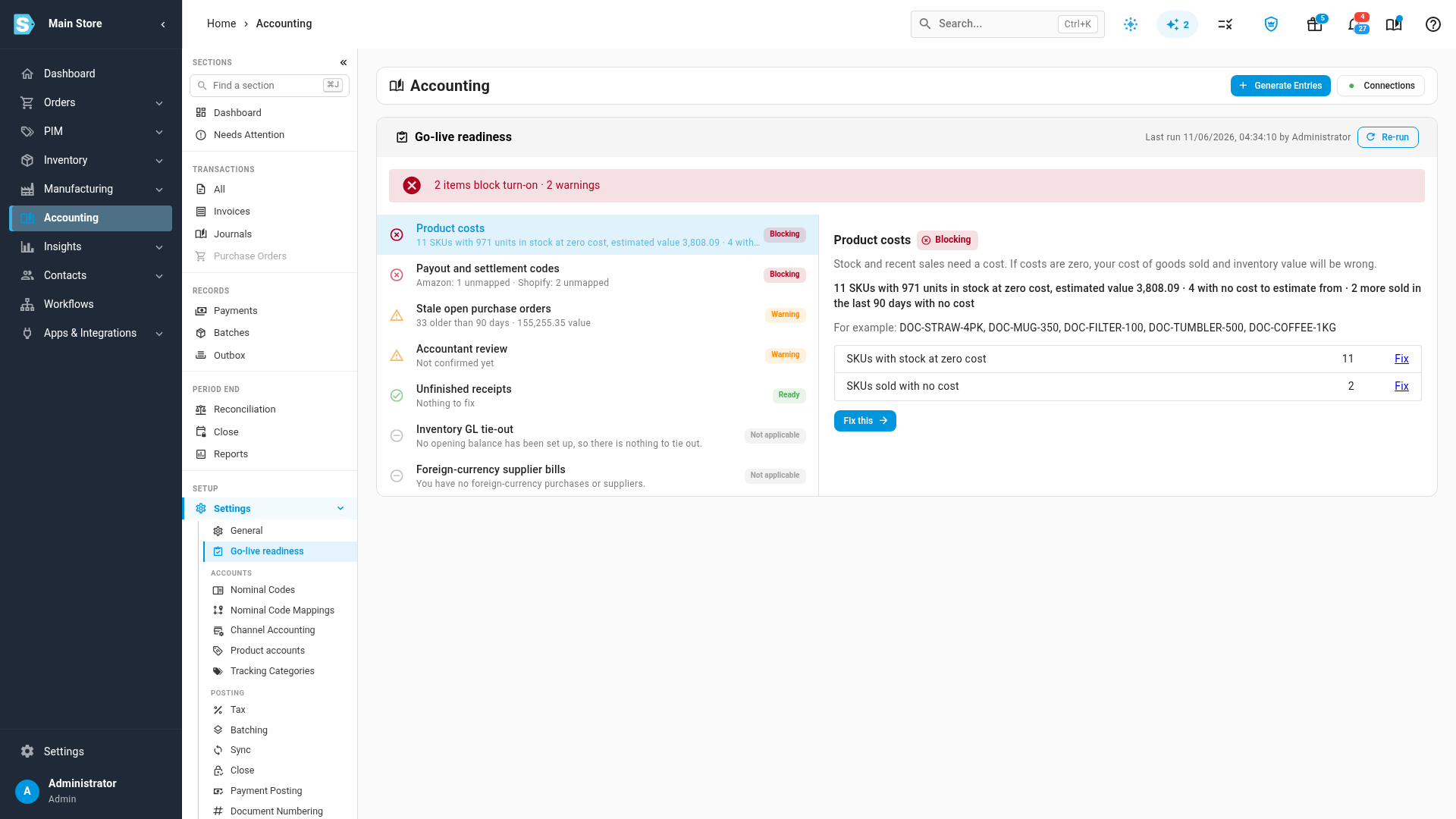
Select a check to see its figures, why it matters and what to do.
-
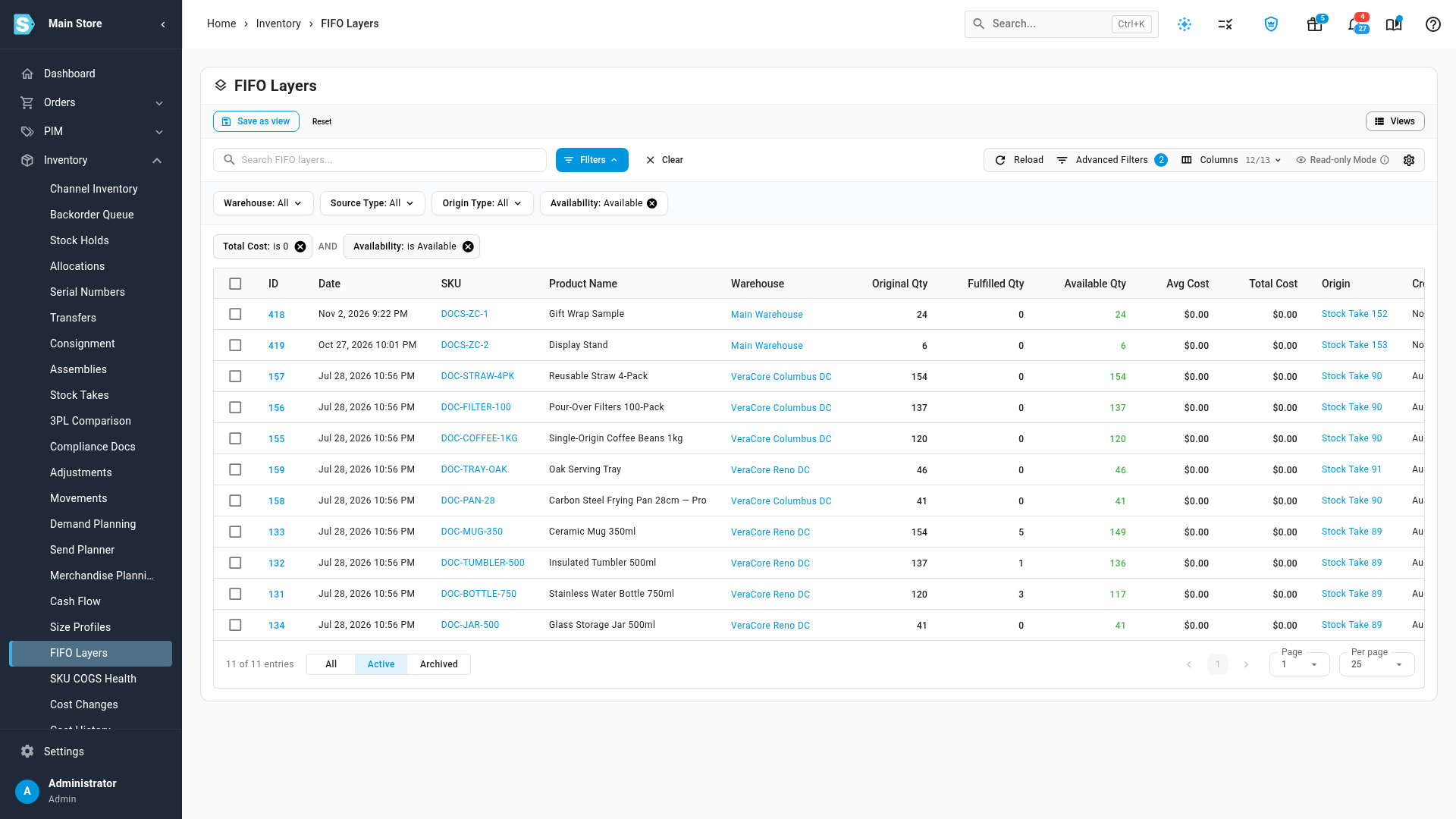
Select Fix next to a line, or Fix this, to open exactly the records that check counted.
-
Fix what you can, then come back and select Re-run to check again.
What each check looks for
| Check | Blocks turn-on? | What it flags | Where Fix takes you |
|---|---|---|---|
| Product costs | Yes | Stock held with no cost, and products sold in the last 90 days with no cost at all. It shows how many SKUs and units, and an estimated value from each product's average or unit cost. Consignment stock isn't counted. | The FIFO layers at zero cost, or the products sold with no cost |
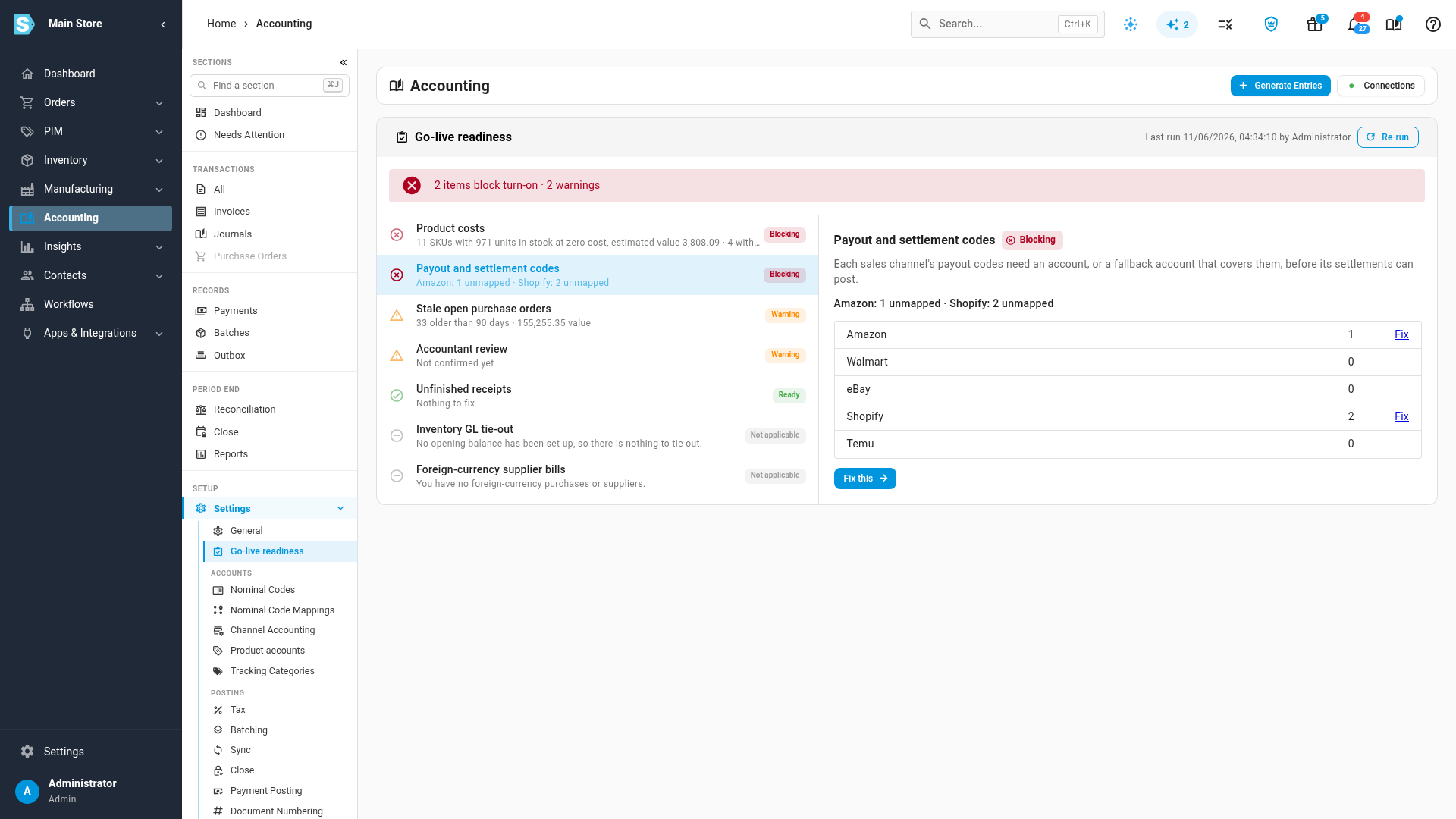
| Payout and settlement codes | Yes | For each sales channel account, payout codes that have no account and no fallback account to cover them. A fallback covers a code only when it has both a revenue and an expense account. | That account's payout or settlement mappings |
| Inventory GL tie-out | Yes | When you start from an opening balance: its inventory figure doesn't match your inventory valuation, or inventory doesn't agree with your accounting software where it has been compared. | Reconciliation → Starting Balances |
| Stale open purchase orders | No | Open purchase orders with nothing received that are older than the number of days you set (90 by default). | The purchase orders list, filtered |
| Unfinished receipts | No | Purchase orders and inbound shipments that are only partly received. | The purchase orders or inbound shipments, filtered |
| Foreign-currency supplier bills | No | You buy in other currencies, but supplier bills still post in your base currency. | Accounting → Settings → General |
| Accountant review | No | Nobody has confirmed that your accountant reviewed the setup yet. | Tick the box on this page |
To change how old an unreceived purchase order must be to count as stale, select Stale open purchase orders and change Stale after (days).
Record your accountant's review
- Select Accountant review.
- Once your accountant has reviewed the setup, tick My accountant has reviewed this setup.
The check records who ticked it and when. Untick it to clear it.
Turn accounting on for the first time
The first time you turn accounting on, the same check runs again before anything is saved. This happens from the setup wizard's Go-live readiness step, and from the Generate accounting entries for this tenant switch under Accounting → Settings → General.
-
Turn accounting on. The Before you turn on accounting window shows the check's results.
-
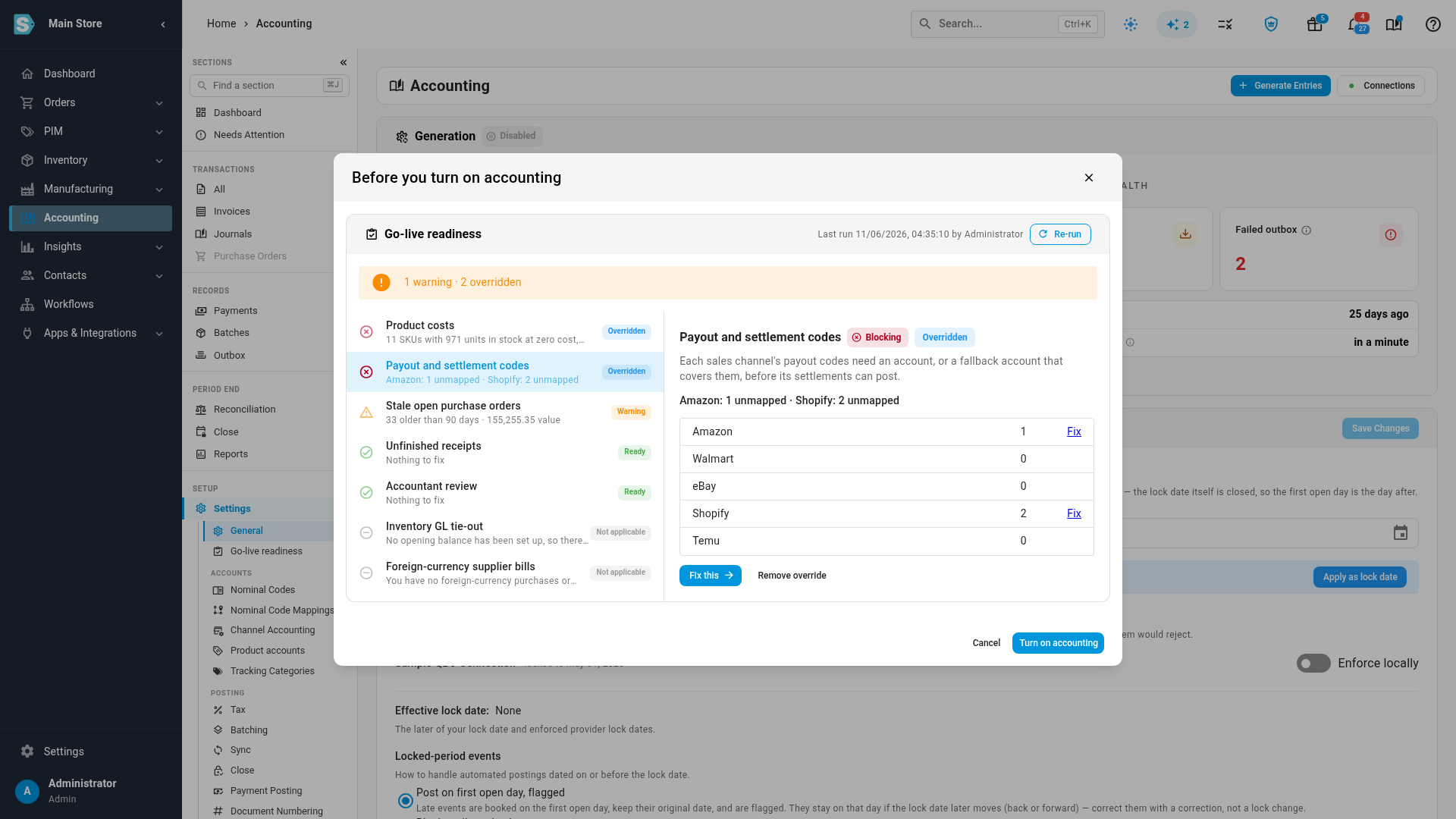
Fix each blocking item, then select Re-run. Or, to go live anyway, select the blocking item and select Override.
-
Enter a reason of at least 10 characters, and select Record override.
-
When nothing blocks any more, select Turn on accounting. Until then, the button stays unavailable, and hovering over it tells you why.
Every override is listed under Recorded overrides on the Go-live readiness page, with the reason, who recorded it, when, and the check's figures at that moment.
Only the first time is checked. If you pause accounting and turn it back on later, it turns on straight away.
Switching on a channel's payouts
If a sales channel's payout or settlement documents are set to Never send, switching them back on checks that channel account's payout codes first. If some codes have no account and no fallback, you can't switch them on until you map them, or override with a reason. See Use different accounts for each sales channel.
After accounting is on
Go-live readiness stays under Accounting → Settings. Nothing on it blocks anything once accounting is on, but it's a quick way to keep the data behind your books clean. Run it again whenever you like.
Next steps
- How automatic accounting works
- Connect Xero or Connect QuickBooks Online
- Accounting settings at a glance
Video transcript
Your first entries are built from your costs, orders and payouts. Go-live readiness, under Accounting settings, reviews that data before anything posts to your books. Select Run check to start. The results appear on this page within a few seconds.
Blocking items hold up the first turn-on. Warnings never do, but each one deserves a look.
Select a check to see its figures and why they matter. Each line counts specific items or orders. Fix opens the product list, filtered to exactly the stock this check counted. Here, the stock layers holding zero cost.
Payout codes are checked for every sales channel store. Each code needs a mapped account or a covering fallback.
Have your accountant look over this setup before you connect. Then tick the box to record who confirmed the review.
The first time you switch on entries, the same check runs again before saving. Until every blocker is handled, the turn-on button stays unavailable.
To go live anyway, override each blocker with a written explanation. Your name, that note and the figures at that moment are kept. Here, both blockers get one, and the summary shows the overridden count.
With every blocker fixed or overridden, turn on accounting. Your overrides stay listed under Go-live readiness.