Turn off inventory tracking in your books
SKU.io keeps your stock, costs and cost of goods sold, and posts them to your accounting system. Your books should only report those figures. If QuickBooks Online or Xero still tracks an item's stock itself, it books its own cost of goods sold and inventory value every time that item appears on an invoice or bill. Then the same stock is counted twice.
SKU.io checks for this and warns you, both before you turn accounting on and at every month-end close. This guide shows where the warning appears and how to switch tracking off.
Shipping and order tools (ShipStation, for example) can keep their own stock counts too. Turn their inventory tracking off as well, so SKU.io is the only place that holds your stock.
Before you begin
- You need a QuickBooks Online or Xero connection. See Connect QuickBooks Online or Connect Xero.
- Talk to your accountant first. Switching an item off in your books changes its quantity and value there, and they should decide which month that lands in.
Find the items your books still track
-
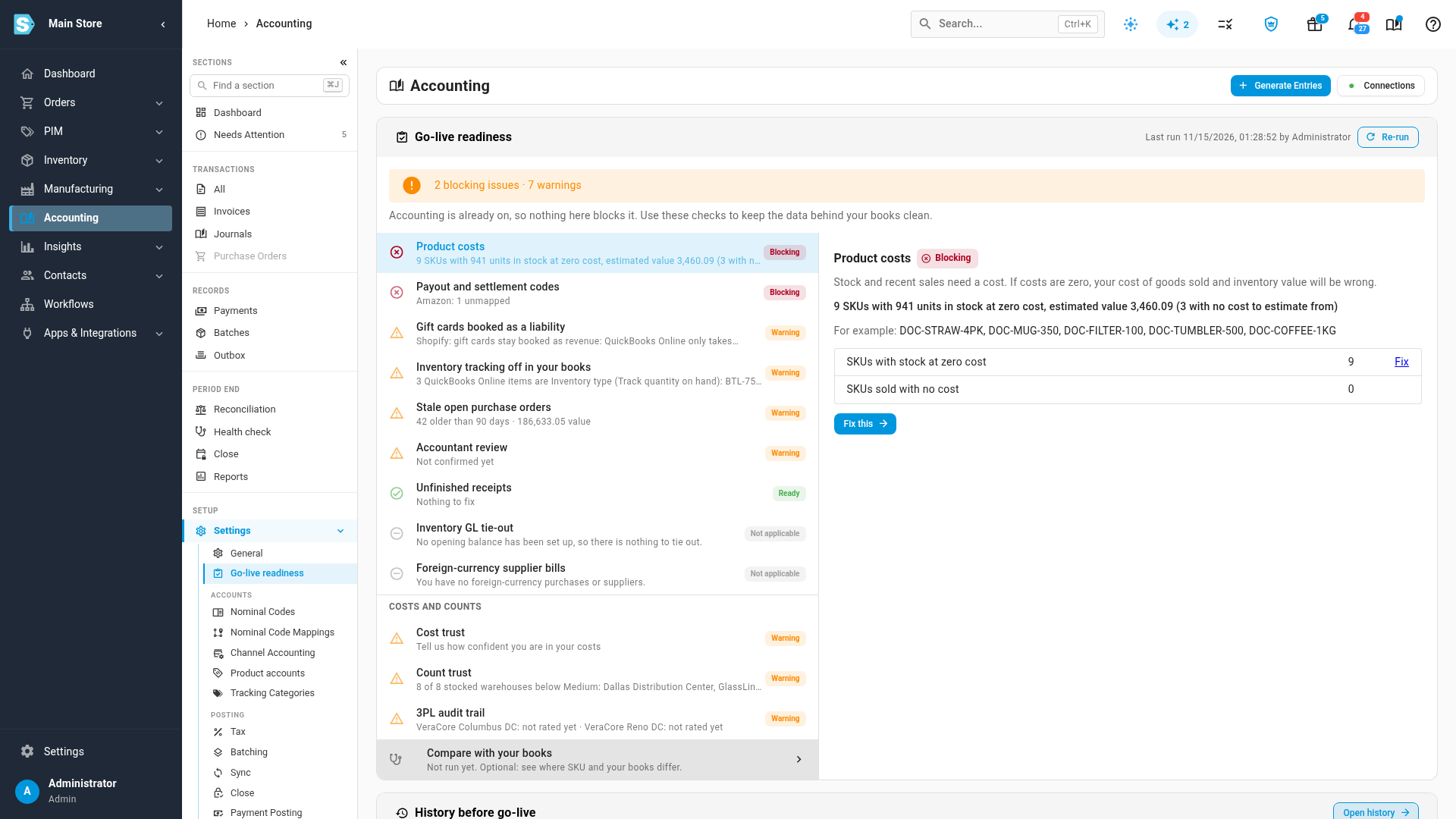
Go to Accounting → Settings → Go-live readiness.
-
Click Run check. If the check has run before, the button says Re-run.
-
Click Inventory tracking off in your books.
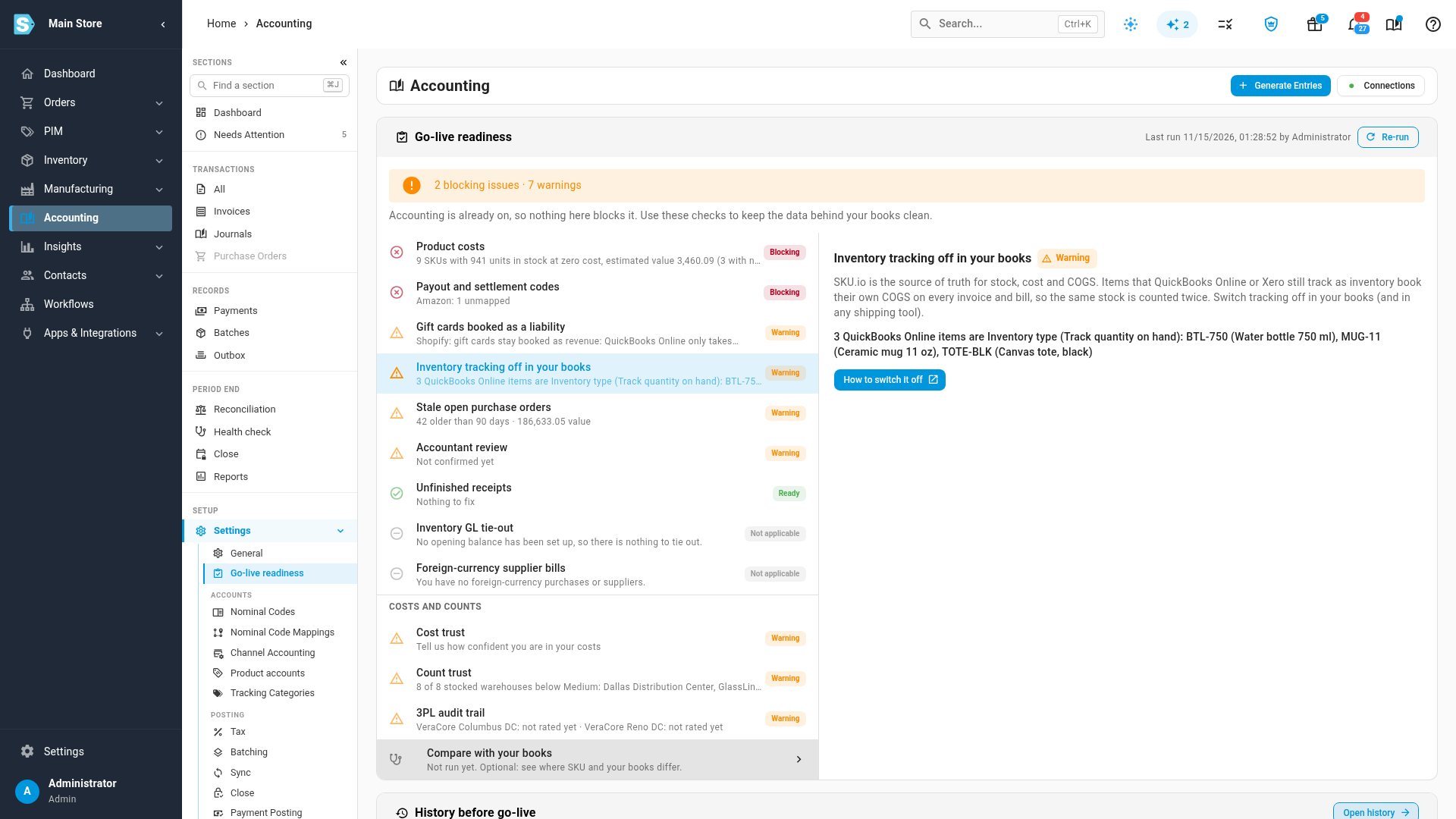
The check lists each item your books track: QuickBooks Online items of the Inventory type (QuickBooks calls this Track quantity on hand), or Xero items set to Track inventory item.
-
Click How to switch it off to open this guide from the check.
The check is a warning. It never stops you turning accounting on, but each item it lists keeps doubling your cost of goods sold until you switch it off.
The same check appears on the month-end close checklist, under Data completeness, as Inventory tracking off in your books. It catches an item someone sets up as tracked after you go live.
Switch tracking off in QuickBooks Online
QuickBooks Online can't change an Inventory item into another type. Replace each one instead:
- With your accountant, bring the item's quantity on hand to zero in QuickBooks, for example with an inventory quantity adjustment.
- Edit the item and clear its SKU, so the new item can take it.
- Make the item inactive.
- Create a Non-inventory item with the same name and SKU.
SKU.io matches items by SKU, then by name, and picks the active one, so new invoices move to the new item on their own within a day.
Switch tracking off in Xero
What you can do in Xero depends on whether the item has been used:
- The item has never been used. In Sales → Products and services, open the item, click Edit item, clear Track inventory item, and click Save. To switch off many items at once, export your items to a CSV file, delete the codes in the InventoryAssetAccount and CostofGoodsSoldAccount columns, and import the file again.
- The item has only an opening balance. Remove the item's row from your opening balances import, then clear Track inventory item as above.
- The item has been used on a transaction or adjusted. Xero locks the setting. Add a new, untracked item with a different code. Adjust the tracked item's quantity to zero, rename it (for example "Do not use") and archive it. Use the new item from now on.
Xero's own guide has the details: Convert a tracked inventory item to untracked.
Check the warning clears
SKU.io reads your items from QuickBooks Online and Xero overnight. The next day, go back to Accounting → Settings → Go-live readiness and click Re-run. Once no item tracks inventory, Inventory tracking off in your books reads No QuickBooks Online items track inventory (or No Xero items track inventory).