Have your costs checked against your supplier documents
A cost can be present in SKU.io and still be a guess. A cost check compares the costs SKU.io holds with the documents behind them: your supplier invoices, the freight, duty and brokerage bills for those purchases, credit notes, and stock counts. The SKU.io team runs the check and sends you a report. For every product it finds, the report gives the cost your documents support, including freight and duty, and compares it with the cost SKU.io holds.
When you agree with the report, the products whose cost matches your documents are marked as backed by a supplier invoice. Your Cost trust rises to match. No cost, stock value or accounting entry changes, and you can undo the check at any time.
Before you begin
- A cost check is a service run by the SKU.io team. To ask for one, select Have your costs checked under Cost trust in Go-live readiness, or contact support. See Check how far your costs and counts can be trusted.
- To undo a check you need the Manage Settings permission under Accounting in Settings → Users & Permissions → Roles. To see the result you need List.
Send your documents
Gather what you have into one folder. The documents don't need sorting, renaming or splitting:
| Send | Why it matters |
|---|---|
| Supplier invoices for the stock you hold | The price you paid for each product. |
| Freight, shipping, customs, duty and brokerage bills | They're added to the price of the purchases they mention, so the cost includes what it took to get the stock to you. |
| Credit notes from your suppliers | A credit lowers the cost of the invoice it's against. |
| Stock count sheets | Shown beside each product for comparison. A spreadsheet needs a SKU column and a counted-quantity column. |
PDFs, scans, photos and spreadsheets all work, and one scanned file can hold several invoices. A few things make the check more complete:
- Freight and duty bills that mention the order. A bill is added to the purchases whose invoice or purchase order number it gives. A bill that names no purchase in the folder is listed as not allocated rather than spread across products by guesswork.
- Your supplier's item codes on your products. Lines are matched by your SKU, then by the supplier's code on the product's supplier link, then by barcode or MPN. A line that only matches by name is suggested, never assumed.
- Invoices from before you started using SKU.io. They can't confirm stock you hold today, but they come back as a file you can import into your history before go-live.
The size of a check is agreed up front. A larger folder is quoted again before anything is read.
Read the report
The report opens with a summary: how many files were read, how many products the documents cover, and how many of those agree with SKU.io's cost or differ from it. It also shows Cost trust now and what it would be if you confirm.

Cost per product has a row for each product your documents mention. Under the product name, From lists every document that went into its figure.
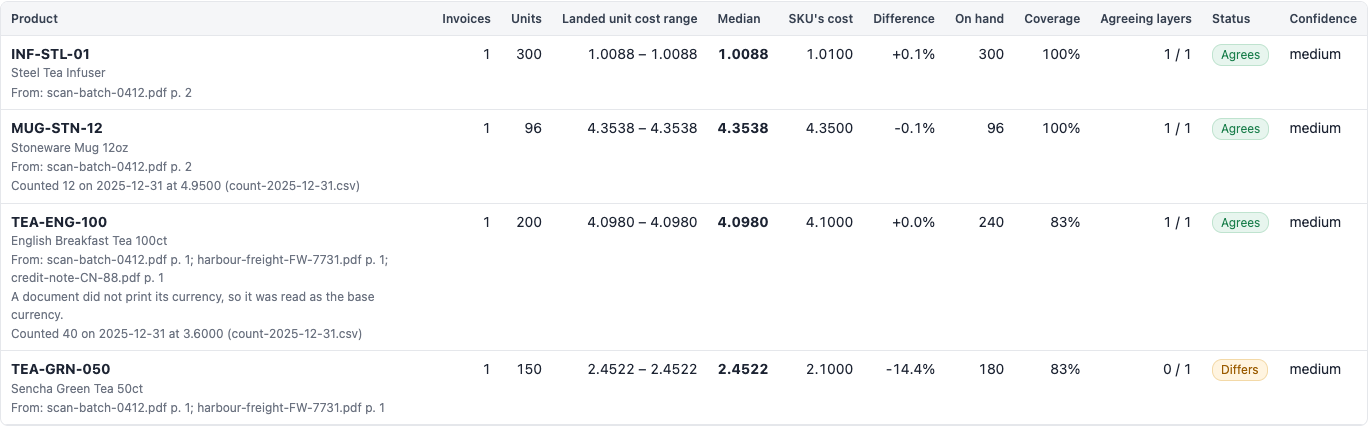
| Column | What it shows |
|---|---|
| Landed unit cost range | The lowest and highest cost per unit your documents support, including the product's share of freight, duty and fees. Tax isn't included. |
| Median | The middle of that range, weighted by how many units each invoice covered. |
| SKU's cost | The cost SKU.io holds for the product today. |
| Difference | How far SKU.io's cost is from the median. |
| Coverage | The units your documents cover, as a share of what you have on hand. |
| Agreeing layers | How many of the product's batches of stock on hand are at a cost within the documented range. |
| Status | Agrees when SKU.io's cost is within 2% of the documented range. Differs when it isn't. |
| Confidence | High when two or more invoices agree, freight or duty is included and every document read cleanly. Low when a document was hard to read. Medium otherwise. |
Below the products, the report lists what it couldn't use, so nothing is left out without a word:
- Lines that matched no product, with a suggestion when one product has the same name.
- Landed cost not allocated: freight or duty bills that name no purchase in the folder.
- Credits not applied: credit notes that name no invoice in the folder.
- Documents and lines set aside, such as quotes, statements and tax lines.
- Notes from the documents: totals that don't add up, pack sizes that couldn't be read, and anything else worth checking against the original.
Confirm the products that agree
Tell the SKU.io team which products to confirm, or confirm every product that agrees. For each confirmed product, the stock you hold at a cost within the documented range is marked as backed by a supplier invoice. That stock then counts in full in Cost trust.
Confirming changes nothing else:
- No cost, stock value or accounting entry changes.
- Products that differ are left exactly as they are. Correcting a cost is a decision for you and your accountant.
- If a confirmed batch of stock is later revalued, the confirmation stops counting for it, because it vouched for the old cost.
See the result in Cost trust
-
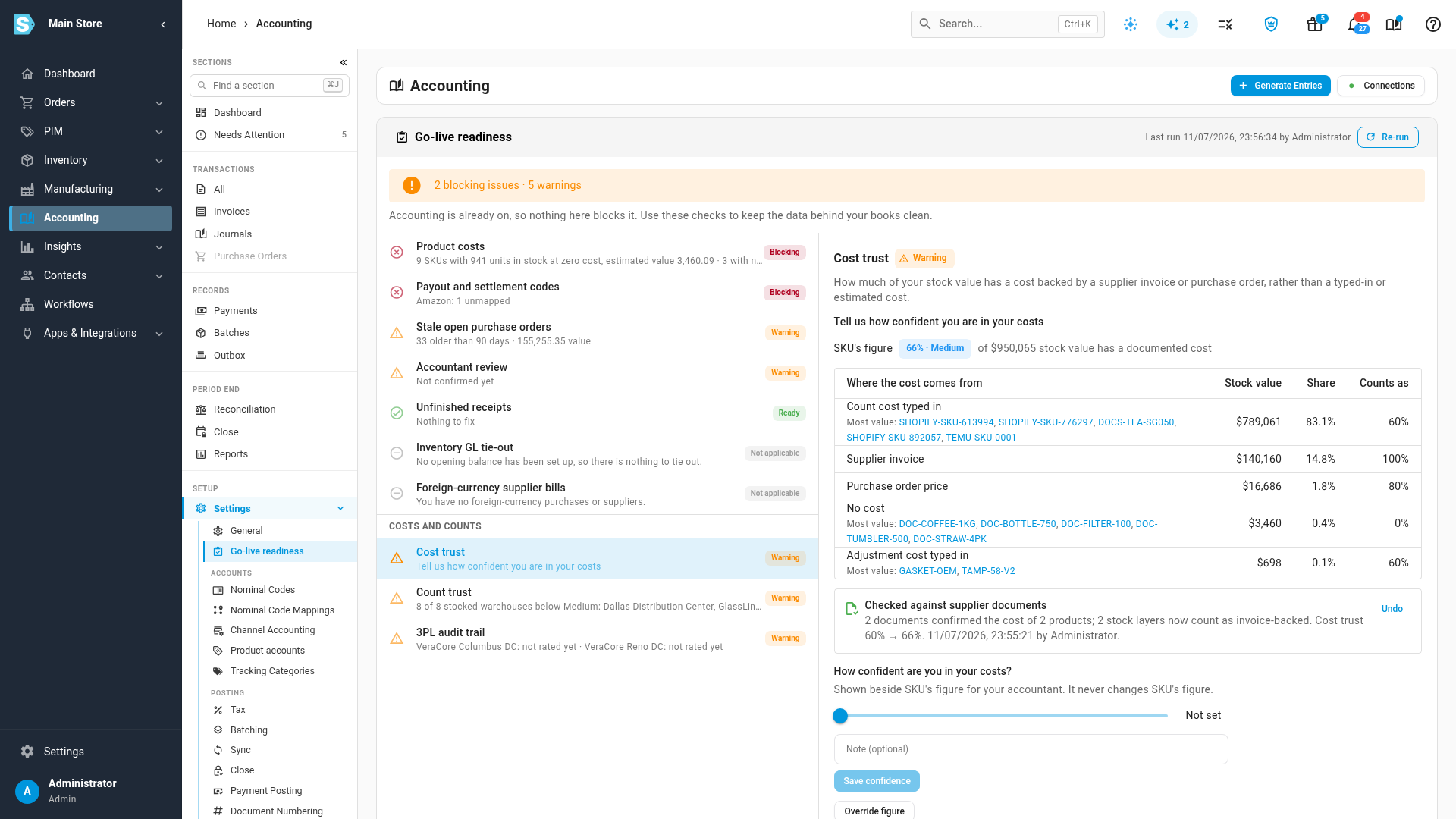
Go to Accounting → Settings, and open Go-live readiness.
-
Select Run check, or Re-run if it has run before, and then select Cost trust.
The stock the check confirmed now counts under Supplier invoice.
-
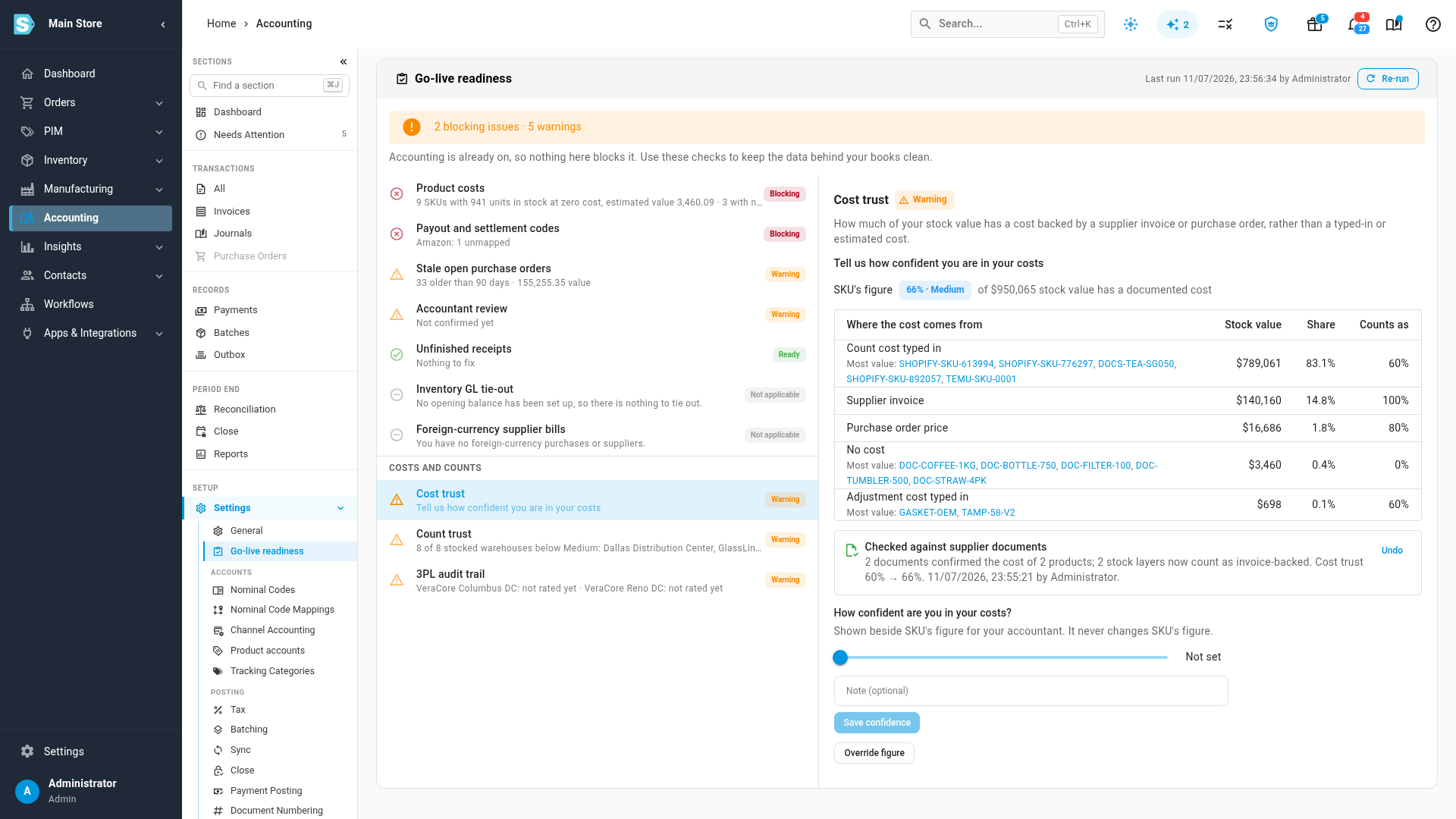
Look for Checked against supplier documents. It shows how many documents confirmed how many products, how many stock layers now count as backed by a supplier invoice, and cost trust before and after, with who confirmed it and when.
Undo a cost check
- Under Cost trust, next to Checked against supplier documents, select Undo.
- Select Undo again to confirm.
Each batch of stock goes back to where its cost came from before the check, and Cost trust drops to match. A batch that something else has marked since is left alone.
When two checks confirmed some of the same stock, undo the later one first.
Next steps
Video transcript
When the SKU.io team has reviewed your supplier documents, the result shows up in Go-live readiness. Select Run check. The checks take a moment, and then the Costs and counts group appears. Select Cost trust in that group to see where the prices of your stock come from. Stock that a supplier invoice backs now counts in full. This line sums up the review. It says how many documents were read, and how many products they confirmed. Beside that, it shows how far your trust figure rose. Your prices themselves never change. To reverse a review, select Undo. A short question asks you to be sure, so select Undo once more. Each stock layer returns to where its price came from before. Cost trust drops to match.