Change how entries are batched
Batching decides how often SKU.io rolls each type of entry — fulfillments, inventory adjustments, receipts and the rest — into one summary entry for your accounting system. When you change it, SKU.io asks when the change should start, and shows you what each choice does to entries you already have before anything is saved.
For why summaries split by sales channel, see How entries are grouped by sales channel.
Before you begin
- You need an accounting connection (Xero or QuickBooks Online). Batching belongs to the connection.
- You need permission to manage accounting settings.
- Know your lock date. Entries dated in a locked month never move, whatever you choose. See Accounting settings at a glance.
Open the Batching settings
-
Go to Accounting, open the Settings tab, then the Batching sub-tab.
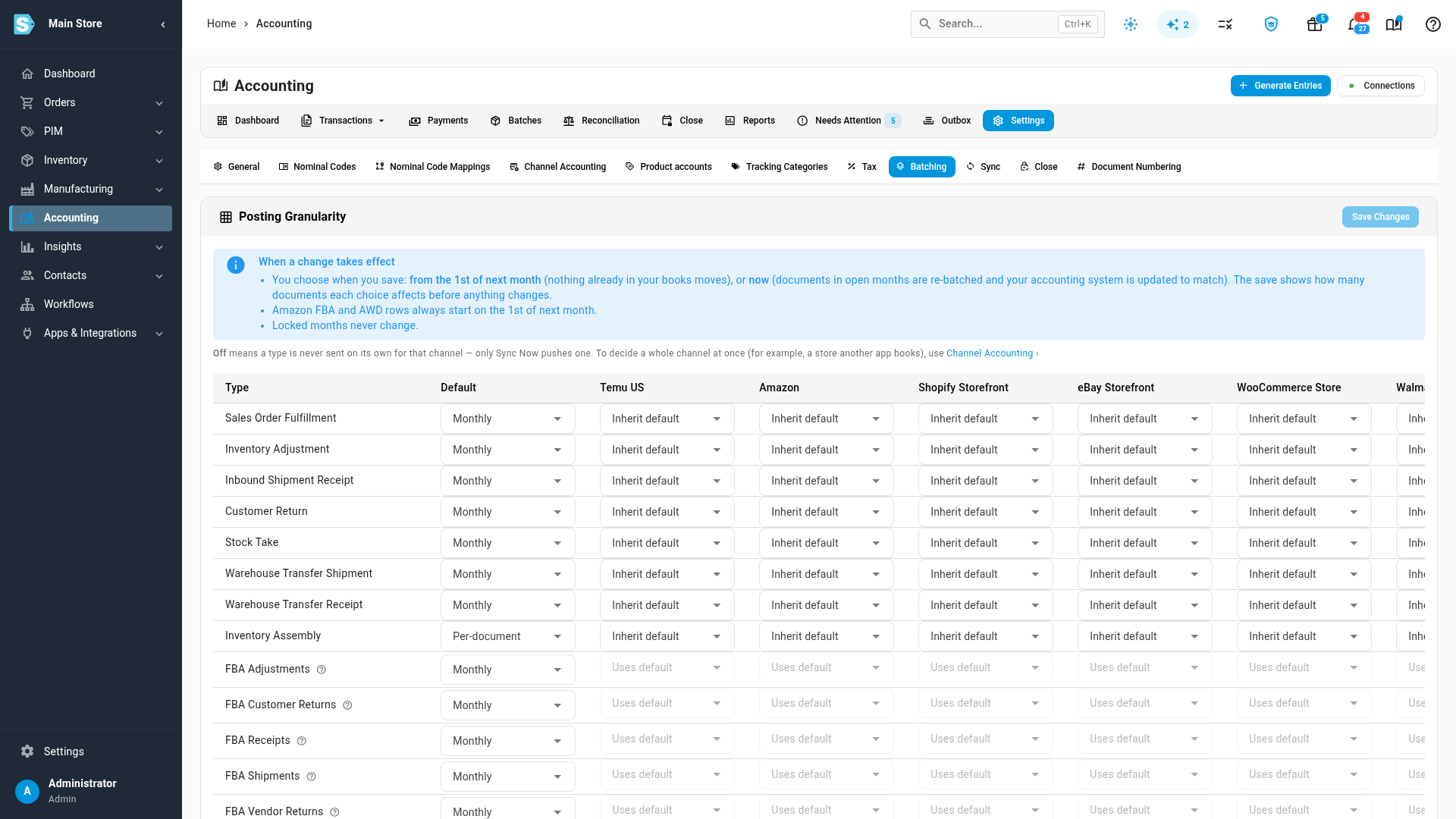
The Posting Granularity matrix has one row per type of entry. The Default column applies to every sales channel; the columns to its right override it for one channel. Each cell takes one of these settings:
| Setting | What reaches your accounting system |
|---|---|
| Off | Nothing on its own. Entries are still created in SKU.io; only Sync Now sends one. |
| Per-document | One entry for every document. |
| Daily | One summary per day, per sales channel. |
| Monthly | One summary per month, per sales channel. |
The banner above the matrix sums up when a change takes effect.

Change a setting
-
Pick the new setting in the row's Default column, or in a channel's column to change just that channel. The row now reads Changed — you'll choose when it starts when you save.
-
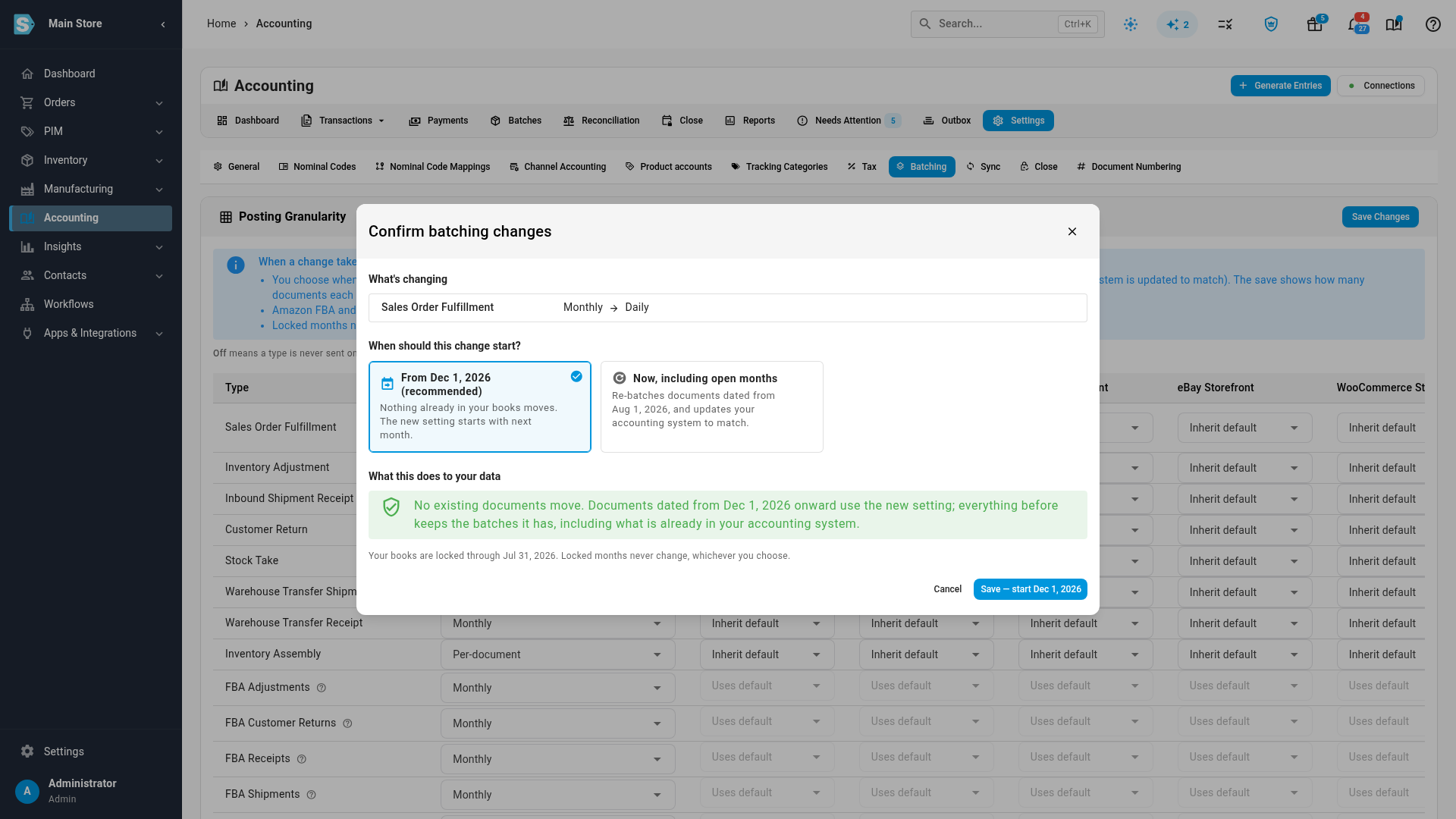
Click Save Changes. The Confirm batching changes dialog opens. It lists What's changing and asks When should this change start?
-
Choose when the change starts:
- From the first of next month (recommended) — nothing already in your books moves. Documents dated before then keep the batches they have, including summaries your accounting system already holds.
- Now, including open months — every document dated after your lock date moves to the new batching straight away.
-
Check What this does to your data, then click the save button. It names what will happen: Save — start on the first of next month, or Save and re-batch now.
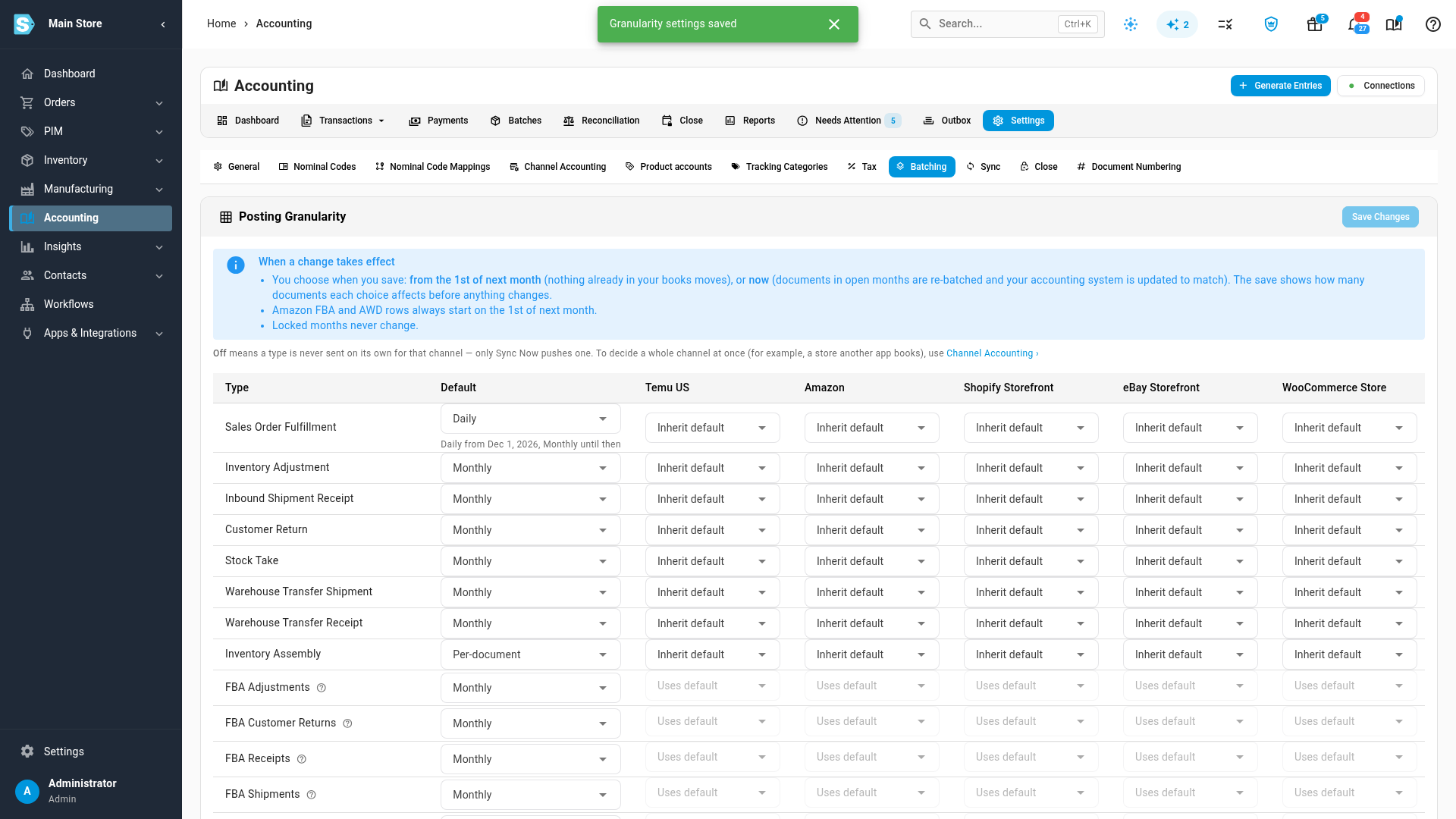
After a next-month save, the row shows the switch that's waiting — for example Daily from Dec 1, 2026, Monthly until then.
What "now" does to your data
When you choose Now, including open months, the dialog shows a table for each changed row before you confirm:
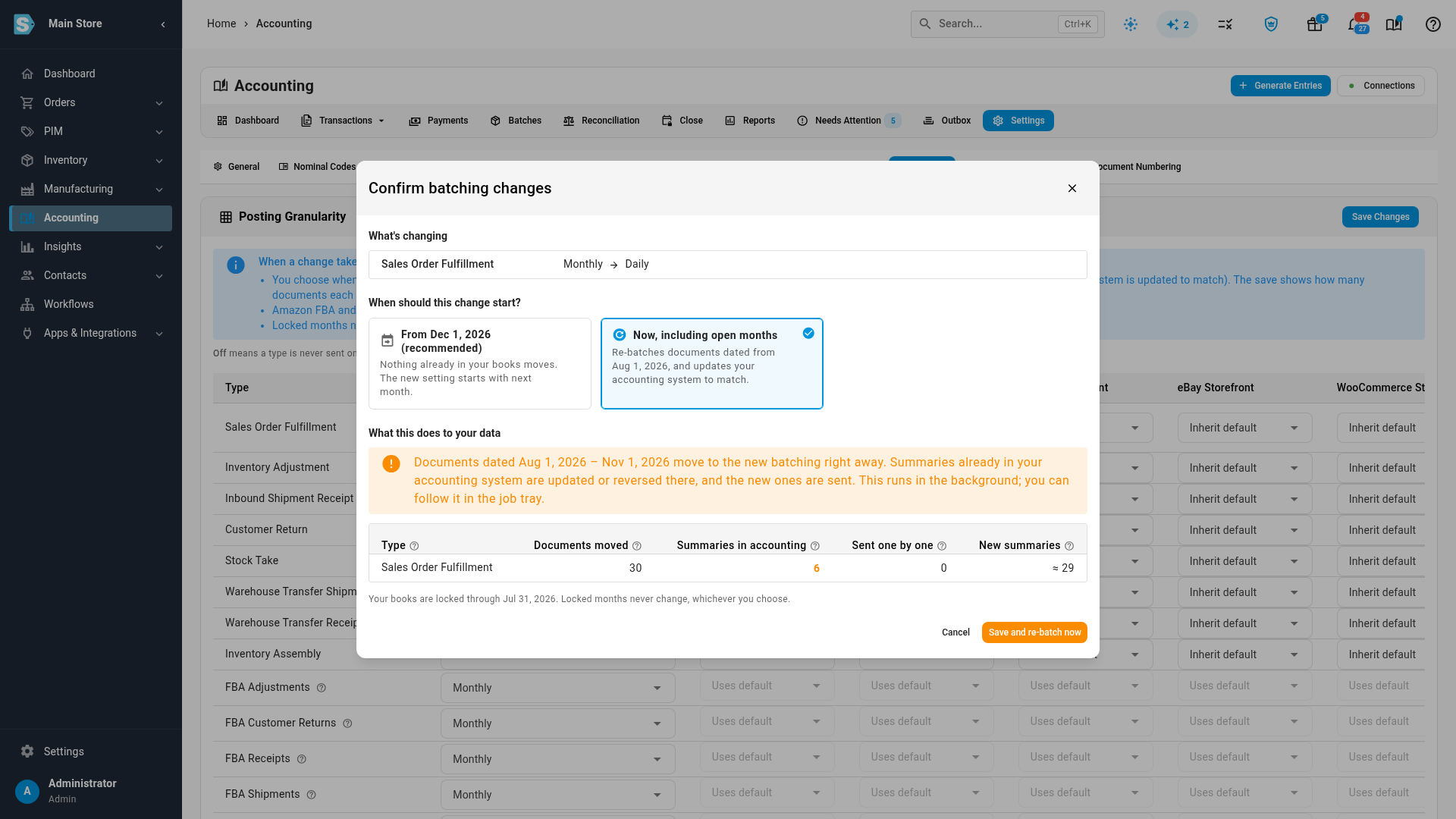
| Column | What it counts |
|---|---|
| Documents moved | Documents of this type dated in an open month. Each moves to the new batching. |
| Summaries in accounting | Daily or monthly summaries holding those documents that your accounting system already has. Each is updated there, or reversed if it ends up empty. |
| Sent one by one | Documents already sent on their own. If they now join a summary, their own entry in your accounting system is voided so nothing is counted twice. |
| New summaries | About how many entries the new setting sends for the same documents — one per day or month, per sales channel. |
When you confirm, the re-batching runs in the background; follow it in the job tray. Locked months never change.
If only a channel's column changed, the counts cover every channel, so they read up to the number shown.
Start next month unless you have a reason not to. Starting now rewrites summaries your accountant may already have reviewed for the open months.
Amazon FBA and AWD rows
The Amazon rows — FBA Adjustments, Customer Returns, Receipts, Shipments, Vendor Returns, Warehouse Transfers, and the AWD rows — take Off, Daily or Monthly. Their changes always start on the first of next month; the dialog marks them Starts with the date and doesn't offer Now. Amazon reports its ledger days late, so a daily Amazon summary stays open for four days after its day ends, instead of one, to catch late rows before it closes.
Amazon Pending Inbound Shipment takes Off or Monthly only.
Next steps
- How entries are grouped by sales channel — why there's one summary per channel.
- Batches and the close — settle windows and batch statuses at month end.
- What syncs to your accounting provider
Video transcript
Open Accounting, then Settings, then Batching. This is where you decide how often each type of entry rolls up into one summary. Every row is one kind of document, and the banner above the table sums up the rule. A change starts when you say so. The FBA and AWD rows always wait for next month, and locked months never change. Pick the new setting in the Default column. Here, sales order fulfillments move from Monthly to Daily. The row now says you choose when it starts. Click Save Changes. Before anything is saved, a dialog lists your edits and asks when they should start. The recommended choice starts on the first of next month. Nothing already in your books moves, so the summaries your accounting system holds stay untouched. Choose Now to re-batch the open months instead. The table shows what that touches: the documents that move, the summaries already in your accounting system that get updated or reversed, and roughly how many new summaries are sent. For most changes, go back to the recommended choice, the first of next month. Click the save button, and the row shows the date the new setting takes over. Until then, your entries keep the batches they already have.