Accounting settings at a glance
Every choice about how SKU.io keeps your books lives under Accounting → Settings. The tab opens on General, and a row of sub-tabs runs along the top: General, Nominal Codes, Nominal Code Mappings, Channel Accounting, Tracking Categories, Tax, Batching, Sync, Close and Document Numbering. This page tells you what each one controls and where its full guide is. The one thing with no guide of its own, your accounting system's lock dates, is covered in full here.
Before you begin
- You need an accounting connection, Xero or QuickBooks Online, for the settings that talk to it: lock dates, tracking categories, tax codes, sync and invoice numbering. See Connect Xero or Map your accounts to QuickBooks Online.
Open the settings
- Click Accounting in the left sidebar.
- Click the Settings tab.
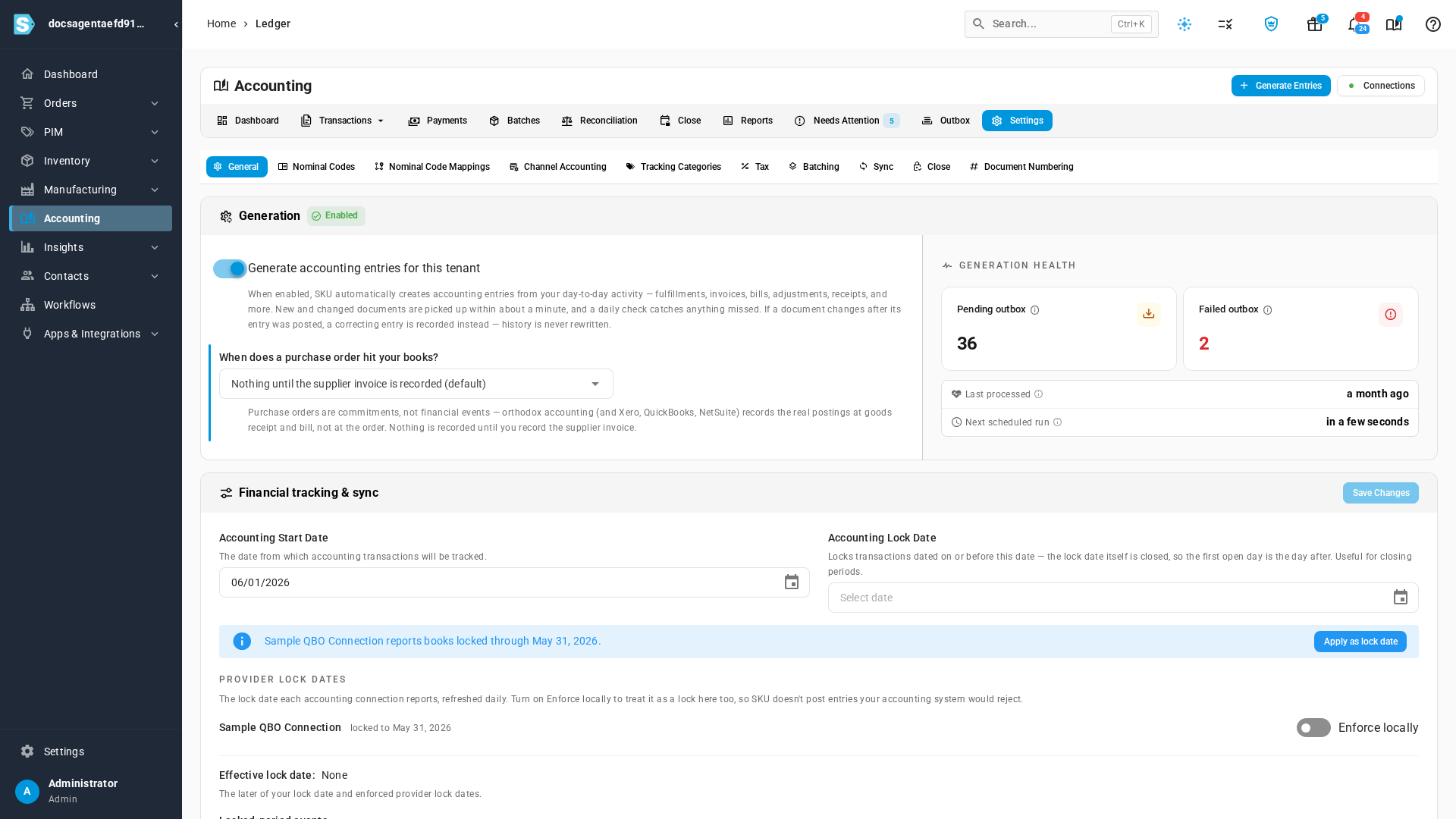
The tab opens on General. Its two cards, Generation and Financial tracking & sync, hold the settings that affect everything else.
General
Generation
The Generation card, at the top of General, switches automatic accounting on and off.
- Generate accounting entries for this tenant turns SKU.io's automatic ledger on. While it's on, entries are built from your day-to-day activity within about a minute. See How automatic accounting works.
- When does a purchase order hit your books? chooses whether a purchase order posts nothing until the supplier invoice, a non-posting commitment entry, or a committed-spend bill. See Committed-spend billing.
- Generation health, beside them, counts what's waiting in the outbox (Pending outbox, Failed outbox) and shows Last processed and Next scheduled run. Click a count to open the outbox filtered to it. See Work the ledger outbox.
Settings on the Generation card save as soon as you change them.
Financial tracking & sync
The Financial tracking & sync card, below Generation, saves together: change what you need, then click Save Changes at the top of the card.
| Section | What it controls | Full guide |
|---|---|---|
| Accounting Start Date | The date your books in SKU.io begin. | Which months you can close |
| Accounting Lock Date | Locks everything dated on or before it. The lock date itself is closed, so the first open day is the day after. | What closing does to your books |
| Provider lock dates | The lock dates your accounting system reports. | Below |
| Locked-period events | What happens to an automated posting dated in a locked period: Post on first open day, flagged, or Block until resolved. | What closing does to your books |
| Sync behaviour | Six switches, described in the next table. | — |
| Revenue recognition | Revenue recognition basis: book sales at the order date, or hold them as deferred revenue until each shipment goes out. | Recognize revenue at fulfillment |
| Vendor Deposits | Default payment approver: the user that payment requests for supplier deposits are sent to. | Manage vendor deposits |
Sync behaviour switches
| Switch | What it does |
|---|---|
| Sync sales order invoices for orders without sales channels | Sends invoices for orders you create in SKU.io, rather than ones a sales channel imports, to your accounting system automatically. |
| Sync sales credits for orders without sales channels | The same, for sales credits. |
| Send purchase order commitment entries to your accounting system | Sends each purchase order's non-posting commitment entry. Available only while When does a purchase order hit your books? is set to a commitment entry; otherwise the switch is greyed out and says why. |
| Use sales order line nominal codes | Posts each sales order and sales credit line to the account set on that line, instead of your default sales and returns accounts. |
| Attach source documents to Xero / QBO | Uploads the files attached to purchase invoices, vendor credits and vendor deposits to the matching bill or credit note. It never holds up the sync. |
| Send supplier bills in their own currency | Posts bills from foreign-currency purchase orders in the supplier's currency. See Post supplier bills in their own currency. |
Provider lock dates
Xero and QuickBooks Online let you lock your books up to a date: Xero calls it a lock date, QuickBooks a closing date. SKU.io reads that date from each accounting connection once a day and lists it under Provider lock dates, for example Sample QBO Connection locked to May 31, 2026. If you lift the lock in your accounting system, it disappears here at the next daily read.
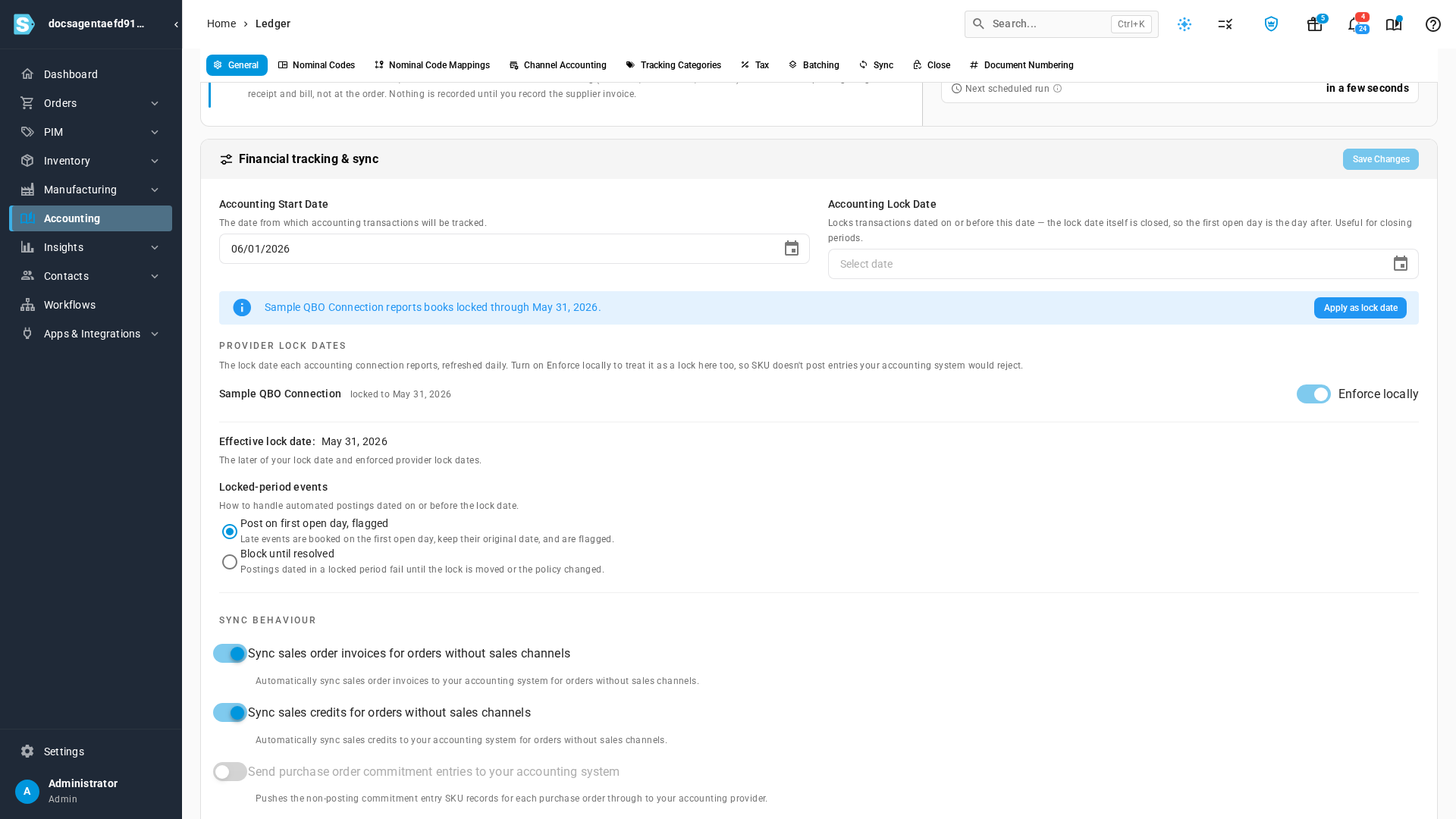
You decide what SKU.io does with each one.
Enforce locally
Turn on Enforce locally next to a connection to treat its lock date as a lock in SKU.io too. SKU.io then won't post anything dated on or before it, so it never sends your accounting system an entry it would reject.
- The switch takes effect straight away; you don't need to click Save Changes.
- Effective lock date shows the lock actually in force: the later of your lock date and enforced provider lock dates. With no lock of your own, turning on enforcement for a connection locked to May 31 moves it from None to May 31, 2026.
- Turning the switch off asks you to confirm, under Stop enforcing this provider lock?. Entries dated on or before the provider's date are then generated and pushed again, your accounting system rejects them, and they need resolving by hand. Click Stop enforcing to go ahead.
Apply as lock date
When a connection's lock date is later than your own Accounting Lock Date, a blue banner says so, for example Sample QBO Connection reports books locked through May 31, 2026. Click Apply as lock date to copy that date into your own lock date. Under the lock date field, SKU.io records who applied it and when, with the note Applied from and the connection's name. You can't apply a provider date that's earlier than your Accounting Start Date.
Use Enforce locally to follow your accounting system's lock as it moves, and Apply as lock date to take a one-time copy you then manage yourself.
Whichever way the effective lock date changes, SKU.io re-checks every entry it had moved forward out of a locked period. See Moving the lock date moves the entries with it.
The other sub-tabs
| Sub-tab | What it controls | Full guide |
|---|---|---|
| Nominal Codes | Your chart of accounts: the accounts SKU.io posts to. | Chart of accounts reference |
| Nominal Code Mappings | The default account for each kind of entry, such as sales, returns, shipping revenue, cost of goods sold and inventory. | Map your accounts to QuickBooks Online |
| Channel Accounting | Overrides those accounts, and sync switches, for a single sales channel. | Use different accounts for each sales channel |
| Tracking Categories | Tags revenue and cost of goods sold with the sales channel, using Xero tracking categories or QuickBooks classes. | Tag entries by channel with tracking categories |
| Tax | Whether your accounting system or SKU.io calculates tax, and which tax code each SKU.io tax rate maps to. | Choose who calculates tax |
| Batching | Posting Granularity: how often each type of entry rolls up into a batch, per sales channel. | How entries are grouped by sales channel |
| Sync | Which transaction types sync to your accounting system on their own, and from what date. | What syncs to your accounting provider |
| Close | The tolerances the month-end close checks use, and your own checklist items. | Close settings and custom items |
| Document Numbering | Where the number on each new sales invoice comes from. | Set your invoice numbering |
The financial types that label the extra revenue and cost lines on your orders are set up outside this tab, under Settings → Financials → Financial Types. See Manage financial line types.
Next steps
- How automatic accounting works: how your day-to-day activity becomes balanced entries.
- What closing does to your books: how these lock dates interact with the month-end close.
Video transcript
Every choice about how your books are kept lives on one screen. Open Accounting, about halfway down the left sidebar. Along the top of the accounting area, click the Settings tab. It opens on the General sub-tab, with the other sub-tabs in a row along the top. The Generation card switches automatic accounting on. It also decides when a purchase order first reaches your books. Beside it, Generation health shows how much is waiting to post, and when the next run is due. Below it, the Financial tracking and sync card starts with two dates. The start date is where your books in SKU begin. Nothing dated on or before the lock date can post. Your accounting system keeps its own lock date, and it's copied here every day under Provider lock dates. Turn on Enforce locally to respect that lock in your books here as well. The effective lock date below moves to match it. To make it your own lock date instead, click Apply as lock date. Further down, you choose what syncs on its own, when revenue is recognized, and who approves supplier deposits. Changes in this card take effect when you click Save Changes at its top. Each of the other sub-tabs handles one job. Nominal Codes is your chart of accounts. Nominal Code Mappings picks the default account for each kind of entry. Channel Accounting overrides those accounts for a single sales channel. Tracking Categories tags entries by channel. Tax decides who calculates tax. Batching sets how entries roll up into batches. Sync controls what goes to your accounting system. Close holds your month-end tolerances. And Document Numbering sets your invoice numbers. Each one has its own guide, linked from the article.