Record your history before go-live
Your accountant may want cost of goods sold and inventory value for the months before you started using SKU.io. History before go-live keeps that history in its own register: the stock counts you took and the supplier invoices you received before your inventory start date. From them, SKU.io works out each month's cost of goods sold the way accountants do by hand:
cost of goods sold = opening value + purchases − closing value
The register is separate from everything you do in SKU.io today. It never creates stock, changes a cost, or posts to your books, and every date in it must be before your inventory start date.
Before you begin
- Your inventory start date must be set. History is everything before it.
- Permissions come from your role, under Accounting in Settings → Users & Permissions → Roles. To view the history you need List. To add, import or change anything you need Manage Settings.
- Gather what you have: at least one full stock count (most sellers count at year end), and the supplier invoices since your earliest count. Spreadsheets and PDFs both work.
Open the history
-
Go to Accounting → Settings, and open Go-live readiness.
-
On the History before go-live card, select Open history.
If you haven't set up your chart of accounts yet, the setup screen has a link instead: Open history before go-live. The history doesn't need a chart of accounts.
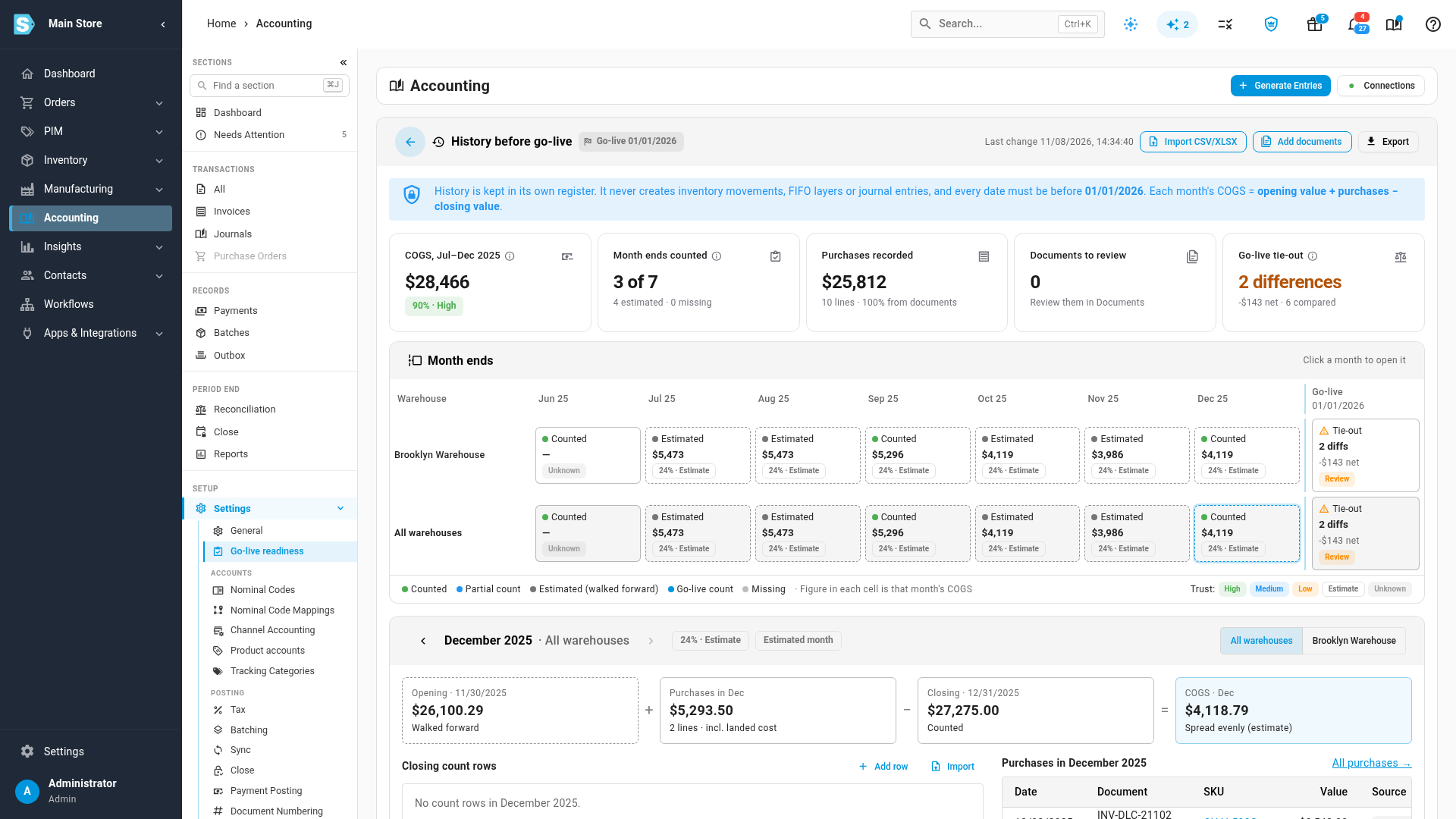
When the register is empty, the page asks whether you have a full stock count at the day before go-live. Select Yes, I'll add it to enter it, Only a partial count if only some products were counted, or No count at all to start from your invoices.
Add your counts
A count is one product's quantity and unit cost in one warehouse on a date. A count dated in a month is read as that month's closing count.
- Open the Counts tab and select Add count row.
- Enter the Count date, Warehouse, Product, Quantity and Unit cost.
- Choose the Count basis: Full count, Partial count, or Estimated quantities.
- Choose Where the unit cost comes from, such as Supplier invoice or Count cost typed in. A cost from an invoice raises the month's trust.
- Select Add count row.
To add many rows at once, import a spreadsheet instead. See Import counts and purchases.
Add your purchases
Purchases are the supplier invoice lines between your counts.
- Open the Purchases tab and select Add purchase.
- Enter the Purchase date, Product, Quantity and Unit cost, and the Warehouse the stock went to.
- Add the Supplier, the Document reference (the invoice number) and any Landed cost (line): freight and duty for the whole line.
- Choose Where the unit cost comes from, then select Add purchase line.
For a supplier return, enter a negative quantity. A line with no warehouse still counts in the all-warehouses total, but in no single warehouse's figures.
Add documents
You can drop in the supplier invoices, landed-cost bills and count sheets themselves. SKU.io reads each one and proposes rows. Nothing is saved until you accept them.
-
Open the Documents tab.
-
Drop your files on the box, or select Choose files. You can add PDFs, images, CSV and Excel files, or a .zip of them: up to 200 files at a time, 20 MB each.
Each document is read in the background and moves to To review when it's ready.
-
Select a document. The file shows in the middle and the proposed rows on the right.
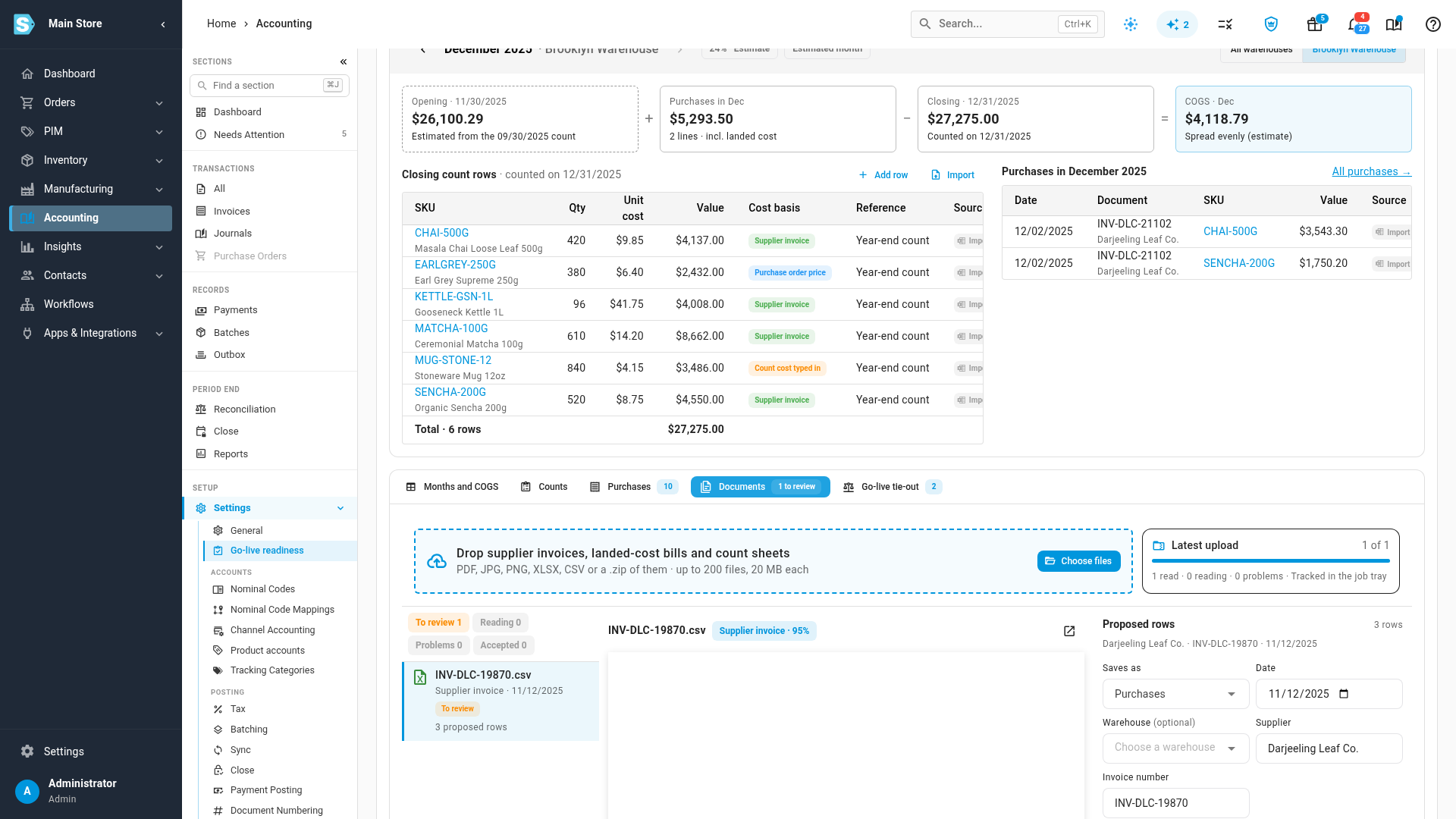
Each row is matched to a product by its SKU, then by the supplier's SKU, then by its barcode. A row with no match asks you to choose the product. Freight and duty lines on an invoice are spread over its other lines by value.
-
Check Saves as (Purchases, Counts, or Landed cost), the Date and the Warehouse.
-
Untick any row you don't want, and correct any quantity or cost.
-
Select Accept rows (the button counts them, such as Accept 2 rows).
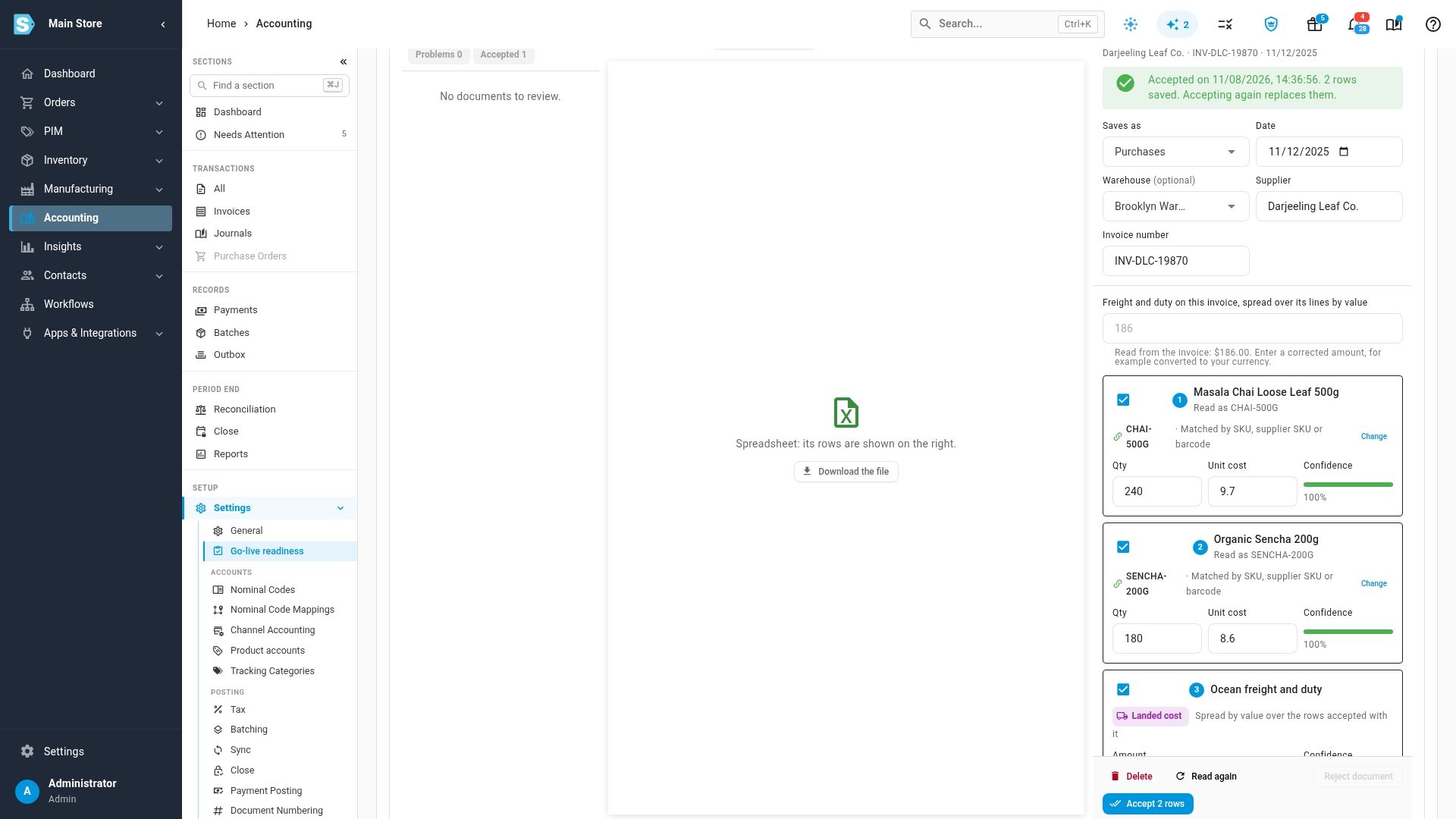
The saved lines keep a link to their document, so a cost from an accepted invoice counts as a supplier invoice. Accepting a document again replaces the rows it saved before.
For a landed-cost bill, choose the purchase lines it covers and select Spread landed cost. SKU.io suggests the same supplier's lines from the 60 days before the bill, and spreads the bill over them by value.
- Reject document drops a document without saving anything.
- Read again re-reads the file. Your earlier review is cleared, so check the rows before you accept them again.
- Delete removes the document. Rows you already accepted stay, but lose their link to it.
A file you already uploaded is skipped. Reading PDFs and images needs invoice reading switched on for your workspace; spreadsheets always work.
Read the months
Each row of the month strip is a warehouse, plus All warehouses. Each cell is a month end, with that month's cost of goods sold and its trust.
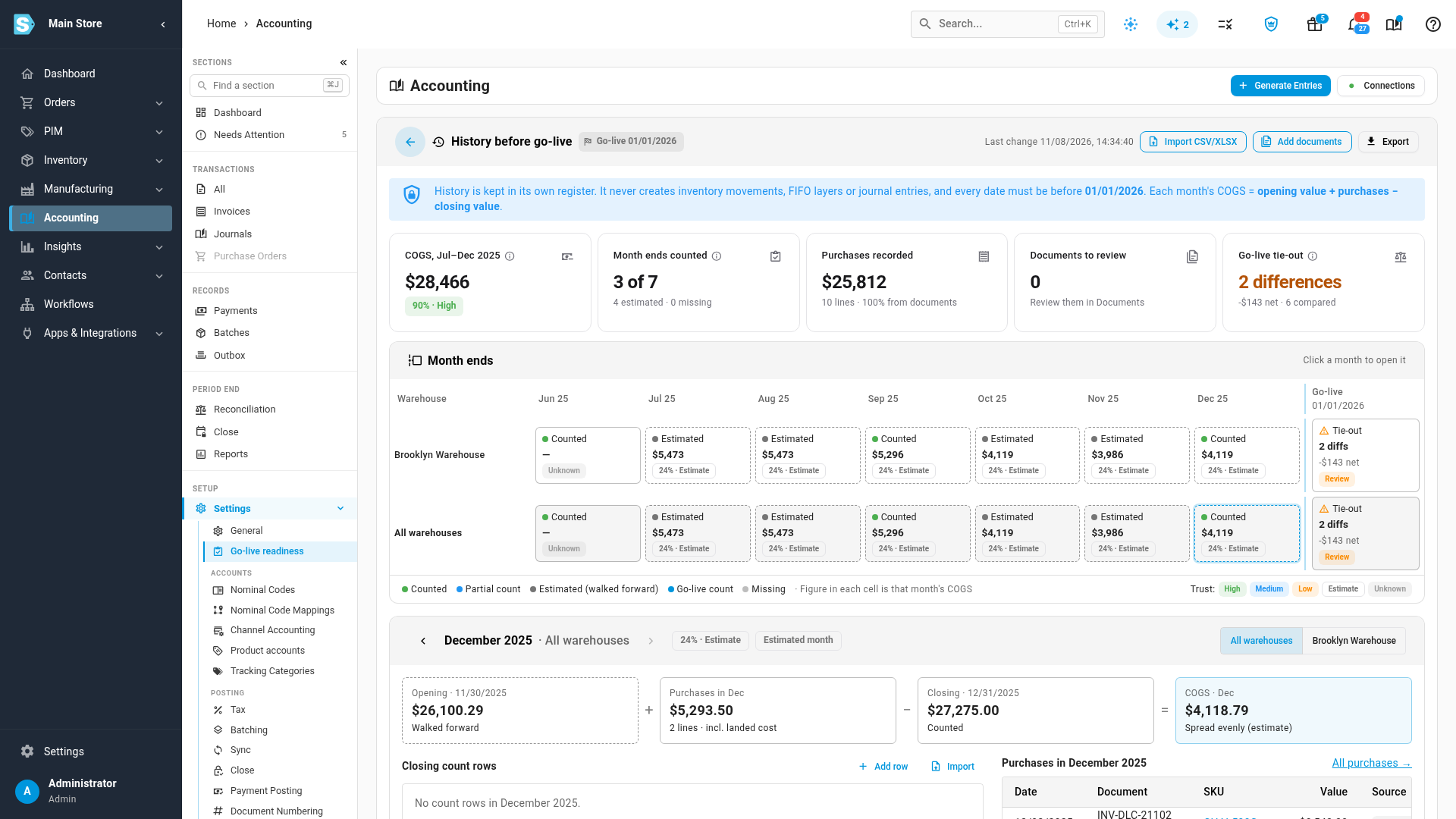
| Month end | What it means |
|---|---|
| Counted | A full count closes the month. |
| Partial count | Some products were counted, or the quantities are estimates. Trusted less. |
| Go-live count | The month before go-live has no count of its own, so your go-live opening count closes it. |
| Estimated (walked forward) | No count closes this month. It sits between two counts, so its figure is an estimate. |
| Missing | There is nothing to work it out from. Add an earlier or later count. |
Between two counts, the cost of goods sold for the whole stretch is measured. When the stretch covers several months, SKU.io spreads it over them by the sales recorded for that warehouse, or evenly by days when there are none. Those months are labelled Estimate. Estimates are shown, never posted.
Select a month to see how its figure is worked out:
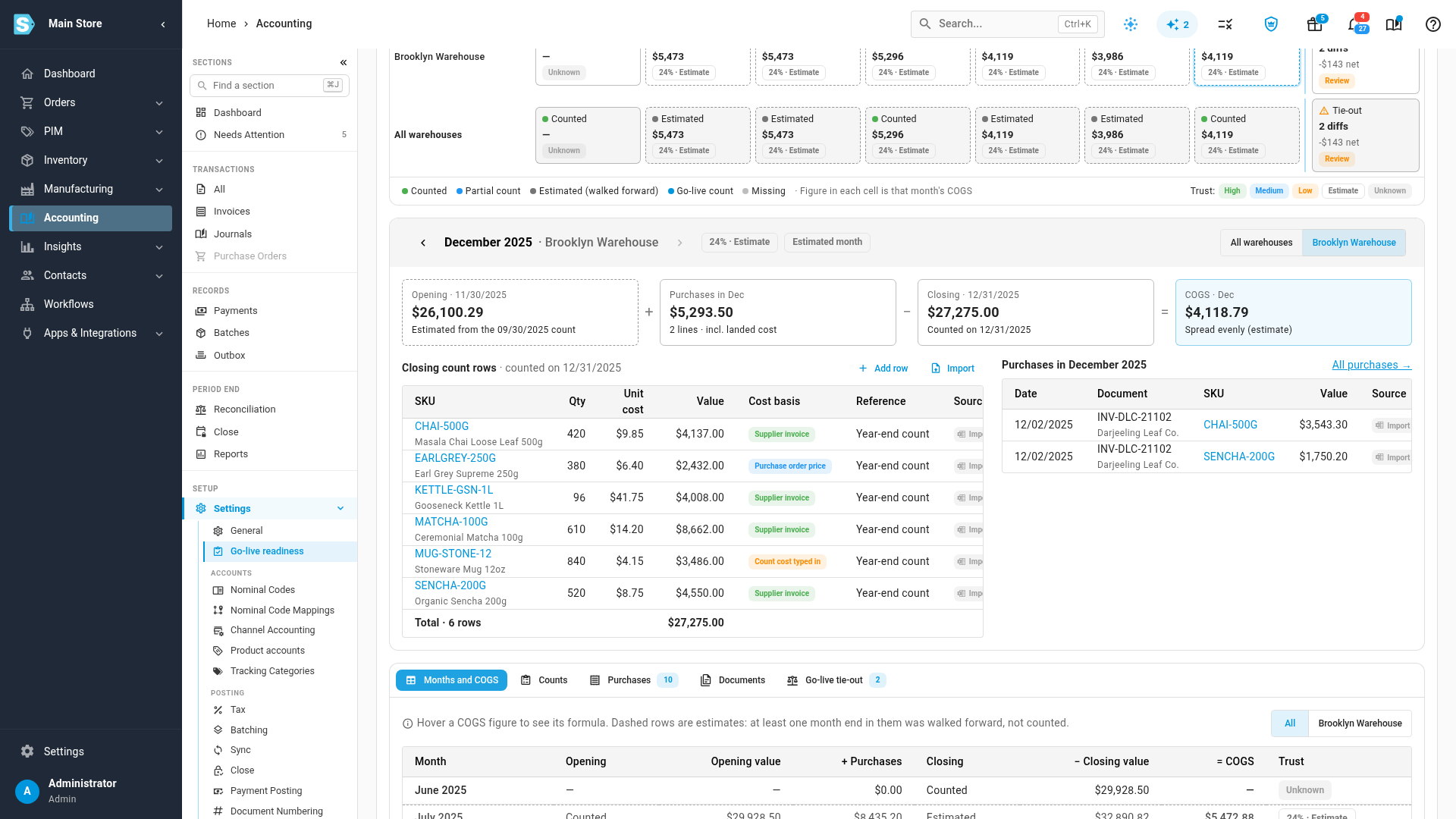
The four boxes are the opening value, purchases in the month, the closing value and the cost of goods sold. Below them are the count rows that close the month, each with where its cost comes from, and the month's purchase lines.
The Months and COGS tab lays the same figures out as a table. Hover a figure to see its formula.
Trust
Each month carries a trust level, like your other accounting figures. It combines how the month's two ends were counted (full, partial, walked forward) with where the costs came from (invoices count in full; typed-in costs and estimates count less). The headline cost of goods sold uses the trust of the measured stretches it adds up.
Months before go-live also show this trust in the Count trust row of your Income Statement and on Inventory Valuation. For more, see Check how far your costs and counts can be trusted.
What the notes at the top mean
- Purchase lines with no warehouse: they count in the all-warehouses total only. Edit them to add the warehouse.
- COGS is negative: more stock was counted than the opening count and purchases explain. Purchases are probably missing, or the earlier count missed products.
- Rows now on or after the start date: you moved your inventory start date earlier. Those rows are kept but left out of the months.
Check the go-live tie-out
The Go-live tie-out tab compares each warehouse's last count in the history with the opening count you started SKU.io with.
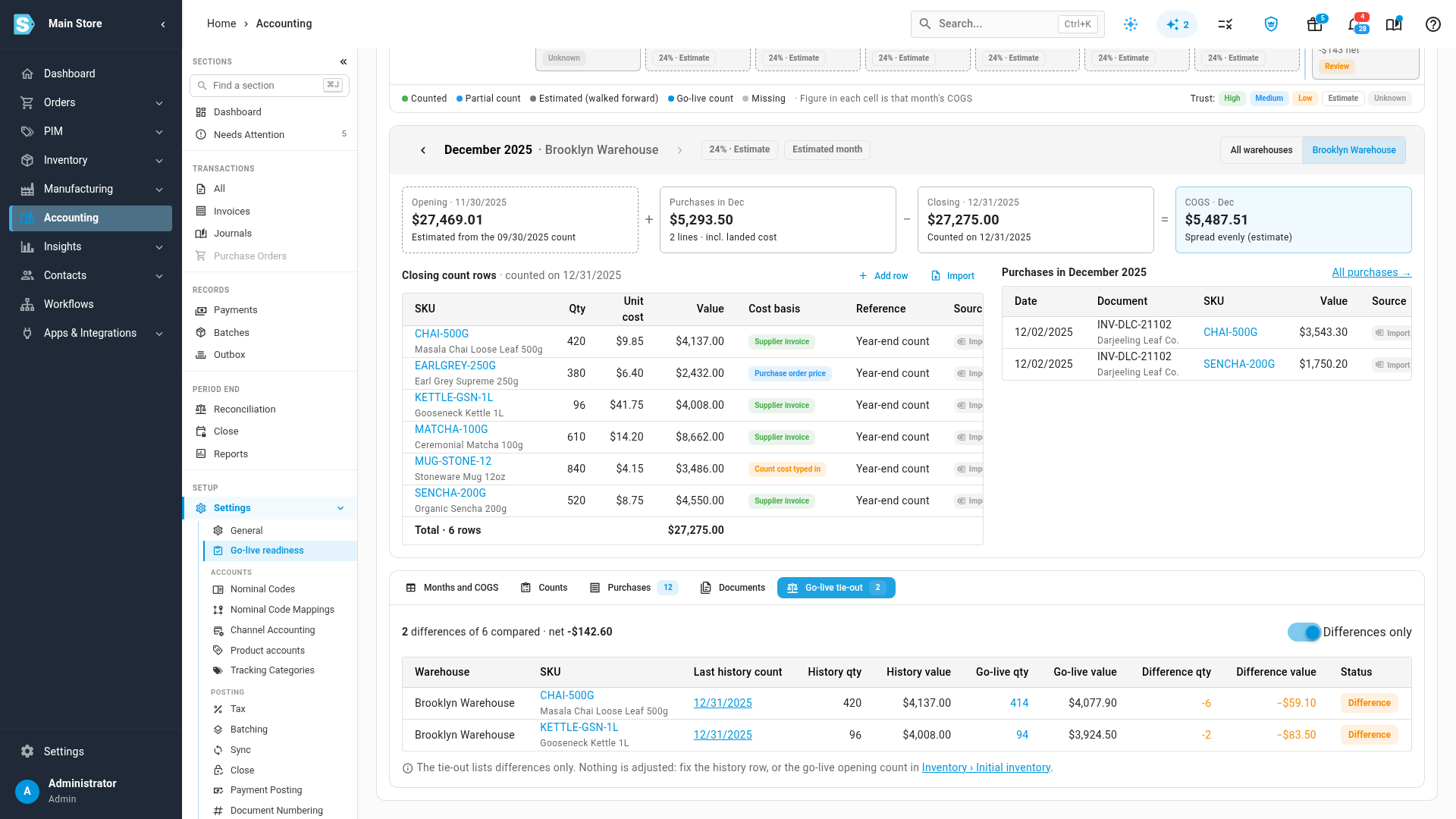
Each row shows both quantities and values and the difference. Only in history and Only in the go-live count mark products counted on one side only. A warehouse with no go-live count reads No go-live count: nothing was compared. Switch off Differences only to see the rows that match.
Nothing is adjusted. To fix a difference, correct the history row, or the opening count in Inventory → Initial inventory.
Import counts and purchases
- Select Import CSV/XLSX.
- Choose Counts or Purchases. Download the template gives you the columns with an example row.
- Choose your file (CSV or XLSX, up to 20 MB) and select Import.
The import runs in the background; follow it in the job tray. When it finishes, any rows it couldn't save are listed with the reason, and you can download them, fix them and import them again. The other rows are saved.
Importing the same file again updates the rows it already saved instead of adding duplicates.
Count columns
Column names can be in any order and any case.
| Column | Required | Format | Notes |
|---|---|---|---|
date | Yes | YYYY-MM-DD or MM/DD/YYYY | Must be before your inventory start date. |
warehouse | Yes, unless you have one warehouse | Warehouse name | With a single warehouse, a blank uses it. |
sku | Yes | Text | Matched to a product by SKU, then supplier SKU, then barcode. |
quantity | Yes | Number, 0 or more | |
unit_cost | Yes | Number, 0 or more | Currency symbols and thousands separators are fine. |
basis | No | full_count, partial_count or estimate | Defaults to full_count. |
cost_basis | No | Where the cost comes from, such as invoice, purchase_order, count_entry or imported_estimate | Defaults to count_entry. |
reference | No | Text | Your count sheet or reference. |
note | No | Text |
A row matches an existing count when the date, warehouse and SKU are the same; that count is updated.
Purchase columns
| Column | Required | Format | Notes |
|---|---|---|---|
date | Yes | YYYY-MM-DD or MM/DD/YYYY | Must be before your inventory start date. |
supplier | No | Text | The supplier's name, as on the invoice. |
document | No | Text | The invoice number. |
sku | Yes | Text | Matched by SKU, then supplier SKU, then barcode. |
warehouse | No | Warehouse name | A blank uses your only warehouse, or leaves the line without one. |
quantity | Yes | Number, not 0 | Negative for a supplier return. |
unit_cost | Yes | Number, 0 or more | |
landed_cost | No | Number, 0 or more | Freight and duty for the whole line, not per unit. |
cost_basis | No | Where the cost comes from | Use invoice for lines taken from supplier invoices. |
note | No | Text | |
source_document | No | Text | The file and page the line came from. Saved in the note. |
A row matches an existing purchase when the date, document, SKU and warehouse are the same. Lines with no document or no warehouse are always added as new.
Why a row is rejected
- The date is on or after your inventory start date.
- The date, quantity or cost can't be read, or is missing.
- The warehouse name isn't one of your warehouses.
- No product matches the SKU, supplier SKU or barcode.
- A count's quantity is negative, or a purchase's quantity is 0.
Export
Select Export for an Excel workbook with four sheets: Months (each warehouse and all warehouses, with each month's trust and whether it's an estimate), Counts, Purchases and Tie-out. The export runs in the background; download it from the job tray.