Match customers with QuickBooks
When an invoice syncs to QuickBooks Online, it's raised against the QuickBooks customer linked to the order's SKU.io customer. Customers that existed in QuickBooks before you connected aren't linked yet. SKU.io can find the likely pairs for you, so you review matches instead of linking customers one by one.
Before you begin
- Connect QuickBooks Online. See Connect QuickBooks Online.
- You need permission to manage integrations to approve matches or change the matching settings.
Review your QuickBooks customers
-
Go to your QuickBooks connection and open the Customers tab.
-
Check the SKU Customer column. A linked row names the SKU.io customer, and a row that isn't linked shows Link.
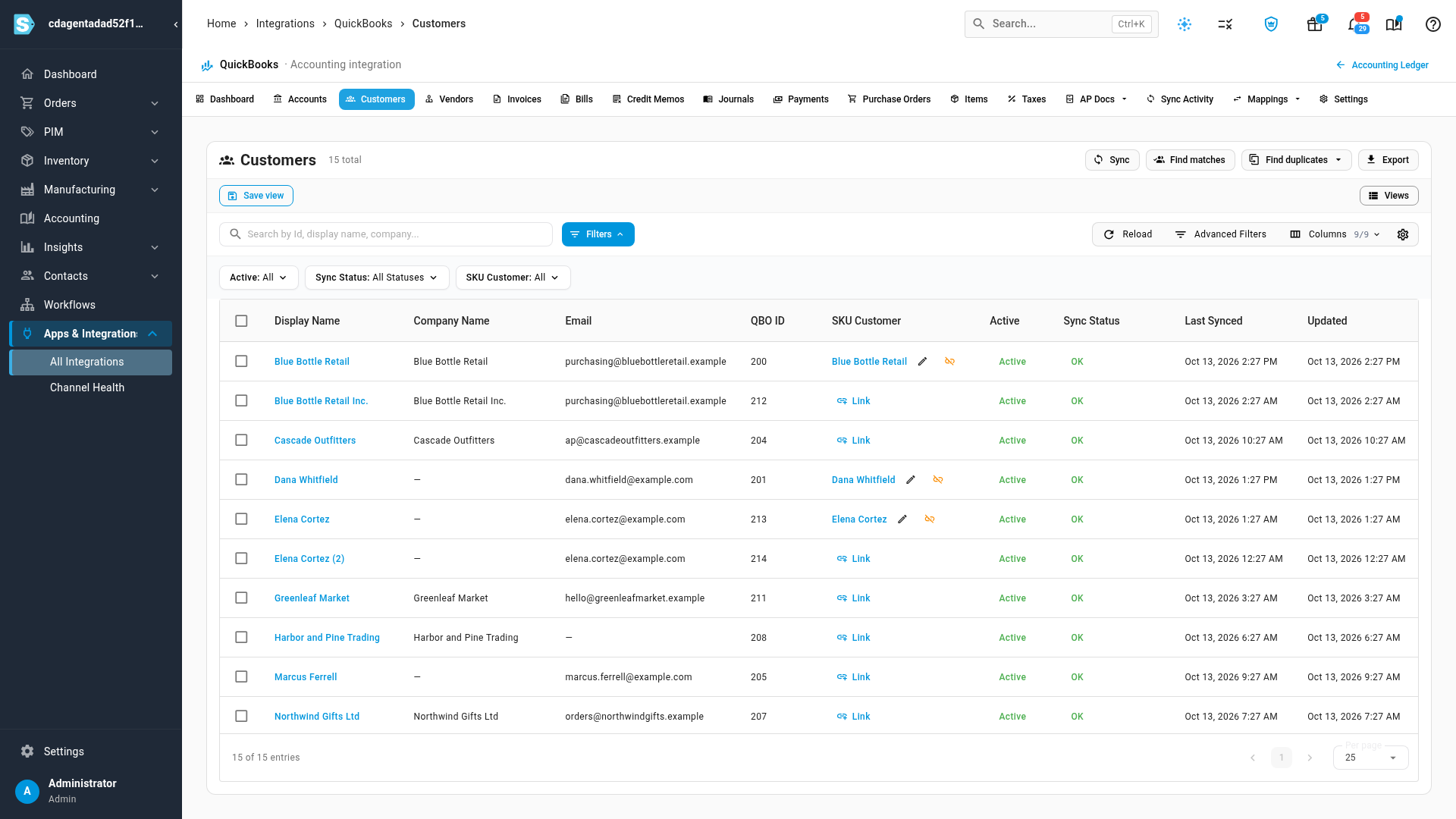
Use the SKU Customer filter to show only linked or only unlinked customers. Sync downloads the latest customers from QuickBooks.
Find matches
-
Click Find matches. SKU.io scores every unlinked QuickBooks customer against your SKU.io customers. To score only some, tick their rows first.
-
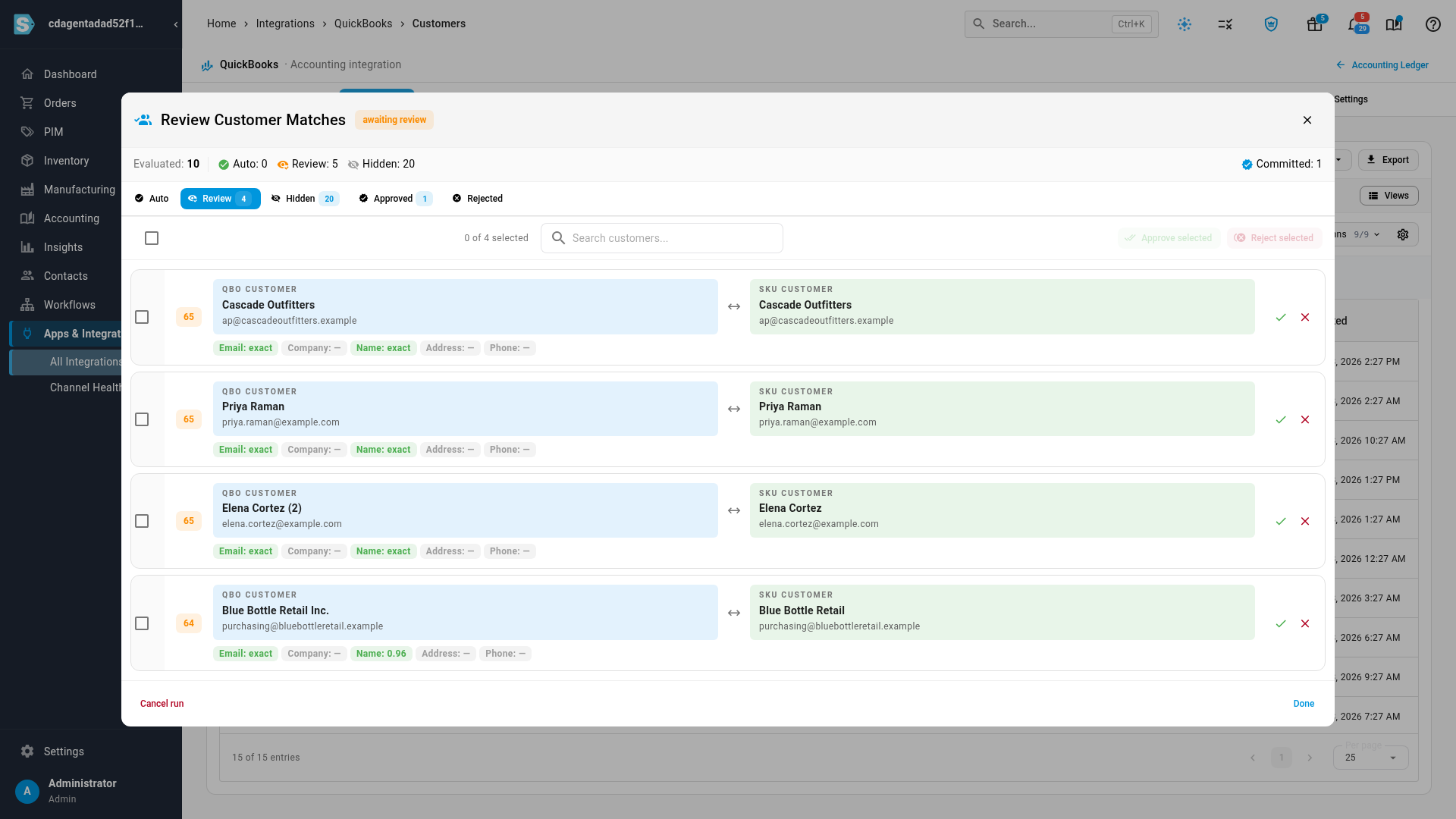
Review Customer Matches opens on the first group that has matches in it:
- Auto: strong matches, safe to approve in bulk.
- Review: likely matches. Check each one.
- Hidden: weak matches, usually wrong.
-
Read each card. It shows the QuickBooks customer, the SKU.io customer, a score, and which details matched, such as Email: exact or Name: exact.
-
Click the tick to approve a match. The two customers are linked straight away. Click the cross to reject it.
-
To approve several at once, tick their cards and click Approve selected.
-
Click Done.
Approved and rejected matches move to the Approved and Rejected groups. A QuickBooks customer already linked to someone else is skipped, and SKU.io tells you so. Cancel run throws away the matches still waiting.
Find duplicates
-
Click Find duplicates and choose one:
- Find QBO duplicates looks for the same customer entered twice in QuickBooks.
- Find SKU duplicates looks for the same customer entered twice in SKU.io.
-
Wait for the scan to finish. Each pair shows a score and the details that matched.
-
For each pair, choose one:
- Keep A · Merge B or Keep B · Merge A keeps one customer and merges the other into it, then asks you to confirm.
- Not a duplicate stops SKU.io from offering the pair again.
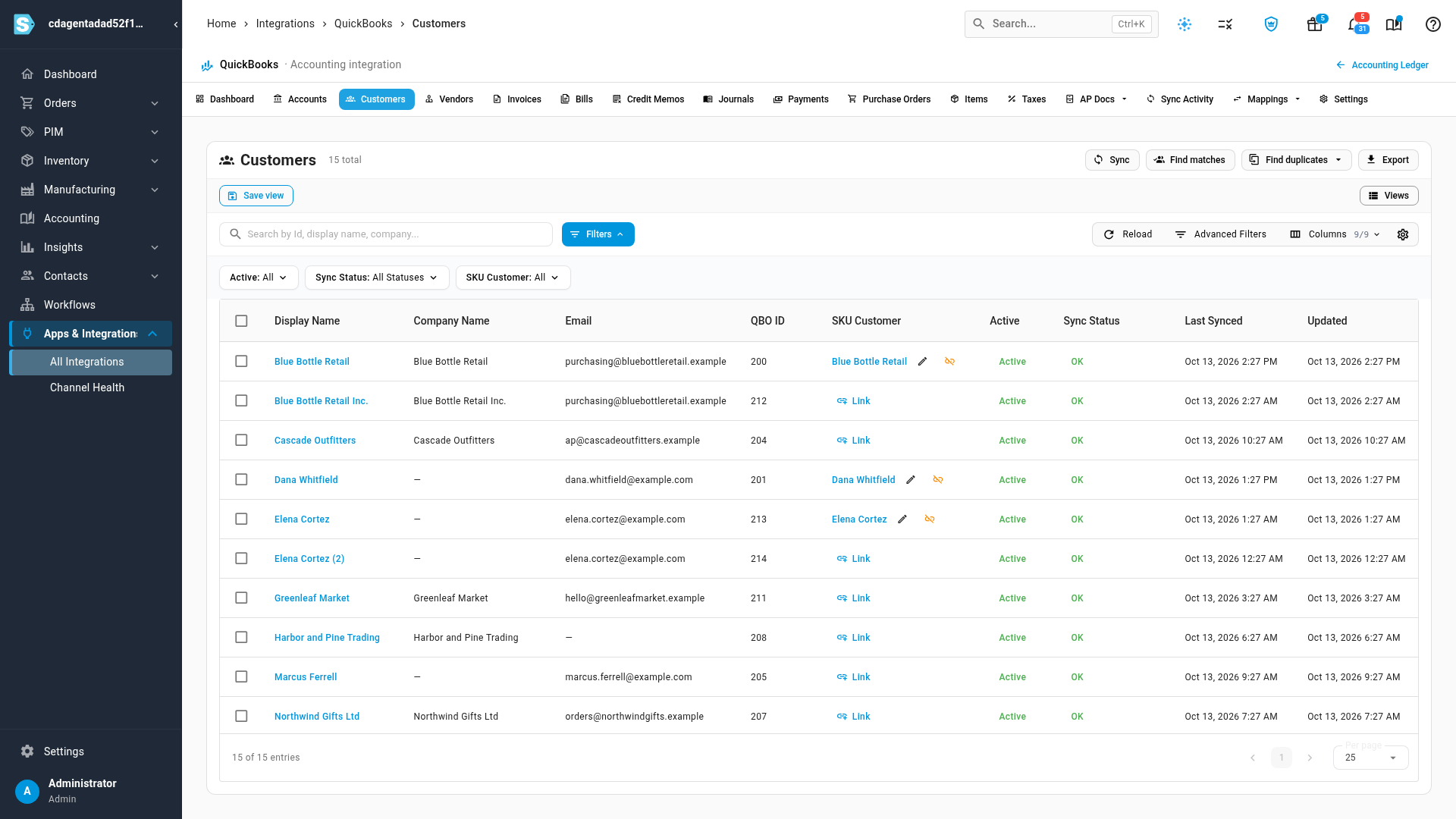
Merging a QuickBooks pair deletes the merged customer in QuickBooks Online, and that can't be undone in QuickBooks. Merging an SKU.io pair works like Merge duplicate customers, and you can undo it for 30 days.
Change or remove a link
- Find the QuickBooks customer on the Customers tab.
- To link it to a different customer, click the pencil beside the SKU.io customer. To link a customer that isn't linked yet, click Link.
- Under Search SKU Customer, type at least two characters and pick the customer.
- Click Update Link, or Link Customer for a new link.
To remove a link, click the broken-link icon beside the SKU.io customer and confirm. Neither customer is deleted.
To work on many at once, tick their rows and use the actions above the table:
| Action | What it does |
|---|---|
| Create SKU Customers | Creates an SKU.io customer for each selected QuickBooks customer and links them |
| Refresh SKU Customers | Copies the name, company and email from QuickBooks onto each linked SKU.io customer, and fills in missing addresses |
| Unlink from Customers | Removes the selected links |
| Delete Selected | Removes the selected QuickBooks customers from SKU.io |
Tune the matching
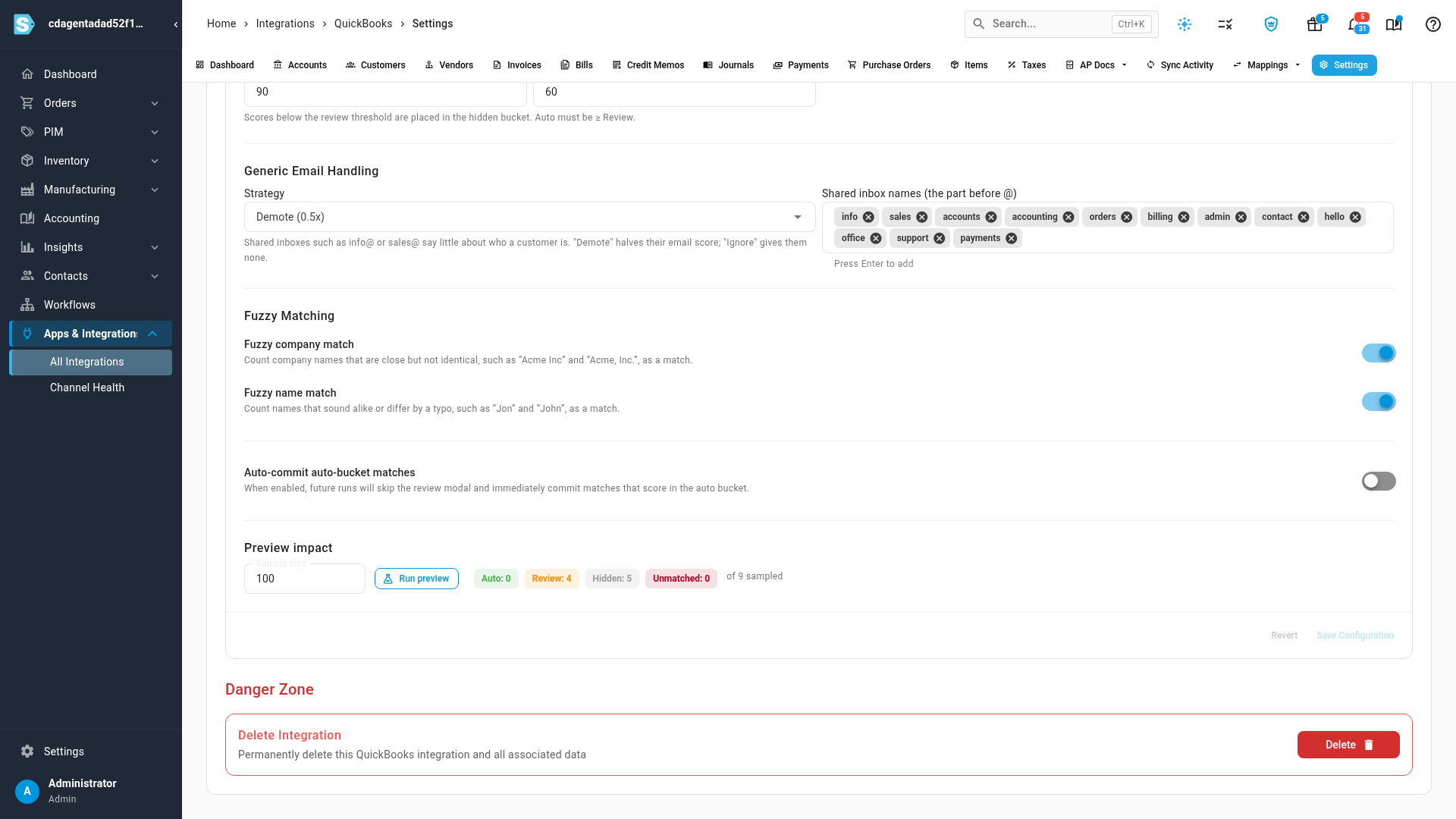
How Find matches scores customers lives under Settings → General → Customer Matching Configuration.
| Setting | What it does |
|---|---|
| Field Weights | How much Email, Company, Name, Address and Phone each count. They must add up to 100. |
| Bucket Thresholds | The lowest score for Auto and for Review. Anything lower goes to Hidden. Auto must be at least Review. |
| Generic Email Handling | How to treat shared inboxes such as info@ or sales@, which say little about who a customer is. Demote halves their email score. Ignore gives them none. List the inbox names under Shared inbox names. |
| Fuzzy company match / Fuzzy name match | Count close spellings as a match, such as "Acme Inc" and "Acme, Inc.", or "Jon" and "John". |
| Auto-commit auto-bucket matches | Links Auto matches as soon as a run finishes, without the review window. |
| Preview impact | Set a Sample size and click Run preview to see how many customers would land in each group. Nothing is linked. |
Click Save Configuration to keep your changes, or Revert to discard them.
Next steps
- Connect QuickBooks Online: the dashboard, what syncs, and payment methods.
- Merge duplicate customers: merge customers inside SKU.io.
- What syncs to your accounting provider: how customers and invoices reach QuickBooks.
Video transcript
On your QuickBooks connection, open the Customers tab in the row of tabs along the top.
Each QuickBooks customer is listed here, with the SKU customer it's linked to.
A customer that isn't linked shows a Link button.
To link many at once, click Find matches.
SKU scores every unlinked QuickBooks customer against your SKU customers.
The scan runs in the background, so it can take a few seconds.
The review window fills in when it's done.
Strong matches land under Auto, likely ones under Review.
Each card shows which details matched.
Approve a match with the tick, and the two customers are linked straight away.
Reject it with the cross.
To approve several at once, tick their boxes, then click Approve selected.
When you've finished reviewing, click Done to close the review window.
Find duplicates looks for the same customer entered twice.
Choose Find QBO duplicates to scan QuickBooks.
The scan runs in the background, so give it a moment to finish.
It compares every pair of customers, looking for shared emails, names and companies.
Each pair shows a score and the details that matched.
Keep one and merge the other, and the duplicate is deleted in QuickBooks.
If they're different customers, click Not a duplicate.
When you're done with the pairs, close the window.
To fix a single link, use the pencil beside the SKU customer.
Search for the right customer, then click Update Link.
Cancel closes the window without changes.
Next to the pencil, the broken link icon removes the link altogether.
How matches are scored is set under Settings, Customer Matching Configuration.
Field Weights decide how much each detail counts, and must add up to one hundred.
Bucket Thresholds set the scores for Auto and Review.
Run preview shows how a sample would sort before you save.