Send documents to Xero as drafts
By default, every invoice, bill, credit note and journal SKU.io creates in Xero arrives approved. That suits a team that reviews entries in SKU.io before they sync. If your accountant prefers to review in Xero instead, you can have SKU.io send some kinds of document as drafts, which wait in Xero until someone approves them.
Nothing sent as a draft counts in Xero's reports (profit and loss, balance sheet, aged receivables and payables) until someone approves it in Xero. SKU.io also holds the document's payments until then.
Before you begin
- You need a Xero connection. QuickBooks Online has no draft state for these documents, so this setting appears only for Xero.
- To change the setting you need the Manage Settings permission under Accounting in Settings → Users & Permissions → Roles (
accounting.manage_settings). - Agree with your accountant who approves drafts in Xero, and how often. A draft posts nothing to Xero's ledger until it's approved.
Choose what goes to Xero as a draft
-
Go to Accounting → Settings → Sync.
-
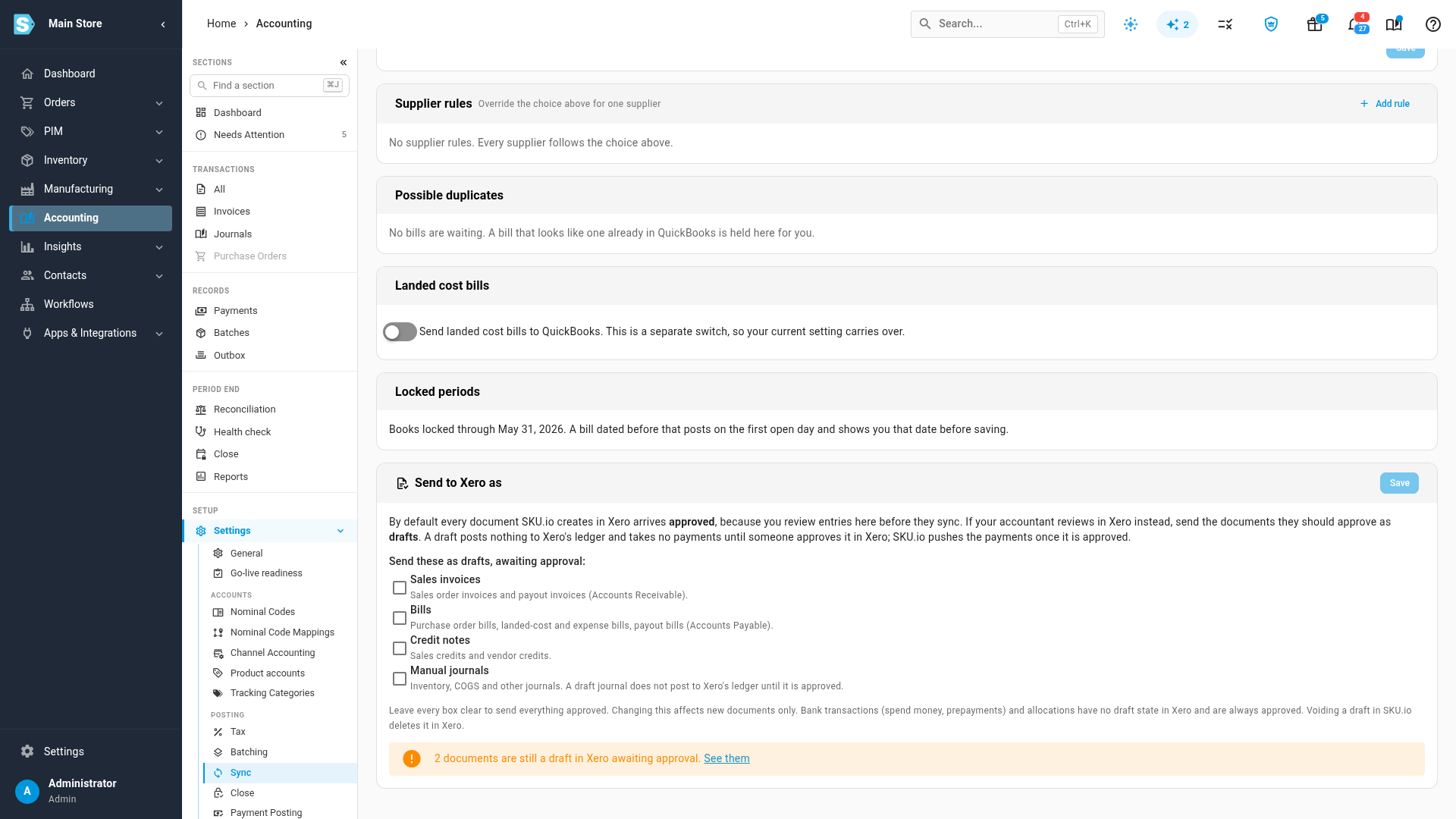
Scroll to the Send to Xero as card.
-
Under Send these as drafts, awaiting approval, tick each kind of document your accountant should approve:
Option What it covers Sales invoices Sales order invoices and payout invoices Bills Purchase order bills, landed-cost and expense bills, payout bills Credit notes Sales credits and vendor credits Manual journals Inventory, cost of goods sold and other journals -
Click Save.
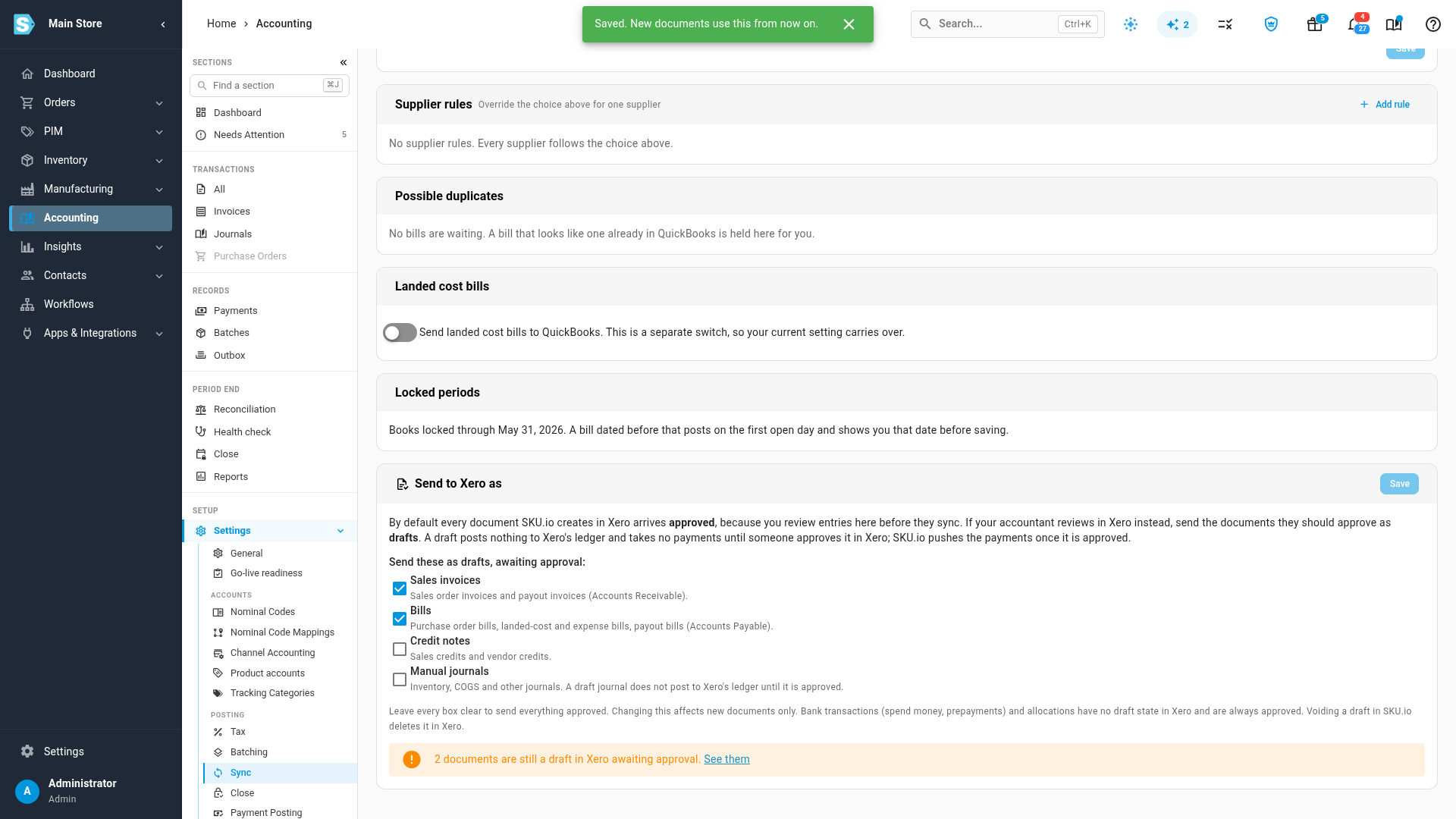
From now on, new documents of the kinds you ticked arrive in Xero as Draft. Everything else still arrives approved. Leave every box clear to go back to sending everything approved.
Changing the setting never touches documents already in Xero: they keep the status they have.
What happens to a draft
- Approving it. Your accountant approves the draft in Xero. SKU.io picks up the new status from Xero, and the entry reads as synced as before. If the accountant changed the draft's total before approving it, the entry is flagged as changed in Xero so you can check the difference.
- Payments wait. Xero only takes payments and credit allocations on approved documents. SKU.io holds a payment or allocation against a draft and sends it on its own once the document is approved.
- Updates keep the status. When an entry changes in SKU.io, the update reaches the draft in Xero and the draft stays a draft. SKU.io never approves a draft for you, and never turns an approved document back into a draft, even after you change this setting.
- Voiding it. When you void the entry in SKU.io while its Xero document is still a draft, SKU.io deletes the draft in Xero. An approved document is voided, as before.
- Bank transactions stay approved. Spend money and prepayments have no draft state in Xero, so they always arrive approved.
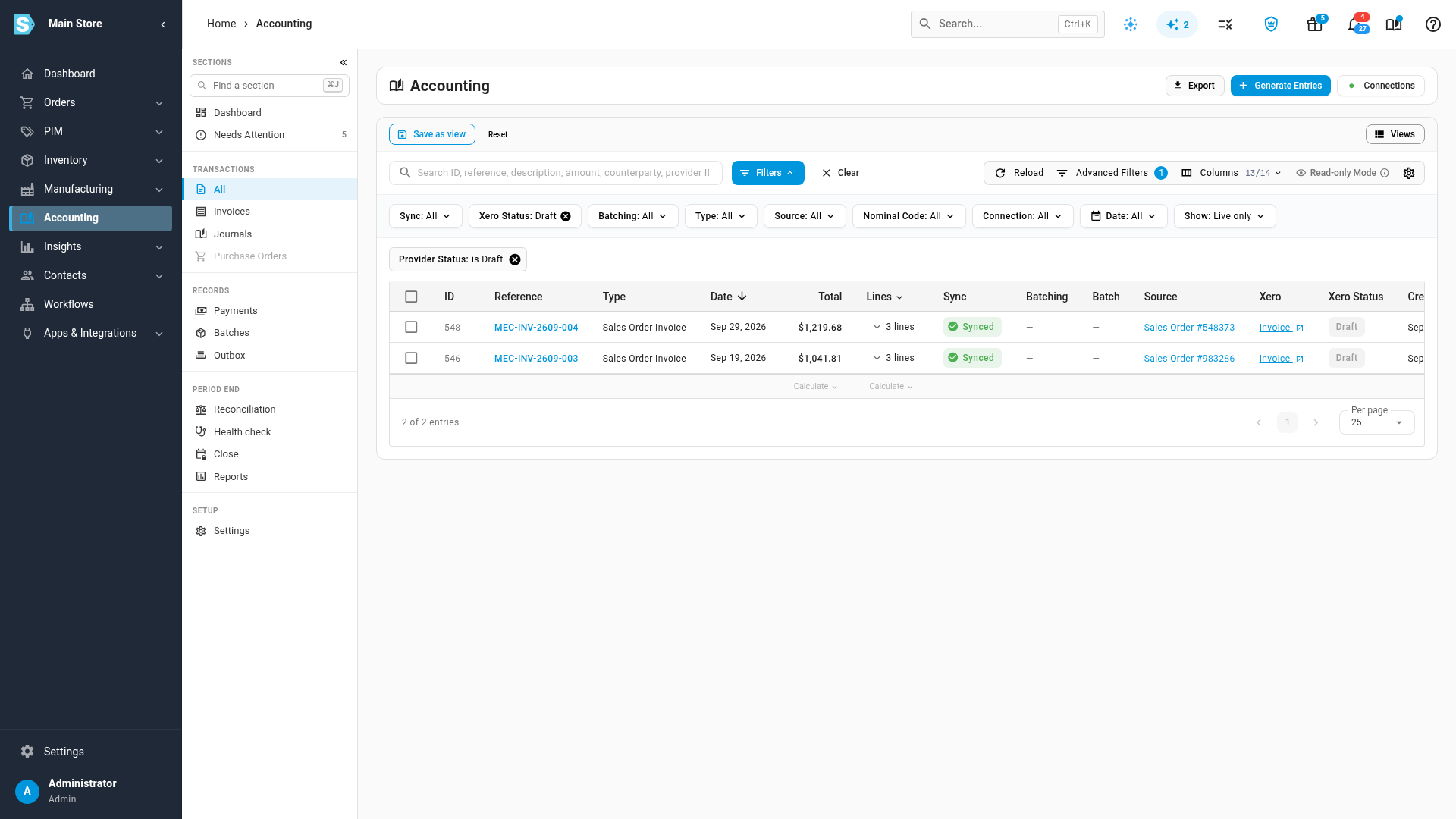
The Send to Xero as card also shows how many documents are still drafts in Xero. Click See them to open the entries waiting for approval.
Clear the drafts before you close the month
A draft is missing from Xero's books until it's approved, so the month-end close checks for them. The Xero drafts approved row on the close checklist warns while any draft dated in or before the month is still waiting, and its arrow opens those entries. It's a warning, so it doesn't block the close. See Close checks reference.
Next steps
- What syncs to your accounting provider: what each entry becomes in Xero.
- Keep your provider's lock aligned: set both Xero lock dates when you close.
- Connect Xero: link your organisation and line up your accounts.
Video transcript
Every invoice, bill and journal sent to your books normally arrives already approved. Your accountant may prefer to review each one first. Open Accounting, then Settings, and in the list of settings, choose Sync. This page holds every option for how entries reach your accounting system, from what syncs to how each document is sent. Scroll down to the Send to Xero as card. Each box is one kind of document: sales invoices, then bills, then credit notes, and last, manual journals, which include your inventory and cost of goods journals. Leave them all clear, and everything arrives approved. Select the kinds your accountant should approve. Here, we'll pick sales invoices, and then bills, which covers every purchase order bill. Click Save, and a message confirms that the change applies to every new document. A draft posts nothing to the ledger until someone approves it, and its payments are held. The card counts how many are waiting. Click See them to open those entries in the transactions list. Each of these entries is still a draft in Xero. Once your accountant approves one, SKU.io sends its payments on its own. At month end, the close checklist also warns about any draft left.