How QuickBooks Desktop syncs
QuickBooks Desktop runs on a PC in your office, so SKU.io can't reach it directly. Instead, the QuickBooks Web Connector on that PC signs in to SKU.io on a schedule, every 15 minutes by default, and asks what's waiting. SKU.io answers with the requests it has queued, and QuickBooks carries them out. This page explains what's sent, where to follow it, and what to do when something fails. To set the connection up, see Connect QuickBooks Desktop.
What syncs
SKU.io sends QuickBooks Desktop the same entries it sends QuickBooks Online, built from the same posting rules, so the books match whichever you use.
| In SKU.io | In QuickBooks Desktop |
|---|---|
| Sales order invoice, batch sales order invoice | Invoice |
| Sales credit | Credit memo |
| Supplier bill, purchase order invoice | Bill |
| Vendor credit | Vendor credit |
| Vendor credit applied to a bill | Bill payment linking the credit to the bill |
| Vendor deposit paid, payment processor fee | Check |
| Vendor deposit refunded | Deposit |
| Payment on a synced invoice | Receive payment |
| Payment on a synced bill | Bill payment |
| Everything else: fulfillment COGS, settlements and payouts, adjustments, revaluations, transfers | Journal entry |
| Purchase order, only when Send purchase orders to QuickBooks Desktop is on | Purchase order |
A few things work differently from QuickBooks Online:
- Products arrive as non-inventory items, named by SKU. SKU.io keeps your stock and posts cost of goods sold through journals, so a QuickBooks inventory part would count that cost twice. If an inventory part already uses a product's SKU as its name, SKU.io adds a separate non-inventory item for it.
- Customers, vendors and items are added for you the first time an entry needs them. QuickBooks keeps customers and vendors in one list of names, so a customer and a vendor with the same name get "(C)" and "(V)" after the name.
- Sales tax is posted as a line on each invoice, to the account your sales tax nominal code is paired with. QuickBooks doesn't let other apps post to its own Sales Tax Payable account, so pair the code with a separate liability account (see Troubleshooting).
- Classes are the one tracking category QuickBooks Desktop takes.
- Payments you record in QuickBooks against a synced invoice come back to SKU.io, along with edits and deletions, the next time the Web Connector checks in. SKU.io looks for changes at most once an hour.
Some things aren't sent to QuickBooks Desktop at all: attachments, bank statement lines, and the opening trial balance. Sales receipts aren't used either. A sale becomes an invoice plus the payment that pays it, as it does for QuickBooks Online.
How an entry gets to QuickBooks
-
An entry is ready to sync, on its own or because you clicked Sync Now on it under Accounting.
-
SKU.io queues what QuickBooks needs to record it: any customer, vendor or item that's missing, a check that the document isn't already in QuickBooks, and the document itself. The entry shows Waiting for Web Connector.

-
The Web Connector checks in and works through the queue in order.
-
When QuickBooks answers, the entry shows Synced, with its QuickBooks Desktop ID. If QuickBooks refuses it, the entry moves to Needs Attention with the reason.
Nothing reaches QuickBooks until the Web Connector checks in. If the PC is off for a day, entries simply wait, and nothing fails because of it. To send something now, click Update Selected in the Web Connector.
Before it adds a document, SKU.io always checks whether QuickBooks already has it. If the connection drops after QuickBooks saved a document but before SKU.io heard back, the next check-in finds the document and links to it instead of adding it twice.
The Web Connector queue
Open Apps & Integrations → QuickBooks Desktop → Web Connector Queue to see every request SKU.io has sent or is about to send.
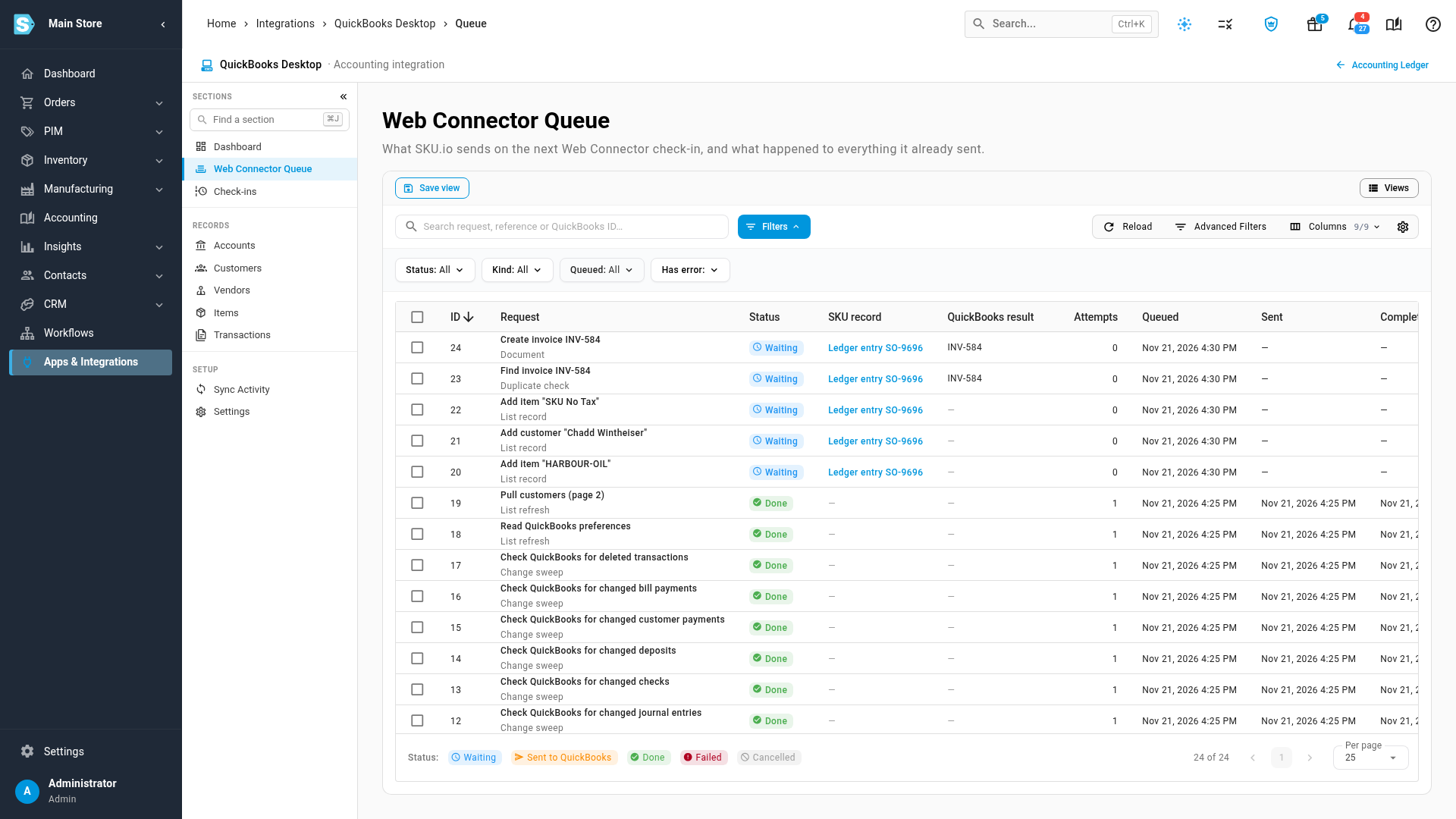
| Column | What it shows |
|---|---|
| Request | What SKU.io asked QuickBooks to do, such as Create invoice INV-584 or Add customer, with the kind of request underneath. |
| Status | Waiting for the next check-in, Sent to QuickBooks during a check-in, Done, Failed, or Cancelled. |
| SKU record | The accounting entry, payment or purchase order the request is for. Click it to open it. |
| QuickBooks result | The reference number and QuickBooks ID it was saved under, or why it failed. |
| Attempts | How many times it was sent. A check-in that couldn't reach QuickBooks doesn't count. |
Expand a row to see exactly what was sent and what QuickBooks answered, which helps if you contact support. Filter by Status, Kind, Queued or Has error to narrow the list.
Check-ins
Check-ins lists each time the Web Connector signed in: when, which company file was open, how many requests were sent, and how it ended, for example Completed, Nothing to send, Different company file open or QuickBooks error. When the dashboard shows an error, this is where to see which check-in it came from.
When something fails
Where you send a failed request again depends on where its failure is shown:
- A request that failed in the queue shows the retry arrow. Fix the cause in QuickBooks, then click Retry on the row, or select several rows and click Retry. It goes back to Waiting and is sent on the next check-in.
- A failure that was handed to the accounting entry shows a link to the entry instead. The entry is in Needs Attention with the reason. Fix the cause, then open the entry and click Sync Now (or Resync Now if it synced before). SKU.io queues it again.
You can also cancel a waiting request from its row. If it belongs to an accounting entry, the entry moves to Needs Attention so it isn't forgotten.
Troubleshooting
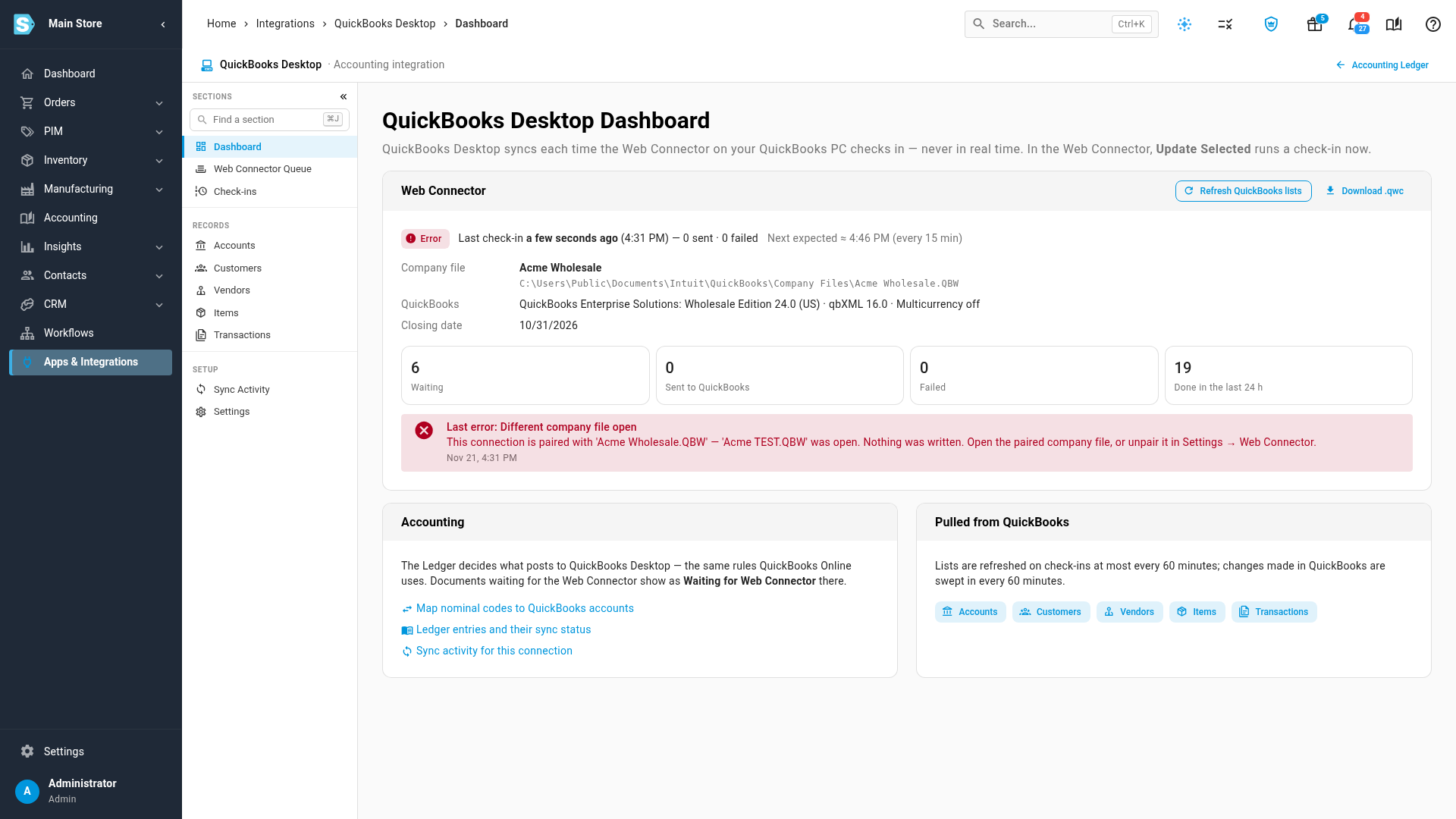
| You see | What happened | What to do |
|---|---|---|
| Different company file open, naming the paired file and the one that was open | The Web Connector checked in while a different company file was open, such as a test copy of your books. Nothing was written. | Open the paired company file and click Update Selected in the Web Connector. If you've moved to a new company file, click Unpair under Settings → Web Connector, and the next check-in pairs the file that's open. |
| "QuickBooks wasn't open, or a dialog was blocking it." | QuickBooks wasn't running with the company file open, or a window inside QuickBooks was waiting for an answer. The requests go back to Waiting, and no attempt is counted. | Open the company file in QuickBooks, close any open windows or dialogs, then click Update Selected in the Web Connector. |
| QuickBooks closed this period | The document is dated before QuickBooks' closing date. The dashboard shows that date under Closing date. | Change the closing date in QuickBooks (Edit → Preferences → Accounting → Company Preferences), then click Resync on the entry. |
| "QuickBooks Desktop doesn't let other apps post to its Sales Tax Payable account." | Your sales tax nominal code is paired with QuickBooks' own Sales Tax Payable account, which only QuickBooks can post to. | In QuickBooks, add an Other Current Liability account such as "Sales Tax Collected (SKU.io)", click Refresh QuickBooks lists on the dashboard, and after the next check-in pair your sales tax nominal code with the new account. Then click Resync on the entry. |
| The Web Connector says the password is wrong, and Check-ins shows a failed sign-in | The password in the Web Connector is old or mistyped, often after Regenerate password. | Paste the current password into the Password column next to SKU.io in the Web Connector. If you don't have it, click Regenerate password under Settings → Web Connector. |
| Overdue on the dashboard | The Web Connector hasn't checked in for three intervals in a row. | Check that the PC is on and signed in, the Web Connector is running, and Auto-Run is ticked next to SKU.io. |
| A QuickBooks name is already used by a different record | QuickBooks keeps customers, vendors and other names in one list, and the name belongs to another record. | Rename one of them in QuickBooks, then click Resync. |
| QuickBooks was busy | Someone had the record open, or QuickBooks was busy in multi-user mode. | Nothing. SKU.io sends it again on the next check-in. |
| This QuickBooks feature is turned off | The document uses classes or multiple currencies, which are off in this company file. | Turn the feature on in QuickBooks (Edit → Preferences), then click Resync. |