Post committed spend when a purchase order is submitted
Committed-spend billing puts the money you've committed to suppliers into your books the moment you submit a purchase order — instead of waiting weeks for the supplier's invoice. Each submitted order gets a committed-spend bill that tracks whatever hasn't been invoiced yet, shrinks automatically as real supplier invoices arrive, and disappears once the order is fully billed. Use it when your accountant plans cash flow from your accounting file and open purchase orders would otherwise be invisible there.
Before you begin
- You need access to Settings and permission to manage purchase orders.
- To see committed spend in your accounting provider, your accounting integration must be connected and syncing bills. The bills work inside SKU either way.
- You do not need to prepare your chart of accounts first. The same card shows you which accounts these bills post to and offers to create the recommended one for you.
Turn on committed-spend billing
- Go to Accounting → Settings → General and find the Generation card.
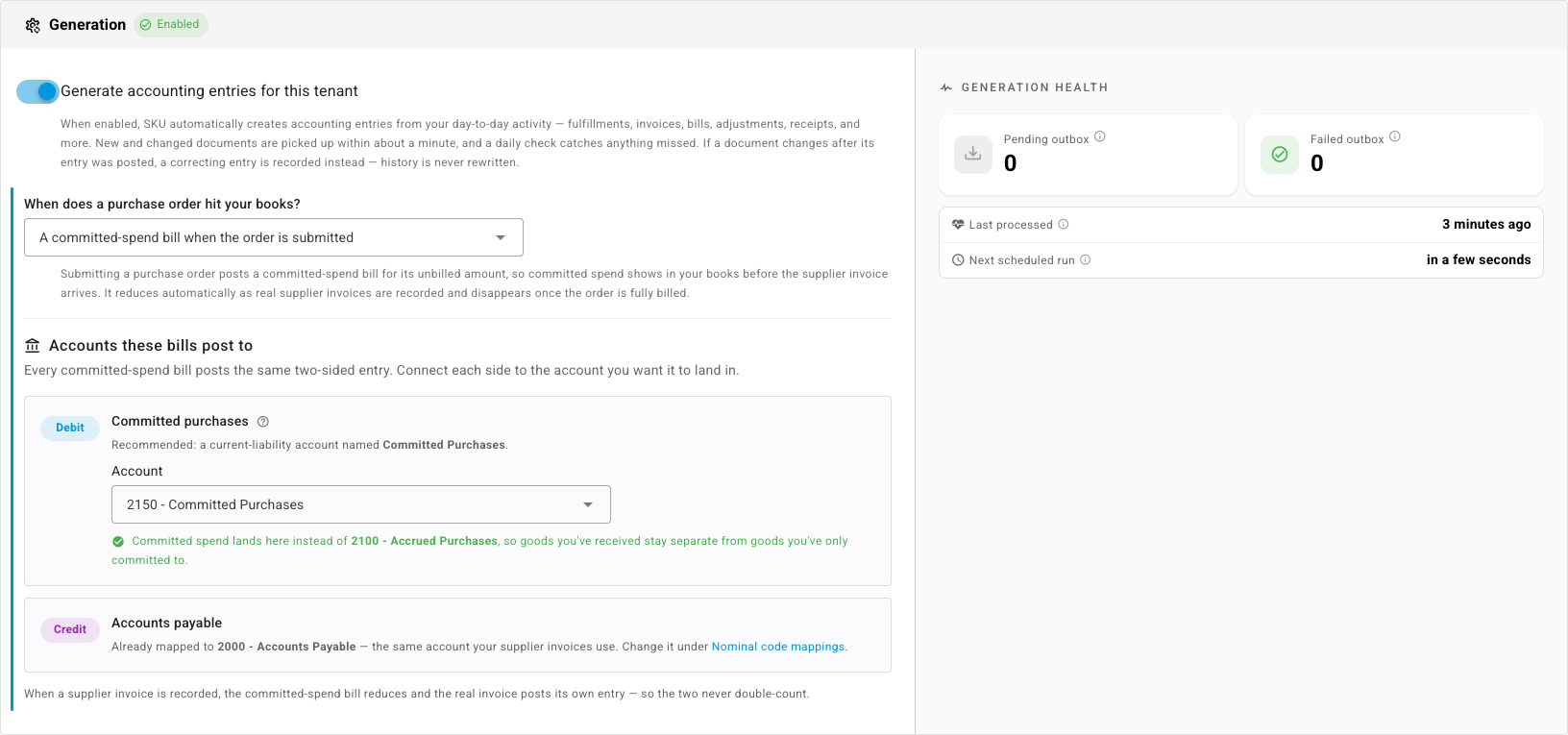
- Under When does a purchase order hit your books?, choose A committed-spend bill when the order is submitted.
The choice saves as soon as you make it. From now on, every purchase order you submit creates a committed-spend bill automatically. Draft orders are not affected — only submitting triggers it.
This one setting decides what a purchase order puts into your books, and the three answers are mutually exclusive:
| Choice | What happens |
|---|---|
| Nothing until the supplier invoice is recorded | The default. Your books stay untouched until you record the supplier's invoice. |
| A non-posting commitment entry per purchase order | Open commitments are visible in your ledger without affecting your profit and loss or payables. |
| A committed-spend bill when the order is submitted | Committed spend posts as a bill straight away, then reduces as real supplier invoices arrive. |
Choose the accounts these bills post to
Choosing the committed-spend option reveals an Accounts these bills post to panel directly beneath it. Every committed-spend bill posts the same two-sided entry, and the panel shows you both sides:
-
Debit — Committed purchases. The account that holds what you've committed to but not yet received an invoice for. A current-liability account named Committed Purchases is recommended. Pick any account from your own chart of accounts in the Account dropdown, or click Create "Committed Purchases" for me and SKU adds it — numbered into the next free slot in your liability range — and maps it for you.
-
Credit — Accounts payable. Already mapped to the same account your real supplier invoices use, so committed and actual spend land on one payables line. It's shown read-only here; change it under Nominal code mappings if you need to.
Your accounting provider books its own side of a bill against payables, so SKU never pushes that line — sending it too would double-count the balance.
If you leave the debit side unmapped, committed spend falls back to your Accrued Purchases account. That works, but mapping a dedicated account keeps goods you've received separate from goods you've only committed to — which is the distinction your accountant cares about.
Submit a purchase order and see the committed bill
-
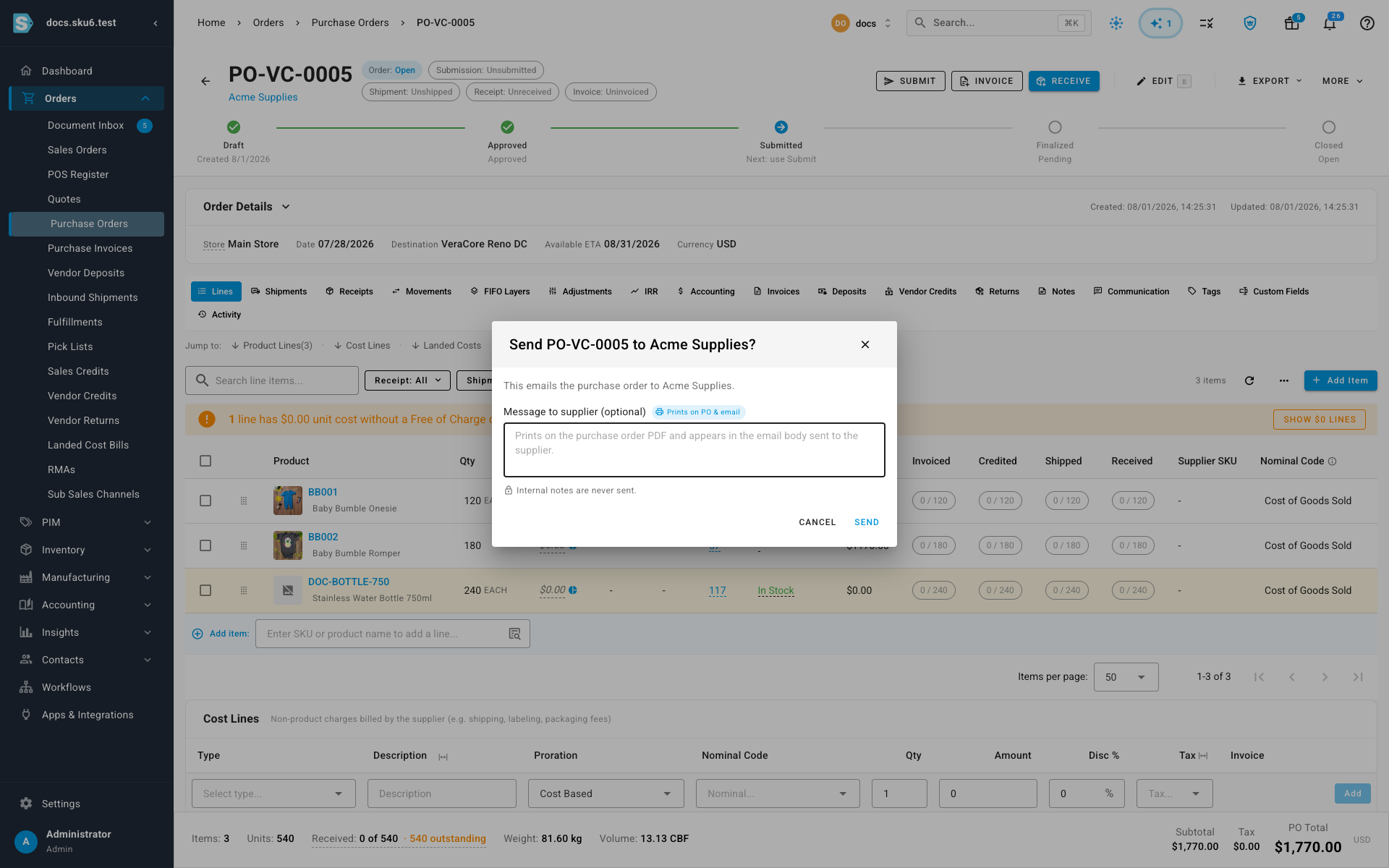
Open a purchase order — for example PO-DOCS-0001 for Acme Supplies — and click Submit.
-
Confirm in the Send dialog. This emails the order to your supplier, exactly as it always has.
-
Go to Orders → Purchase Invoices. A new bill named after the order (for example PROV-PO-DOCS-0001) appears with a Committed badge, valued at the order's full unbilled amount.
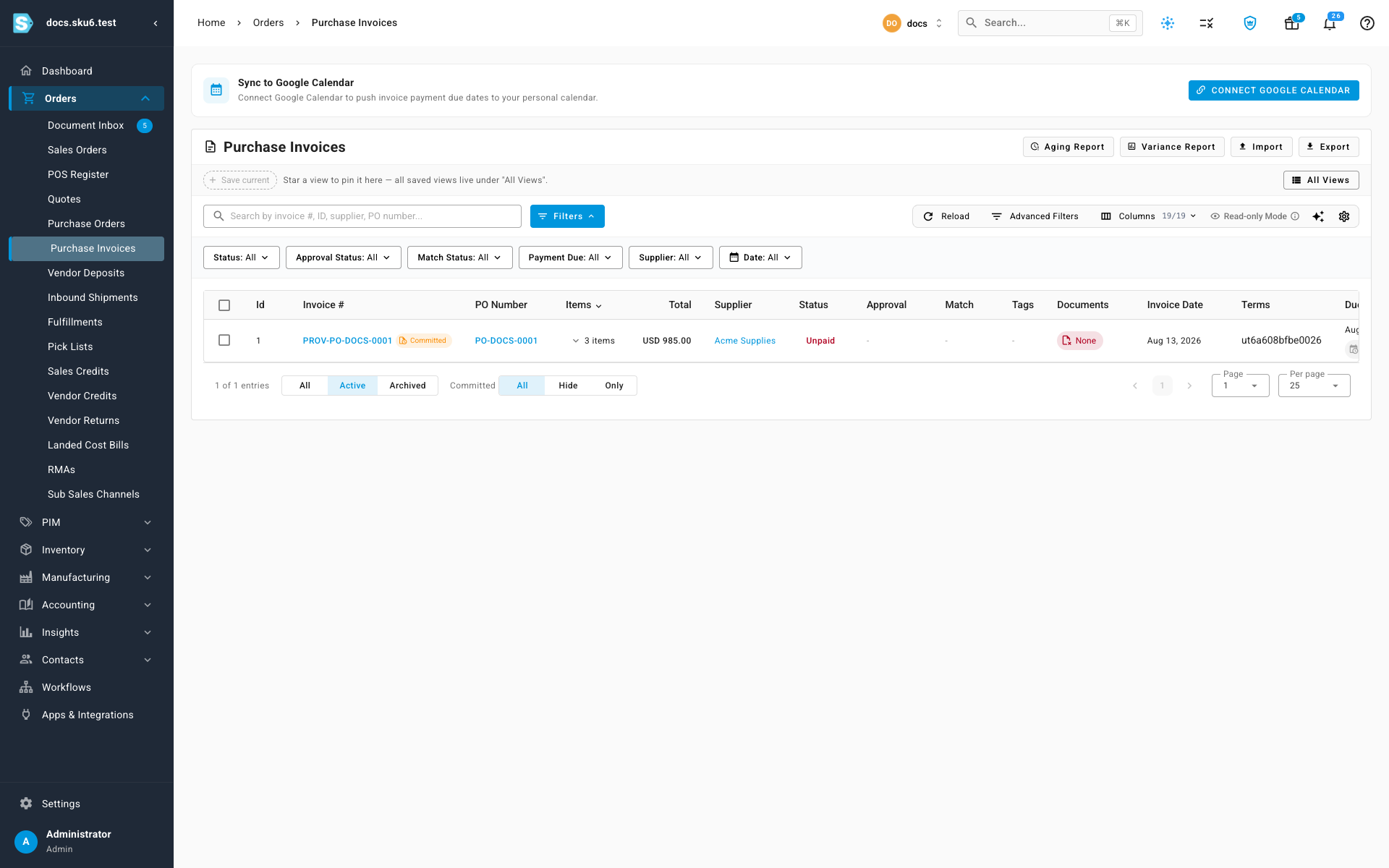
Committed-spend bills are managed for you. Their edit, delete, archive, and payment actions are disabled — the bill follows the purchase order, and you never maintain it by hand.

Next steps
Video transcript
Committed-spend billing puts supplier commitments into your books the moment you submit a purchase order, rather than waiting for the supplier's invoice to turn up. Turn it on under Accounting, Settings, Generation, and save the change — nothing takes effect until you do. From then on, every order you submit posts its commitment for you. Then point it at an account — a Committed Purchases account is what most people want, and SKU will create it for you rather than making you go and set one up first. It lands in your own chart of accounts, mapped and ready. Now submit the order the way you always would. The supplier here is Acme Supplies, and submitting opens the same confirmation you already know. Sending emails the purchase order straight to them, exactly as it did before you turned any of this on — and while that goes out, SKU is already writing the commitment into your books behind the scenes. The moment it's submitted, a committed-spend bill appears beside your real invoices. Badged, and valued at the order's full unbilled amount.