Reprint Pinnacle labels and the bill of lading
MWD prints the piece labels and the bill of lading (BOL) for every Pinnacle delivery. When a label goes missing or gets damaged, or you need the BOL for your records, download a fresh copy from SKU.io instead of asking MWD to send one.
Before you begin
- The delivery must be registered with Pinnacle. See Set up Pinnacle (MWD) deliveries.
- You need permission to view integrations. Without it, the buttons are greyed out and say so when you hover over them.
From the fulfillment order
-
Go to Orders → Fulfillments and open the fulfillment order.
-
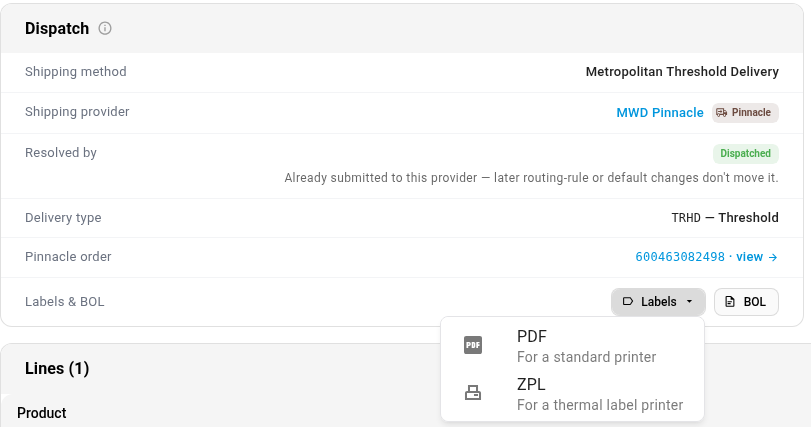
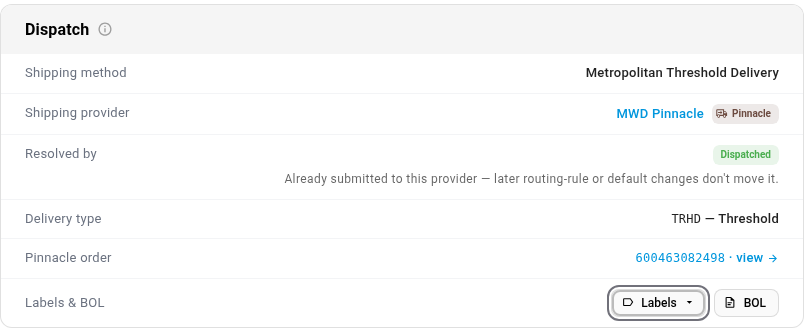
Scroll down to the Dispatch panel. The Labels & BOL row sits under the Pinnacle order.
-
To reprint labels, click Labels and choose a format:
- PDF, for a standard printer.
- ZPL, for a thermal label printer.
-
To get the bill of lading, click BOL. It downloads as a PDF.
From the Pinnacle order
The same Labels and BOL buttons sit at the top of the Pinnacle order, next to View in Pinnacle. To open the Pinnacle order, click the tracking number in the fulfillment order's Dispatch panel, or open it from the connection's Orders tab.

What you get
- Each download asks Pinnacle for a new copy at that moment, so it matches what MWD printed. Nothing is stored in SKU.io.
- The labels cover every piece of the delivery in one file.
- The filename includes the delivery's tracking number.
When the buttons are greyed out
Hover over Labels or BOL to see why. The documents aren't available when:
- the delivery was cancelled or closed in Pinnacle,
- the fulfillment order never reached Pinnacle, so it has no tracking number, or
- it's a placeholder created while shipping-provider dispatch was turned off.
If Pinnacle can't return a document, for example because MWD hasn't created it yet, an error message names the delivery and Pinnacle's reason. Try again later, or ask MWD.
Next steps
- Set up Pinnacle (MWD) deliveries: track each delivery to shipped.
- Pinnacle (MWD) overview
Video transcript
MWD prints the labels and the bill of lading for every delivery it handles. If you need another copy, download it from SKU.io. To find the delivery, open Orders in the menu on the left, and then choose Fulfillments. Then open the fulfillment order that needs a new label. Scroll down to the Dispatch panel. This row asks Pinnacle for a fresh copy each time. Click Labels, and pick a format. PDF is for a standard printer, and ZPL is for a thermal printer. The button next to it downloads the bill of lading for the whole delivery. The same buttons are on the Pinnacle record itself. Click the tracking number to open it in full. Here they sit next to View in Pinnacle, at the top of the order. When a delivery was cancelled, or never reached MWD, both buttons are greyed out. Hover over one to see why.