Set up Pinnacle (MWD) deliveries
Pinnacle is the delivery platform run by Metropolitan Warehouse & Delivery (MWD). When a warehouse ships through Pinnacle, SKU.io registers each fulfillment order with MWD as a delivery, gets a tracking number back straight away, and marks the order shipped when MWD reports the pickup. This guide takes you from the credentials MWD emails you to your first tracked delivery — including how to send some shipping methods, such as FedEx parcels, to a different provider from the same warehouse.
Before you begin
- Credentials from MWD. Pinnacle access isn't self-serve. Ask your MWD account manager to have the MWD integration team set it up; they email a sheet with your Order API user name, password and client ID (your MWD customer number), plus a separate Tracking API key. MWD issues staging credentials first for testing, then a separate production set.
- A US warehouse for MWD to pick up from, with a street address, a 5-digit ZIP, a 2-letter state and a 10-digit phone number. Pinnacle delivers within the US only. Add an email address too — MWD needs one to register a delivery.
- Weights and dimensions on your products. Pinnacle works in pounds and inches; SKU.io converts metric values for you when Convert units to imperial is on.
- Permission to manage integrations and fulfillment settings. You can connect only one Pinnacle account.
Connect Pinnacle
-
Go to Apps & Integrations, search for Pinnacle, and start a new connection. The Pinnacle Setup Guide at the top of the form repeats these steps.
-
Enter an Instance Name, then pick the Environment your credentials are for. Staging credentials only work with Sandbox (staging); production credentials only work with Production.
-
Paste the Client ID (MWD customer number), Order API Username, Order API Password and Tracking API Key.
-
Click Test Connection. When the check passes you see Token OK · Tracking API OK.
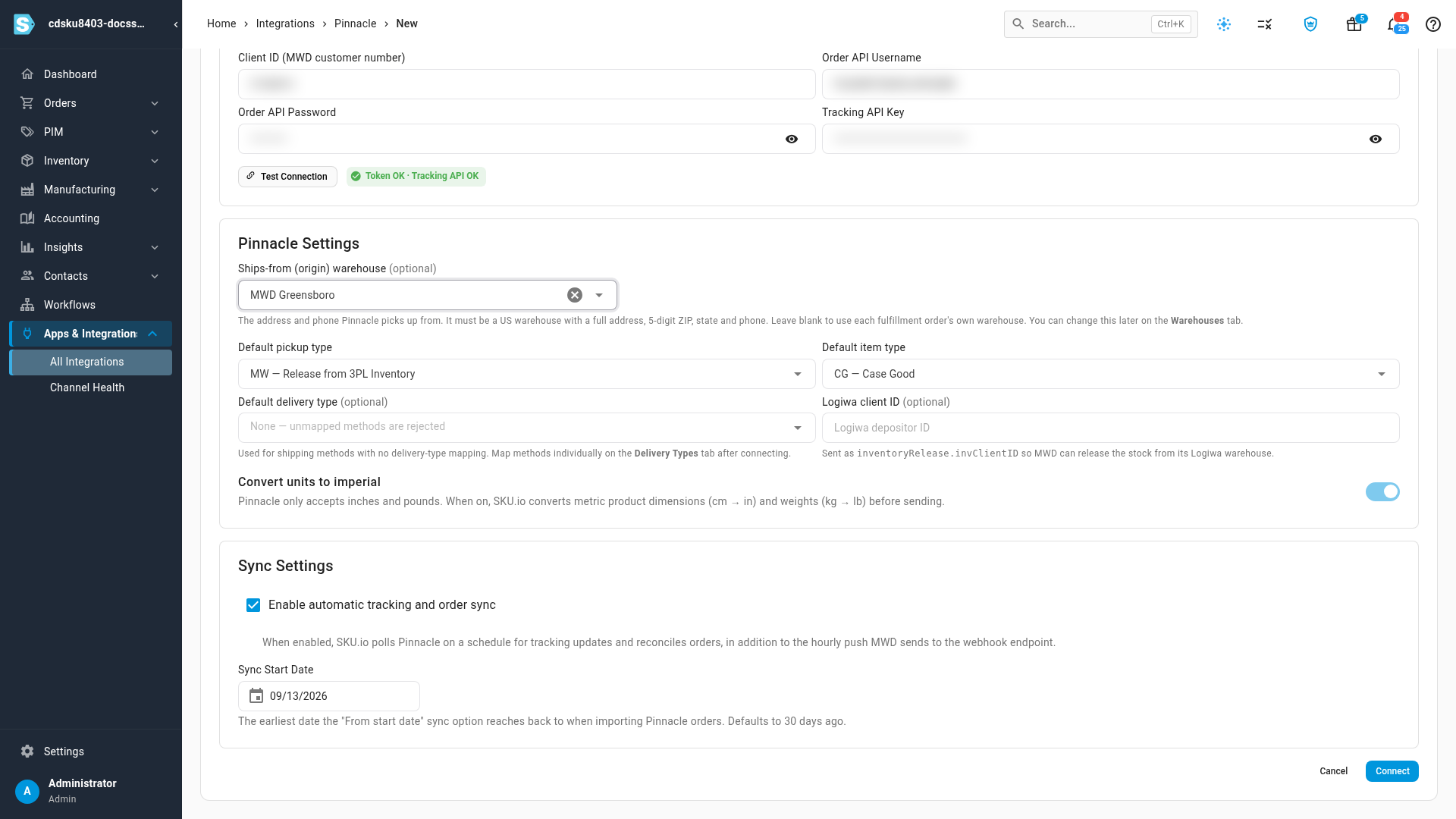
A passing test doesn't save anything yet. If the test fails, the message names the field Pinnacle rejected — usually a mismatch between the credentials and the environment.
-
Under Pinnacle Settings, choose the Ships-from (origin) warehouse — the address MWD's driver collects from. Leave it blank to use each fulfillment order's own warehouse instead; every warehouse that ships through Pinnacle then needs a complete US address.
-
Review the defaults (Default pickup type, Default item type, Convert units to imperial), then click Connect.
Your connection opens on its dashboard. The cards count deliveries by stage — Awaiting Pickup, In Transit / Scheduled, Registration Failed, Delivered (30 days) and With Exception — and Sync & Connection shows when tracking last synced.
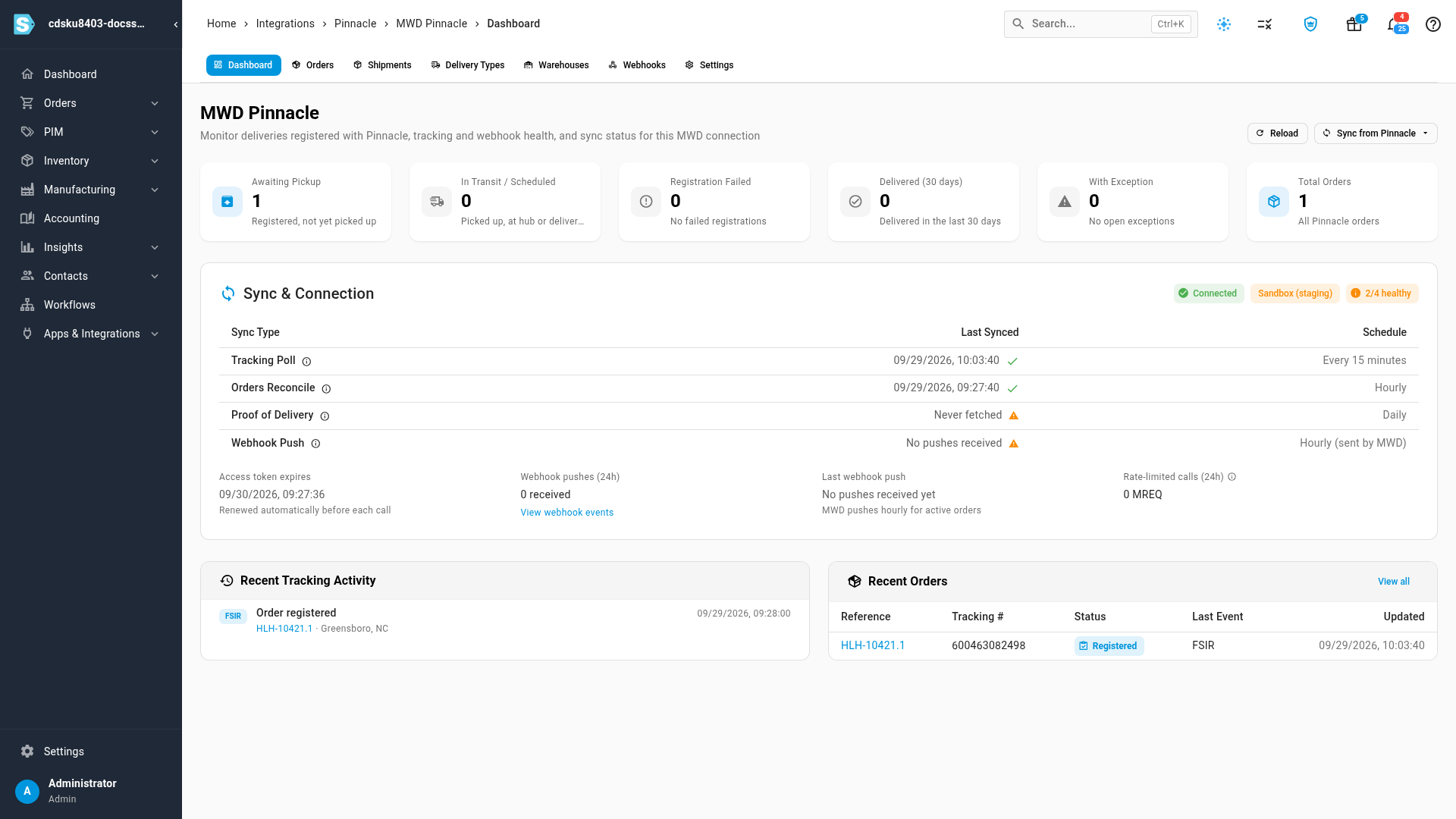
To change the origin warehouse later, use the connection's Warehouses tab. It checks every warehouse against Pinnacle's address rules and lists the current origin first.
Map your shipping methods to delivery types
Every order SKU.io sends to Pinnacle carries a Pinnacle delivery type — the service level MWD performs, such as threshold or white-glove delivery. You choose it per SKU.io shipping method.
-
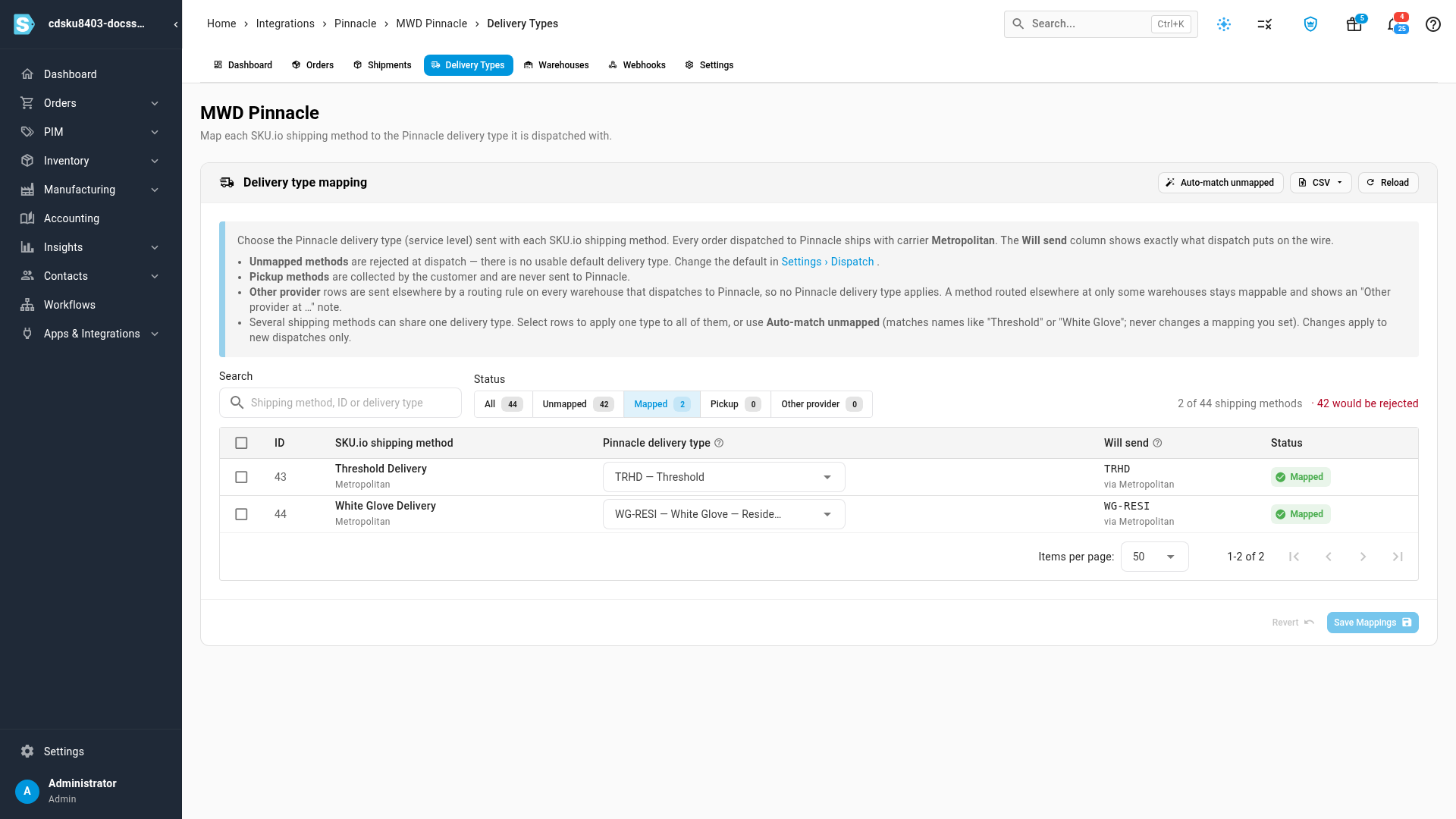
Open the connection's Delivery Types tab. Each SKU.io shipping method is a row.
-
Read the Will send column. It shows exactly what an order with that method would send: its mapped delivery type, else the connection's default delivery type, else Rejected: no delivery type.
-
Click Auto-match unmapped. SKU.io maps methods whose names match a delivery type, such as "Threshold" or "White Glove". It never changes a mapping you already set.
-
Filter to Mapped to check the result.
-
Map anything auto-match missed: pick a type in the Pinnacle delivery type column (or click the Unmapped · click to map chip), then click Save Mappings. To give several methods the same type, select their rows and apply one type to all of them. The CSV menu exports every method and imports a filled-in file.
Only the methods you actually send to Pinnacle need a type. Methods with Pickup status are collected by the customer and never sent. Methods with Other provider status go elsewhere through a routing rule (below). A method left unmapped is rejected at dispatch, unless you set a Default delivery type on the connection's Settings tab.
Send a warehouse's orders to Pinnacle
-
Go to Settings, open Fulfillment, then Fulfillment Dispatch.
-
Find the warehouse MWD runs for you, and set its Shipping Provider & Routing to your Pinnacle connection.
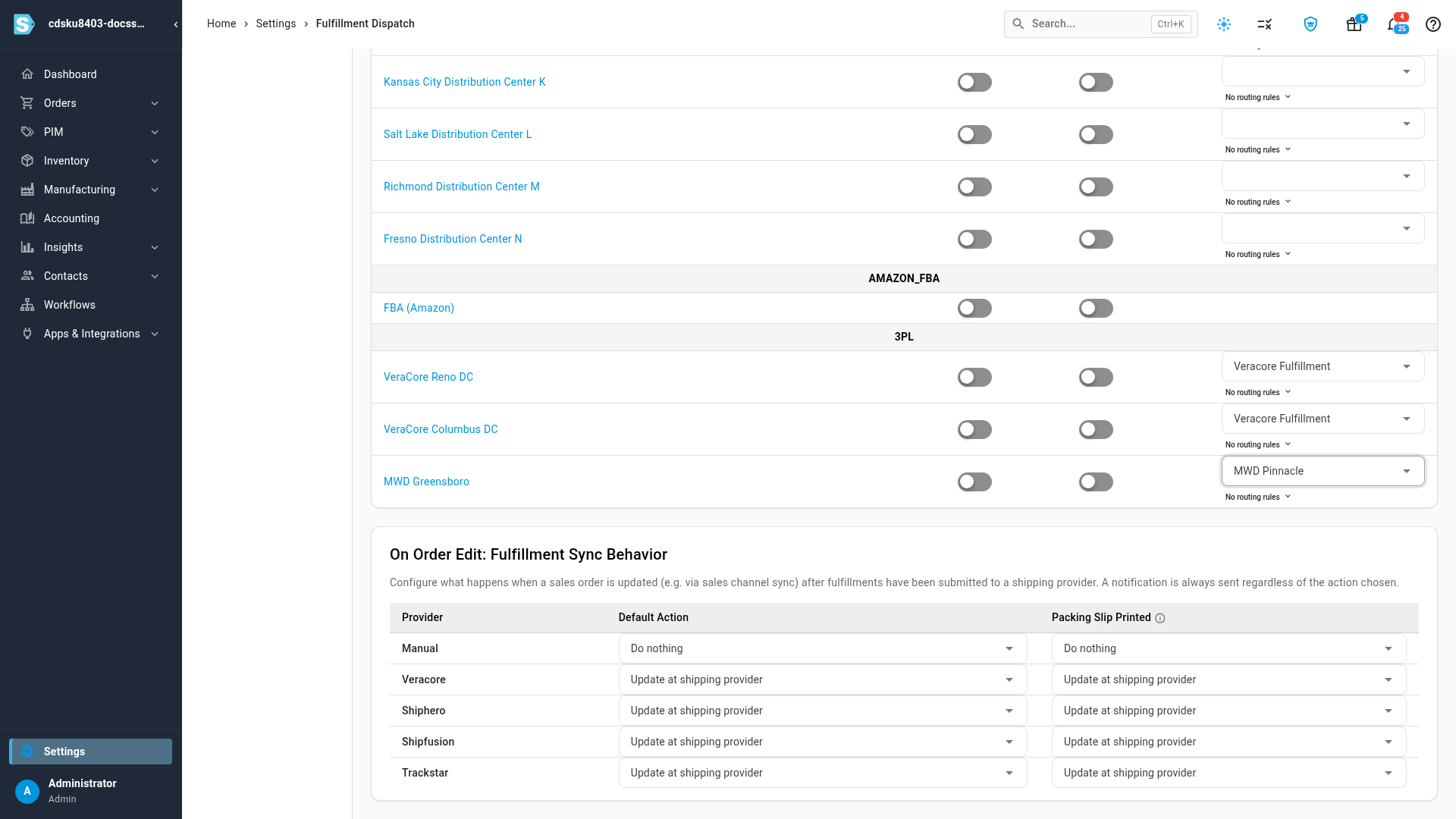
Don't save yet if you also need a routing rule — the next section adds one on the same row, and one Save keeps both.
Route a shipping method to a different provider
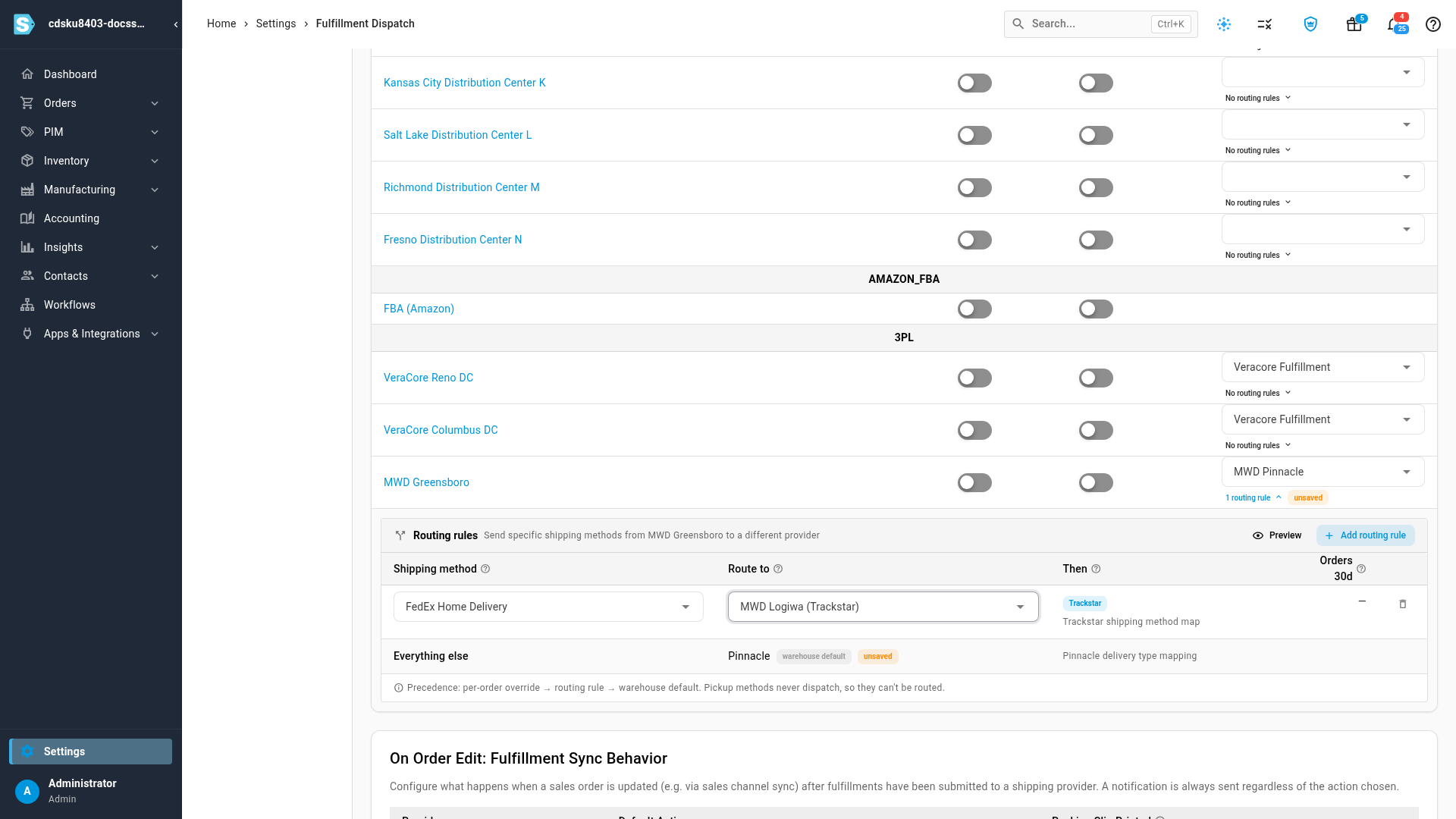
A warehouse can send specific shipping methods to another provider. With MWD, the Metro deliveries go to Pinnacle while FedEx parcels ship from MWD's own warehouse system (Logiwa) through a Trackstar connection.
-
Under the warehouse's provider, click No routing rules to open its routing rules.
-
Click Add routing rule.
-
Choose the Shipping method, then the provider to Route to. The Then column says what happens next — for Trackstar, its own shipping-method mapping picks the carrier service.
-
The Everything else row shows where every other method goes: the warehouse default.
-
Scroll to the top of the page and click Save.
Rules apply to orders that haven't been sent to a provider yet. How rules, per-order choices and the warehouse default fit together is explained in Dispatch to a fulfillment provider.
Check which provider will ship an order
-
Go to Orders → Fulfillments and open a fulfillment order from the warehouse.
-
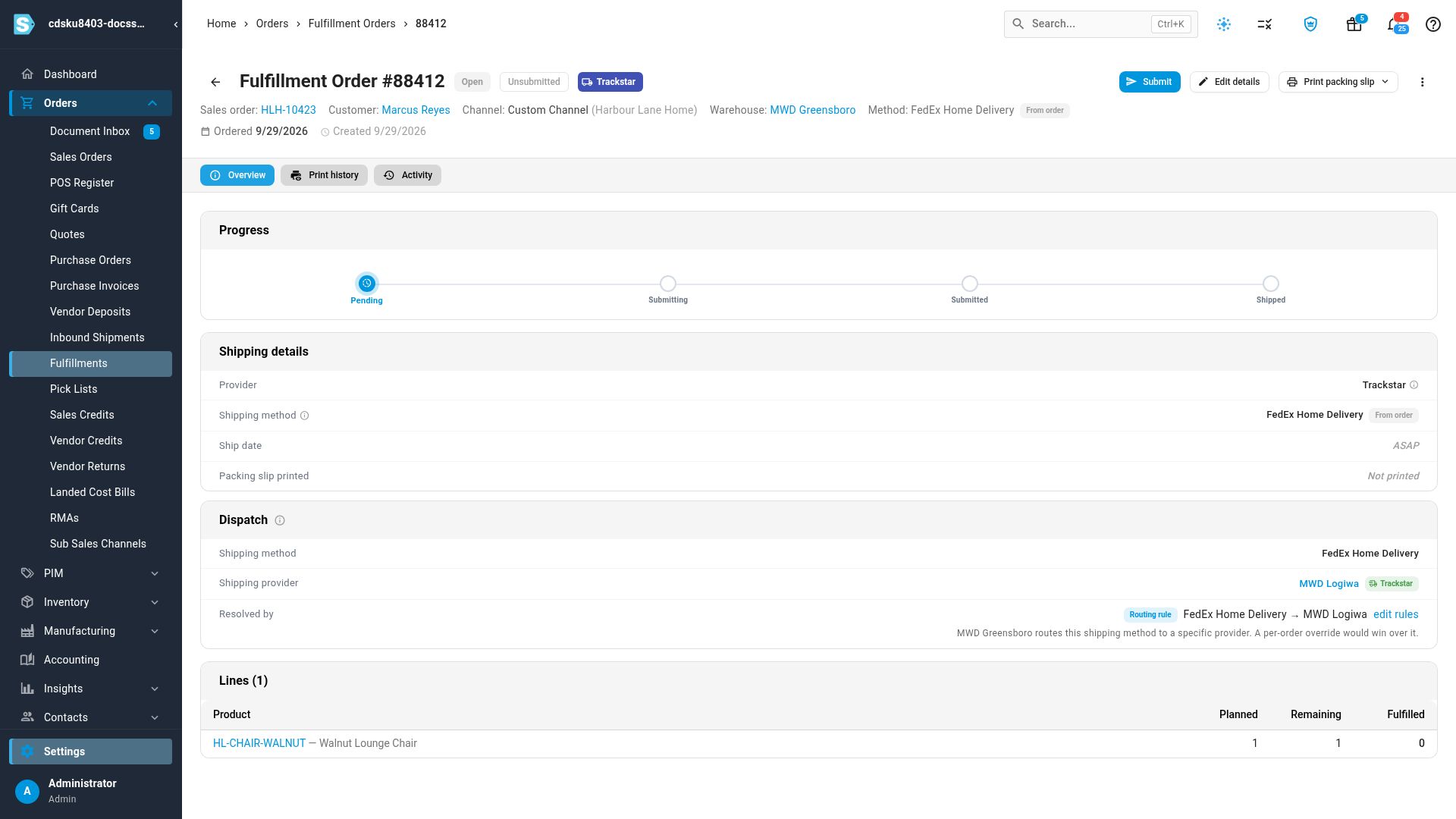
Read the Dispatch panel. Shipping provider says who will ship the order, and Resolved by says why — here, Routing rule, with an edit rules link back to the rule. A Pinnacle order also shows its Delivery type.
-
To send just this order somewhere else, click Edit Details, pick another Shipping provider, and click Save Changes. Resolved by changes to Per-order override.
-
To go back to the rule, open Edit Details, click Clear override, and save.
Every Resolved by value is explained in See which provider will ship an order.
Track a Pinnacle delivery
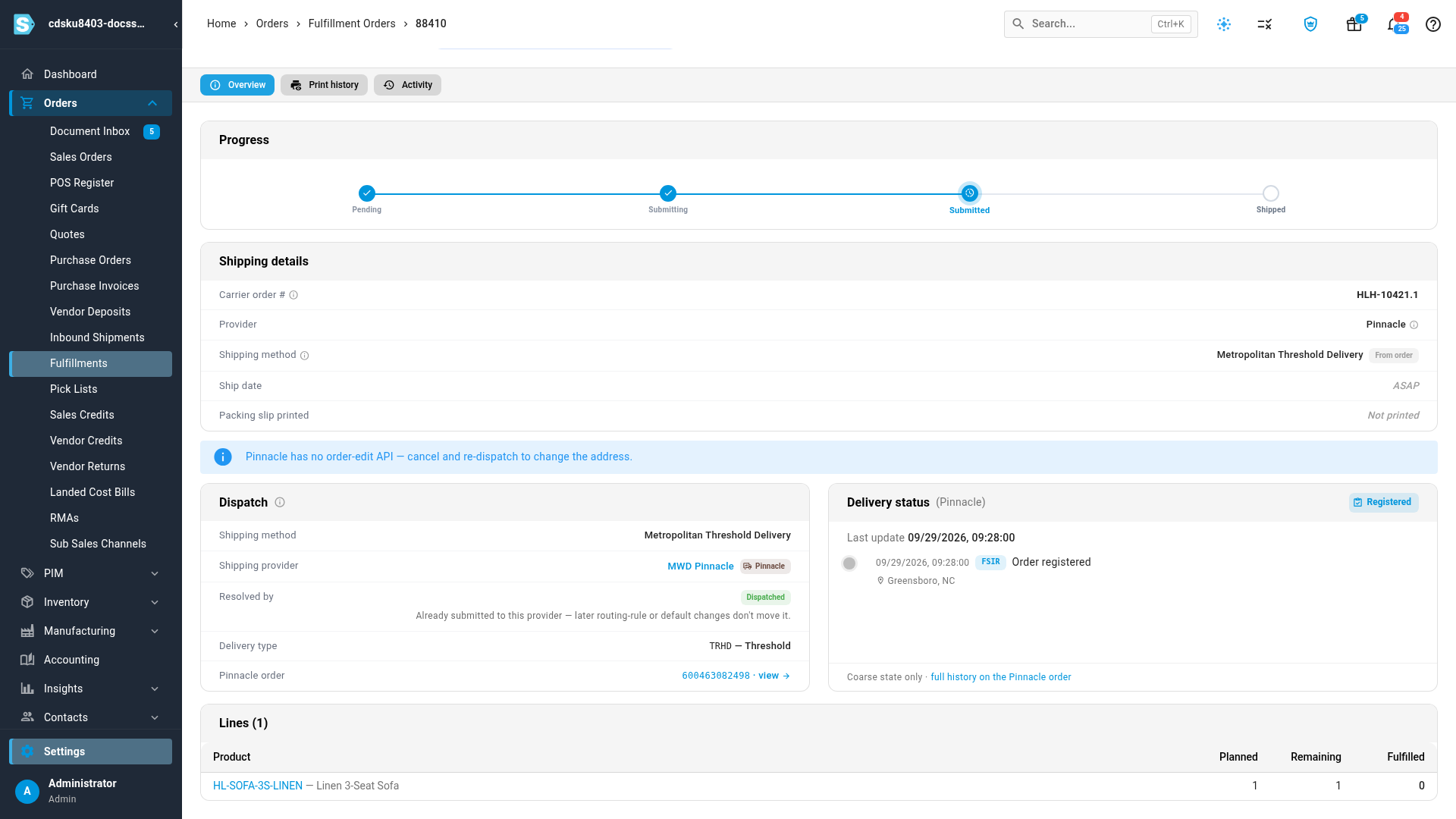
When you submit a fulfillment order that resolves to Pinnacle, SKU.io registers it with MWD and the order moves to Submitted.
-
The Dispatch panel shows the Pinnacle order — the tracking number, linked to the delivery's full record.
-
The Delivery status card shows the latest tracking events from MWD, such as Order registered.
-
When MWD reports the pickup, SKU.io records the shipment with carrier Metropolitan and the tracking number, and marks the fulfillment order shipped. Which tracking event counts as shipped is set by Mark shipped at on the connection's Settings tab — pickup completed, by default.
-
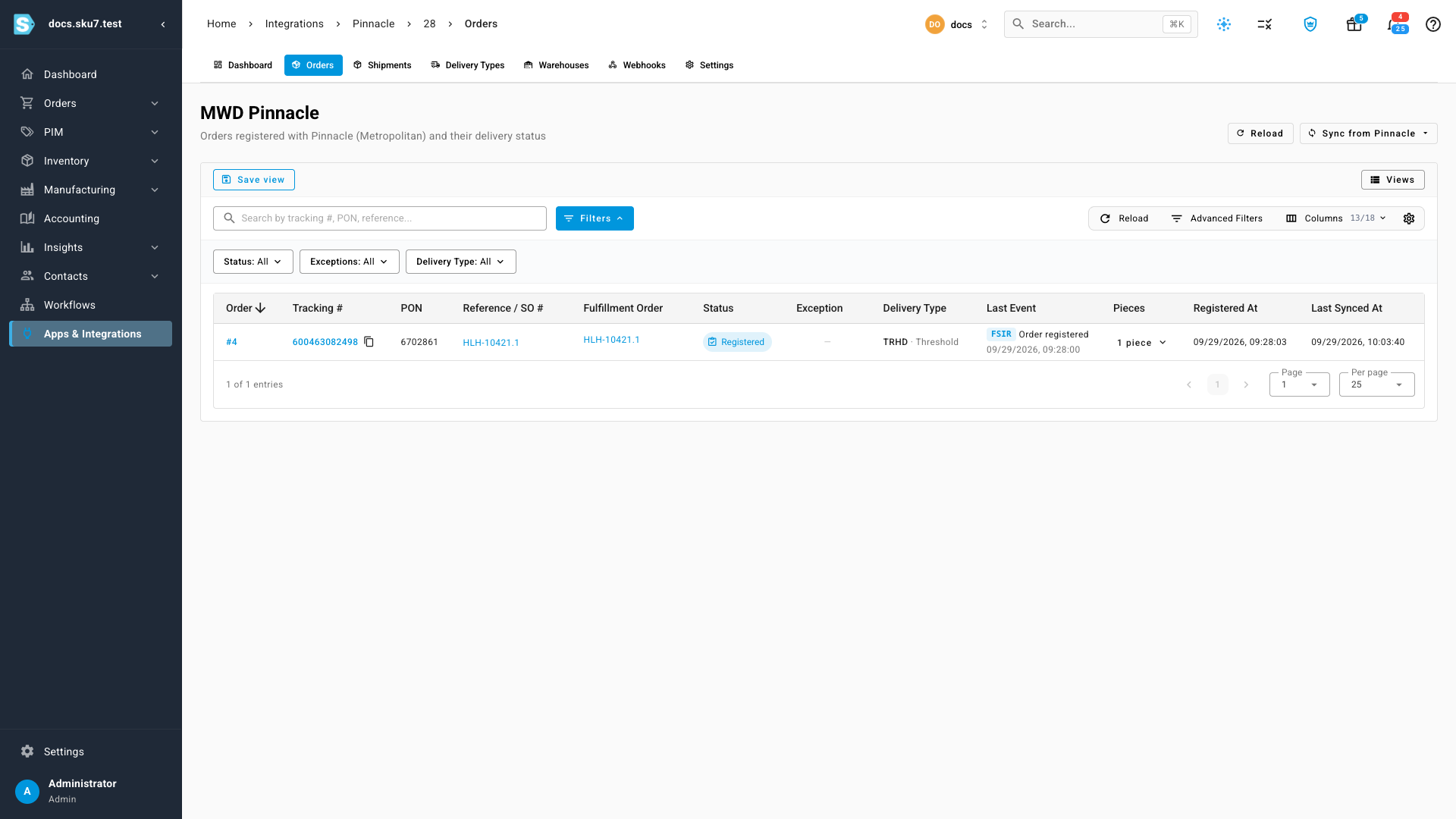
Every delivery is listed on the connection's Orders tab, with its status, last event, delivery type and pieces. Filter by Status to find Registration Failed orders; the row shows the reason MWD gave.
Pinnacle can't edit a delivery once it's registered. To change the address, cancel the fulfillment order and dispatch it again.
Give MWD your webhook
MWD pushes tracking for your active deliveries every hour. Open the connection's Webhooks tab and send MWD's integration team the Endpoint URL and the Inbound key — use the Copy buttons. SKU.io also checks Pinnacle for tracking on a schedule, so tracking keeps flowing if a push is missed. Every push MWD sends is listed on the same tab.
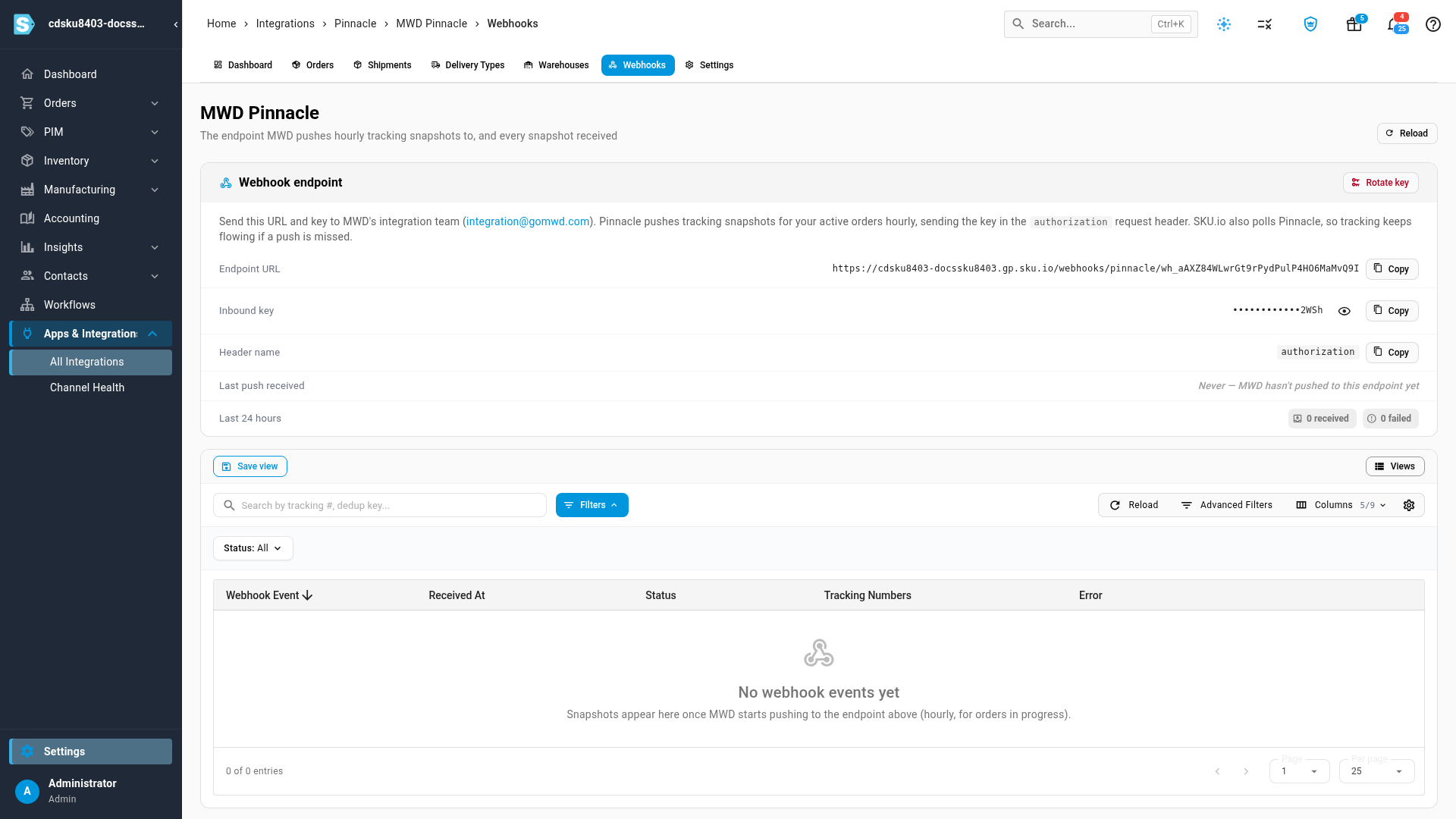
If the key is ever exposed, click Rotate key and send MWD the new one.
Next steps
- Dispatch to a fulfillment provider — submit fulfillment orders and override the provider on a single order.
- Work the fulfillment board — watch submitted orders move to shipped.
- How apps and integrations work
Video transcript
Pinnacle sends your home deliveries to Metropolitan Warehouse and Delivery, known as MWD. You connect it once, with credentials from MWD. The setup guide at the top explains how to request your credentials. First, pick the environment that matches your credentials. Then paste the customer number, the user name, the password, and the tracking key. In this video, they're blurred. Now click Test Connection. When the green check appears, the login and the tracking key both work. Choose the pickup warehouse. That's where MWD's driver collects each delivery. Then click Connect to save the connection. Once it's connected, your connection lives under Apps and Integrations. Search for Pinnacle, and choose your connection. Each connection opens on its own dashboard. The dashboard counts deliveries by stage, from awaiting pickup to delivered. Next, open Delivery Types. Each shipping method you send to Pinnacle needs a service level, called a delivery type. The Will send column previews the result for each method. Click Auto-match unmapped to map methods whose names match, like Threshold. Then filter to Mapped to check the result. You can also set types row by row, apply one to many rows, or use a CSV file. Next, choose the warehouse that ships these deliveries. Start by opening Settings. Then open Fulfillment, and choose Fulfillment Dispatch. This page decides where each warehouse sends its orders. This page lists every warehouse with its dispatch settings. Scroll to the MWD warehouse, and open its shipping provider list. Then choose your Pinnacle connection. Some orders need a different provider. Open the warehouse's routing rules, and click Add routing rule. A new, empty rule appears in the table. Search for the shipping method by name, and pick it from the list. Here, FedEx parcels ship from MWD's warehouse system through Trackstar. So choose Trackstar as the provider. The Then column shows what happens at Trackstar. Everything else keeps going to the warehouse default. Then scroll back to the top, and click Save to keep your changes. A green confirmation appears at the top. The rule applies to orders that haven't been sent yet. Every fulfillment order shows who will ship it, and why. Open the Fulfillments list under Orders. Then open an order from that warehouse. Here, it's an order covered by the new rule. Scroll down to the Dispatch panel. This FedEx order follows the routing rule to Trackstar. The edit rules link jumps straight back to the rule. To send just this order somewhere else, click Edit Details. The dialog opens on this order's current provider. The list marks the routing rule and the warehouse default. Pick another provider, and save your changes. Resolved by now reads Per-order override, which beats any rule. To undo it, click Edit Details a second time. Click Clear override, and save. The order is back on its routing rule. Now go back to the Fulfillments list. Open an order that has already been submitted. This order was sent to Pinnacle this morning. When you submit an order, Pinnacle registers the delivery and returns a tracking number. The Dispatch panel links to the Pinnacle order. Delivery status shows the latest tracking events from MWD. When MWD picks up the delivery, the order is marked shipped automatically. The tracking number opens the full Pinnacle order. Every delivery is also listed on the connection's Orders tab. Each row shows the status, the last event, and the delivery type. Finally, open Webhooks. Send MWD this web address and inbound key. With them, MWD pushes tracking to you every hour.