FBA minimum stock levels — get alerted before a product runs out at Amazon
A product can have thousands of units in your own warehouse and none at Amazon, and a stock check that looks at your business-wide total never notices. By the time Amazon stops selling it, you've lost sales and Buy Box ranking that takes weeks to win back. FBA minimum stock levels let you set the least stock you want at each Amazon FBA region, product by product, as a fixed number of units or as days of cover. SKU.io checks every minimum each time Amazon's inventory updates, and when a product drops below it, an FBA Low Stock alert opens a new inbound plan with the product and a suggested quantity ready to add.
✨ What this means for you:
- A minimum for every Amazon region: one for each country you sell in, or one for the shared Pan-European pool, with a default per region so you don't have to set every product.
- Minimums that keep up with sales: choose a fixed number of units, days of cover, or whichever of the two is larger. Days of cover adds the time a shipment takes to reach Amazon, so you're warned early enough to restock.
- Alerts you can trust: an alert only fires after two inventory updates agree, a stockout alerts straight away, and the alert clears itself when stock is back.
- One click from alert to restock: each alert opens a new inbound plan for the right account and country, with the product and quantity filled in.
- Lead times measured from your own shipments, per route into each region, which you can check and override.
- Set many at once: bulk-edit selected rows, or export your minimums to a spreadsheet and import them back.
See every product's minimum next to its Amazon stock
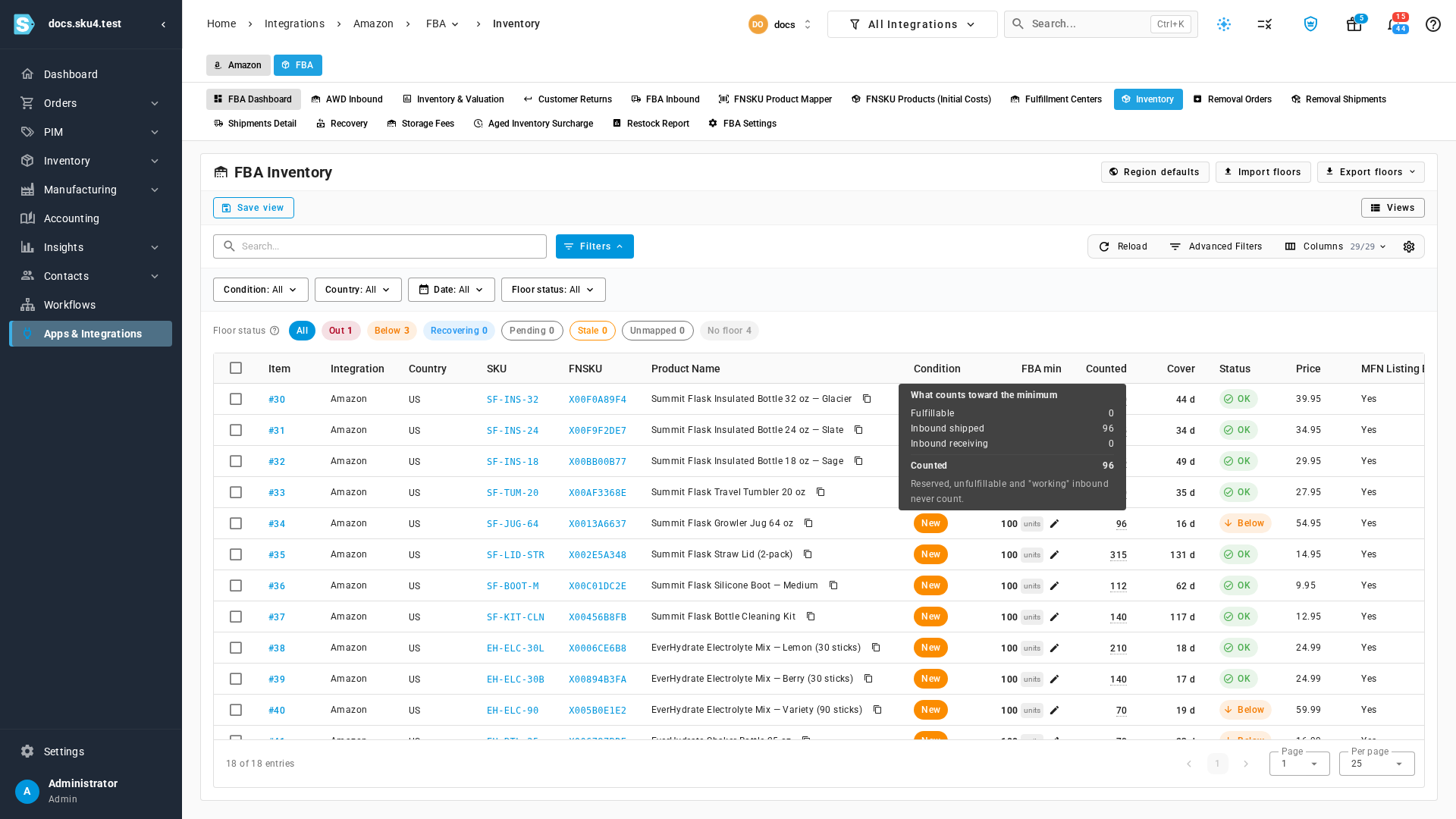
The FBA Inventory page now has four new columns. FBA min shows each product's minimum and how it's set. Counted is the stock that counts toward it: what Amazon can sell now, plus stock already shipped or being received. Hover the number for the breakdown. Cover shows how many days that stock lasts at the current sales rate, and Status tells you whether a product is OK, Below, Out, or Recovering. The status chips above the table count each one, so a click on Below lists exactly the products that need stock.
Units or days of cover, for each region
Start with Region defaults: one setting per region that every product in it picks up. US, Canada and the UK each get their own, and Germany, France, Italy, Spain and the other Pan-European countries share one, because Amazon pools that stock. Then override the products that need something different. Click the pencil in a product's FBA min cell, choose a mode, and the preview shows the maths, the stock counted now, and whether the product is below.
A days of cover minimum uses the product's daily sales at that region, counting only the days it was in stock, so running out never shrinks the minimum. It then adds the lead time of the route that restocks Amazon, which makes the minimum a reorder point. Greater of both keeps a slow seller from ending up with a minimum of almost nothing.
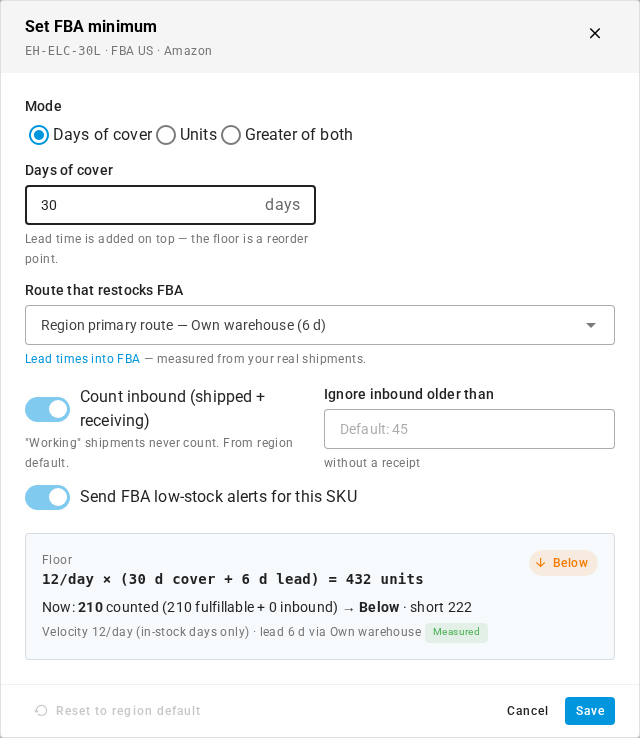
To change many products at once, tick their rows and click Set FBA minimum…, and change only the fields you tick. For bigger changes, Export floors gives you a spreadsheet in the same columns that Import floors reads. Importing updates the minimums that already exist rather than adding duplicates.
Lead times into FBA, measured from real shipments
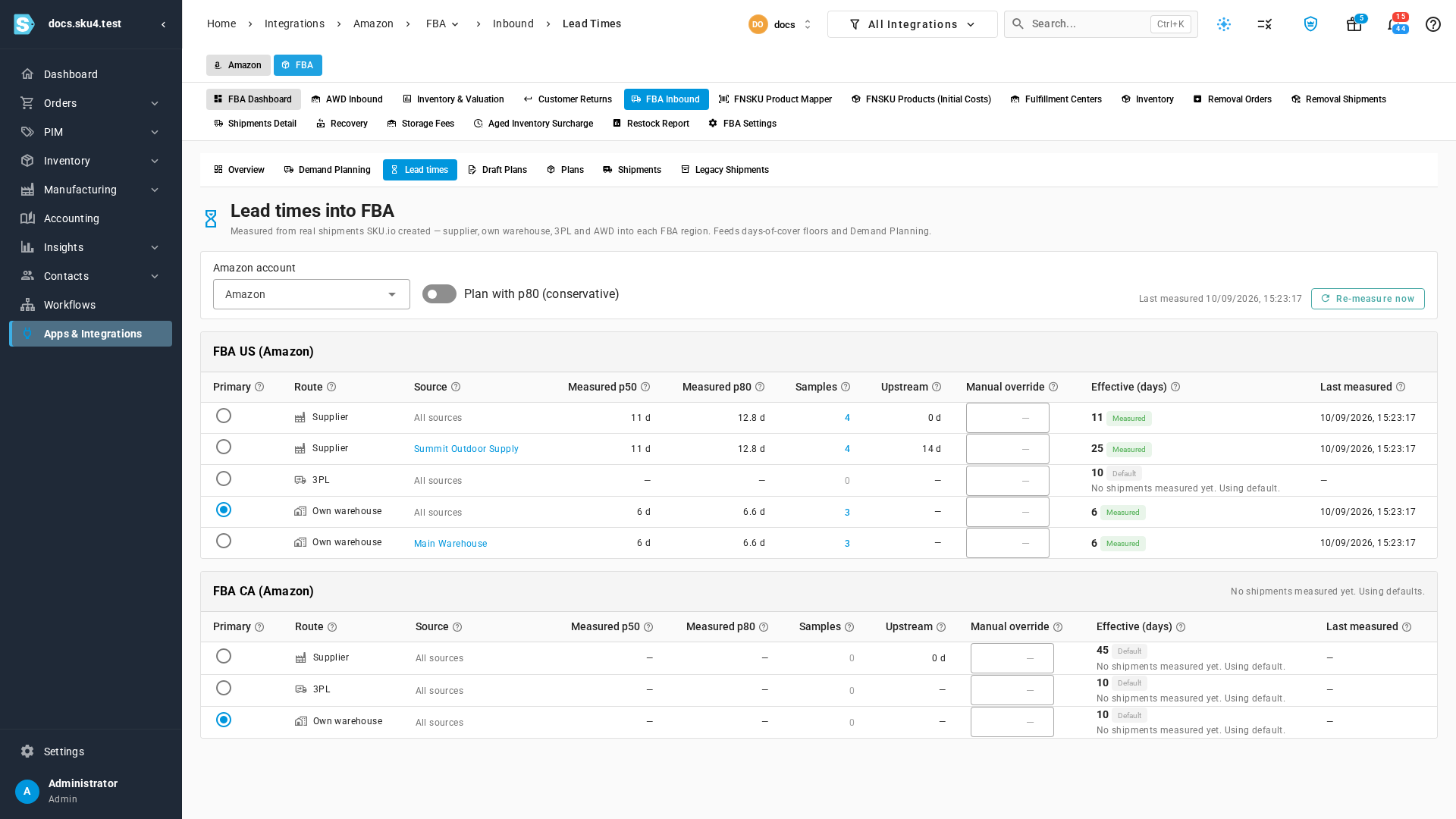
A minimum is only as good as the lead time behind it. The new Lead times page shows how long each route takes to restock each FBA region: from a supplier, from your own warehouse, from a 3PL, or from Amazon's AWD storage. SKU.io measures it from the inbound shipments you've actually sent, and shows the typical time, the slower end, and the number of shipments behind it. Click the count to see each shipment.
Know better than the numbers? Type your own Manual override. Choose each region's Primary route, and turn on Plan with p80 (conservative) if you'd rather plan with the slower end. FBA replenishment in Demand Planning uses the same lead times.
Alerts that confirm, clear themselves, and lead to a plan
When a product stays below its minimum for two inventory updates in a row, you get one FBA Low Stock alert for that product and region. A stockout, with nothing sellable and nothing on the way, alerts straight away. The alert stays open until stock is back 10% above the minimum, then closes itself, so it doesn't flicker on and off around the line. If many products drop below at once, such as after you import new minimums, you get one summary alert instead of dozens. No alerts go out while Amazon's inventory data is out of date.
Each alert shows the stock counted, the minimum and the days of cover left. Click Go to source and Create New Inbound Plan opens for that account and country, with the product and a suggested quantity ready to add.

Where to find it
- Set minimums: Apps & Integrations, open your Amazon channel, then FBA → Inventory. Use Region defaults for each region, the pencil in a row's FBA min cell for one product, and Import floors / Export floors for spreadsheets.
- Check lead times: Apps & Integrations, open your Amazon channel, then FBA → FBA Inbound → Lead times.
- Choose who gets alerts: Settings → Alerts & Notifications → Alert Preferences, click the Amazon filter, and find FBA Low Stock. It's on by default, and a region only alerts once it has minimums.
Full guide: Set FBA minimum stock levels (with a three-minute walkthrough video), and Plan with lead times into FBA.