SPS Commerce — retailer EDI orders, without the re-keying
Selling to big-box and department-store retailers means trading over EDI. Their purchase orders arrive as electronic documents through a network like SPS Commerce, and they expect electronic replies: an acknowledgment that you accepted the order, and a ship notice when it leaves your dock. Until now that meant re-keying every order by hand and hoping the replies went out on time. The SPS Commerce integration connects your SPS Commerce account to SKU.io, turns each retailer purchase order into a sales order, and sends the acknowledgment and ship notice back for you.
✨ What this means for you:
- Retailer purchase orders arrive every five minutes and become sales orders on their own, with the retailer's PO number, ship-to address and requested dates already filled in.
- When a retailer orders an item SKU.io doesn't recognize, you map it once from the purchase order. Every future order for that item goes straight through.
- The acknowledgment (855) goes back as soon as the sales order exists, and the ship notice (856) follows when you ship. There's nothing to send by hand.
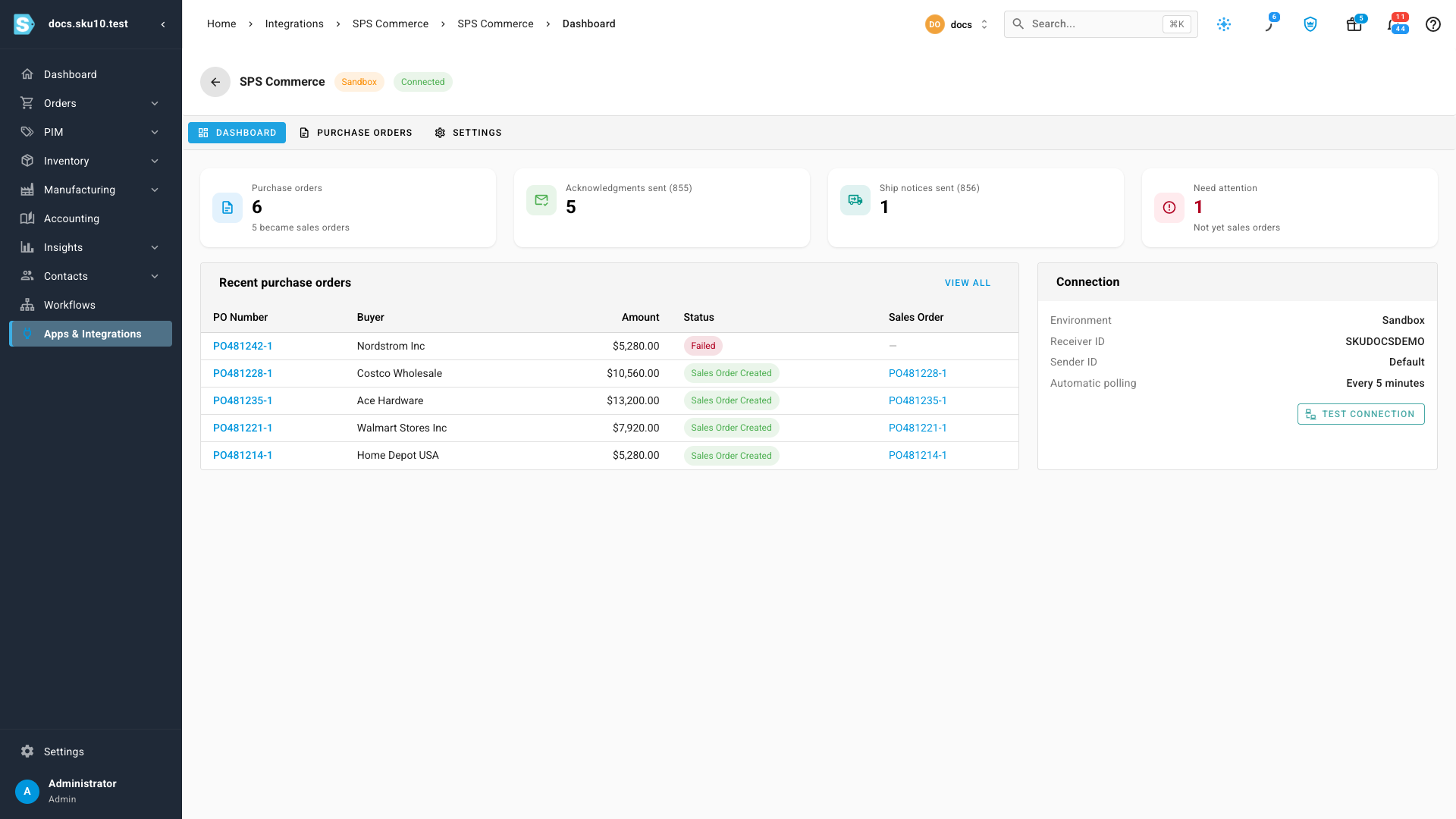
- One dashboard shows how many orders came in, how many became sales orders, what was sent back, and what needs your attention.
Connect in a couple of minutes
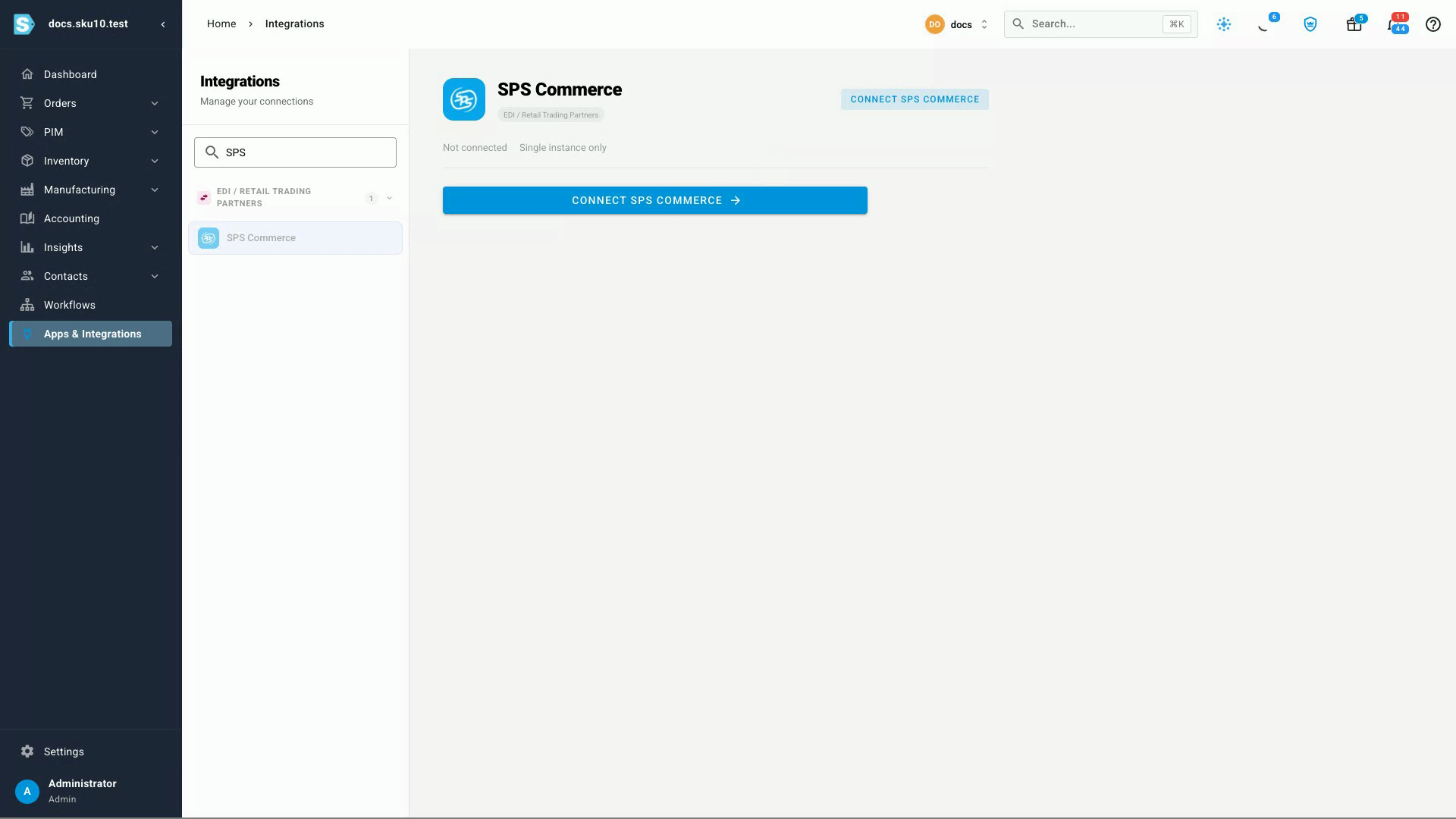
Find SPS Commerce under Apps & Integrations, in the new EDI / Retail Trading Partners group. Enter the receiver ID SPS Commerce gave your business, then sign in to SPS Commerce in the window that opens and approve access. SKU.io never sees or stores your SPS password.
Purchase orders become sales orders on their own
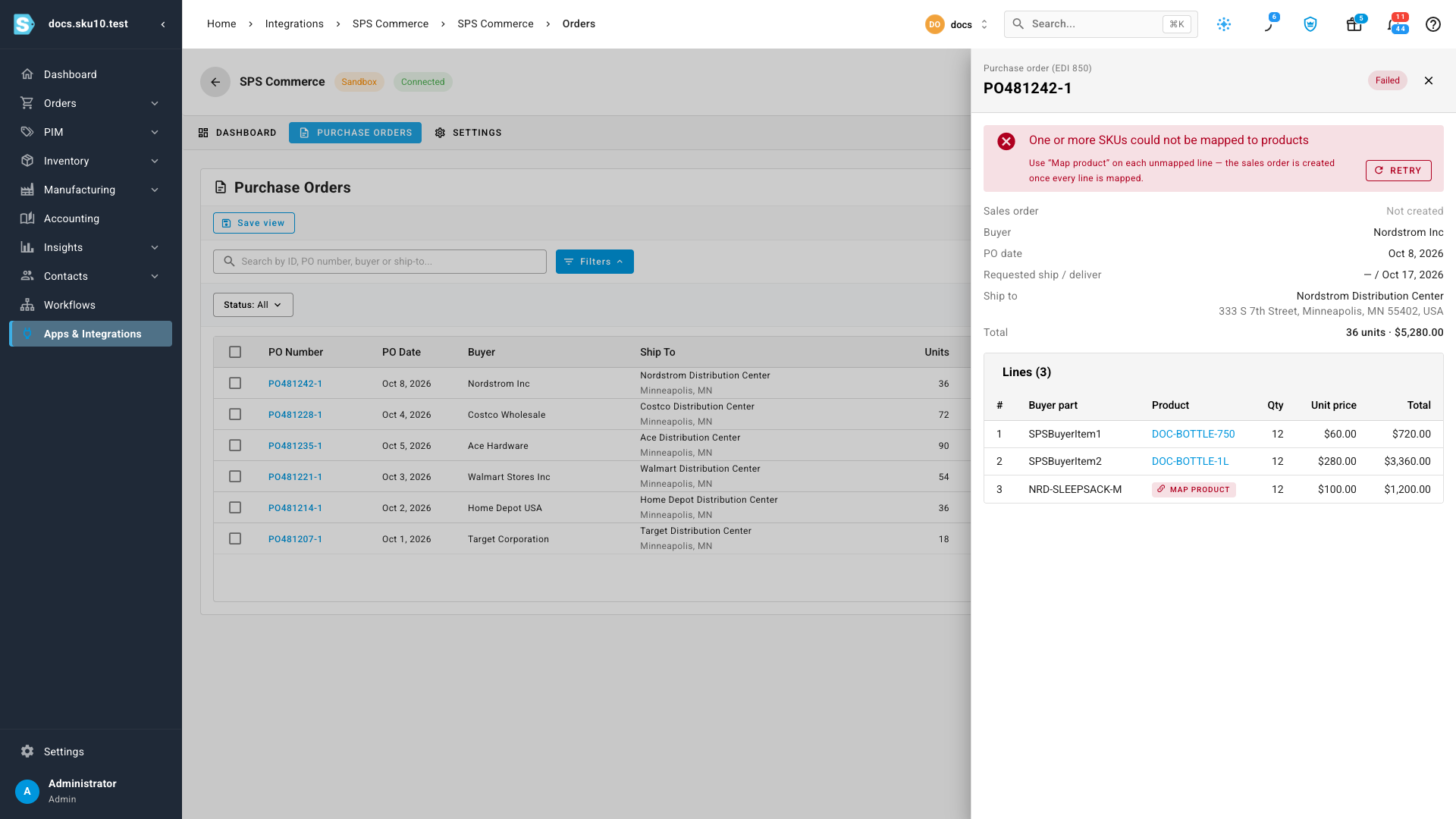
SKU.io matches each line of an incoming purchase order to one of your products, using your SKU when the retailer sends it, or a match you saved earlier. When every line matches, the sales order is created straight away and allocated like any other order.
When a line doesn't match, the purchase order waits under Need attention. Open it, click Map product on the unmatched line, and pick the product the retailer means. As soon as the last line matches, the sales order is created, and the match is saved for that retailer's next order.
Acknowledgments and ship notices, handled
Each SPS Commerce connection has its own Dashboard. It counts your purchase orders, the ones that became sales orders, the acknowledgments and ship notices sent back to SPS Commerce, and the orders that need attention. You can also use Check SPS for new orders at any time instead of waiting for the next automatic check.
Where to find it
Go to Apps & Integrations, search for SPS, and choose SPS Commerce. Once you're connected, open your connection for its Dashboard, Purchase Orders and Settings tabs.
Full guides: Connect SPS Commerce · Handle purchase orders from SPS Commerce