B2B pricing for Shopify — your wholesale prices, on your storefront
If you sell wholesale through Shopify, you have probably been maintaining two sets of prices. The real ones live in SKU.io — the tier a customer sits on, the contract you agreed with them, the break they hit at 25 units — and then someone re-enters an approximation of all that into Shopify by hand, and it drifts from the day it's typed.
B2B pricing for Shopify removes the second set. SKU.io works out what each wholesale buyer should pay, using the same pricing rules that already produce your quotes and invoices, and publishes those prices to that buyer's company location in Shopify. Your buyers log into your storefront exactly as they do now, and see their own negotiated pricing.
Nothing reaches your storefront until you have looked at a preview and approved it.
✨ What this means for you:
- One place to set wholesale prices. Change a tier in SKU.io and publish — no second system to keep in step.
- The prices are the ones you actually quote. Tiers, customer-specific contracts and volume breaks all resolve through the same rules your quotes and invoices use, so the storefront can't disagree with your paperwork.
- You see every price before it ships. A preview shows each buyer's prices, and what produced them, before anything is written.
- Buyers you don't map are left alone. A company location without a SKU.io customer simply keeps whatever pricing it has today.
Buyers on the same terms share a catalog
Shopify limits how many catalogs a store can hold, which is a real constraint if you have hundreds of wholesale accounts.
SKU.io works around it by grouping. Buyers whose prices work out identical share one catalog, so the limit tracks how many distinct price lists you run — not how many customers you have. A hundred accounts on standard wholesale terms need one catalog between them, not a hundred.
You can see it in the mapping step below: four buyers, but only three groups, because two of them are on exactly the same terms.
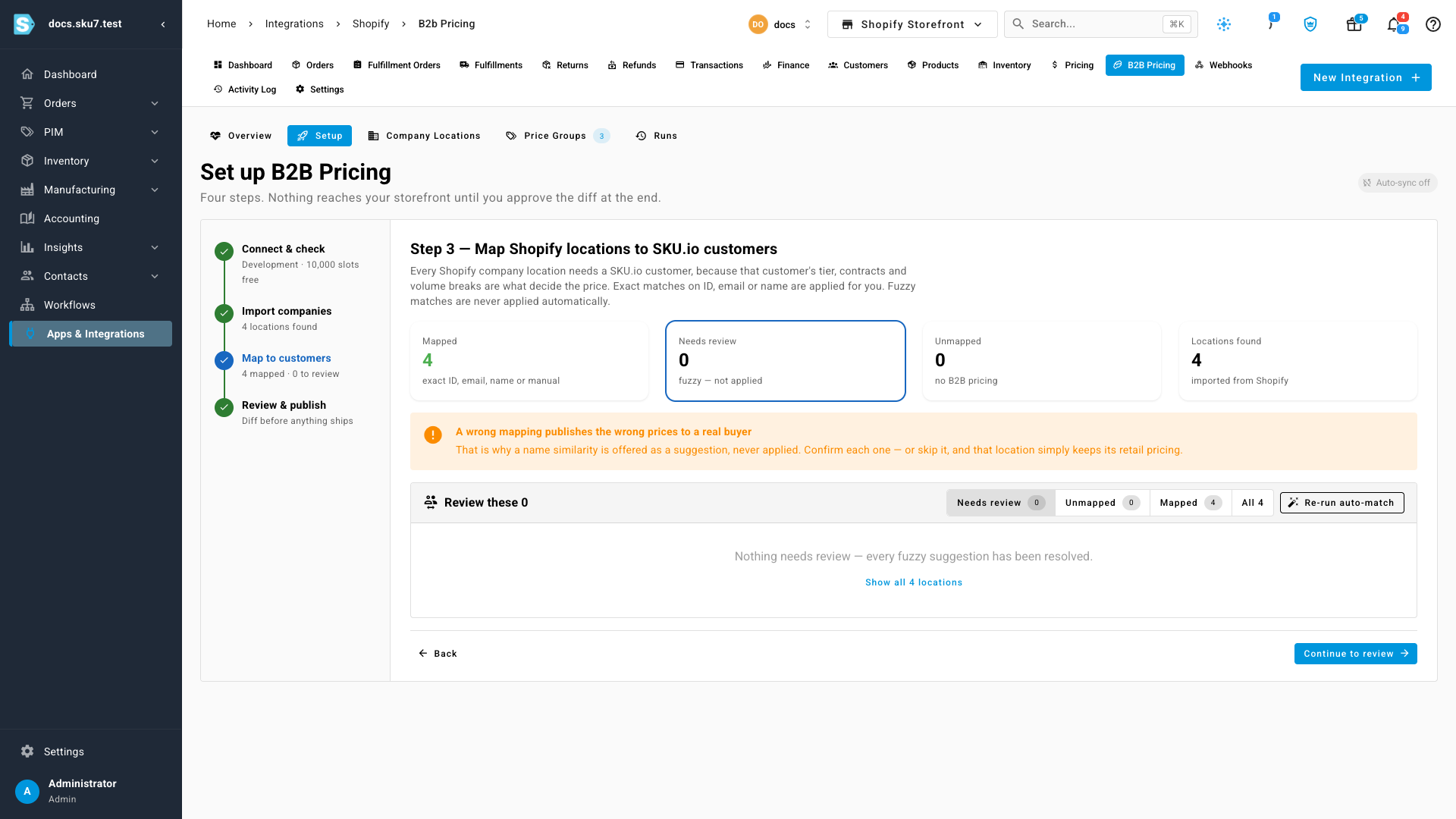
Matching is done for you where it's unambiguous — an exact match on customer ID, email or name is applied automatically. Anything less certain is offered as a suggestion and waits for you to confirm it, because a wrong mapping publishes the wrong prices to a real buyer.
The preview is the point
Before a single price is written, you get the full diff: every product, the quantity the price applies from, what Shopify holds today, what it will become, and which of your rules produced it — a tier's base price, a volume break, or a contract.
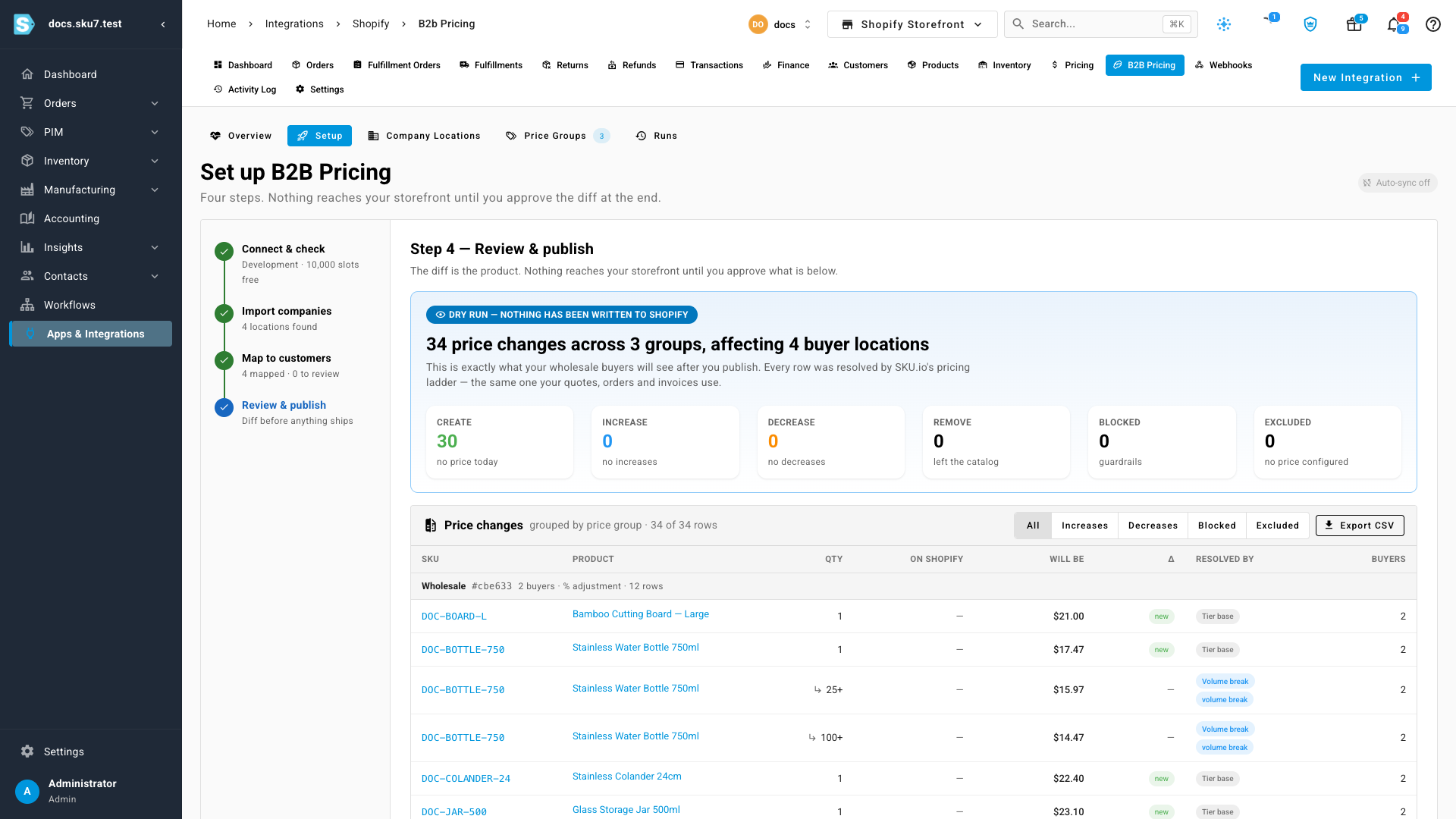
The counters across the top summarise the run at a glance, including anything a price guardrail blocked and anything excluded because no price is configured for it. The first publish on a store can't happen until you've run this preview once.
After you publish
Once the prices are live, a health panel tells you whether Shopify still matches SKU.io, when you last published, and how many rows drifted.
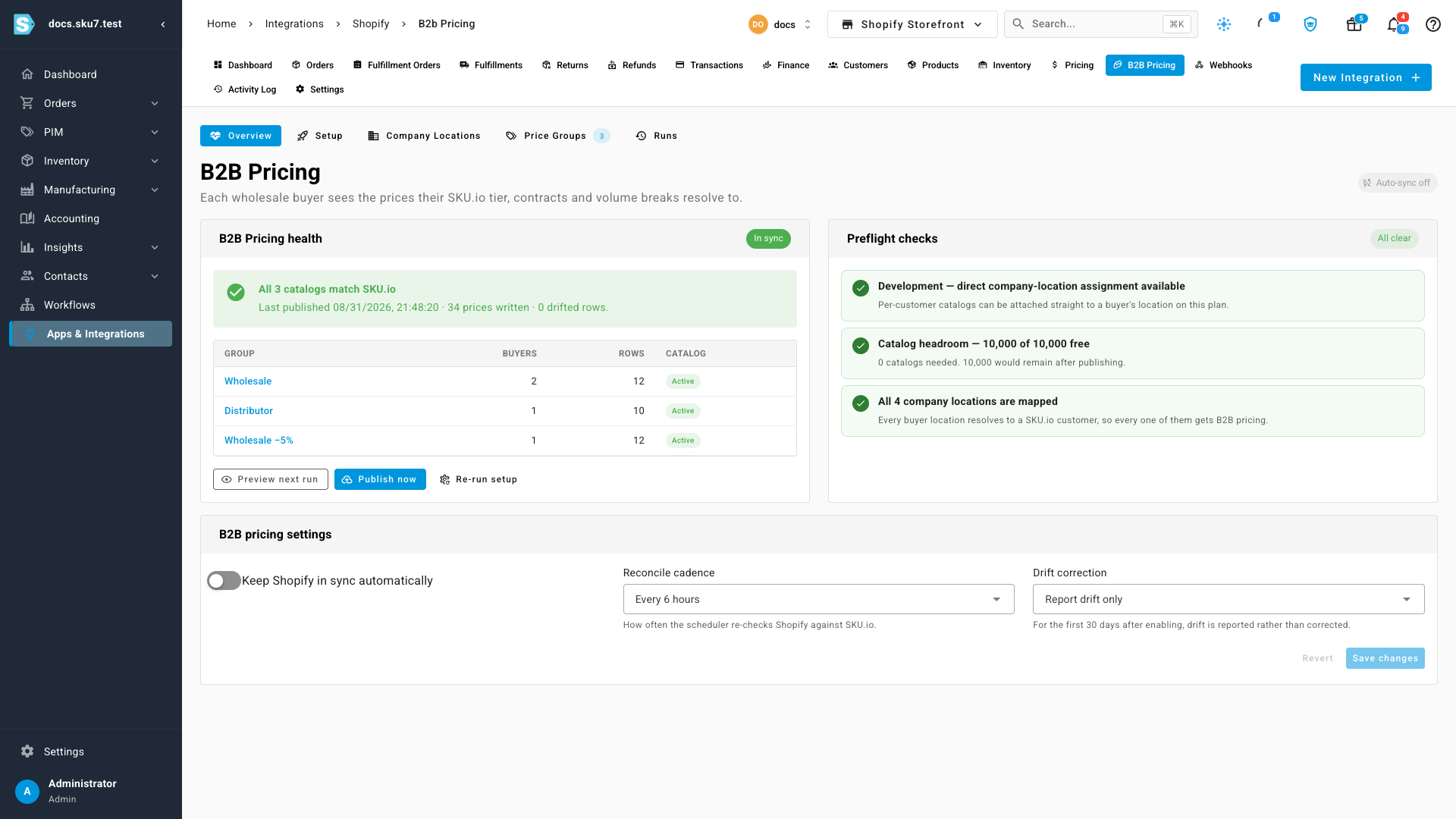
By default nothing republishes on its own — you publish when you're ready. If you'd rather it kept itself in step, turn on automatic syncing and choose how often SKU.io re-checks the store. For the first 30 days after you switch it on, any difference found on Shopify is reported to you rather than corrected, so you can watch what it would do before it does it.
Where to find it
Go to Apps & Integrations, open your Shopify store, then the B2B Pricing tab. The setup walks you through four steps — checking the store, importing your companies, mapping them to customers, and reviewing the diff before you publish.
You will need B2B switched on in Shopify with at least one company and location; SKU.io adopts the companies you already have and never creates them for you.
Full guide: Set up B2B pricing for Shopify