Make, buy & move — one plan for what to build, purchase and transfer
If you make some of what you sell, a reorder list only tells half the story. You also need to know what to build, when to start it, and which ingredients those builds will use, and that usually means juggling a purchase forecast, a manufacturing suggestion list and a spreadsheet to tie them together. Make, buy & move brings it into one plan. Demand Planning now works out, for every product at every warehouse, whether you make it from its recipe, buy it from a supplier, or move it in from another warehouse. Then it turns the plan into draft orders in one step.
✨ What this means for you:
- One plan instead of three. Builds, purchases and transfers come from the same forecast, so they never disagree.
- Ingredients are ordered for the builds that need them. Bulk materials, bottles and labels are sized from the planned builds, including builds of products that go into other products.
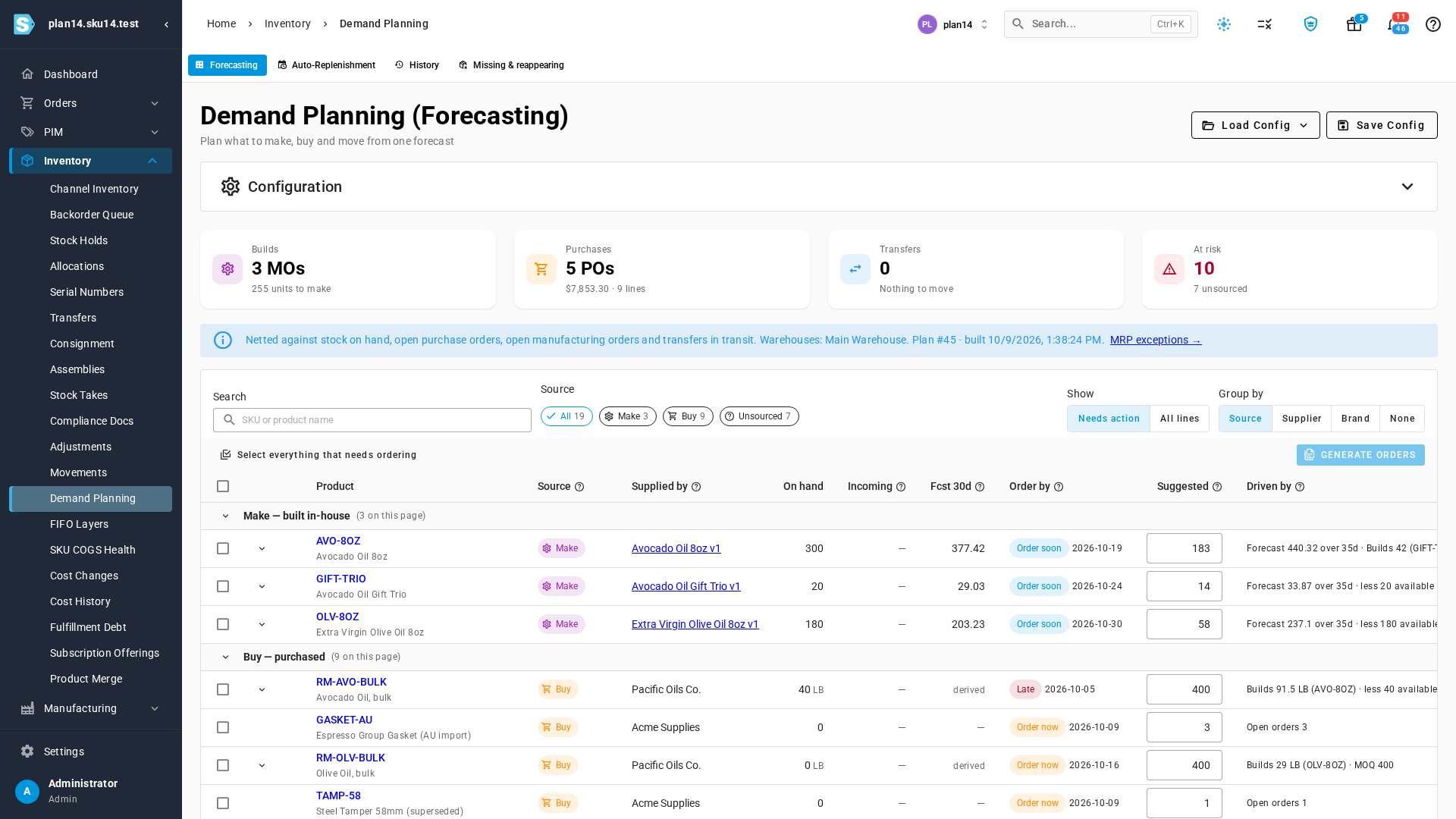
- Clear dates. Every row shows an Order by date marked Late, Order now or Order soon, so you know what to act on first.
- Every number is explained. A Driven by column shows where each quantity came from: the forecast, a build that uses it, stock on hand, a minimum order.
- Draft orders in one click. Draft manufacturing orders, one purchase order per supplier and warehouse, and transfers are created together. Nothing goes out until you approve it.
Build one plan for everything you sell
Open Inventory → Demand Planning and choose Make, buy & move at the top of Configuration. Pick the warehouses you stock, how far ahead to look, and whether to plan builds from your recipes. Suppliers are optional, so leave them empty to plan everything. The plan builds in the background and opens when it's ready.
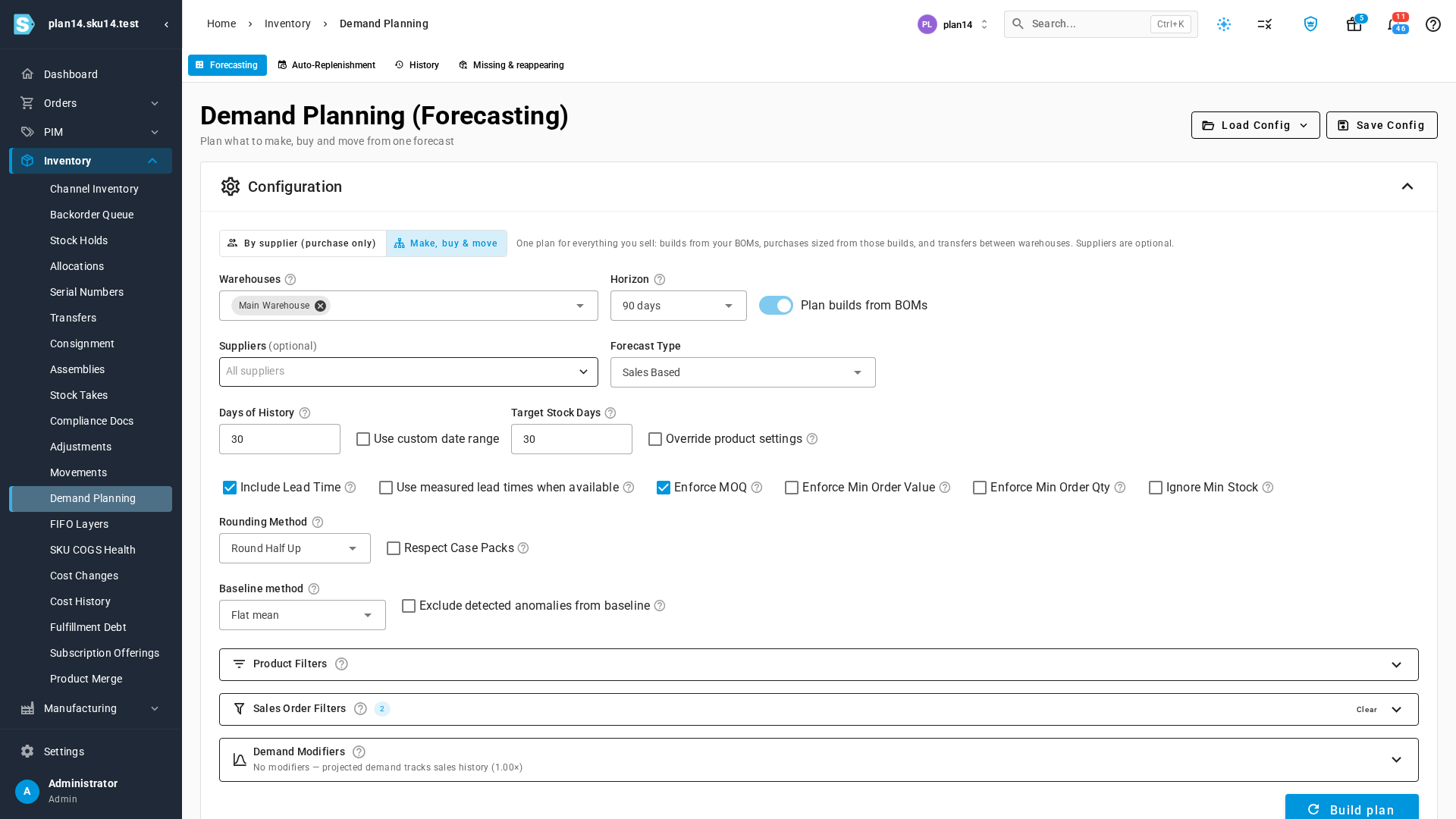
If you don't manufacture, nothing changes: Demand Planning still opens on By supplier (purchase only), the purchase forecast you already use. If you do, set Default planning mode to Make, buy & move under Settings → Inventory → Demand Planning, and the page opens on it for everyone in your account.
See what to make, buy and move at a glance
Four cards sum up the plan: the builds to make, the purchase orders to place and their value, the stock to move between warehouses, and how many rows are At risk. Below them, every product gets a row grouped by Source: Make, Buy, Transfer, or Unsourced when there's no way to supply it yet. An unsourced row says why, for example a recipe that's still a draft.
Know exactly what each build needs
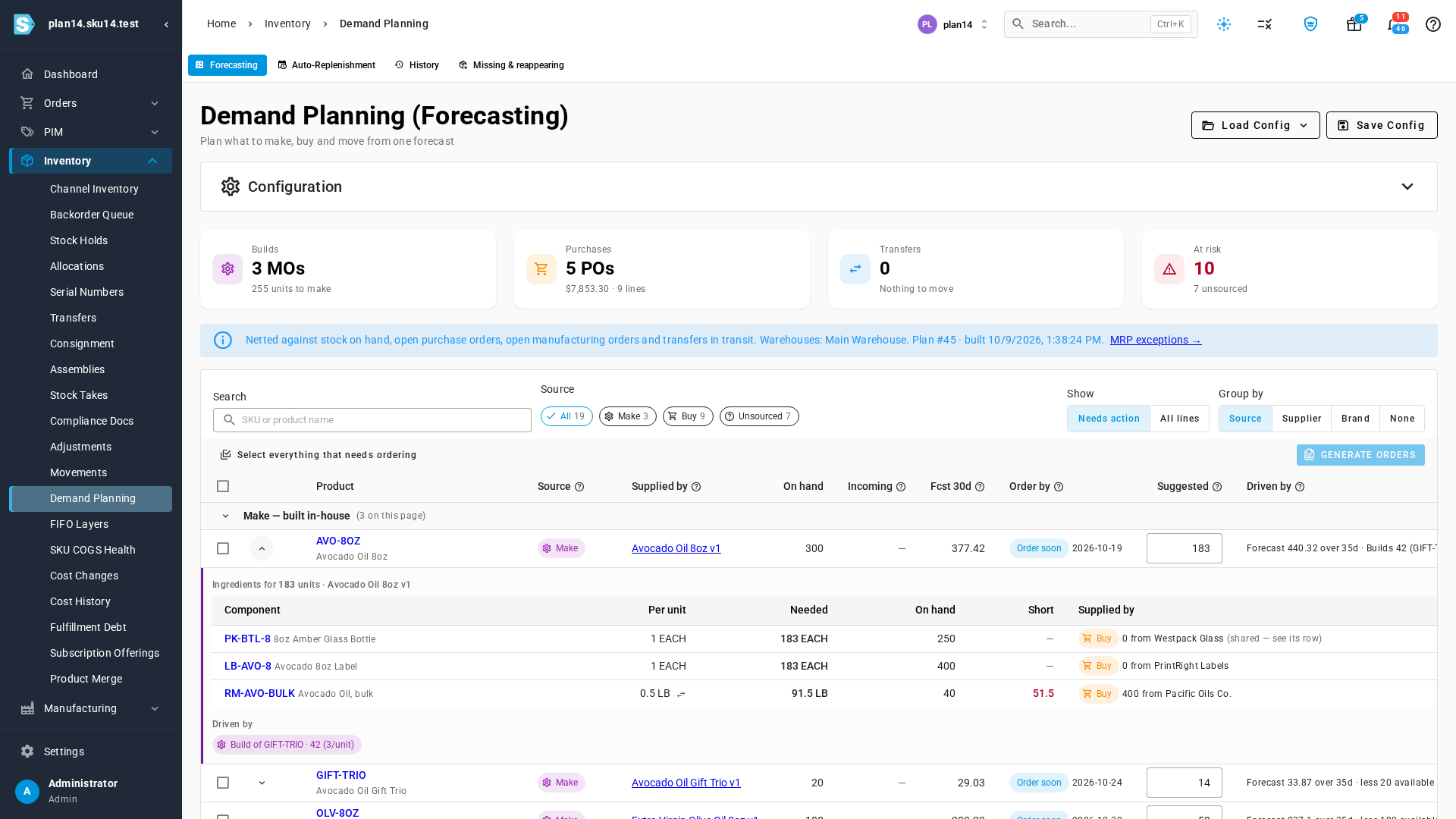
Open a build to see its ingredients: how much each unit uses, how much the build needs in total, what's on hand, what's short, and who supplies it. Driven by shows where the demand came from. Here, the avocado oil build is bigger because a gift set uses three bottles of it.
Turn the plan into draft orders
Click Select everything that needs ordering, untick anything that should wait, and click Generate orders. The preview lists every draft before anything is created: the manufacturing orders with their start dates, and one purchase order per supplier and warehouse with its lines and total. Change a build's quantity or leave one out, and its ingredients are re-sized to match. A build larger than its order maximum is split into several orders.
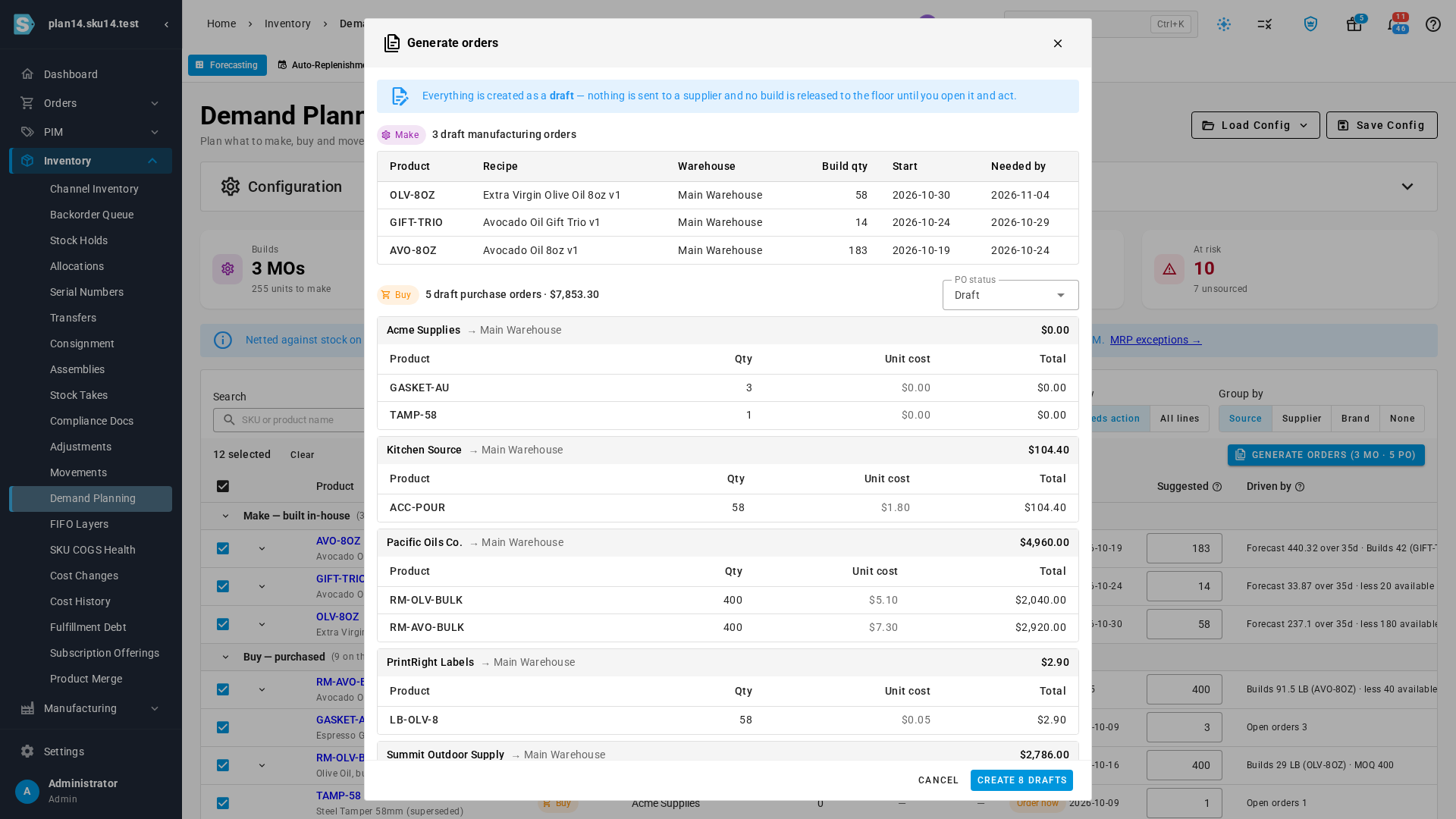
Everything is created as a draft. Nothing is sent to a supplier or released to production until you open each order and approve it.
Where to find it
Go to Inventory → Demand Planning and choose Make, buy & move. To open on it by default, set Settings → Inventory → Demand Planning → Default planning mode. Saved and scheduled plans live under Save Config, and past plans under History. When you run MRP from Manufacturing, it can use your latest Demand Planning plan as its forecast.