Create and send a quote
A quote is a priced offer you send a customer before they commit to an order. You build it under Orders → Quotes, send it from the Send dialog, and the customer gets an email with a View & respond button that opens the quote online. From there they can accept, decline or ask a question without signing in. This page covers creating the quote, filling in its details and sending it.
Before you begin
- Your role needs Quotes → Create to start a quote, Quotes → Edit to change it, and Quotes → Send to send it. Without one, the button is greyed out and its tooltip says which permission to ask an admin for.
- To email the quote, the customer needs an email address on their record, or you type one in the Send dialog.
- Your quote defaults (the starting memo, stock allocation and how long a quote stays valid) come from Set quote defaults and expiry reminders.
- A quote PDF template must exist under Settings → PDF Templates. SKU.io ships one, so this only matters if it was removed.
Steps
-
Go to Orders → Quotes.
-
Click New Quote.
-
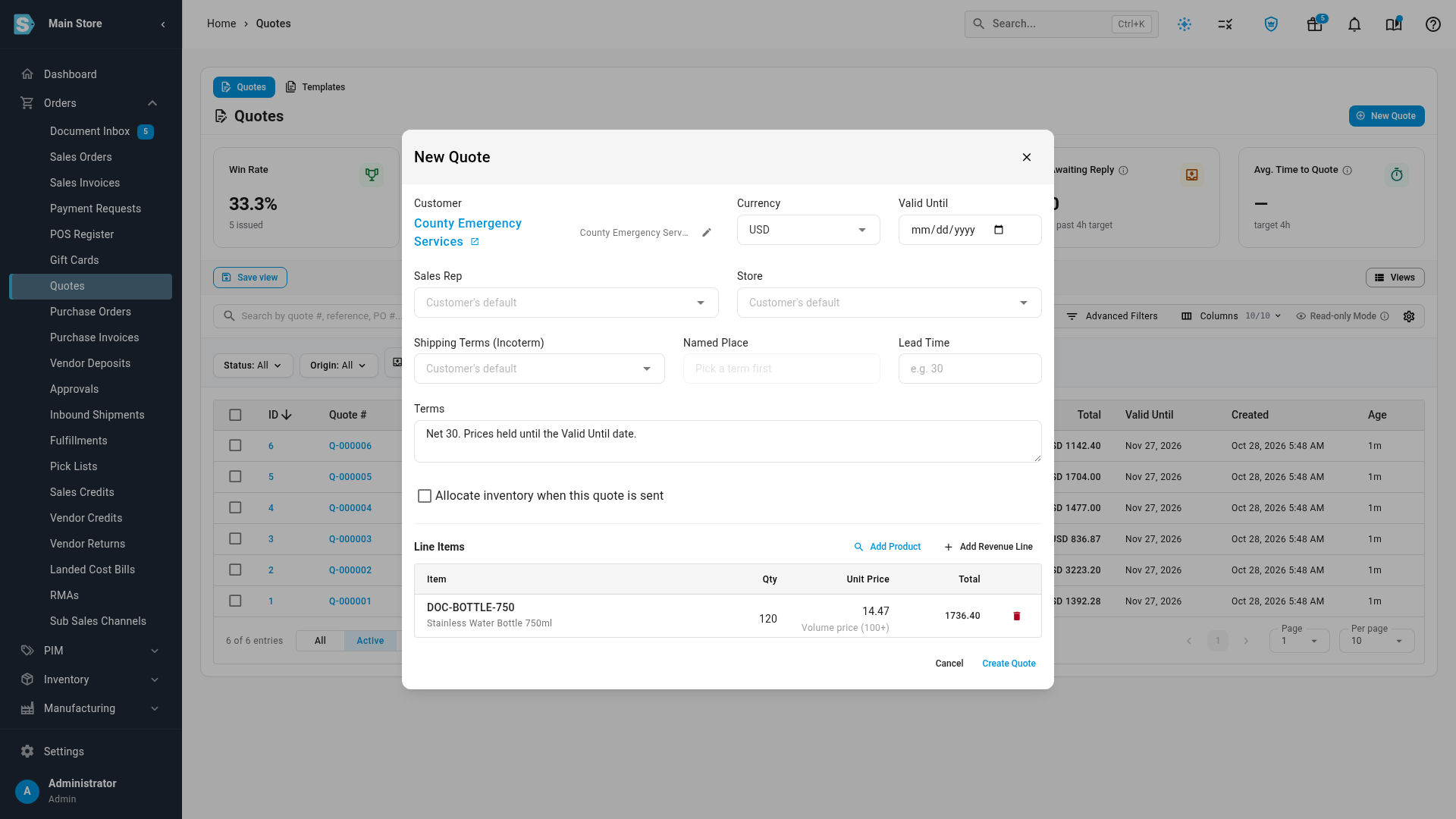
In Customer, search for the customer and pick them. To quote someone who isn't a customer yet, type their name and click Create new customer. You can also leave it blank and choose a customer later.
-
Check the Currency. It starts on your default currency.
-
Optionally, pick a Valid Until date. Left blank, SKU.io sets one when you send the quote, if Auto Set Expiration is on in your quote settings.
-
Optionally, pick a Sales Rep and a Store. Left blank, the quote takes the customer's default sales rep and store.
-
Optionally, pick Shipping Terms (Incoterm) and type a Named Place, such as Origin, Fort Bragg NC. Left blank, the quote takes the customer's default terms.
-
Optionally, enter a Lead Time in whole days. New lines take this lead time unless you give them their own.
-
Optionally, type Terms, such as payment or delivery terms.
-
Tick Allocate inventory when this quote is sent to hold the stock for this customer once the quote goes out. It starts ticked when Allocate Inventory by Default is on in your quote settings.
-
Under Line Items, click Add Product to pick a product, or Add Revenue Line to add a charge without a product. Click Add to Quote in the product picker. Leave a product's price as it is, and the line shows the price this customer gets, with a caption saying where it comes from, such as Volume price (100+), Contract price or Customer's tier price. It updates when you change the customer or the quantity, and the quote is created at that price. Type a price to fix it instead.
-
Click Create Quote. Quote created confirms it, and the quote opens as a Draft.
-
Add, change and discount the lines on the quote page. See Add and edit quote lines.
-
Click Send at the top of the quote. The Send Q-… dialog opens with the email already filled in.
-
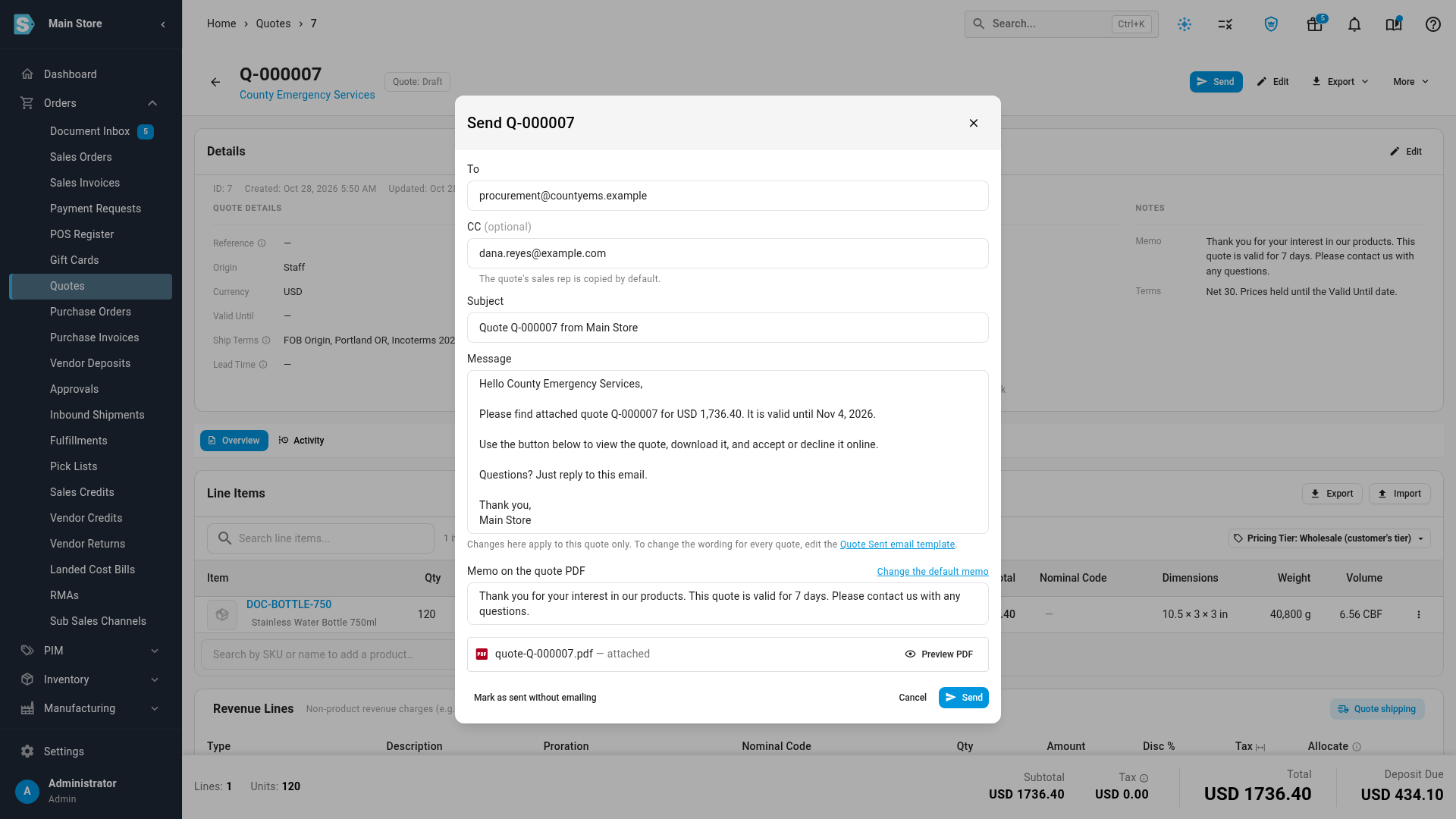
Check To. It holds the customer's email address. To send to someone else as well, add more addresses separated by commas.
-
Optionally, add addresses to CC (optional). When the quote's sales rep has an email address, they're already in CC, so they keep a copy of what the customer received.
-
Check the Subject and Message. They come from your Quote Sent email template, and changes here apply to this quote only. To undo your edits to the message, click Reset to template. To change the wording for every quote, follow the Quote Sent email template link under the message. See Customize the quote email and PDF.
-
Check Memo on the quote PDF. It starts with the quote's memo, and whatever you leave here is saved on the quote and printed on its PDF. Change the default memo opens the quote settings, where you set the memo every new quote starts with.
-
To see the PDF the customer will get, click Preview PDF.
-
Click Send. Quote emailed to the recipient confirms it, and the quote moves to Sent.
What happens when you send a quote
When you click Send, SKU.io:
- Saves a copy of the quote as it stands, so you always have a record of exactly what the customer was offered.
- Moves the quote to Sent and locks its details and lines. To change a sent quote, revise it. See Revise or extend a quote.
- Sets Valid Until if the quote has none and Auto Set Expiration is on: today plus your Default Expiration Days.
- Emails the customer with a View & respond button and the quote PDF attached. The Quote Sent email template can leave the PDF out. The dialog then says The Quote Sent template doesn't attach the PDF. See Customize the quote email and PDF.
- Adds a Customer link to the quote's details. Click Preview customer page to see the page your customer sees, or click the copy icon to send the link another way. Opening the preview doesn't count as the customer viewing it.
- Allocates the stock on the quote's lines, if the quote's Allocation is on. See Hold stock for a quote.
- Adds Sent, with who it was emailed to, to the quote's Timeline.
The quote moves to Viewed when the customer opens it from the View & respond link or in the customer portal. Opening only the attached PDF doesn't change the status. Read See how your customer answers a quote.
When the Valid Until date has passed
If the quote's Valid Until date is already in the past, the Send dialog warns you, for example: Valid Until was 10/01/2026, which has passed; it will be set to 11/03/2026. Sending sets the new date, today plus your Default Expiration Days, so the customer never gets an offer that has already run out. The email and PDF show the new date. To choose a different date, cancel, click Edit, change Valid Until and send again.
Fill in or change the quote's details
While the quote is a Draft or Revised, you can change everything you set in the New Quote dialog, and more.
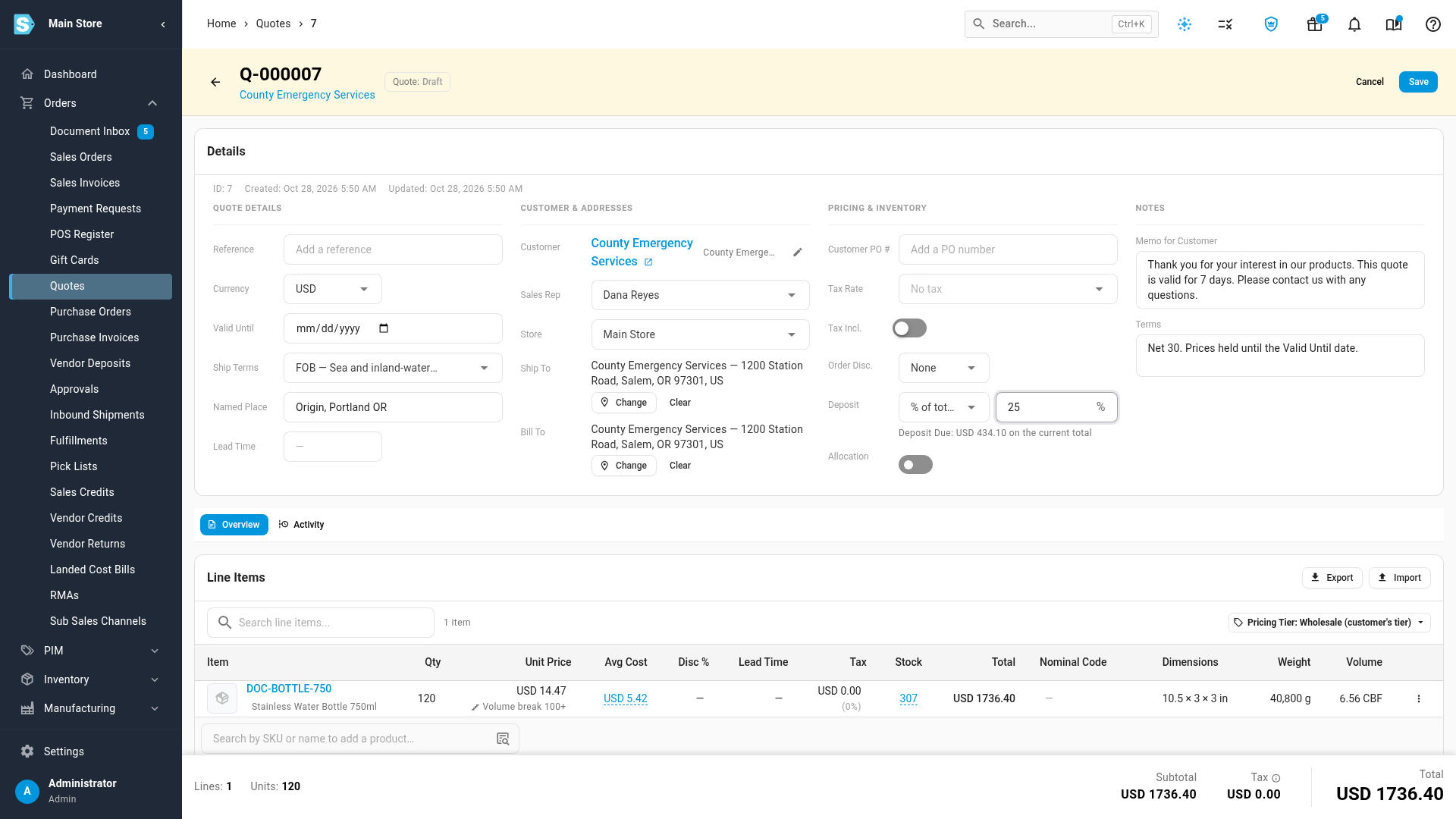
- Click Edit at the top of the quote, or in the Details card.
- Change the fields you need. They're listed in the table below.
- Click Save. Quote updated confirms it.
| Section | Field | What it does |
|---|---|---|
| Quote Details | Reference | An internal label for the quote, such as a deal or project name. Your customer doesn't see it. |
| Currency | The quote's currency. Changing it doesn't convert the prices already on the quote. See How quote prices are worked out. | |
| Valid Until | The last day the customer can accept the quote. | |
| Ship Terms and Named Place | The Incoterm printed on the quote and carried onto the sales order. | |
| Lead Time | The default lead time in calendar days after the order is received. Lines added from now on take it. | |
| Customer & Addresses | Customer | Who the quote is for. See Change the customer. |
| Sales Rep | The rep copied on the quote email. | |
| Store | Which store the quote email and PDF come from. | |
| Ship To and Bill To | Click Choose (or Change) to pick an address from the customer's address book, or Clear to remove it. You need a customer first. | |
| Pricing & Inventory | Customer PO # | The customer's purchase order number. |
| Tax Rate | The tax rate for lines that don't have their own. | |
| Tax Incl. | Turn on when your prices already include tax. | |
| Order Disc. | A discount on the whole quote: None, Percent or Amount, then the value. | |
| Deposit | What the customer pays up front: None, % of total or Fixed, then the value. | |
| Allocation | Whether the quote holds stock for the customer. | |
| Notes | Memo for Customer | The note printed on the quote PDF. |
| Terms | Payment or delivery terms. |
Lines aren't part of Edit. You change them in the line table at any time while the quote is a draft.
Change the customer
When you pick a different customer and click Save, SKU.io fills any empty Sales Rep, Store, Ship To, Bill To and Ship Terms from the new customer's record. Addresses from the previous customer are cleared, because they aren't in the new customer's address book. If the new customer is tax exempt, the quote's tax rate is removed. The confirmation lists what changed, for example: Customer changed to County Emergency Services. Filled from their record: sales rep Dana Reyes, ship-to. Line prices were not changed.
Line prices stay as they were. To price the lines for the new customer, see How quote prices are worked out.
Add an order discount
- Click Edit.
- In Order Disc., pick Percent or Amount.
- Type the value.
- Click Save.
The order discount comes off after any line discounts. It's shared across the lines in proportion to their value, and tax is worked out after it, the same way as on the sales order made from the quote. The Discount total in the footer shows the line and order discounts separately when you click it. A percentage can't be more than 100%, and an amount can't be negative.
If the line and order discounts together come to more than 20% of the subtotal, the quote needs discount approval before you can send it. See Approve a discounted quote.
Ask for a deposit
- Click Edit.
- In Deposit, pick % of total or Fixed.
- Type the value. Under the field, Deposit Due shows what that comes to on the current total.
- Click Save.
The quote's footer then shows Deposit Due next to the Total, and the customer sees it on the quote. A percentage deposit is that share of the total. A fixed deposit is never more than the total. When the customer accepts and you create the sales order, a deposit they've paid moves to the first order. See Order all or part of an accepted quote.
Mark a quote as sent without emailing it
If you delivered the quote another way, such as uploading it to a procurement portal or handing it over in person, you can record it as sent without SKU.io emailing anyone.
- Click Send at the top of the quote.
- Check Memo on the quote PDF. It's saved on the quote.
- Click Mark as sent without emailing.
Quote marked as sent — no email was sent confirms it. Everything else in What happens when you send a quote still happens: the quote moves to Sent, gets its Customer link and allocates its stock. The Timeline shows Marked as sent — no email was sent.
Send a quote requested on your storefront
A quote that a buyer requested on your storefront is answered there. When you click Send, the dialog says: This quote was requested on your storefront, so it is sent back there for the customer to accept or decline. No email is sent. The email fields don't appear, and you can still change the memo.
Click Send. Quote sent to your storefront confirms it. The quote doesn't get a Customer link, because the customer answers on the storefront. See Answer requests for quote.
Send several quotes at once
- Go to Orders → Quotes.
- Tick the quotes you want to send.
- Click Send in the bar above the list.
- Click Send to confirm.
Each Draft or Revised quote is emailed to its customer with your Quote Sent template's subject and message, and allocates its stock if its Allocation is on. You can't edit the email for a bulk send. To change the wording for one quote, send it from the quote page.
SKU.io reports the result, for example Sent 3 quote(s), skipped 2. Quotes in other statuses, archived quotes and quotes waiting for discount approval are skipped. When a quote is skipped because there's nobody to email, the message adds why, after Not sent: (up to three reasons).
Download or preview the PDF
- On the quote, click Export → Download PDF. The PDF opens in a new tab as quote-Q-….pdf.
- In the Send dialog, click Preview PDF.
An edited memo shows on the PDF only after you save or send the quote. Until then, the Send dialog says The PDF preview shows the memo once the quote is sent. To change what the PDF looks like, see Customize the quote email and PDF.
When a quote can't be sent
| What you see | Why, and what to do |
|---|---|
| Dana Reyes has no email address, so there is nobody to send this quote to. and Send is greyed out | The customer has no email address. Click Add one to the customer, or type an address in To. |
| This quote has no customer to email. | Choose a customer with Edit, or type an address in To. |
| Recipient "…" is not a valid email address. (or CC "…") | Fix the address in To or CC (optional). You can send to up to 20 addresses in each. |
| Quote Q-… requires discount approval before it can be sent. Request approval from More → Request Approval, then send it. | The discounts come to more than 20% of the subtotal. Send and Mark as sent without emailing stay greyed out until the discount is approved. See Approve a discounted quote. |
| Quote Q-… is awaiting discount approval and cannot be sent. | Approval has been requested and nobody has approved it yet. |
| Quote Q-… was not sent — the email could not be delivered (…). It has not been marked as sent. | The email failed. The quote stays a draft, and its Timeline shows Email failed — quote not sent with the reason. Fix the problem and send again. |
| Couldn't load the email preview — …. You can still send it. | The preview didn't load. You can send with your template's default wording, or close the dialog and try again. |
| No quote template is configured. Add one under Settings → PDF Templates. | There's no quote PDF template, so the PDF can't be made or attached. |
| Couldn't generate the quote PDF. | The PDF failed to build. Try again, and check the quote PDF template if it keeps happening. |
| Send is greyed out with This quote is archived. Unarchive it from the Quotes list before sending it. | Unarchive the quote first. See Expire, archive or delete quotes. |
| Send isn't on the quote | The quote has already been sent, answered or ordered. To change and resend it, revise it. |
Next steps
- See how your customer answers a quote: what the customer sees when they click View & respond.
- Follow up on sent quotes: track views and reply to the customer's questions.
- Accept or decline a quote for your customer: record an answer that came by phone or email.
- Order all or part of an accepted quote: turn the accepted quote into a sales order.
- Charge shipping on a quote: add a shipping charge before you send.
Video transcript
To offer a customer prices before they order, open Orders in the sidebar, and choose Quotes. Every quote is listed here with its status, such as Sent or Accepted. Click New Quote to start a blank quote. In Customer, start typing the name of the customer you're quoting, and pick them from the list. Next, look over the details. Unless you choose others, the sales rep, store and shipping terms come from the customer's record. In Terms, type any payment or delivery conditions. Then, under Line Items, click Add Product to search your catalog. Type part of the item's name in the search box, then pick the product you want from the matching results. Then click Add to Quote at the bottom of the picker, and enter the quantity you're quoting. The line shows the price this customer gets, with a note saying it's their volume price. Add more products the same way. Now click Create Quote to save your work. It starts as a draft, and the line keeps the volume break you saw in the dialog. Above the lines, Pricing Tier shows that it's priced from the customer's own tier. To ask for money up front, click Edit at the top of the quote. Click the Deposit list, and choose a percentage of the total. Then type the number. Below it, Deposit Due shows the amount. Click Save to keep your changes. The deposit now shows in the details, and in the totals at the bottom. When the quote is ready, click Send. The email is already filled in, with the customer's address in the To box. The quote's sales rep is copied by default, so they keep a record of what was sent. Check the subject, the message, and the memo on the quote PDF. Then click Send, and the status moves to Sent. It now has a customer link, so you can preview the page your customer sees.