Answer requests for quote
A request for quote (RFQ) is a buyer asking you for a price. Requests arrive from three places, and each one lands in Orders → Quotes as a Draft quote with the origin RFQ, ready for you to check and send. Buyers tend to go with the first credible quote, so SKU.io shows how long each request has waited and alerts you when one is past your response target.
Before you begin
- Set your response target. In Settings → General → Quotes, RFQ Response Target (hours) is how quickly you aim to answer. It starts at 4 hours, and 0 turns the alerts and colors off. See Set quote defaults and expiry reminders.
- Decide who gets the alerts. Overdue-request alerts go to everyone who receives the Quote Customer Action alert, and to the quote's sales rep when the rep is active and linked to a SKU.io user. See Quote permissions and alerts reference.
Where requests come from
| Source | How the buyer asks | What lands in Quotes |
|---|---|---|
| Customer Portal | Request a quote on a product's page. See Quotes in the customer portal. | A draft for the buyer's portal account, priced at the price the buyer sees in the portal |
| Public Request a quote page | A buyer without an account picks products and fills in their details. See Take quote requests without an account. | A draft filed under a customer for the buyer's organization, already priced. Their reference is in Customer PO #. |
| Your storefront | The buyer asks for a quote on your store. See Requests from your storefront. | A draft for the store's customer, imported from the store |
All three show the origin RFQ, and the Origin filter can't tell them apart. To see where a request came from, open it and read the first message in Comments on the Activity tab:
- A storefront request starts with "Quote request … from the store", followed by the buyer's name, company, email and phone, their message and the ship-to address.
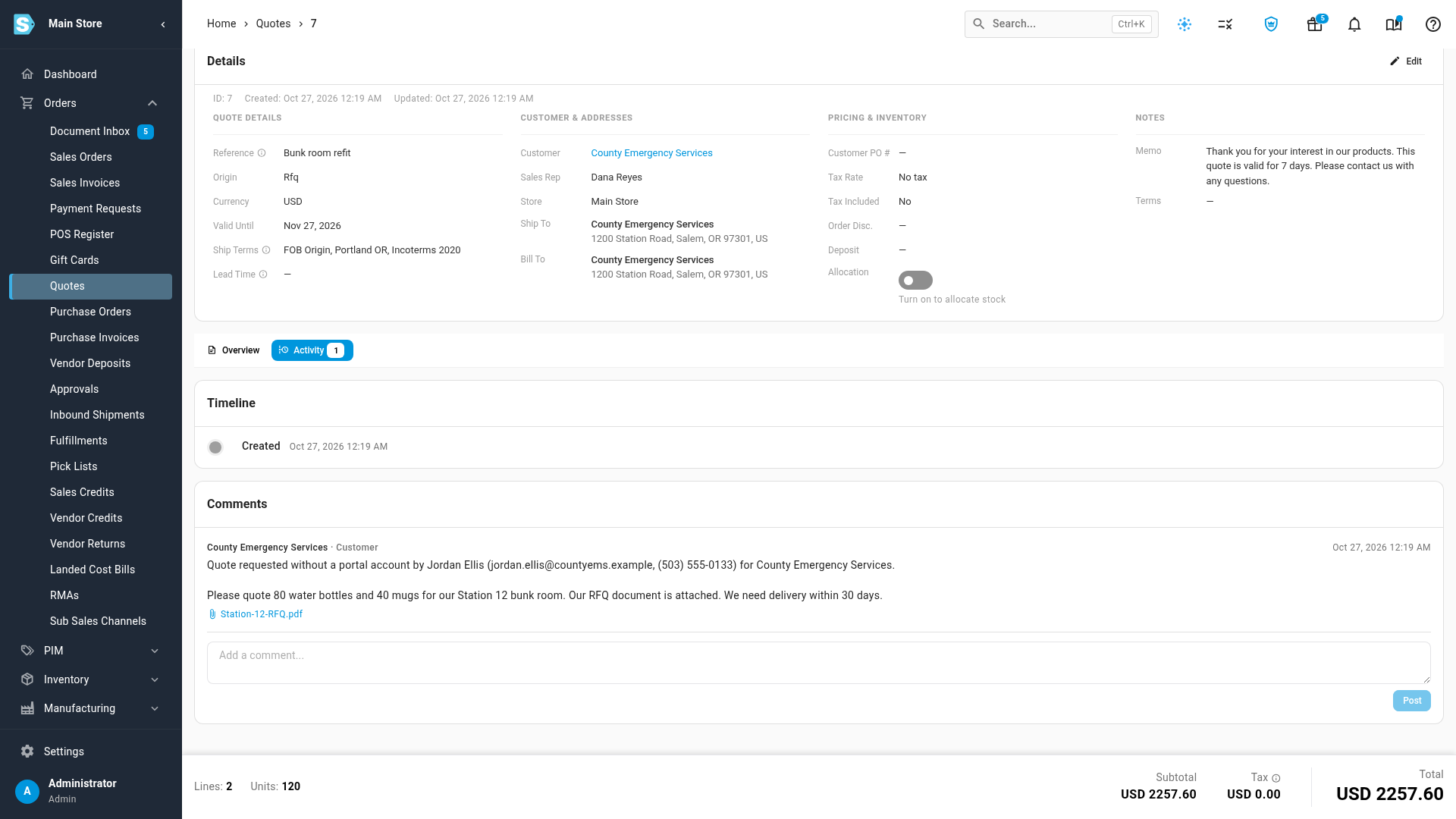
- A request from the public Request a quote page starts with "Quote requested without a portal account by" and the buyer's name, email, phone and organization, followed by their note. Its alert is B2B Portal Guest Quote Requested, and the people who get it are emailed too.
- A portal request is for a customer with portal buyers, and its Quote Requested alert says the buyer "requested a quote from the B2B portal". It usually has no first message, because the portal's Request a quote doesn't ask for a note.
Steps
-
Go to Orders → Quotes.
-
Click Awaiting reply in the filter row. The list shows only requests nobody has answered yet, oldest first. The count on the button turns orange when at least one is past your response target.
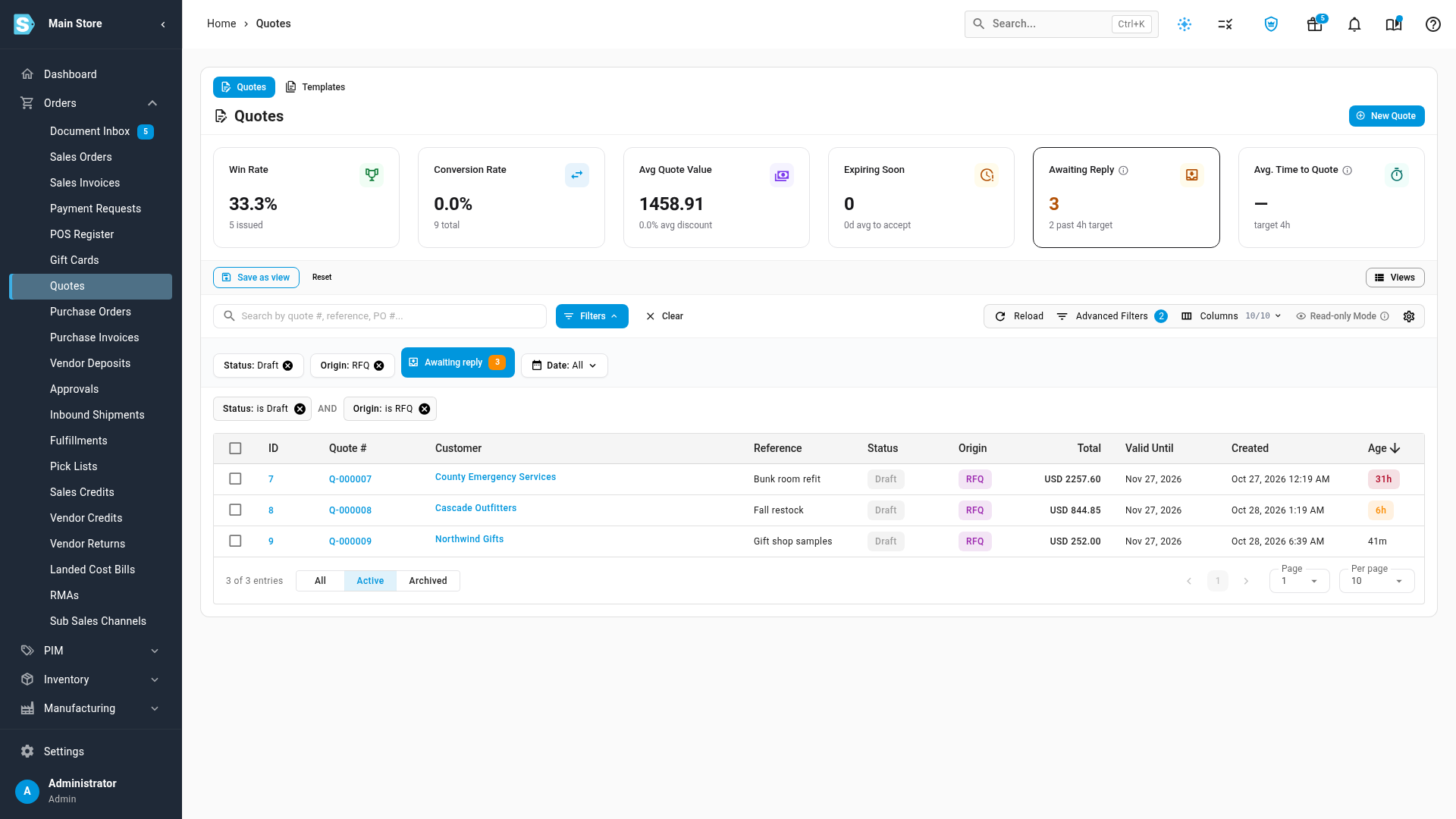
You can also click the Awaiting Reply card above the list. It shows how many requests are waiting and how many are past your target.
-
Open the oldest request.
-
Click the Activity tab, and read the buyer's message under Comments.
-
If the message shows a paperclip and a file name, click it to download the file the buyer attached, such as their own RFQ document or a spec sheet.
-
Check each line's price, and change prices, quantities or discounts if you need to. See How quote prices are worked out and Add and edit quote lines.
-
Click Send, check the email, and send the quote. See Create and send a quote.
Once you send it, the request leaves Awaiting reply and stops counting toward your response target.
How the Age column shows a waiting request
The Age column shows how long ago each quote was created, such as 45m, 3h or 2d. It updates every minute while the page is open.
For a request that is still an unsent draft:
- Orange means it's past your response target. The tooltip says "Unanswered past your 4-hour response target. Price it and send it."
- Red means it's past the final reminder. The tooltip says how long it has waited and that it's well past your target.
Sent quotes, quotes your team started and requests you've already answered never turn orange or red. When RFQ Response Target (hours) is 0, nothing is colored.
Overdue alerts
SKU.io checks for waiting requests every 15 minutes and sends up to two alerts for each one:
| Alert | When | Message |
|---|---|---|
| Quote Request Awaiting Reply | The request has waited as long as your response target | "Quote Q-… (customer) has waited 4 hours for a reply. Your response target is 4 hours; buyers usually go with the first credible quote." |
| Quote Request Still Unanswered | The request has waited a day, or twice your target if that's longer | The same, ending "— this is the last reminder." |
- Waiting time is counted in hours around the clock, so nights and weekends count.
- Each alert is sent only once per request.
- A request that's already past the final-reminder point when SKU.io first sees it gets only the final alert.
- Sending, archiving or deleting the request stops the alerts.
Requests from your storefront
When your SKU.io storefront is connected, buyers can ask for a quote on the store, with or without a store account. Requests come in with the store's orders, every five minutes, while the connection imports orders. See Choose what syncs with Storefront.
- Each new request becomes a draft RFQ quote, and SKU.io writes the quote number back to the request on the store.
- When you send the quote, SKU.io sends your offer to the store, and the store emails the buyer a link to accept it there. SKU.io doesn't email the buyer, and the quote has no customer link of its own.
- The store doesn't let the buyer choose between options or add-ons.
- When the buyer accepts, declines or lets the offer expire on the store, the quote follows on the next import: Accepted, Declined or Expired.
- Accepting places an order on the store at your offered prices. When that order is imported, the quote moves to Ordered and links to the sales order.
- A request cancelled on the store isn't cancelled in SKU.io. Archive or delete the quote yourself, or expire it if you've already sent it. See Expire, archive or delete quotes.
If you connected the store before it supported quotes, requests don't come in until you reconnect it, so the store grants SKU.io access to its quotes. See Connect Storefront.
Next steps
- Create and send a quote: the Send dialog in full.
- Follow up on sent quotes: track the quote once it's answered.
- Take quote requests without an account: set up the public Request a quote page.
- Set quote defaults and expiry reminders: change your response target.
Video transcript
To answer requests for quote from your buyers, open Orders in the sidebar, and choose Quotes. Each request lands here as a draft. Each one is marked RFQ, for request for quote, in the Origin column. Click Awaiting reply to list only the requests nobody has answered yet, oldest first. The age turns orange once a request is past your response target. It turns red when the request is long overdue. Click the oldest request to start your reply. Then click the Activity tab, and read the buyer's message under Comments. A paperclip link downloads any file they attached, such as their own request document. Back on the Overview tab, scroll down to the lines, and check each line's price before you answer. You can change prices, quantities or discounts like on any draft. When the prices are right, scroll back up, and click Send at the top of the quote. Check the address, the subject and the message, then click Send in the dialog. Once it's sent, the request drops off your waiting list and stops counting against your target.