Customize the quote email and PDF
A sent quote reaches your customer as an email with a View & respond button, and usually the quote PDF attached. A second email reminds them shortly before the quote expires. Both emails come from templates you can edit once for every quote, and the PDF comes from your quote PDF template.
Before you begin
- You need permission to manage email templates. Administrators have it.
- This page covers what's specific to quotes. For the email editor itself, see Customize email templates.
- To change how the quote PDF looks, see How PDF templates work and the Quote template reference.
The two quote emails
| Template | When it's sent | Starts with |
|---|---|---|
| Quote Sent | When you click Send in a quote's Send dialog. | The subject Quote Q-… from your store name, the quote total and Valid Until date, a View & respond button and the quote PDF attached. |
| Quote Expiring Reminder | Once per quote, a set number of days before it expires. The number of days is Expiration Reminder Days in quote settings. | The subject Reminder: quote Q-… expires on the date, and a View & respond button. No attachment. |
Steps
-
Click Settings at the bottom of the left sidebar, then click General and Email Templates.
-
In Search by subject or event…, type
quote. The list shows Quote Sent and Quote Expiring Reminder, both with the context Quote.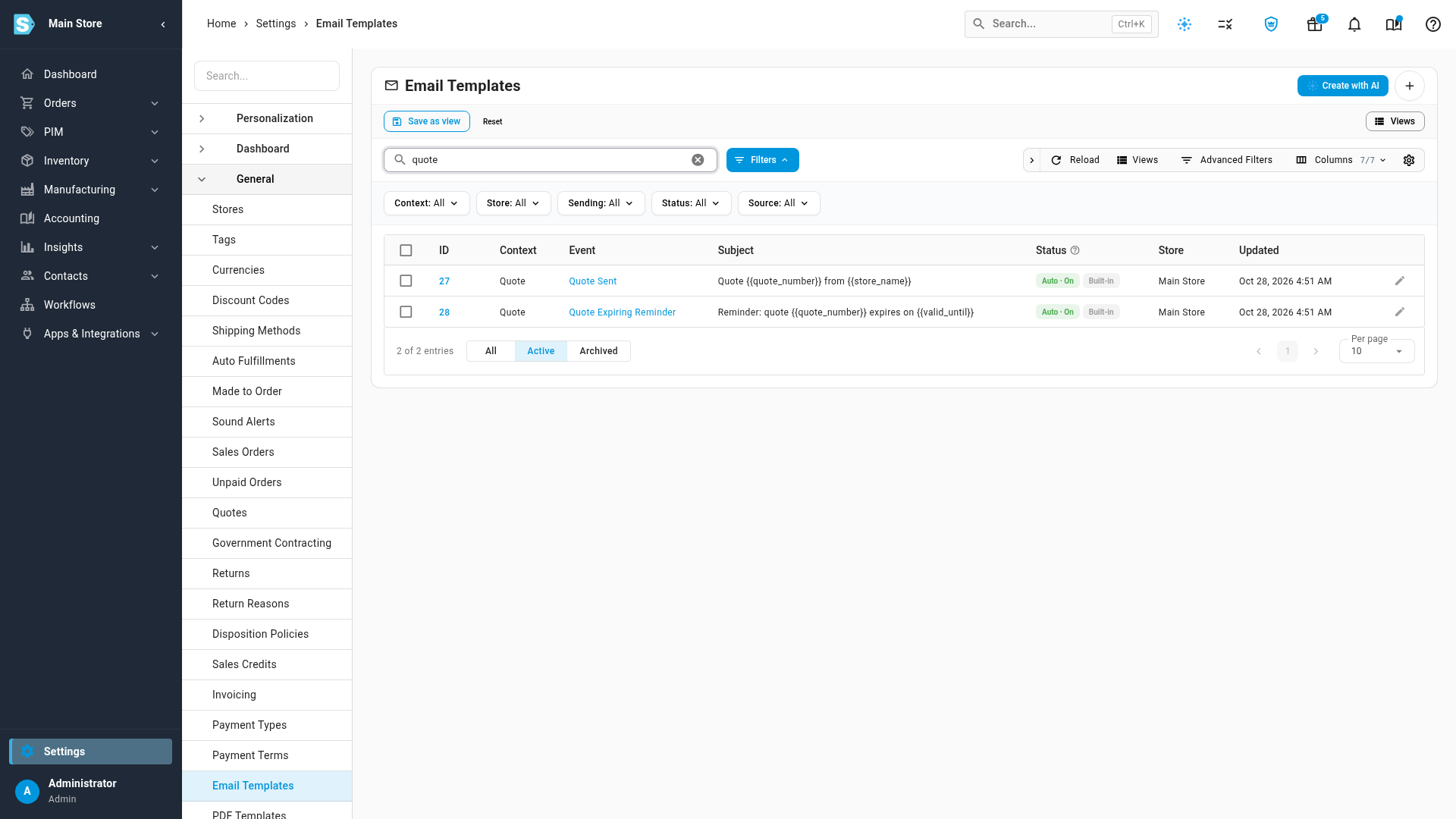
-
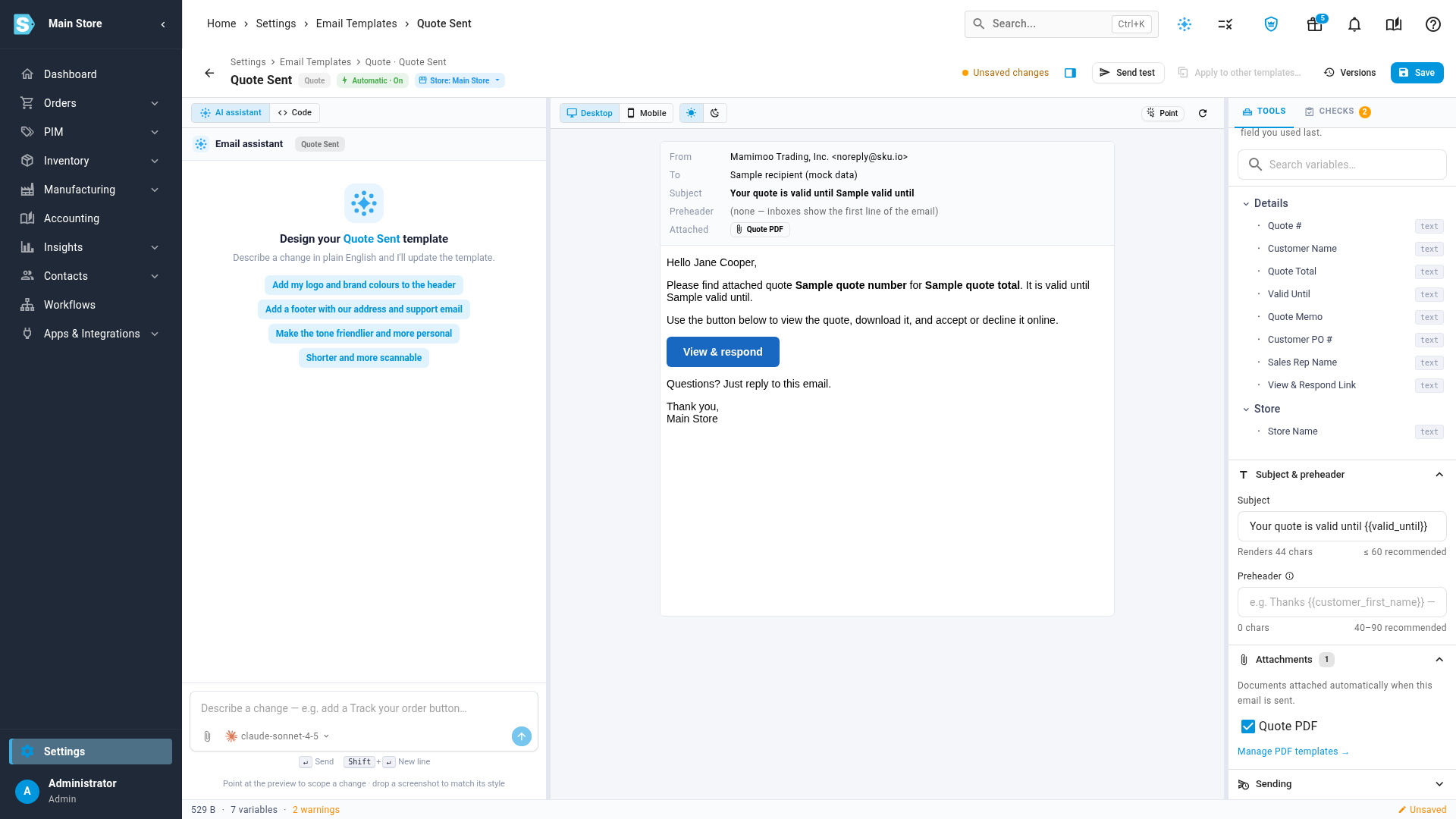
Click Quote Sent. The template editor opens, with a preview of the email in the middle of the page.
-
Change the Subject.
-
Edit the body. To fill in a detail from the quote, click where it should go, then click a variable in the Variables panel, such as Quote # or Valid Until.
-
Keep the View & respond button in the body. It's how your customer opens the quote to accept or decline it.
-
To choose whether the quote PDF goes with the email, open Attachments and tick or untick Quote PDF.
-
Click Save.
-
To change the reminder, go back to the list, click Quote Expiring Reminder, and repeat steps 4 to 8.
Variables you can use
Type a variable in double braces, or click it in the Variables panel. When the email is sent, each one is replaced with the quote's value.
| In the Variables panel | Type | Fills in |
|---|---|---|
| Quote # | {{quote_number}} | The quote number, such as Q-000123. |
| Customer Name | {{customer_name}} | The name of the quote's customer. |
| Quote Total | {{quote_total}} | The quote's total with its currency, such as USD 3,185.00. |
| Valid Until | {{valid_until}} | The date the quote expires. When a draft has no date yet, it's the date sending will set. With no date at all, it reads further notice. |
| Quote Memo | {{quote_memo}} | The memo on the quote. |
| Customer PO # | {{customer_po_number}} | The customer's PO number on the quote. |
| Sales Rep Name | {{sales_rep_name}} | The quote's sales rep. |
| Store Name | {{store_name}} | The quote's store, or your default store. |
| View & Respond Link | {{quote_url}} | The address of the customer's quote page. The View & respond button links here. |
A variable with no value on the quote, such as a missing PO number, is left blank.
Change the wording for one quote only
You don't need to edit the template to word one email differently. The Send dialog shows the Subject and Message the template fills in. Change them there, and the change applies to that quote only:
- The View & respond button is always added after your message, even though it isn't in the text you edit.
- An email with a typed message goes without the template's Preheader, the preview text some inboxes show after the subject.
- Click Reset to template to undo your changes to the message.
To change the wording for every quote, edit the Quote Sent template. The Send dialog links to it.
Give a store its own quote emails
If you sell under more than one store, each store can have its own version of both quote emails. In the template editor, open Sending, pick the store in Store, edit the wording and click Save. See Give a store its own version of an email.
A quote uses its own store's version. When that store has none, it uses your default store's version.
Turn the reminder off
Open Quote Expiring Reminder, open Sending, and turn off Send automatically. No quote reminders go out until you turn it back on. You can also set Expiration Reminder Days to 0 in quote settings.
The same switch on Quote Sent doesn't stop quotes being emailed. The Quote Sent email goes out every time you click Send in the Send dialog. To send a quote without an email, click Mark as sent without emailing in the dialog instead.
Which PDF template a quote uses
The quote PDF, whether it's attached to the email, downloaded with Export → Download PDF, or downloaded by the customer from their quote page, uses:
- the Quote PDF template of the quote's store, when that store has its own version, or
- your global Quote PDF template.
If neither exists, the PDF can't be made. Sending a quote that attaches the PDF fails with No quote template is configured. Add one under Settings → PDF Templates., and the quote stays a draft. Add a Quote template under Settings → General → PDF Templates, or untick Quote PDF on the Quote Sent template to send without it.
When the Quote Sent template doesn't attach the PDF, the Send dialog says The Quote Sent template doesn't attach the PDF. Your customer can still read the quote, and download it, from the page View & respond opens.
The memo on the PDF is the quote's memo. To change it for one quote, edit Memo on the quote PDF in the Send dialog. Preview PDF in the dialog shows the new memo only once the quote is sent.
Next steps
- Create and send a quote: use the Send dialog these templates fill in.
- See how your customer answers a quote: the page the View & respond button opens.
- Quote template reference: every value you can print on the quote PDF.
- Customize email templates: the email editor in full.
Video transcript
The emails your quotes go out in come from templates you edit once, for every quote. To find them, open Settings at the bottom of the left sidebar. Click the General card, near the top, to expand its list of settings. Then scroll down the list, and click Email Templates to see every email you can change. In the search box, type the word quote. Two templates are listed, Quote Expiring Reminder, and above it, Quote Sent. Quote Sent is the email your customer gets when you send a quote. Click Quote Sent, and the template editor fills the page. The middle of the page previews the email, filled in with sample values. In the Subject box, on the right side of the page, type the words your customer should see first. Then click a variable, such as Valid Until, to fill in a detail from the quote. The preview shows the new subject at the top, with sample values. Click Attachments to choose whether the quote PDF goes with the email. Keep Quote PDF ticked, and the PDF is attached automatically whenever the email is sent. Manage PDF templates links to the template used for the quote PDF. Click Save at the top right, and every quote you send from now on uses the new wording. The reminder sent before a quote expires has its own template, and you change it the same way.