Expire, archive or delete quotes
Quotes close in three ways. Expire ends an offer your customer hasn't answered. Archive puts a quote away and withdraws it, and you can bring it back later. Delete removes quotes that never became a deal. SKU.io also expires quotes on its own once their Valid Until date has passed.
Before you begin
- To expire, archive or unarchive, your role needs Quotes → Edit. To delete, it needs Quotes → Delete. Without the permission, the button is greyed out and its tooltip says which permission an administrator needs to add.
- Archive, unarchive and delete work from the Quotes list only. The quote's own page doesn't have them.
Steps
Expire a quote
-
Go to Orders → Quotes and open the quote.
-
Click More.
-
Click Expire.
There's no confirmation step. The quote moves to Expired and SKU.io shows Quote expired.
Expire is only in the menu for Sent and Viewed quotes.
Expire several quotes
-
Go to Orders → Quotes.
-
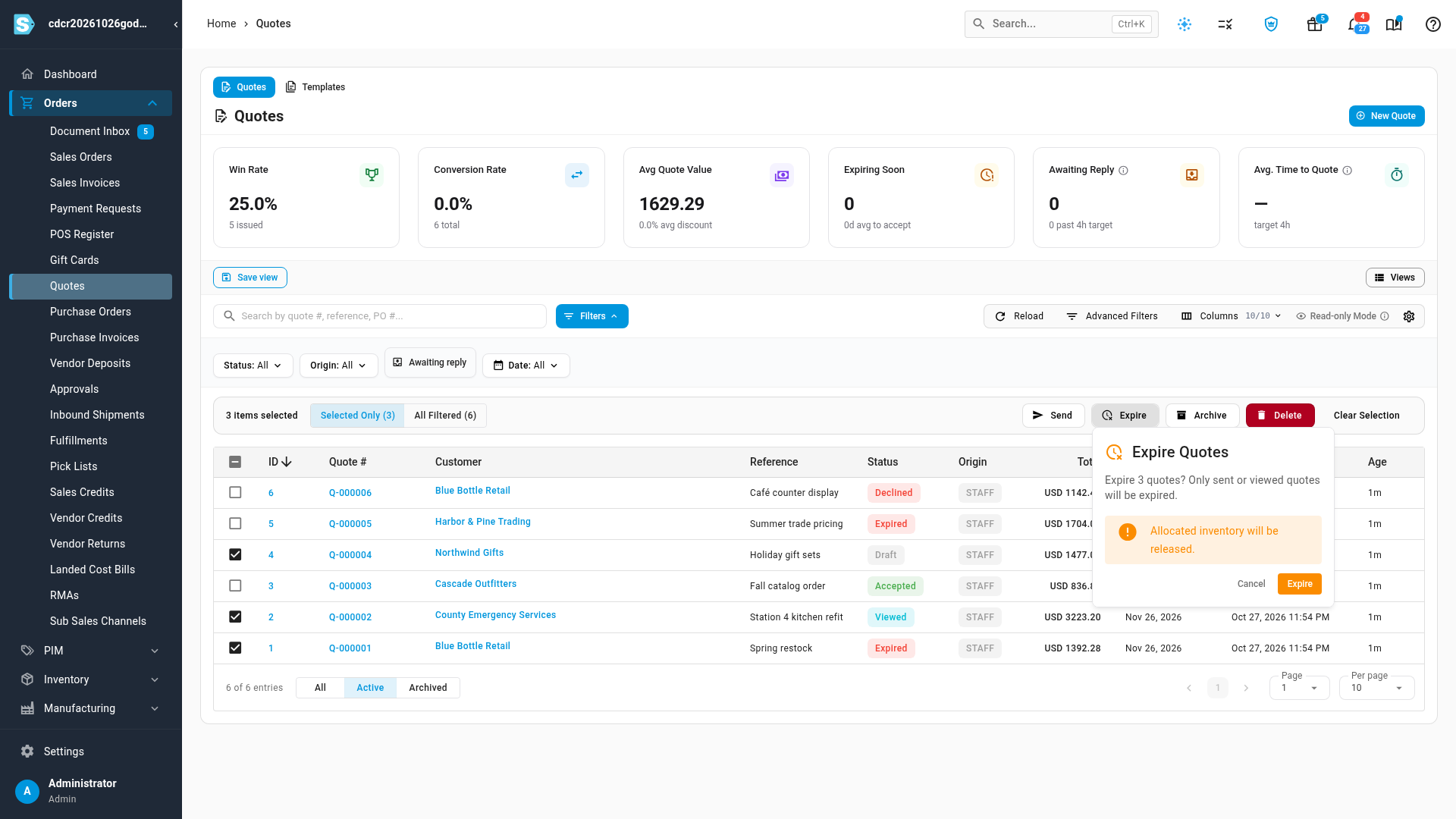
Tick the quotes to expire.
To act on every quote that matches your filters, click All Filtered in the bulk actions bar.
-
Click Expire.
-
Click Expire in the Expire Quotes dialog.
Only sent or viewed quotes are expired. SKU.io tells you how many it expired and how many it skipped.
Archive quotes
-
Go to Orders → Quotes.
-
Tick the quotes to archive.
-
Click Archive.
-
Click Archive in the Archive Quotes dialog.
SKU.io shows "Archived N quote(s)." and the quotes leave the Active view.
To see archived quotes, click Archived or All in the toggle at the bottom of the list.
Unarchive quotes
-
Go to Orders → Quotes.
-
Click Archived at the bottom of the list.
-
Tick the quotes to bring back.
-
Click Unarchive.
-
Click Unarchive in the Unarchive Quotes dialog.
SKU.io shows "Unarchived N quote(s)." and the quotes return to the Active view.
Delete quotes
-
Go to Orders → Quotes.
-
Tick the quotes to delete.
-
Click Delete.
-
Click Delete in the Delete Quotes dialog.
Deleting can't be undone. SKU.io tells you how many quotes it deleted and how many it kept.
What expiring does
- The quote moves to Expired and any stock it held is released.
- The quote link stops taking answers. Your customer sees that the quote has expired and is asked to contact you for an updated quote.
- You can still revise the quote and send it again.
Accepted quotes never expire, by hand or automatically, including quotes that are partly ordered.
What archiving does
Archiving withdraws a quote, not only hides it:
- Any stock the quote held is released. The Allocation caption reads Archived: stock released. Unarchive to allocate it again.
- The quote link stops taking answers. If your customer tries to accept or decline, they're told the quote has been withdrawn and to ask you for an updated quote.
- The quote isn't expired automatically, and your customer doesn't get expiry reminders for it.
- You can't send it. Send is greyed out with "This quote is archived. Unarchive it from the Quotes list before sending it."
When you unarchive a Sent, Viewed or Accepted quote with Allocation on, SKU.io allocates its stock again. If a sent or viewed quote's Valid Until date passed while it was archived, it doesn't take stock back, and the next hourly check marks it Expired.
Which quotes are kept when you delete
SKU.io deletes only quotes that never became a deal, and keeps the rest as the record of what was agreed:
- Accepted and Ordered quotes, and any quote that has a sales order.
- Quotes with a deposit payment recorded against them.
The result message says how many were kept, for example "Deleted 3 quote(s), kept 1 that were accepted, ordered or hold a deposit (archive those instead)." Archive the kept quotes if you want them out of the way.
Deleting a quote releases any stock it held.
What SKU.io does on its own
| How often | What happens |
|---|---|
| Every hour | Sent and viewed quotes whose Valid Until day has passed move to Expired, and their stock is released. Archived quotes are skipped |
| Once a day | Customers get an expiry reminder for quotes due to expire within your Expiration Reminder Days. Each quote gets one reminder, unless you change its Valid Until date |
| Every 15 minutes | Staff are alerted to requests for quote still waiting past your RFQ Response Target. See Answer requests for quote |
A quote can't be accepted once its Valid Until day has passed, even before the hourly check marks it Expired. Set these up in your quote settings.
Variations and edge cases
Expire is refused
A quote can only be expired while it's Sent or Viewed. If its status changed after you opened it, the action is refused with a message such as "Quote Q-… cannot be expired from status accepted." Reload the page to see where the quote stands.
Templates
Templates aren't expired, and bulk Expire skips them. To remove a template, delete it from the Templates tab. See Copy a quote or start from a template.
Next steps
- Revise or extend a quote: reopen an expired quote and send it again.
- Hold stock for a quote: what happens to held stock when a quote closes.
- Quotes list reference: the list's views, filters and bulk actions.
Video transcript
To expire, archive or delete quotes, open Orders in the sidebar, and choose Quotes. Every quote is listed with its status, such as Sent or Draft. To expire a quote your customer hasn't answered, click the quote in the list. At the top of the quote, click More, and choose Expire from the list of actions. There's no confirmation step, so the status moves straight to Expired, and any held stock is released. To expire several quotes at once, go back to Quotes in the sidebar. Tick the box at the start of each row, such as a viewed quote, a draft, and the one you just expired. Then click Expire, in the bar of bulk actions above the list. Only sent or viewed quotes are expired. Click Expire to confirm, and SKU.io says how many it expired, and how many it skipped. To put quotes away, tick each one you no longer need, such as an expired or declined quote. Then click Archive in the bulk actions bar, and click Archive again in the dialog. They leave the Active view, and your customer can no longer answer them. To remove a quote that never became a deal, such as an old draft, tick it in the list. We also tick an accepted quote, to see what happens to that quote. Click Delete in the bulk actions bar, then Delete in the dialog, because deleting can't be undone. SKU.io deletes the draft, but keeps the accepted quote, and says how many it kept.