See how your customer answers a quote
When you send a quote, your customer gets an email with a View & respond button. It opens a private page on your SKU.io web address where they read the quote, download the PDF, and accept, decline or ask you a question. They don't need an account. This page shows you how to open that page yourself, and what your customer sees and does on it.
Before you begin
- The quote has been sent. The customer page exists only for a quote that is Sent, Viewed, Accepted, Ordered, Declined or Expired. See Create and send a quote.
- The quote wasn't sent through your storefront. A storefront quote is answered on the store, so it has no customer page. See Answer requests for quote.
Steps
-
Go to Orders → Quotes and open the quote.
-
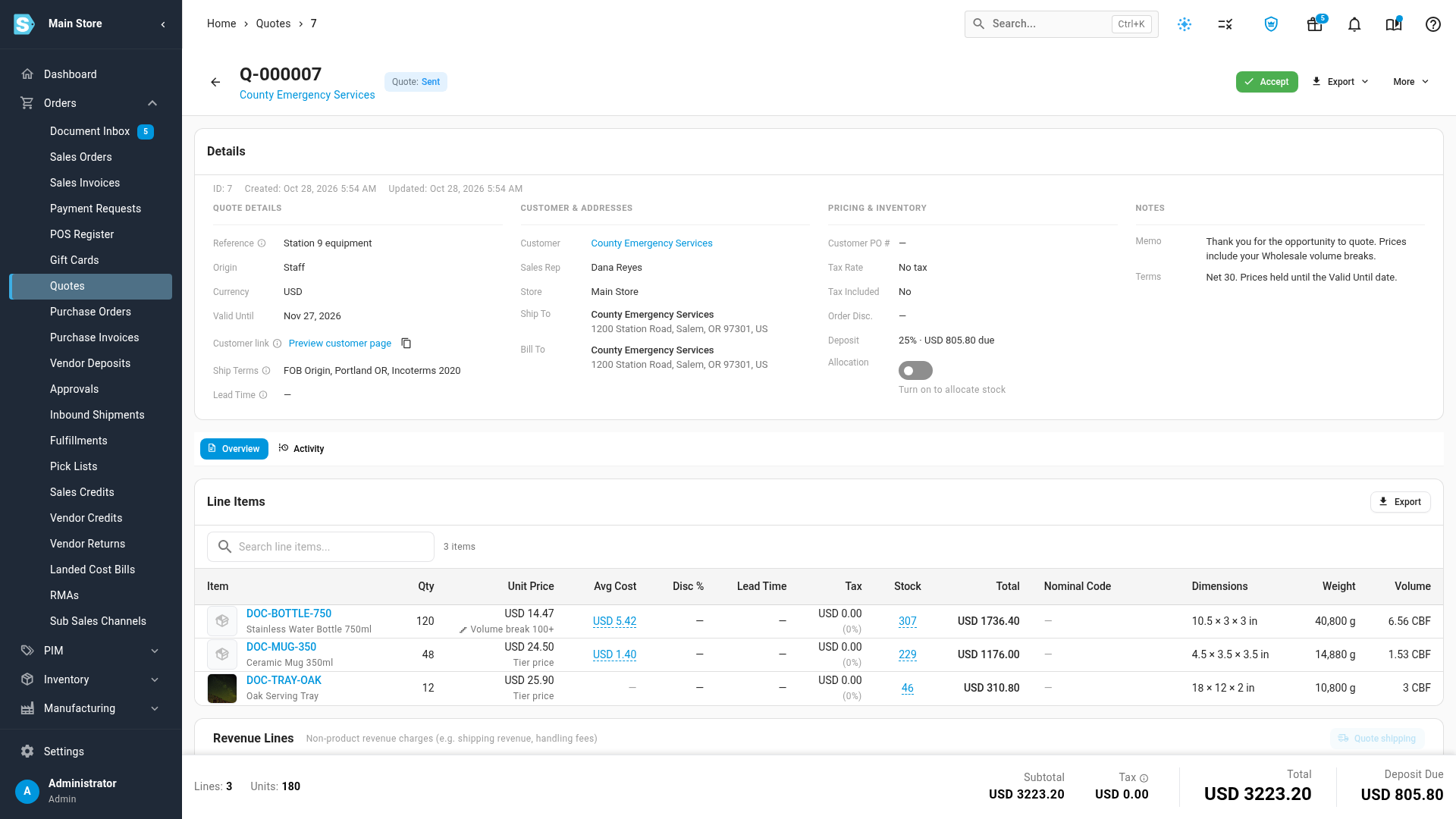
In the Details card, find Customer link.
-
Click Preview customer page.
The customer's page opens in a new tab with a blue banner: Preview — this is what your customer sees at this link. The Accept & sign, Decline and message buttons are hidden, and opening the preview doesn't mark the quote as viewed.
-
To send the link another way, such as in a chat message, click the copy icon (Copy link) next to Preview customer page. The tooltip changes to Copied. If your browser blocks copying, SKU.io shows the link in a box so you can copy it by hand.
The link stays the same for the life of the quote, including after you revise and resend it. Anyone with the link can open the quote, so share it only with your customer.
The email your customer receives
When you send a quote by email, your customer receives:
- The subject Quote Q-… from your store's name.
- The quote number, its total and the date it's valid until. A quote with no Valid Until date reads "valid until further notice".
- A View & respond button that opens the customer page.
- The quote PDF, attached.
Replies to the email come back to you. You can change the wording, and whether the PDF is attached, in the Quote Sent email template. The View & respond button is always added, even when you type your own message in the Send dialog. See Customize the quote email and PDF.
What your customer sees on the page
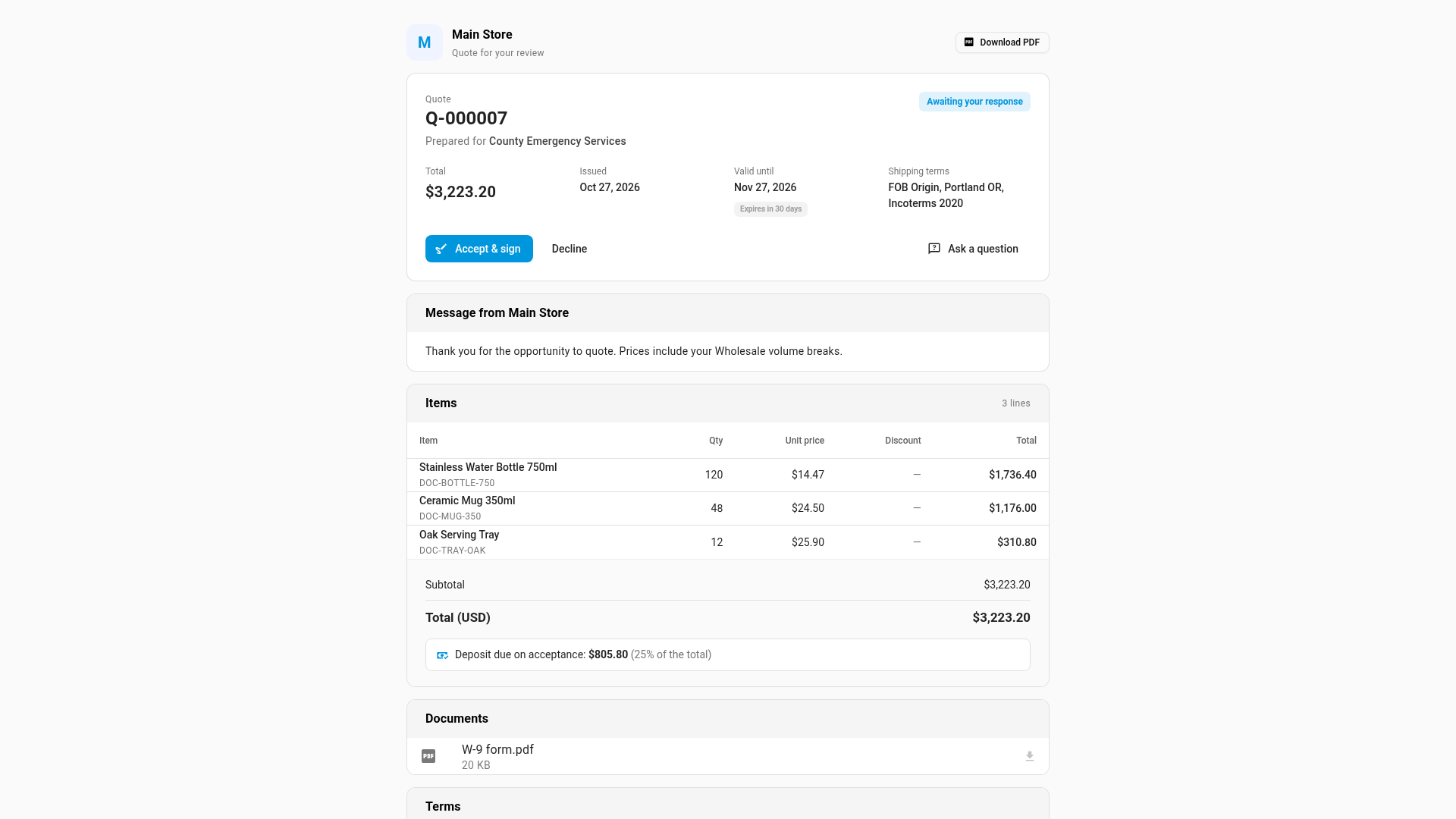
The page shows your store's logo, or its first letter when there's no logo, with Quote for your review. From top to bottom:
| Part of the page | What it shows |
|---|---|
| Download PDF | Opens the quote PDF in a new tab. It works in every state, including after the quote is accepted or expired. |
| Summary | The quote number, Prepared for (the customer's company and contact), a status chip, the Total, Issued, Valid until, Your PO # and Shipping terms. A chip next to the date counts down: Expires in N days, then Expires tomorrow and Expires today. When the customer is tax exempt, a line shows their certificate and its expiry date. |
| Message from your store | The quote's Memo for Customer, when it has one. A cover letter added to the quote through the API shows here too. |
| Items | Each line with Item, Qty, Unit price, Discount and Total. Lead time appears when at least one line has a lead time. A lead time of zero reads 0 days. |
| Options and add-ons | Lines you marked Pick one appear as a group of choices. Lines you marked Optional appear under Optional add-ons. See Choices the customer makes. |
| Totals | Subtotal, Discount, Tax (or Tax (included)) and Total in the quote's currency. When the quote asks for a deposit, Deposit due on acceptance shows the amount. |
| Documents | The documents you shared with the customer, such as a W-9 or insurance certificate. Internal documents never appear. |
| Terms | The quote's terms. |
| Questions & messages | The conversation between you and the customer. See Questions and messages. |
The status chip shows the quote's state in the customer's words:
| Your status | The customer sees |
|---|---|
| Sent, Viewed | Awaiting your response |
| Accepted | Accepted |
| Ordered | Order placed |
| Declined | Declined |
| Expired, or past its Valid until date | Expired |
A quote past its Valid until date shows Expired to the customer straight away, even before SKU.io's hourly check marks it expired for you.
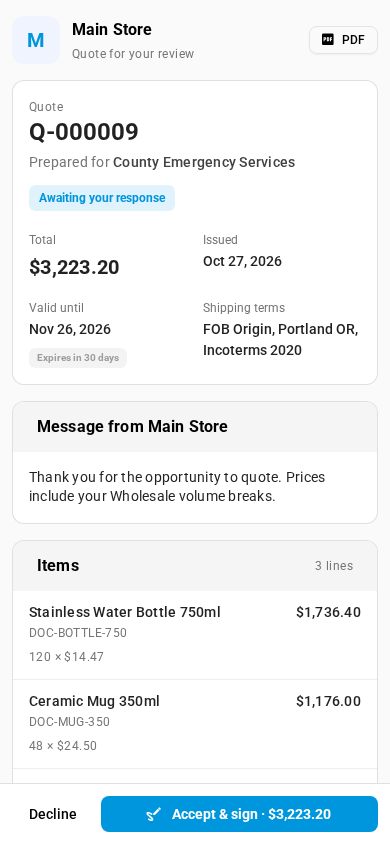
On a phone, the items become a list, and Accept & sign and Decline sit in a bar at the bottom of the screen with the total on the button.
Choices the customer makes
You can let the customer choose part of the offer. On the quote's lines, mark a line Optional, or put several lines in a Pick one group, such as good, better and best. See Add and edit quote lines.
On the customer page:
- Each Pick one group shows its name and Choose one option. The customer picks one line.
- Optional add-ons reads Tick the add-ons you'd like included. The customer ticks the ones they want.
- When their choice differs from what you sent, Estimated total for your selection appears under the total. Tax and quote-wide discounts are shared out in proportion, and the exact amount is worked out when they accept.
Only the lines they choose count toward the accepted total and can go onto a sales order. Stock held for options they didn't choose is released. You see their choices on the quote's Acceptance card. See Follow up on sent quotes.
How your customer accepts and signs
These are the steps your customer follows.
- Choose an option in each group, and tick any add-ons.
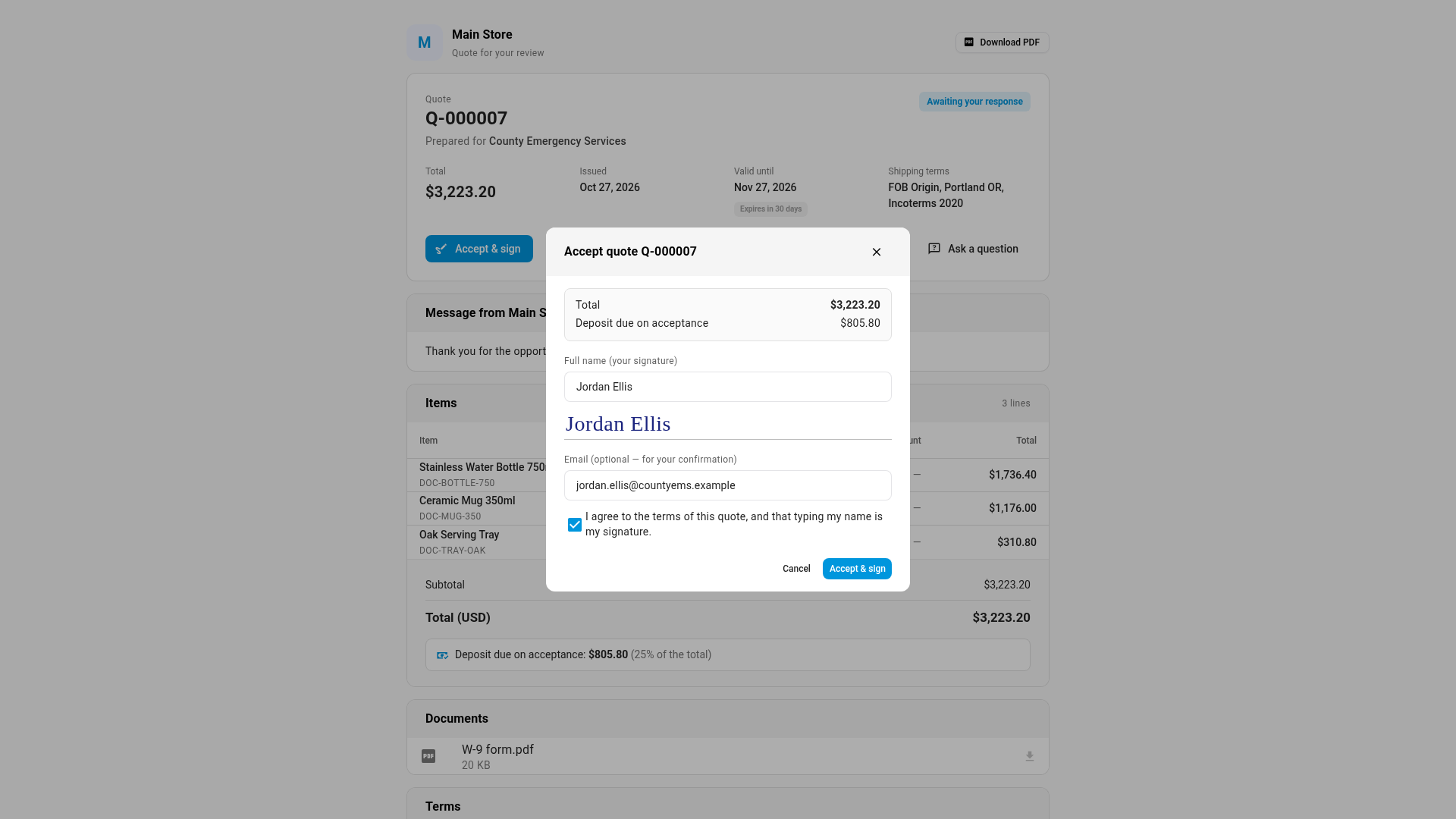
- Click Accept & sign. The Accept quote Q-… dialog shows the total, any deposit due, and the options they chose.
- Type their name in Full name (your signature). It's shown in a signature style below the box.
- Optionally, enter an address in Email (optional — for your confirmation).
- Tick I agree to the terms of this quote, and that typing my name is my signature. When the quote has no terms, the box reads "…the prices and details of this quote…".
- Click Accept & sign.
While something is missing, the Accept & sign button is greyed out and its tooltip says what to do: Type your full name to sign, Tick the box to agree to the quote, or Choose an option for "…".
The dialog then shows Quote accepted, thanking them by name and saying you've been notified. After that:
- The quote moves to Accepted, and SKU.io records the signer's name, email, the time, and the lines they chose.
- You get a Quote Accepted alert: "… accepted Quote Q-… from the quote link. Create the sales order when you're ready."
- If the customer entered an email, they get an email titled You accepted quote Q-… with the quote number, the accepted total, who signed, the date and a View quote link. It comes from your store's sending address.
- No sales order is created. You create it from the quote. See Order all or part of an accepted quote.
The page doesn't take payment. If the quote asks for a deposit, collect it the way you normally do.
How your customer declines
- The customer clicks Decline.
- In the Decline quote Q-… dialog, they can type a Reason (optional), up to 1,000 characters.
- They click Decline quote.
The quote moves to Declined, any stock it held is released, and you get a Quote Declined alert with their reason. The reason also appears on the quote's Activity tab. To make a new offer, revise the quote. See Revise or extend a quote.
Questions and messages
Questions & messages works like a short chat between the customer and you. The customer can also jump to it with Ask a question in the summary.
- Optionally, the customer types Your name (optional).
- They type a Message, up to 5,000 characters.
- They click Send message.
They see "Message sent. Your store has been notified.", and you get a Buyer Message on Quote alert. Their message appears in the quote's Comments on the Activity tab, marked Customer. Anything you post in Comments appears on this page under your store's name. See Follow up on sent quotes.
The conversation closes once the quote is declined or turned into an order. The page then says This conversation is closed. Please contact your store directly. It stays open while a quote is accepted or expired, so the customer can still ask for an updated quote.
What the page shows in each state
| When | The customer sees |
|---|---|
| They accepted it | A green banner, You accepted this quote, with who signed and when, and that you'll confirm the order. |
| You created a sales order from it | Accepted — your order is being processed, with who signed and when. |
| They declined it | You declined this quote, with the date, their reason, and a suggestion to contact you for a new quote. |
| It expired | This quote has expired, with the date it was valid until and a prompt to ask you for an updated quote below. |
| You're revising it | A page that says This quote is being updated, and that the new version comes by email when it's ready. Nothing else of the quote shows. |
| It's a draft, a storefront quote, or the link is wrong | Quote not found: "We couldn't find this quote. Check the link in your email, or contact the seller for a new one." |
| The page can't load | Something went wrong, with a Try again button. |
When an answer is refused
If the quote changed while the customer had the page open, their answer is refused with a message in the dialog, and the page reloads to show where the quote now stands:
- "Quote Q-… expired on … and can no longer be accepted. Ask the seller for an updated quote."
- "Quote Q-… has already been accepted." or "…has already been declined."
- "Quote Q-… has been withdrawn and can no longer be accepted. Ask the seller for an updated quote." This appears when you archived the quote.
- "One of the options you picked is no longer on this quote. Reload the page and choose again."
To stop abuse, the page limits how often one connection can use it: 60 page loads, 20 PDF or document downloads and 10 answers or messages a minute. Past a limit, the customer sees Too many requests. Please wait a minute, then try again.
If the PDF can't be produced, for example because no quote PDF template is set up, the Download PDF tab shows the message "A PDF of this quote isn't available right now. Please contact the seller for a copy." A shared document that you've since removed shows "This document is no longer available."
Links from older emails
Quotes sent before SKU.io changed the address of the customer page carry an older link in their email. Those links still work: they open the current page. If a customer submits an answer from an old page they left open, SKU.io still records it.
Next steps
- Follow up on sent quotes: see who opened the quote and answer the customer's questions.
- Order all or part of an accepted quote: create the sales order once the customer accepts.
- Accept or decline a quote for your customer: record an answer that reached you by phone or email.
- Quotes in the customer portal: how buyers with a portal account answer quotes.
Video transcript
To see the page your customer gets, open Orders in the sidebar, and choose Quotes. The list shows every quote, with its status, such as Sent. Click a quote you've already sent, to see its details. In the Details card, Customer link holds the address of your customer's page. Preview customer page shows that page in a new tab, marked as a preview. The copy icon beside it copies the link, so you can send it another way. Your customer reaches the same page from View and respond, in the quote email. It shows the total, how long the quote is valid, and every item on the quote. To accept, your customer clicks Accept and sign. They type their full name as a signature, and can add an email for a confirmation. Then they tick the box to agree to the terms. When they click Accept and sign, the quote is accepted, and you're notified straight away. Back in the app, the bell at the top of every page holds your alerts. A Quote Accepted alert says who accepted, and that they used the quote link. To go to the quote, click the arrow icon at the right of the alert. The quote is now Accepted. The Acceptance card shows the signer's name and email, and the time they accepted the quote. No sales order is made until you create one from the quote.