Revise or extend a quote
A sent quote is locked so your customer always sees exactly what you offered. To change it, revise it: the quote reopens for editing, you make your changes, and you send it again. Your customer gets the new version on the same link. Revising is also how you extend a quote, by giving it a later Valid Until date.
Before you begin
- The quote must be Sent, Viewed, Declined or Expired. Accepted and ordered quotes can't be revised, because a sales order may already depend on them.
- Your role needs Quotes → Edit to revise and Quotes → Send to send the new version.
- Your quote settings decide how long a quote stays valid when it goes out: Auto Set Expiration and Default Expiration Days.
Steps
Revise a quote
-
Go to Orders → Quotes and open the quote.
-
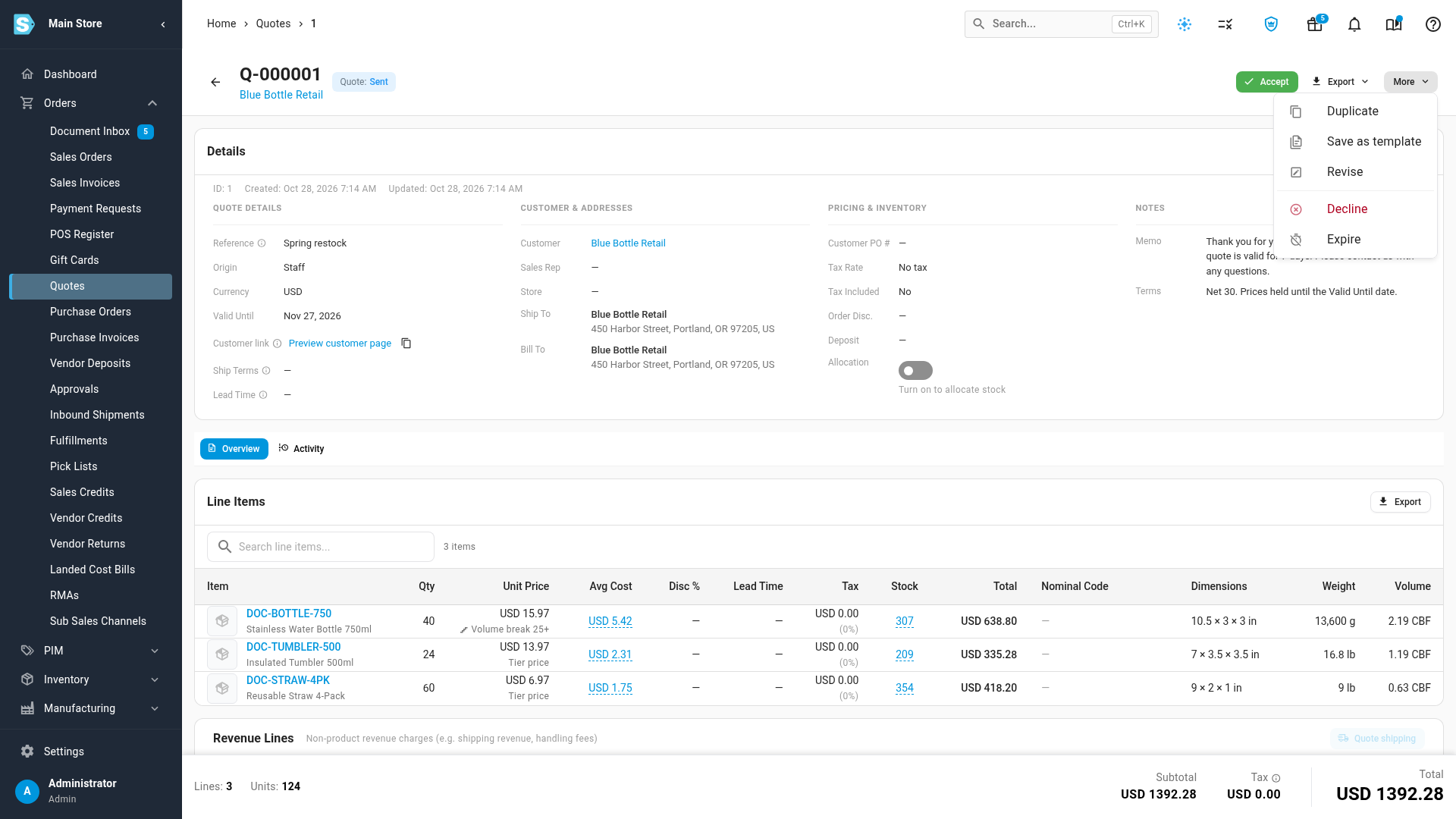
Click More.
-
Click Revise.
The quote moves to Revised and SKU.io shows Quote updated. The Edit button and the line table become editable.
-
Change the lines in the line table. See Add and edit quote lines.
-
To change the quote's details, click Edit, make your changes and click Save.
-
Click Send.
-
Check the email in the Send Q-… dialog and send it. See Create and send a quote.
The quote moves back to Sent as a new version, and your customer gets an email with the same View & respond link.
Extend a quote
To give your customer more time, revise the quote and send it again with a later date.
- Open the quote.
- Click More, then Revise.
- Click Edit.
- Pick a new Valid Until date.
- Click Save.
- Click Send and send the quote.
Changing the date also resets the expiry reminder, so your customer can get a fresh reminder before the new date.
What your customer sees while you revise
While the quote is Revised, its link doesn't take answers. If your customer opens it, they're told the quote is being updated and that they'll get the new version by email. When you send the revision, the same link shows the new version.
How long a quote is valid
A quote is valid through the end of its Valid Until day, in your company's time zone. From the next day, nobody can accept it, and within the hour SKU.io marks it Expired.
| When you send the quote | Valid Until |
|---|---|
| Valid Until is filled in | Stays as it is |
| Valid Until is blank and Auto Set Expiration is on | Set to today plus Default Expiration Days |
| Valid Until is blank and Auto Set Expiration is off | Stays blank. The quote never expires |
| Valid Until has already passed | Set to today plus Default Expiration Days (see below) |
Variations and edge cases
Sending a quote whose Valid Until has passed
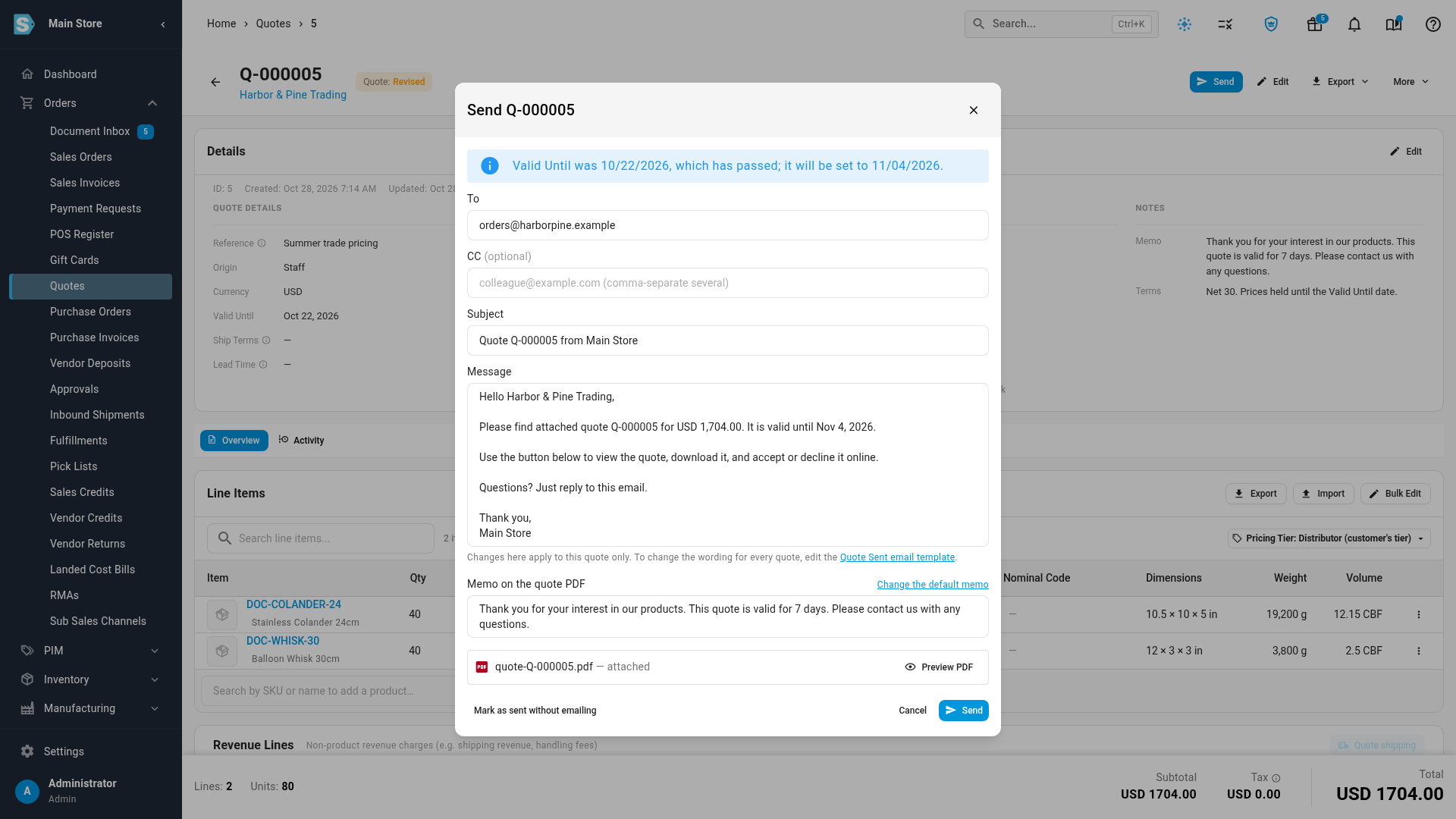
If you revise an expired quote and send it without changing the date, SKU.io doesn't send an offer that's already out of date. The Send Q-… dialog says "Valid Until was date, which has passed; it will be set to new date." and the email shows the new date. The new date is today plus your Default Expiration Days, and the quote's activity keeps the old date. The same happens when you use Mark as sent without emailing.
To use a different date, pick it under Valid Until before you send.
Held stock during a revision
If Allocation is on, the quote keeps the stock it holds while you revise it. Change a line's quantity or warehouse and the line is allocated again to match. See Hold stock for a quote.
Quotes you can't revise
Revise doesn't appear in the More menu for Draft, Accepted or Ordered quotes, or for templates.
- A draft is already editable.
- An accepted or ordered quote is a commitment your customer signed. Change the sales order instead, or order the remaining lines and adjust them there.
- A template is edited directly. See Copy a quote or start from a template.
Revising a declined or expired quote
A declined or expired quote can be revised and sent again, so your customer can accept the new version. If the original quote should stay closed, duplicate it and send the copy instead.
Discounts that need approval
If your revision takes the discount past 20% of the subtotal, the quote needs approval again before it can be sent. See Approve a discounted quote.
Next steps
- Expire, archive or delete quotes: close a quote instead of revising it.
- Follow up on sent quotes: check whether the customer opened the new version.
- Set quote defaults and expiry reminders: change how long quotes stay valid.
Video transcript
To change a quote you've already sent, open Orders in the sidebar, and choose Quotes. The list shows every quote, with its status, such as Sent or Expired. Click the sent quote you want to change, to see its details. A sent quote is locked, so your customer sees exactly what you offered. To change it, click More at the top of the quote, and find Revise in the list of actions. Click Revise to make the quote editable again. Its status moves to Revised, and you can change its lines and details. To give your customer more time, click Edit, and type a later Valid Until date. Then click Save at the top of the details, and the new date shows under Valid Until. Click Send at the top of the quote, and check the email in the dialog that appears. When it looks right, click Send at the bottom of the dialog. Your customer receives the new version by email, and its status is Sent again. An expired quote is revised the same way. Go back to Quotes in the sidebar, and find a quote whose status is Expired. Click that quote to see its details. Its Valid Until date has already passed. At the top right of the quote, click the More button to see the full list of actions for this quote. Choose Revise from the list, so you can edit the quote and send it again. Now click Send at the top of the quote. This quote's Valid Until date has passed, so the dialog sets a new date automatically. When the email looks right, click Send at the bottom of the dialog to email the quote. It goes out with the new Valid Until date in the email.