Accept or decline a quote for your customer
Your customer usually answers a quote themselves, from the View & respond link in the quote email or from the customer portal. When their answer reaches you some other way, such as by phone, email or a signed PDF, record it on the quote yourself. An acceptance lets you create a sales order, and a decline closes the quote.
Before you begin
- The quote must be Sent or Viewed. Draft, revised, expired and already-answered quotes can't be accepted or declined.
- To accept, your role needs Quotes → Accept. To decline, it needs Quotes → Decline. Without the permission, the button or menu item is greyed out and its tooltip says which permission an administrator needs to add. See Quote permissions and alerts reference.
- If your customer wants to answer online instead, send them the quote link. Read See how your customer answers a quote.
Steps
Accept a quote
-
Go to Orders → Quotes and open the quote.
-
Click Accept.
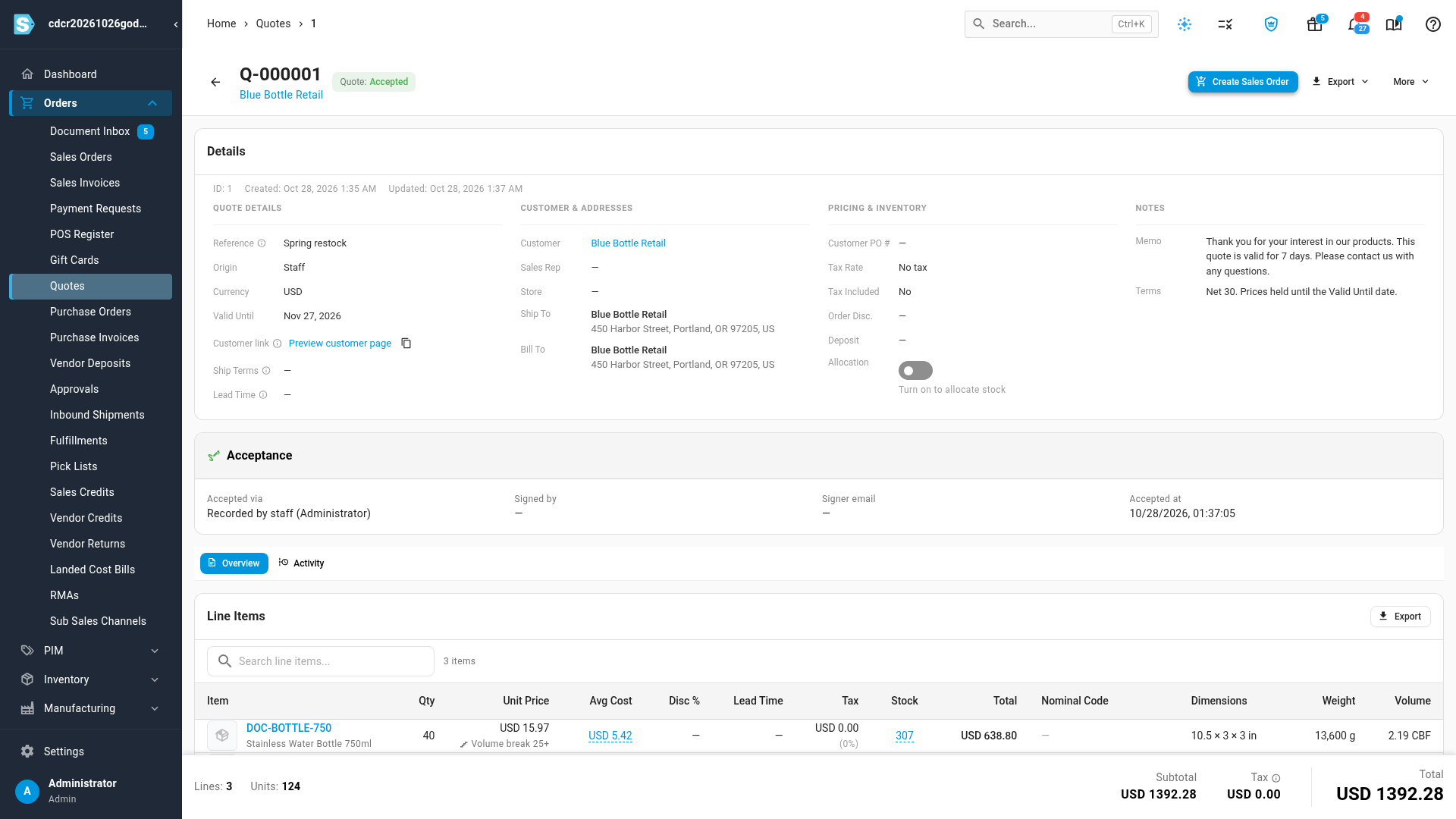
There's no confirmation step. The quote moves to Accepted straight away, and SKU.io shows Quote updated.
After you accept:
- The quote records the version your customer last received as the accepted one.
- The Acceptance card shows Recorded by staff and your name under Accepted via, and the time under Accepted at.
- If the quote has a sales rep with an email address, they're emailed that the quote was accepted.
- Any stock the quote holds stays held. See Hold stock for a quote.
- The primary button becomes Create Sales Order.
Decline a quote
-
Go to Orders → Quotes and open the quote.
-
Click More.
-
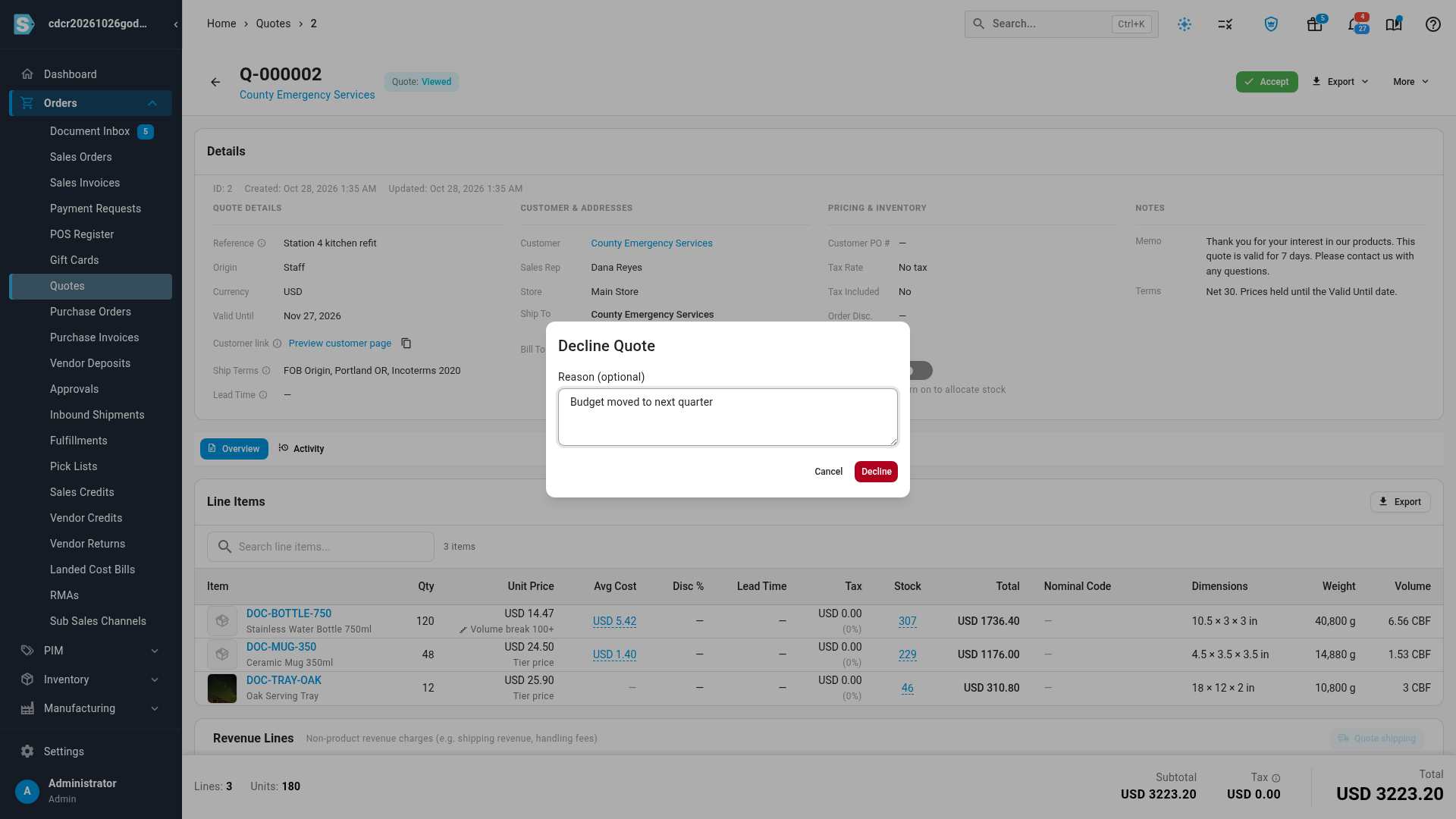
Click Decline.
-
In the Decline Quote dialog, type the customer's reason in Reason (optional).
The reason can be up to 1,000 characters.
-
Click Decline.
The quote moves to Declined, and SKU.io shows Quote declined.
After you decline:
- The reason appears under Declined on the Timeline of the quote's Activity tab.
- If the quote has a sales rep with an email address, they're emailed that the quote was declined, with the reason.
- Any stock the quote held is released.
- The quote link stops taking answers. If your customer tries to answer from it, they're told the quote has already been declined.
Variations and edge cases
The quote's Valid Until date has passed
A quote is valid through the end of its Valid Until day. From the next day, Accept is refused with "Quote Q-… has expired and can no longer be accepted.", even if the hourly expiry check hasn't marked it Expired yet. To give your customer more time, revise the quote with a new Valid Until date and send it again.
Someone else already changed the quote
If the quote's status changed after you opened it, for example because your customer accepted it from their link, the action is refused with a message such as "Quote Q-… cannot be accepted from status accepted." Reload the page to see where the quote stands.
Your customer changes their mind after declining
A declined quote can't be accepted. Revise it and send it again, and your customer can accept the new version.
Templates
Quote templates can't be accepted or declined. Start a quote from the template first. See Copy a quote or start from a template.
The sales rep's email
The email to the sales rep says the quote was accepted or declined "by the customer", even when you recorded the answer yourself.
Next steps
- Order all or part of an accepted quote: create the sales order from the accepted quote.
- Revise or extend a quote: make a new offer after a decline.
- Follow up on sent quotes: see the quote's history and the customer's messages.
Video transcript
When a customer answers by phone or email, open Orders in the sidebar, and choose Quotes. You record their answer on the quote yourself. Click the number of a sent quote, to bring up the quote's details and its status. To record a yes, click Accept at the top of the quote. The status changes at once, with no confirmation step to click through. The Acceptance card says the answer was recorded by staff, with your name and the time. The main button is now Create Sales Order, for the next step. To record a no, choose Quotes in the sidebar again. Then click the number of another quote you've sent, to bring up its details. Click More at the top right of the quote, and then choose Decline from the menu. In the Decline Quote dialog, type the reason your customer gave. Then click Decline, and the quote moves to Declined. On the Activity tab, the Timeline shows Declined, with the customer's reason under that entry.