Set quote defaults and expiry reminders
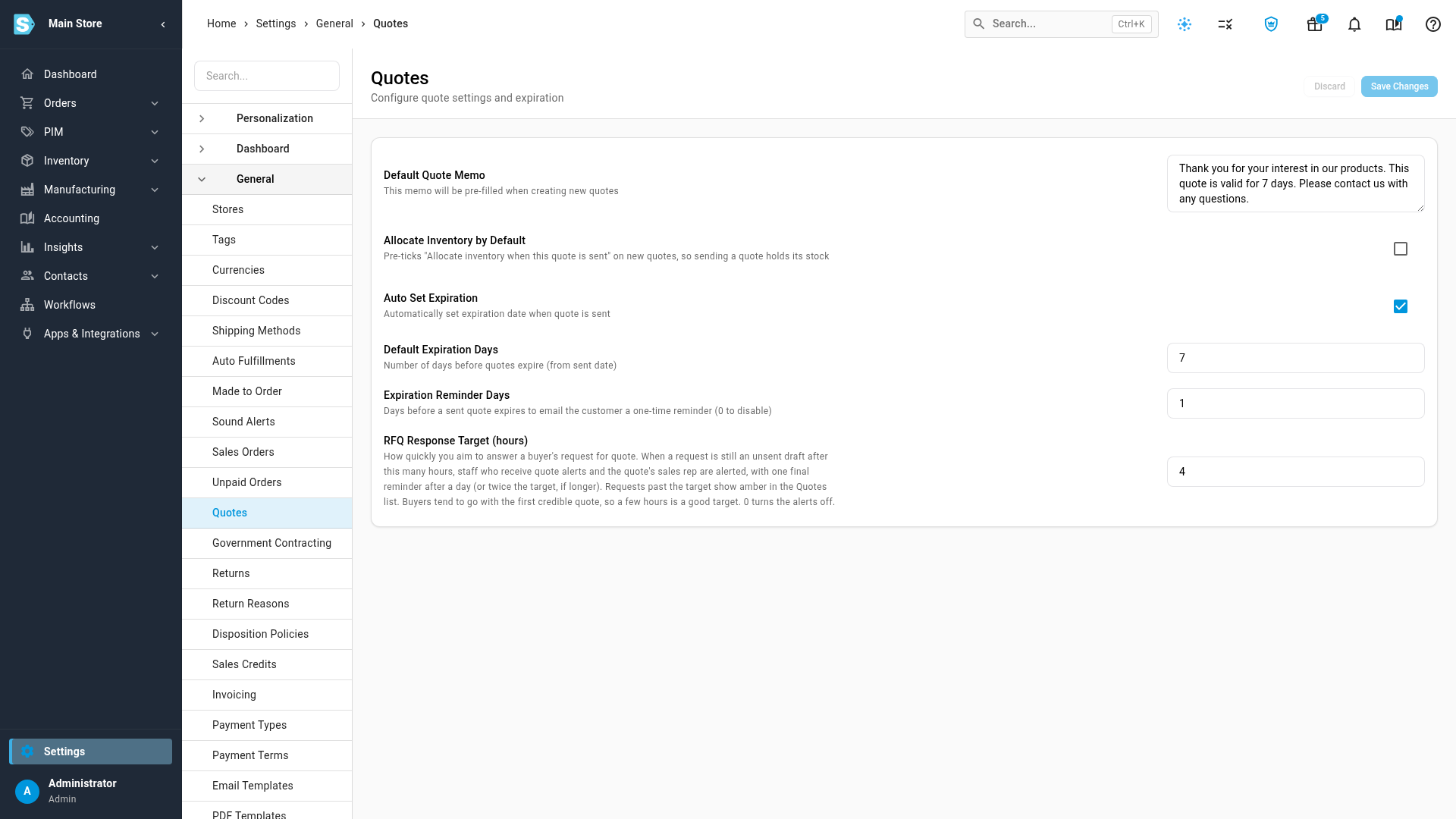
Settings → General → Quotes decides how every new quote starts out: the note your customer reads, whether sending it allocates stock, how long it stays valid, whether the customer is reminded before it runs out, and how quickly your team should answer a buyer's request for quote.
Before you begin
- You need permission to change settings.
- Changes apply to quotes you create or send from now on. Quotes you've already sent keep their memo, allocation and Valid Until date.
Steps
-
Click Settings at the bottom of the left sidebar.
-
Click the General card to expand it, then click Quotes.
-
In Default Quote Memo, type the note every new quote should start with. It prints on the quote PDF, and you can still change it on each quote.
-
Tick Allocate Inventory by Default if quotes should usually allocate stock to the customer once they're sent.
-
Leave Auto Set Expiration ticked to give each quote a Valid Until date when you send it.
-
In Default Expiration Days, enter how many days after sending that date falls.
-
In Expiration Reminder Days, enter how many days before a quote expires the customer gets a reminder email. Enter
0to turn reminders off. -
In RFQ Response Target (hours), enter how many hours a buyer's request for quote may wait for your answer. Enter
0to turn the overdue alerts off. -
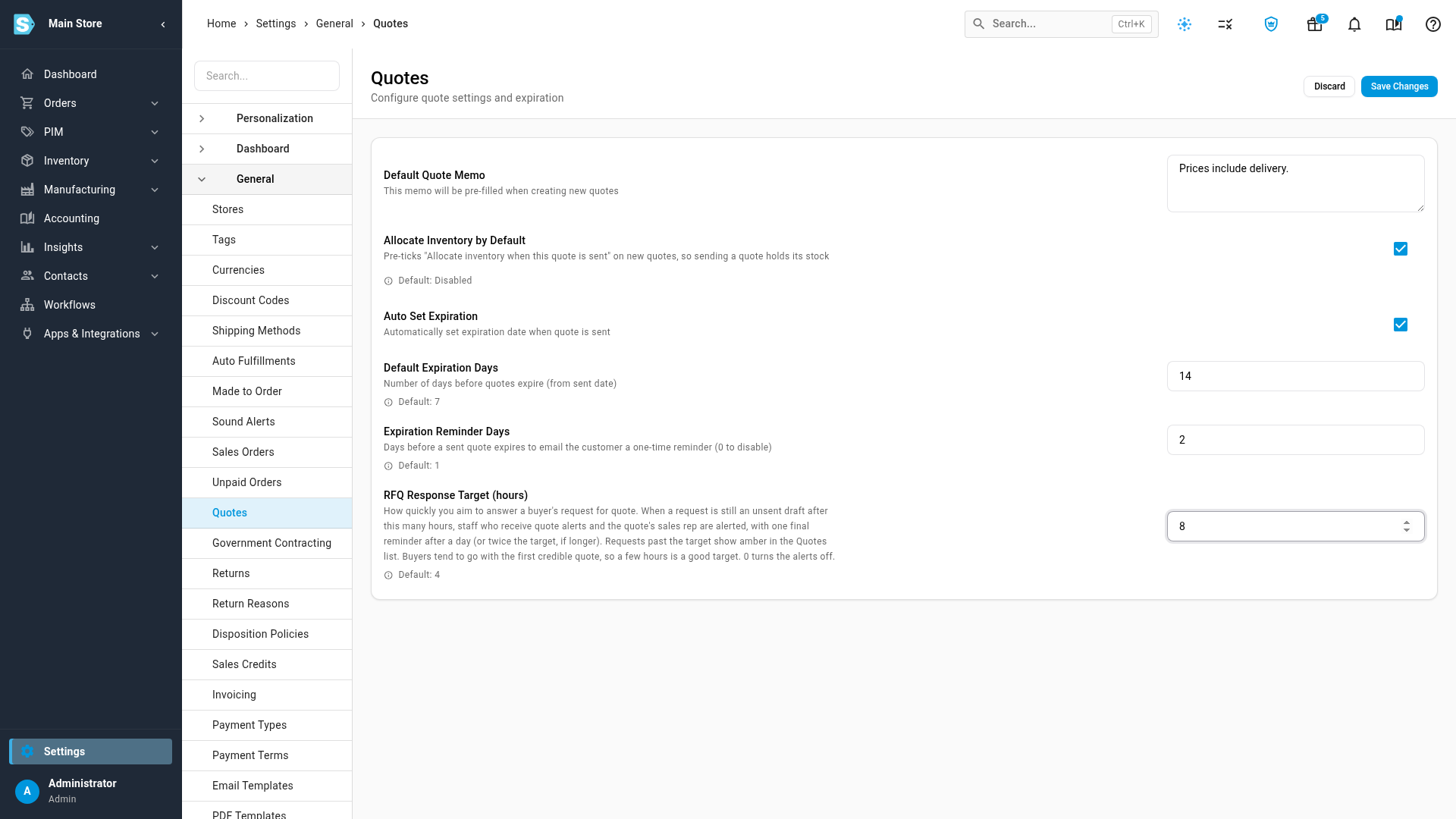
Click Save Changes. Settings saved successfully confirms it.
What each setting does
| Setting | Starts as | What it does |
|---|---|---|
| Default Quote Memo | A thank-you note that says the quote is valid for 7 days | Fills in the memo on every new quote. The memo prints on the quote PDF, and you can edit it on the quote or in the Send dialog. It also fills the memo of new sales orders. See The memo on sales orders. |
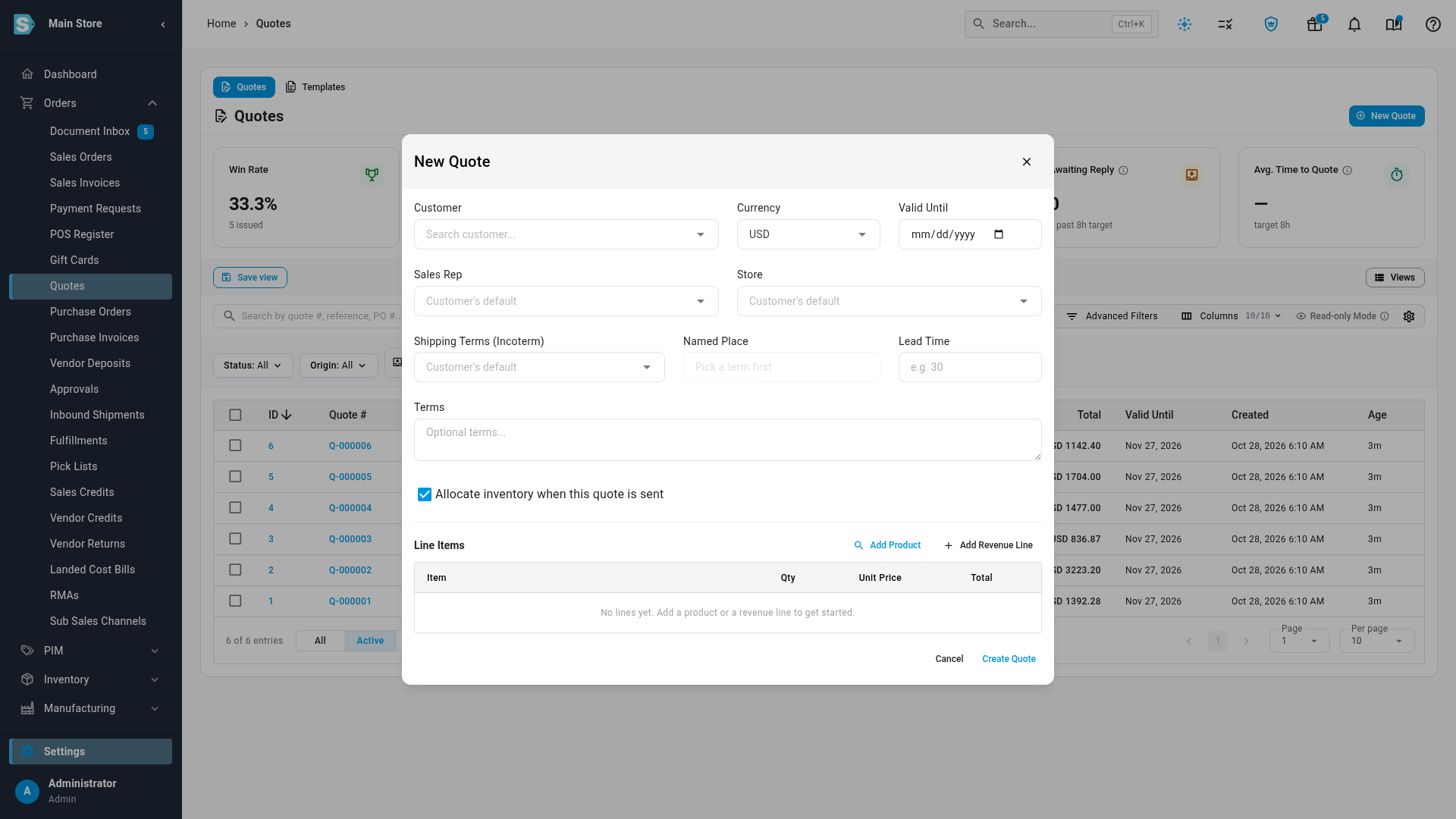
| Allocate Inventory by Default | Off | Starts the New Quote dialog with Allocate inventory when this quote is sent ticked. When you send such a quote, its stock is allocated to the customer. See Hold stock for a quote. You can untick the box for any single quote. |
| Auto Set Expiration | On | When you send a quote that has no Valid Until date, SKU.io sets one for you. A date you've already picked on the quote is kept. With this off, a quote without a date never expires on its own. |
| Default Expiration Days | 7 | How many days after sending the automatic Valid Until date falls. A quote stays valid through the end of that day. |
| Expiration Reminder Days | 1 | How many days before Valid Until the customer gets one reminder email. 0 turns reminders off. See The expiry reminder email. |
| RFQ Response Target (hours) | 4 | How quickly you aim to answer a buyer's request for quote. Past it, your team is alerted and the request turns orange in the Quotes list. 0 turns the alerts off. See The response target for requests for quote. |
The built-in memo says the quote is valid for 7 days. If you change Default Expiration Days, change the memo's wording to match, or remove the number of days from it.
When a quote's Valid Until date passes, the quote moves to Expired within the hour, and any stock it was allocating is released. If you resend a quote whose Valid Until date has already passed, for example after revising an expired quote, SKU.io moves the date to today plus Default Expiration Days, and the Send dialog tells you the new date before you send.
The expiry reminder email
Every morning, SKU.io looks for quotes that are Sent or Viewed and whose Valid Until date falls within the next Expiration Reminder Days. Each one's customer gets a single email:
- The subject reads Reminder: quote Q-… expires on followed by the date.
- The email has a View & respond button, so the customer can open the quote and accept or decline it before it runs out.
- The wording comes from the Quote Expiring Reminder email template. See Customize the quote email and PDF.
Each quote is reminded once. If you change its Valid Until date, for example to give the customer more time, the quote can be reminded again before the new date.
Some quotes don't get the email:
- No email address. The reminder goes to the email address on the quote's customer. A quote whose customer has no email address is skipped, and it still counts as reminded.
- Template turned off. If Send automatically is off on the Quote Expiring Reminder template, no reminders go out.
- Storefront quotes. A quote delivered through your storefront isn't reminded, because the buyer answers it on your store.
- Archived quotes. An archived quote isn't reminded and doesn't expire on its own.
The response target for requests for quote
A request for quote that's still an unsent draft is waiting on you. RFQ Response Target (hours) sets how long it may wait:
- Alerts. When a request passes the target, everyone who receives the Quote Customer Action alert is alerted, and so is the quote's sales rep. One final alert follows a day after the request arrived, or at twice the target if that's later. With the default of 4 hours, the alerts come at 4 hours and 24 hours.
- The Age column. In the Quotes list, an unanswered request turns orange once it's past the target, and red once it's past the final alert.
- The cards above the list. Awaiting Reply counts how many requests are past the target, and Avg. Time to Quote shows the target next to your average.
Enter a whole number from 0 to 720. Anything else is refused with The RFQ response target must be a whole number of hours from 0 (off) to 720.
The target only counts while the request is an unsent draft. Sending your quote stops the clock. See Answer requests for quote.
The memo on sales orders
Default Quote Memo isn't only for quotes. A new sales order created without a memo gets the same text, so your quote note also prints on those orders. Orders placed by buyers in the customer portal are the exception: they keep the buyer's own order note, or no memo.
To keep the quote wording off your sales orders, write a memo that reads well on both, or type a different memo on each order.
Next steps
- Customize the quote email and PDF: change the wording of the quote email and the reminder.
- Create and send a quote: build a quote that starts from these defaults.
- Answer requests for quote: work the requests the response target keeps track of.
- Approve a discounted quote: quotes discounted by more than 20% need approval before they can be sent.
Video transcript
Quote settings decide how every new quote starts out. To change them, open Settings at the bottom of the left sidebar. Click the General card to expand it. Its list is long, so scroll down to find Quotes. Click Quotes in that list, and the quote settings page opens on the right side of the screen. Default Quote Memo is the opening note on every new quote. It prints on the quote your customer receives, and you can still edit it on each quote. Tick Allocate Inventory by Default, and it ticks the allocate box on every new quote. When you send that quote, its stock is allocated to the customer. The allocation ends when the quote becomes an order, or is declined, or expires. With Auto Set Expiration on, sending a quote also sets the date it expires. Default Expiration Days is how long after sending that date falls. A date you already chose on the quote is kept. Expiration Reminder Days emails the customer once, that many days before the quote expires. Set it to zero to switch reminders off. RFQ Response Target is how many hours a buyer's request for quote may wait for your answer. Past that time, your team is alerted, and the request is flagged in the Quotes list. Setting it to zero instead turns the alerts off. Click Save Changes at the top right of the page, and wait for the confirmation. Now let's check the result. Open the Orders menu in the left sidebar, and then choose Quotes. The average time to quote card, at the top right, now shows your new target of eight hours. Then click New Quote, at the top of the list, to start a fresh quote. The allocate box is already ticked on this new quote. You can still untick it whenever a single quote should not allocate any stock.