Hold stock for a quote
When a deal is close, you can hold stock for the customer while they decide. Turn on Allocation for a quote and SKU.io allocates stock to each product line when you send it, so other orders can't take it in the meantime. Anything you can't cover from stock on hand is backordered.
Before you begin
- You need Quotes → Edit in your role to turn Allocation on or off, or to change a line's warehouse.
- Each product line needs a warehouse that tracks inventory. New lines start with your default warehouse.
- To have new quotes start with allocation on, turn on Allocate Inventory by Default in your quote settings.
- For how allocations and backorders work across SKU.io, see How allocations and backorders work. This page covers only what's specific to quotes.
Steps
Turn on allocation for a new quote
-
Go to Orders → Quotes.
-
Click New Quote.
-
Tick Allocate inventory when this quote is sent.
The box starts ticked when Allocate Inventory by Default is on.
-
Fill in the rest of the quote and click Create Quote.
Nothing is held yet. The Allocation caption on the quote reads Allocated when sent, and stock is allocated the moment you send the quote. See Create and send a quote.
Turn on allocation for an existing quote
-
Go to Orders → Quotes and open the quote.
-
In the Details card, find Allocation.
-
Turn on the Allocation switch.
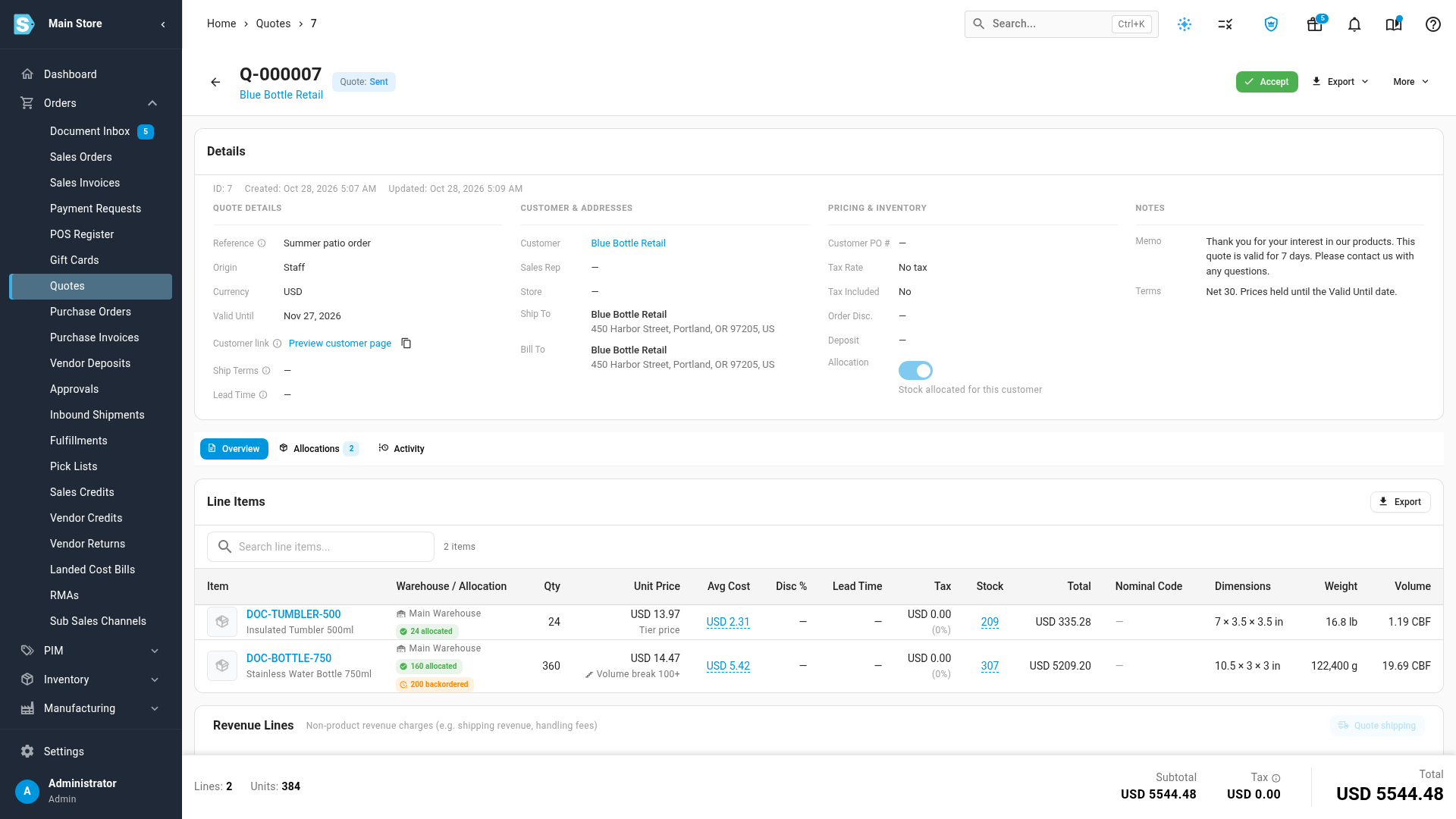
SKU.io shows Inventory allocation enabled. What happens next depends on the quote's status:
- Draft or Revised: nothing is held yet. The caption reads Allocated when sent.
- Sent or Viewed: stock is allocated straight away. The caption reads Stock allocated for this customer.
- Accepted: stock is allocated straight away for every line that isn't on a sales order yet. Lines that are already on an order hold nothing, because the order holds that stock.
Choose the warehouse for each line
While the quote is a Draft or Revised, you can pick the warehouse each line takes stock from.
- In the line table, find the Warehouse / Allocation column.
- Click the line's warehouse.
- Pick a warehouse from the list.
To set several lines at once, click Bulk Edit, tick the lines, click Warehouse and pick a warehouse.
Check what's held
-
Open the quote.
-
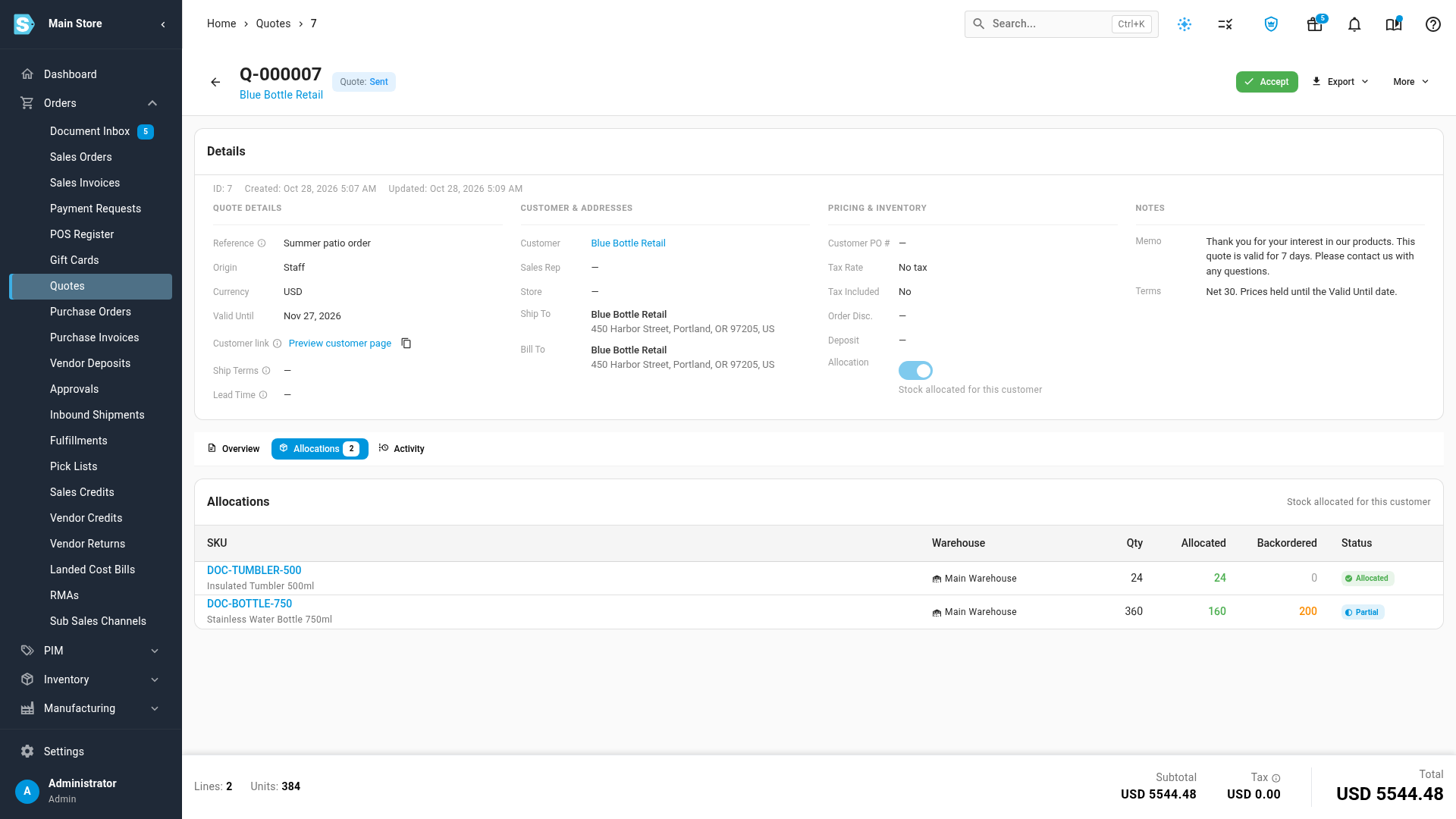
Click the Allocations tab.
The tab shows only while Allocation is on.
Each product line shows how much stock is held for it:
| Column | What it shows |
|---|---|
| SKU | The product on the line |
| Warehouse | Where the stock is held |
| Qty | The quantity on the quote |
| Allocated | Units held from stock on hand |
| Backordered | Units that couldn't be covered from stock on hand |
| Status | Allocated (fully covered), Partial (some allocated, some backordered), Backordered, Not allocated, Allocated when sent (the quote hasn't been sent yet) or Released (archived) |
If the quote has no product lines, the tab shows No product lines to allocate. The same figures appear on each line in the Warehouse / Allocation column as allocated and backordered chips.
Turn allocation off
-
In the Details card, turn off the Allocation switch.
-
If the quote holds stock, click Release in the Release allocated inventory? dialog.
The held units go back to available stock, and SKU.io shows Inventory released.
Lines that never hold stock
Some lines stay unallocated even with Allocation on:
- Lines without a product, such as shipping or other revenue lines.
- Lines with no warehouse, or a warehouse that doesn't track inventory (for example, an Amazon FBA warehouse).
- Bundle and matrix products. Their components carry the stock, not the parent product.
- Lines with a quantity of zero.
- Optional and pick-one lines that aren't part of the offer, such as an add-on your customer passed on.
Blemished products are only allocated from stock on hand. Any shortfall isn't backordered.
When the stock is released
| What happens to the quote | Held stock |
|---|---|
| Your customer declines it, or you decline it for them | Released |
| It expires, by hand or automatically | Released |
| You turn Allocation off | Released |
| You archive it | Released. Unarchiving a Sent, Viewed or Accepted quote with Allocation on allocates it again |
| You delete it | Released |
| You remove a line or turn it into a revenue line | Released for that line |
| Your customer leaves out an optional line when they accept | Released for that line |
| A line goes onto a sales order | Released for that line. The sales order takes over the demand |
| You revise it | Kept. If you change a line's quantity or warehouse during the revision, the line is allocated again to match |
| Your customer accepts it, or you accept it for them | Kept until the lines are ordered |
An accepted quote that's only partly ordered keeps holding stock for its remaining lines until you order them. Accepted quotes never expire, so that stock stays held until you order the lines, turn Allocation off or archive the quote.
Variations and edge cases
The gap when a quote becomes a sales order
Creating a sales order releases the quote's hold on those lines. The new order starts as a Draft, and a draft order doesn't allocate stock until it's approved. Until you approve the order, the stock is available to other orders. Approve the order soon after you create it if the stock is tight. See Approve a sales order.
Quote holds in Inventory → Allocations
Stock a quote holds lowers the quantity available to other orders, and each hold is listed in Inventory → Allocations. Its Source column names a quote line by number, not the quote, and doesn't link anywhere, so open the quote's Allocations tab to see what one quote holds. Quote backorders don't appear in the backorder queue. See Browse and export allocations.
You can't change allocation
The Allocation switch becomes a plain On or Off label when the quote is Ordered, Declined or Expired, or when your role doesn't include Quotes → Edit. To hold stock for a declined or expired quote, revise it and send it again.
Next steps
- Order all or part of an accepted quote: hand the held stock over to a sales order.
- Expire, archive or delete quotes: close quotes and release what they hold.
- How allocations and backorders work: allocation across the rest of SKU.io.
Video transcript
To keep products aside while a customer makes up their mind, open Orders in the sidebar, and choose Quotes. The list shows every quote, with its status, such as Accepted. Click the sent quote you're working on, to see its details. In the Details card, find Allocation, under Pricing and Inventory. Turn its switch on to start holding units for this customer. Because the quote is already sent, its stock is set aside straight away. The caption under the switch now reads, Stock allocated for this customer. To see what each product holds, click the Allocations tab below the details. A line fully covered from stock shows Allocated. When there isn't enough on hand, you see Partial, and the rest of the quantity is backordered. To stop holding the products, turn the Allocation switch off. SKU.io asks you to confirm, so click Release to return the held units to available stock.