Charge shipping on a quote
Quote shipping rates the products on a quote with your own EasyPost account, lets you add a markup, and writes the result onto the quote as a Shipping revenue line. The customer sees the shipping charge in the quote's totals, and the carrier service can carry through to the sales order.
Before you begin
- The quote is a Draft or Revised. A sent quote has to be revised first. See Revise or extend a quote.
- You have the Quotes → Edit permission.
- The quote has a ship-to address with at least a city or ZIP code. Without one on the quote, SKU.io uses the customer's shipping address. To set one, click Edit in the quote's header and fill Ship To.
- The quote has at least one product line with a quantity above 0.
- The products have weights, so SKU.io can build parcels. You can also enter parcels by hand for one quote.
- Your EasyPost account is connected. If it isn't, the dialog shows Connect EasyPost and you can connect it there.
Steps
- Go to Orders → Quotes and open the quote.
- On the Overview tab, find the Revenue Lines card and click Quote shipping. The Quote shipping dialog opens and gets carrier rates. It lands on Choose a rate.
- Pick a rate. The list starts with the cheapest, and Cheapest and Fastest chips mark the standouts. Each rate shows the carrier's cost and, underneath, the charge at the current markup.
- Click Next: charge customer.
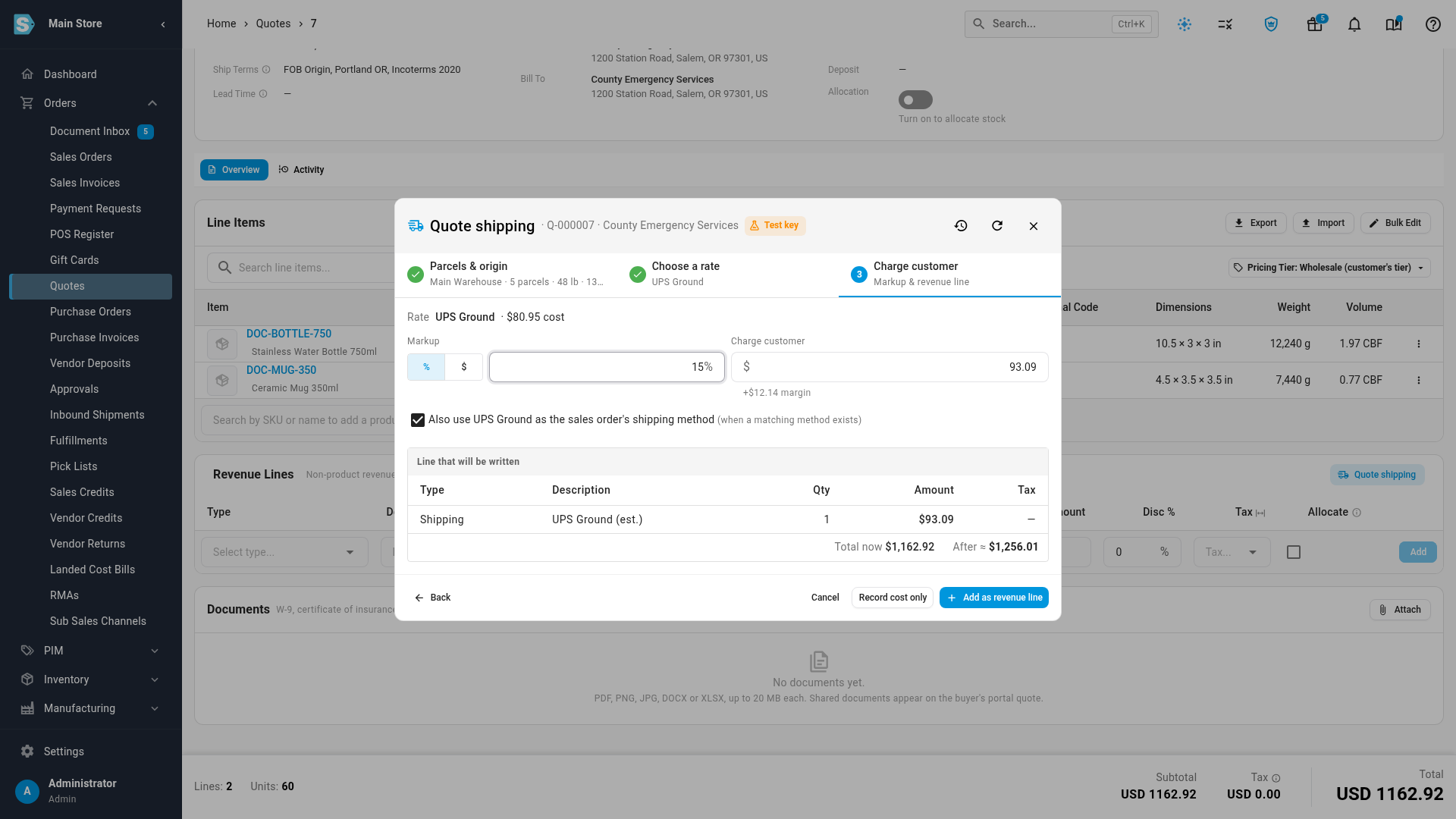
- Under Markup, choose % or your currency symbol, then type the markup. Charge customer updates, and the hint underneath shows your margin.
- Optionally, type an amount straight into Charge customer to charge a round figure. A typed charge overrides the markup.
- If the quote already has a shipping line, choose Replace "…" to update it, or Add as a new line.
- Leave Also use service as the sales order's shipping method ticked to use this carrier service on the order you later create from the quote. It only applies when a matching shipping method exists in SKU.io.
- Check Line that will be written and the Total now and After ≈ figures.
- Click Add as revenue line. SKU.io confirms, for example Shipping line added: UPS Ground (est.)., and the line appears on the Revenue Lines card.
The new line is taxed at the quote's tax rate, like any revenue line you add yourself. When you replace a line, any discount on the old line is removed, so the customer pays the charge you see.
Rate from a different warehouse, or with your own parcels
By default each product is rated from its own line's warehouse, with parcels built from product weights and case packs, up to 50 lb per parcel. When the lines ship from more than one warehouse, SKU.io rates each warehouse's parcels separately and adds them up, and offers a service only when every warehouse can use it. To change that:
- In the dialog, click Parcels & origin in the step bar.
- In Ship from, pick a warehouse to ship everything from. Leave it empty to rate each line from its own warehouse.
- To enter the boxes yourself, turn on Override for this quote, then fill Weight (lb) and, if you know them, Length (in), Width (in) and Height (in). Click Add parcel for each extra box.
- Click Get rates.
Every parcel needs a weight, and a parcel can weigh at most 150 lb.
Record the cost without charging the customer
When you ship free but want the cost on file, pick a rate and click Record cost only. SKU.io keeps the rate in the quote's estimate history and adds nothing to the quote. Shipping cost recorded. confirms it.
See past estimates
Click the history icon (Past estimates) in the dialog's header to see every estimate on this quote, with its Service, Cost and whether it was Line added, Cost only or Not used.
Rates are kept for 15 minutes. To get fresh ones, click the refresh icon (Refresh rates).
When shipping can't be quoted
| What you see | Why | What to do |
|---|---|---|
| Quote shipping is greyed out: This quote is no longer editable. Revise it to change shipping. | The quote has been sent or answered. | Revise the quote, then quote shipping. |
| Quote shipping is greyed out: Add a shipping address to quote shipping. | Neither the quote nor the customer has a shipping address with a city or ZIP code. | Click Edit and set Ship To, or add an address to the customer. |
| Quote shipping is greyed out: Add products to quote shipping. | The quote has no product lines with a quantity, or only optional lines that aren't selected. | Add products. Only selected product lines are rated. |
| A list of products with Add weight buttons | Those products have no weight, so parcels can't be built. | Click Add weight for each, then Retry. Or click Enter parcels manually. |
| The shipping warehouse has no address | The warehouse you're shipping from has no address. | Click Add the warehouse address, or Change origin or parcels. |
| No carrier returned a rate | None of your carriers serves this shipment. | Click Change origin or parcels, or check your carrier accounts in EasyPost. |
| A Test key chip in the header | Your EasyPost account is connected with a test key, so the rates are samples. | Don't charge a customer from them. Connect a production key. |
| The rate was quoted in one currency but the quote is now in another | You changed the quote's currency after getting rates. | Close the dialog and click Quote shipping again. |
| Add as revenue line is greyed out: Choose which Shipping line to replace, or add a new line | The quote has more than one shipping line, and SKU.io won't guess which one to update. | Pick the line to replace, or Add as a new line. |
Next steps
- Add and edit quote lines: change or remove the shipping line by hand.
- Prepare a quote for a procurement office: add shipping terms such as FOB or DDP.
- Order all or part of an accepted quote: see what carries over to the sales order.
- Quote shipping on a sales order or quote: the same dialog on a sales order, including orders waiting for a shipping price.
Video transcript
To charge shipping on a quote, open Orders in the sidebar on the left, and choose Quotes. Every quote is listed here, with its customer, status and total. Find the draft you need in the list, and click its reference to see the whole quote. The quote's details are at the top, with the product lines below. On the Overview tab, scroll down to the Revenue Lines card. Click Quote shipping, at the right end of the card's title bar. SKU.io asks your carriers for rates on these products, which takes a few seconds. When the rates come back, the dialog moves on to Choose a rate. The list starts with the cheapest rate, and a chip marks the cheapest service. Each rate shows the carrier's cost, with the charge at your markup underneath. The Test key chip means your account uses a test key, so these rates are only samples. Pick the rate you want to charge for, such as UPS Ground. Then click Next: charge customer, at the bottom of the dialog. Under Markup, keep the percent button selected, and type your markup. Charge customer updates, and the hint underneath shows your margin. Leave the box ticked to use this service as the sales order's shipping method. Under Line that will be written, check the description and the amount. After shows roughly the quote's new total. Click Add as revenue line, at the bottom right of the dialog. The dialog closes, and a green message at the top confirms the new shipping line. Scroll down to the Revenue Lines card, to find the new charge. The total at the bottom of the page now includes shipping.