Follow up on sent quotes
Once a quote is out, you want to know whether the customer has looked at it, answer their questions, and chase it before it expires. Each quote's Activity tab holds its history and the conversation with the customer, and the Quotes list tells you which quotes need a nudge.
Before you begin
- The quote has been sent. See Create and send a quote.
- To post comments, you need Quotes → Edit on your role. Without it, the Post button is greyed out and its tooltip says "You don't have permission to comment on quotes. Ask an admin to add "Quotes → Edit" to your role."
Steps
-
Go to Orders → Quotes.
-
Look at the Status column. Viewed means the customer has opened the quote, and Sent means they haven't yet.
-
Open the quote.
-
Click the Activity tab.
-
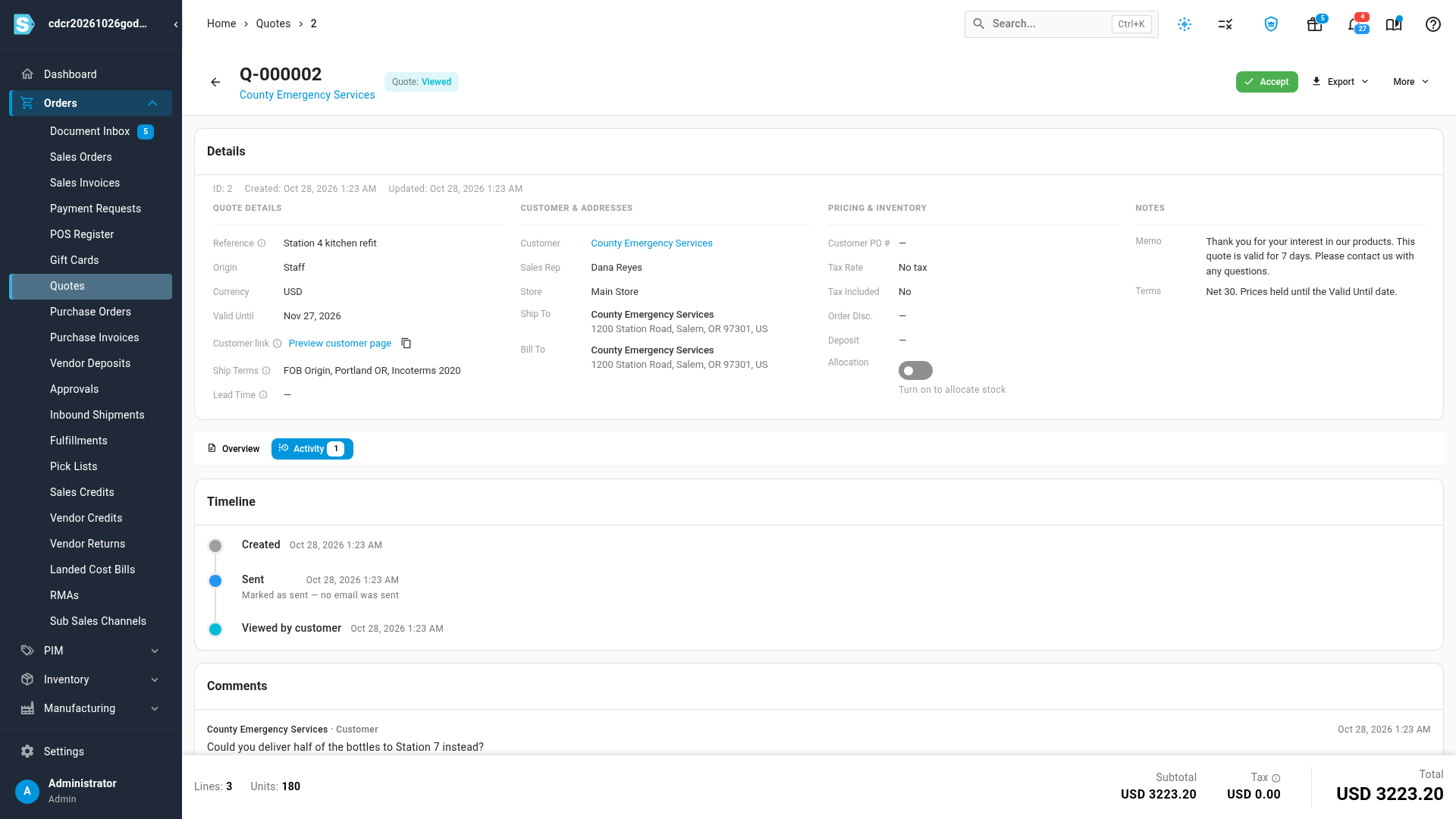
Read the Timeline to see what has happened to the quote and when.
-
Read the conversation under Comments, and answer it if you need to. See Talk with your customer in Comments.
When a quote counts as viewed
A quote moves from Sent to Viewed the first time the customer opens it:
- on the page behind the View & respond button in the quote email, or
- on the quote's page in the Customer Portal.
These don't count:
- the customer opening the PDF attached to the email,
- you opening Preview customer page,
- you opening the quote with View portal as.
The Timeline shows when it happened as Viewed by customer.
What the Timeline shows
| Entry | When it's added |
|---|---|
| Created | The quote was created |
| Sent | The quote was sent. The line below says Emailed to and the addresses, or Marked as sent — no email was sent. |
| Email failed — quote not sent | The email couldn't be sent, with the error below it. The quote isn't marked as sent. |
| Viewed by customer | The customer opened the quote |
| Accepted | The quote was accepted, by the customer or by your team |
| Declined | The quote was declined, with the reason below it when one was given |
| Expired | The quote passed its Valid Until date, or someone expired it |
| Sales order number created | A sales order was created from the quote. There's one entry for each order. |
| Discount approval requested, Discount approved, Discount rejected | A discount approval was asked for or decided. See Approve a discounted quote. |
Apart from Sent and the sales order entries, the Timeline keeps one entry for each kind of event. When you revise a quote and send it again, the earlier Viewed by customer, Declined or Expired entries stay until the same thing happens to the new version. Revisions, stock allocation changes and deposit payments don't appear on the Timeline.
Talk with your customer in Comments
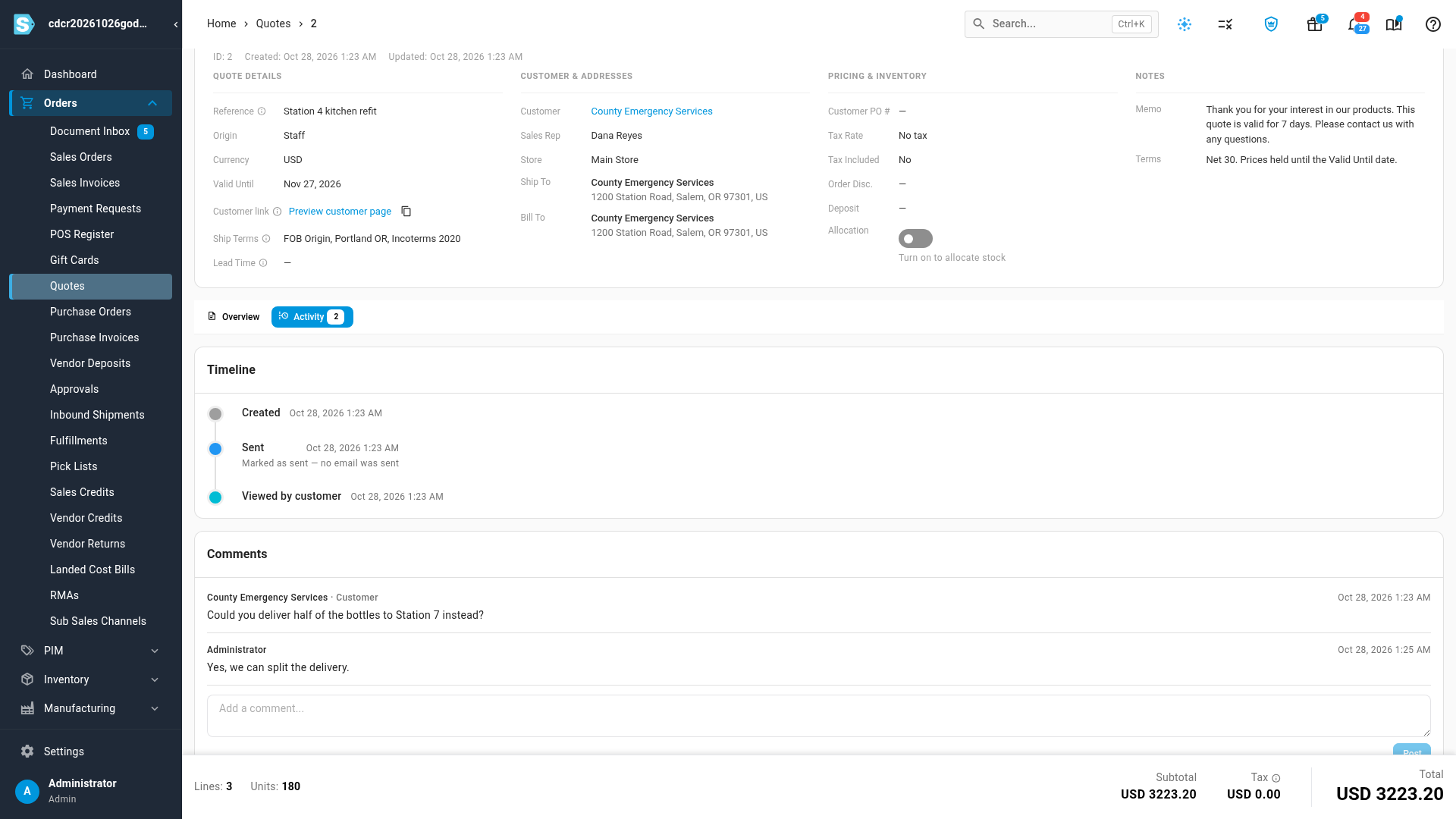
Comments is the conversation with your customer. Anything you post here, the customer can read. It appears under Questions & messages on the customer's quote page, under your store's name, and under Negotiation in the Customer Portal. There are no internal notes on a quote, so keep notes for your team somewhere else.
To reply to the customer:
- On the Activity tab, type in Add a comment... under Comments.
- Click Post.
The customer isn't emailed when you post. They see your comment the next time they open the quote. If you need an answer quickly, also email them or reply to their email.
In Comments:
- The customer's messages show their name followed by · Customer.
- A counter-offer from a portal buyer has a Counter-offer label. It doesn't change the quote's prices. To accept it, revise the quote and send it again. See Revise or extend a quote.
- A file the buyer attached, for example to their request for quote, shows as a paperclip and the file name. Click it to download the file.
- The Activity tab shows how many comments the quote has.
You're also alerted when a customer writes to you. The alert is Buyer Message on Quote, or Counter-Offer on Quote for a counter-offer, and it includes the start of their message.
See who accepted and what they chose
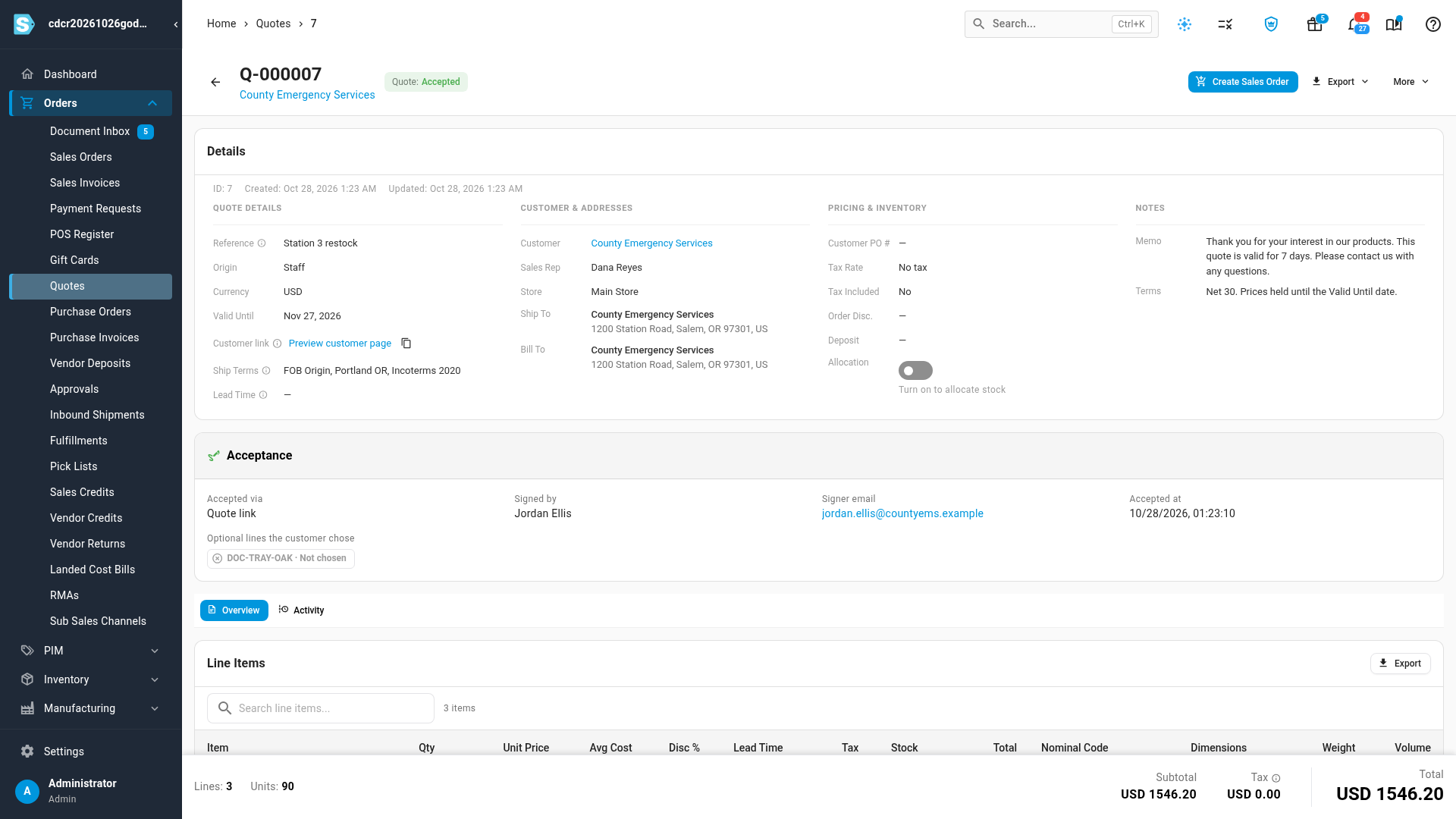
When a quote is accepted, an Acceptance card appears above the tabs:
| Field | What it shows |
|---|---|
| Accepted via | Quote link, Customer portal, Storefront, or Recorded by staff with the name of the person who accepted it |
| Signed by | The name the customer typed as their signature |
| Signer email | The email they entered on the quote link, or the portal buyer's email |
| Accepted at | When the quote was accepted, in your time zone |
| Optional lines the customer chose | Each Optional and Pick one line, marked Chosen or Not chosen |
The line table marks the same lines Chosen by customer or Not chosen. Only the chosen lines count toward the total and can go onto a sales order. See Order all or part of an accepted quote.
Find quotes about to expire
The Expiring Soon card above the Quotes list counts the quotes that are Sent or Viewed and expire in the next 7 days. Below the number, it shows how many days customers take to accept on average.
To work through them:
- On the Quotes list, filter Status to Sent. Afterward, repeat these steps with Viewed.
- Click the Valid Until column header to sort the soonest first.
- Open each quote, and post a comment or contact the customer.
SKU.io also emails the customer a reminder before a quote expires, when expiry reminders are turned on. See Set quote defaults and expiry reminders. To give a customer more time, see Revise or extend a quote.
Next steps
- See how your customer answers a quote: the page the customer opens from the email.
- Accept or decline a quote for your customer: record an answer that came by phone or email.
- Order all or part of an accepted quote: turn the accepted quote into a sales order.
- Quote permissions and alerts reference: every alert quotes send, and who gets it.
Video transcript
To see whether your customers have read the quotes you sent, open Orders in the sidebar, and choose Quotes. Look at the Status column. Viewed means your customer has opened the quote. Sent means they haven't looked at it yet. The Expiring Soon card counts the sent quotes that expire in the next seven days. To chase them, click the Valid Until column header, to sort the soonest first. Click the number of a viewed quote, to bring up its details. Then choose the Activity tab, to see its history. The Timeline lists each thing that has happened to the quote, with its date and time. Below the Timeline, Comments holds the conversation with your customer. Their messages are marked Customer, after their name. To answer, type your reply in the comment box, then click the Post button. Your customer reads it on their quote page, so keep your team's own notes in another place. To see who accepted a quote, choose Quotes in the sidebar again. Then click the number of an accepted quote, to bring up its details. The Acceptance card shows how the quote was accepted, and the name of the signer. It also lists each optional line, marked Chosen or Not chosen.