Prepare a quote for a procurement office
A purchasing or procurement office, such as a government agency, a hospital or a large company, often won't approve a quote until it states who pays freight, how long delivery takes, whether tax applies, and who you are on paper. This page shows where each of those goes on a SKU.io quote. Fill in only the ones your buyer asks for.
Before you begin
- The quote is a Draft or Revised. Shipping terms and lead times can't change once it's sent. See Revise or extend a quote.
- You have the Quotes → Edit permission.
- To fill in your registration numbers, you need access to Settings.
- The shipping terms you can pick come from Settings → Purchasing → Incoterms.
Steps
To set the shipping terms and the default lead time:
- Go to Orders → Quotes and open the quote.
- Click Edit at the top of the quote. The Details card switches to edit mode.
- Under Quote Details, in Ship Terms, pick the Incoterm, for example FOB or DDP.
- In Named Place, type the place the term refers to, for example Origin, Fort Bragg NC. The field appears once you pick a term.
- In Lead Time, type the number of calendar days after the order is received that you need to deliver.
- Click Save.
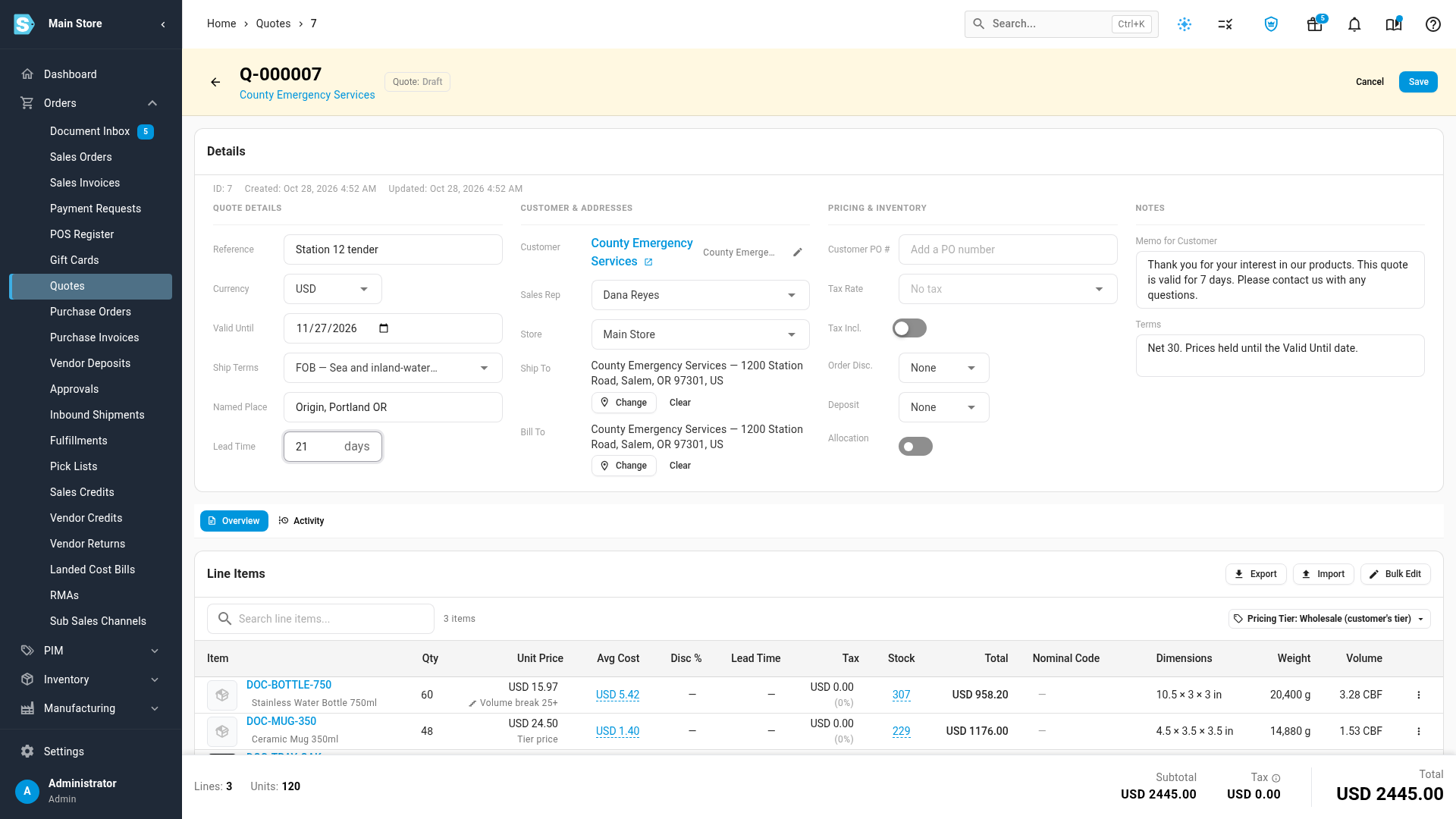
Ship Terms shows the term and place on the quote and prints on the quote PDF. When you create a sales order from the quote, the term goes with it. Lead Time becomes the starting lead time for every line you add afterward.
Clearing Ship Terms also clears Named Place. An archived Incoterm stays on quotes that already have it, but you can't pick it for a quote: SKU.io shows The selected incoterm is archived and cannot be newly assigned.
Give a line its own lead time
Lines you add take the quote's Lead Time. To state a different one for a line:
- In the Line Items table, click the line's Lead Time cell.
- Type the number of days, then press Enter.
To set several lines at once, click Bulk Edit, tick the lines, click Lead Time, type the days, and click Apply. Leave the box blank to clear it.
| You type | The quote shows |
|---|---|
| A number of days, such as 14 | 14 days |
| 0 | In stock |
| Nothing | —, no lead time stated |
Lead times must be whole numbers of days. Anything else shows Lead time must be a whole number of days. Lead times print on the quote but don't carry onto the sales order.
Let new quotes start with the customer's terms
If a customer always buys on the same terms, set them once on the customer:
- Go to Contacts → Customers and open the customer.
- Open the Settings tab and click Edit.
- Under Default Settings, set Default Incoterm and Default Named Place. Default Pricing Tier and Default Sales Rep also feed new quotes.
- Click Save.
New quotes for the customer start with these values. If you change an existing quote's customer, SKU.io fills only the fields that are still empty from the new customer's defaults.
Show the customer's tax exemption
Tax exemption is set on the customer, not on the quote. To set it up, with the certificate number, issuing state and expiry date, see Mark a customer as tax exempt.
Once the customer is exempt:
- A new quote for them starts with no tax rate. If you pick a tax rate on it afterward, SKU.io treats that as your decision and keeps it.
- Changing a quote's customer to an exempt customer clears the tax from its lines.
- The Details card shows an Exemption row, under Pricing & Inventory, with a Tax exempt chip and the certificate, for example Tax exempt — certificate RC-2210 (TX), expires 12/31/2026. A certificate covering several states shows Multistate.
- The sales order created from the quote keeps the quote's tax.
When the certificate expired before the quote was sent (or before today, for a quote not yet sent), the chip reads Certificate expired with Ask the customer for a current certificate before ordering. SKU.io only flags it. It doesn't add tax back.
Marking a customer exempt doesn't change quotes they already have. The Exemption row appears, but the tax stays. To remove it, click Edit, clear Tax Rate, and click Save.
Add your government registration numbers
Federal and many public-sector buyers ask for your UEI, CAGE code and tax ID on the quote. You enter them once for the whole company:
- Click Settings at the bottom of the left sidebar.
- Click the General card to expand it, then click Government Contracting.
- Fill in the numbers you have:
- UEI (Unique Entity ID): the 12-character ID from your SAM.gov registration.
- CAGE Code: your 5-character Commercial and Government Entity code.
- Tax ID / EIN: your federal tax ID.
- Click Save Changes.
Each number prints on every quote PDF once it's filled. Blank ones are left off.
| Message | Fix |
|---|---|
| A UEI is 12 letters and digits, as shown on your SAM.gov registration. | Copy the UEI exactly from SAM.gov, without spaces or dashes. |
| A CAGE code is 5 letters and digits. | Check the code on your SAM.gov registration. |
| The tax ID can be at most 32 characters. | Shorten the entry to the ID itself. |
A quote template you've customized doesn't print the registration numbers, shipping terms, lead times or tax exemption until you add their fields. See the Quote template reference.
Attach documents for the buyer
Procurement offices often ask for a W-9, a certificate of insurance, spec sheets or drawings. Attach them to the quote:
- On the quote's Overview tab, scroll to the Documents card.
- Click Attach and choose one or more files. SKU.io confirms Document attached.
- In the Buyer portal column, leave the switch on (Shared) for documents the buyer should get, or turn it off (Internal) for your own, such as a cost sheet.
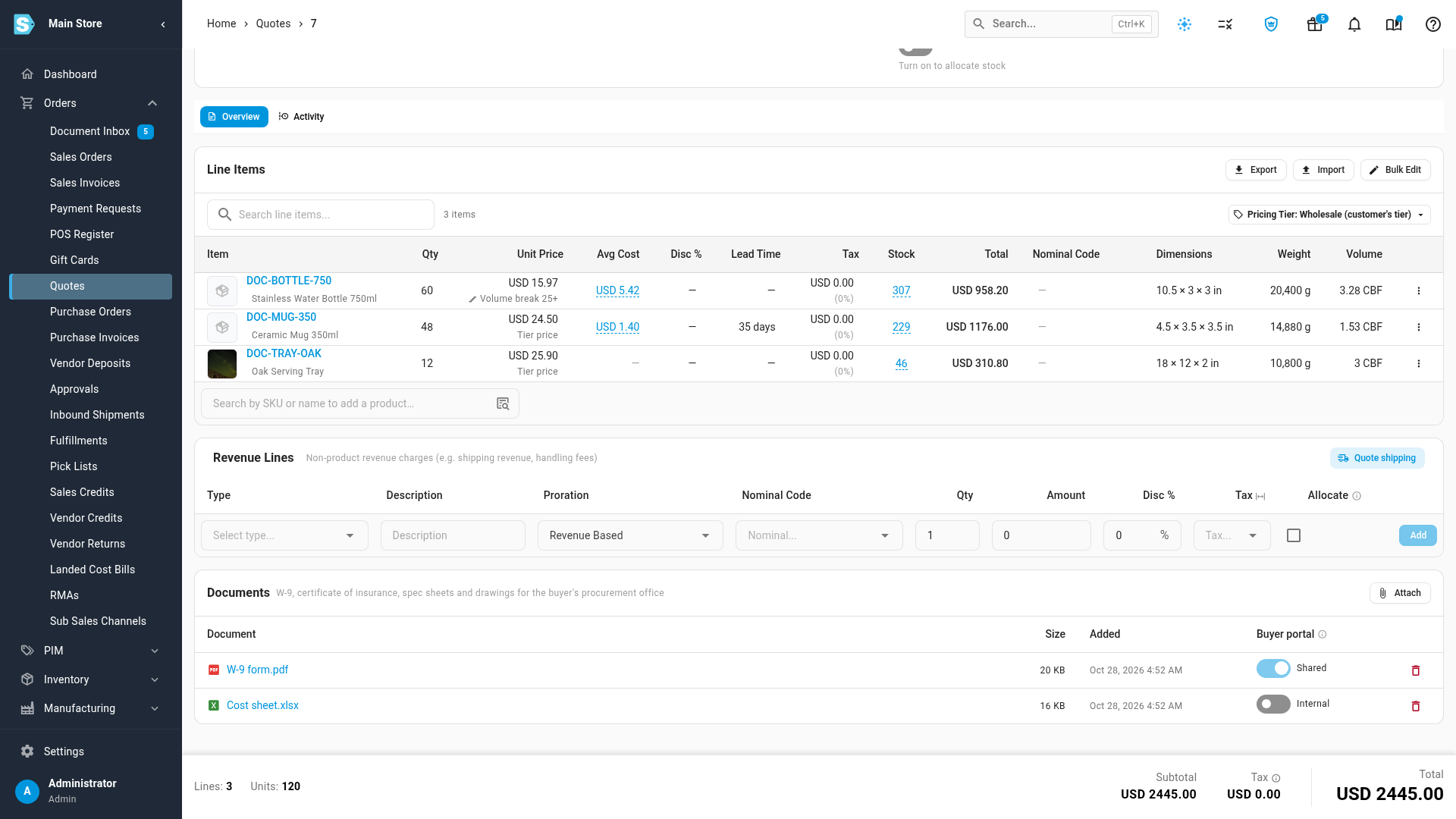
Shared documents appear in a Documents section on the page your customer opens from the quote email, and on their quote in the customer portal. Internal documents are only ever seen by your team.
You can attach, share or remove documents in any status, even after the quote is sent. Click the remove icon and confirm Remove to delete one. Documents are copied when you duplicate a quote, save it as a template, or start a quote from a template.
| What you see | What to do |
|---|---|
| only PDF, PNG, JPG, DOCX and XLSX files can be attached. | Save the file in one of those formats. |
| is larger than the 20 MB limit. | Compress or split the file. |
| The file is empty. | Choose the right file and attach it again. |
| Attach is greyed out | You need the Quotes → Edit permission. Ask an administrator to add it to your role. |
Next steps
- Charge shipping on a quote: add a shipping charge that fits the terms you quoted.
- Create and send a quote: send the quote to the buyer.
- Set the Incoterm on a purchase order: what each Incoterm means and where the list is managed.
Video transcript
To get a quote ready for a purchasing office, open Orders in the sidebar on the left, and choose Quotes. Then find the draft you're preparing for the buyer, and click it to see the full quote. Its details are at the top, with the line items below. Click Edit at the top of the quote, so the details become fields you can change. In Ship Terms, type the shipping term your buyer asked for, and pick it from the list. Then type the named place it applies to, such as your warehouse town. In Lead Time, type how many days after the order arrives you need to deliver. New lines you add to the quote start with this lead time. Click Save at the top right to keep your changes. The terms and the lead time now show in the quote's details, ready for the buyer. To give one line a different lead time, click its cell in the Lead Time column. Type the number of days, and press Enter to save that row. Further down, the Documents card holds paperwork for the procurement office, such as your W-9. The Attach button at the top adds more files. Shared ones go out with the quote. For a file only your team should see, such as a cost sheet, turn its Buyer portal switch off.