Add and edit quote lines
The lines on a quote are what your customer is offered: products in the Line Items table and charges such as handling fees in the Revenue Lines card. You can add, change and remove lines while the quote is a Draft or Revised, and every change updates the totals at the bottom of the page straight away.
Before you begin
- The quote is a Draft or Revised. Once a quote is sent, its lines are read-only. To change them, revise the quote. See Revise or extend a quote.
- Your role needs Quotes → Edit. Without it, the lines are read-only and Import and Bulk Edit don't appear.
- Prices come from the customer's prices and pricing tier. See How quote prices are worked out.
Steps
-
Go to Orders → Quotes and open the quote.
-
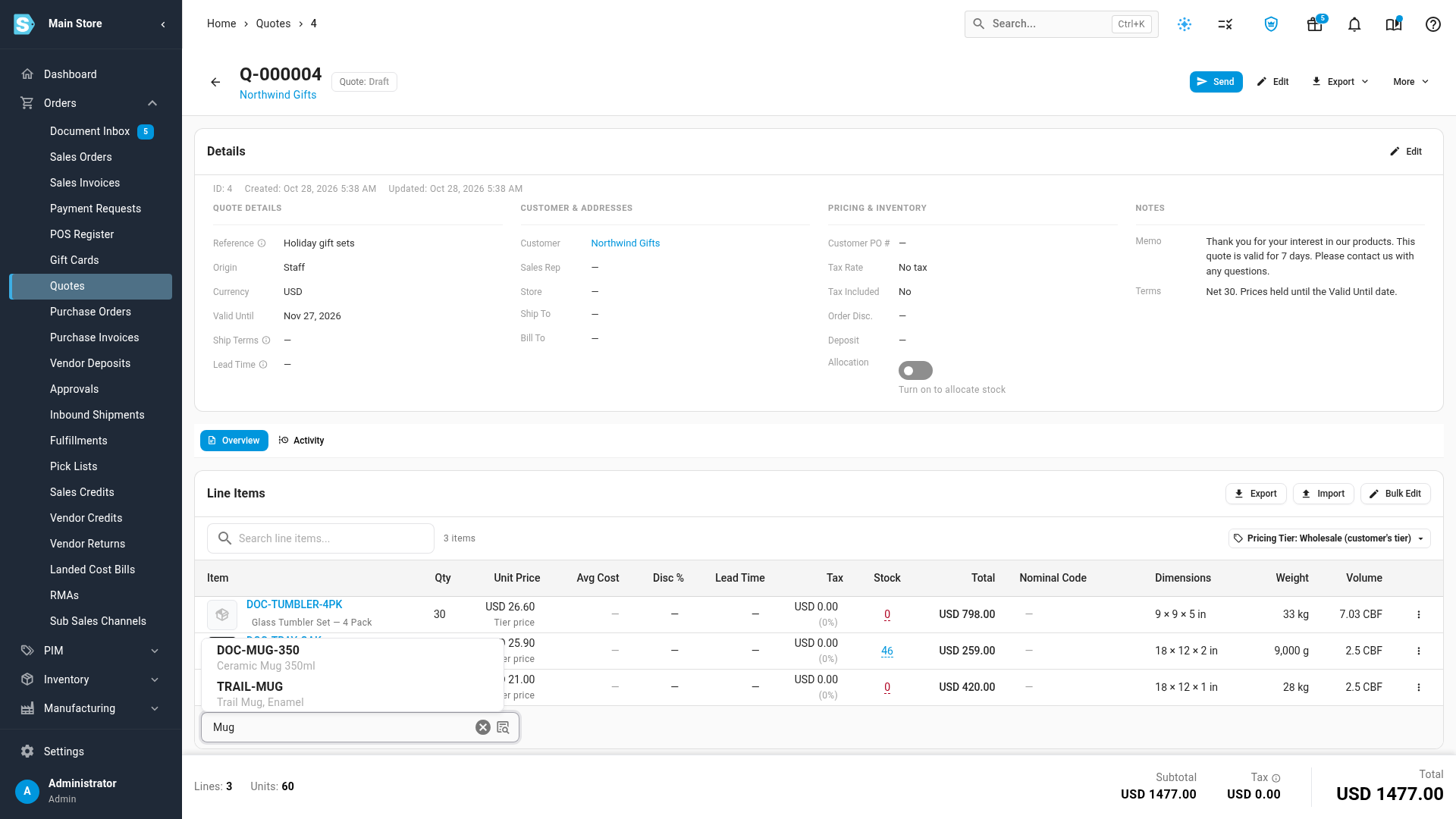
In the Line Items card, click the row that reads Search by SKU or name to add a product….
-
Type at least two characters of the SKU or product name.
-
Click the product in the list. It's added with a quantity of 1, priced for the customer.
-
To change the quantity, click the Qty cell, type the new quantity and press Enter. A price that follows the customer's prices is looked up again for the new quantity.
-
To set your own price, click the Unit Price cell, type the price and press Enter. The caption under it changes to Manual.
-
To discount the line, click the Disc % cell, type the percentage and press Enter. The Unit Price and Total cells then show the original amount struck through, with the discounted amount next to it.
-
Check the totals in the footer at the bottom of the page.
To cancel an edit before you save it, press Esc. Clicking away from a cell saves it, like Enter.
Browse for a product instead
If you don't know the SKU, browse the catalog.
- In the search row, click the Browse products icon at the right of the field.
- In the Add Product dialog, find and select the product.
- Set the quantity. Leave the price as it is to have SKU.io price it for the customer, or type a price to fix it.
- Click Add to Quote.
Change the other columns on a line
| Column | How to change it |
|---|---|
| Description (under the SKU) | Click the text, or Add a description, type the new wording and press Enter. This is what the customer reads for the line. |
| Warehouse / Allocation | Shown only while the quote's Allocation is on. Click the warehouse and pick another. See Hold stock for a quote. |
| Lead Time | Click the cell and type whole days, from 0 to 3650. 0 shows as In stock. Leave it blank to clear it. New lines start with the quote's Lead Time. |
| Tax | Click the cell and pick a tax rate. Clear it to go back to Quote default, which is the quote's Tax Rate. |
| Nominal Code | Click the cell and pick the account the line's revenue posts to when it's ordered. |
The Avg Cost and Stock columns are for your reference and aren't shown to the customer. Click a cost to see how it's made up, or a stock figure to see Stock by warehouse.
Use the line menu
Each product line has a ⋮ menu at the end of the row.
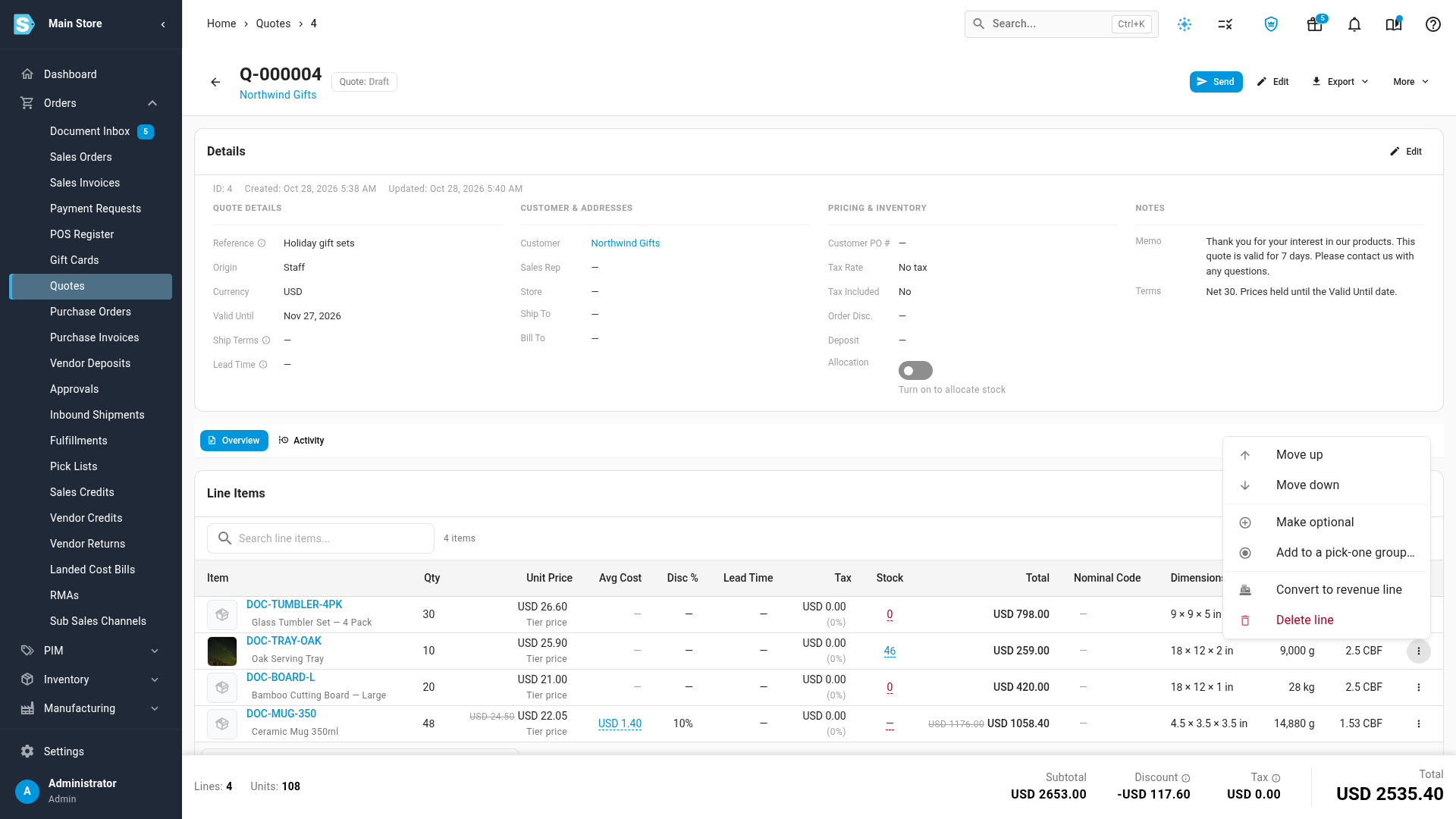
| Menu item | What it does |
|---|---|
| Move up / Move down | Changes the line's position on the quote and its PDF. |
| Make optional | Lets the customer leave the line out. See Offer optional and pick-one lines. |
| Add to a pick-one group… | Puts the line in a group the customer picks one line from. On a line already in a group, it reads Change pick-one group…. |
| Make standard (always included) | Turns an optional or pick-one line back into an ordinary line. |
| Convert to revenue line | Removes the product from the line and moves it to Revenue Lines, keeping its description, quantity and price. Any stock it held is released. Converted to revenue line confirms it. |
| Delete line | Removes the line straight away, without asking you to confirm. |
Offer optional and pick-one lines
You can let the customer shape the offer when they accept it:
- An optional line is an add-on the customer can keep or leave out, such as an extended warranty.
- A pick-one group is a set of alternatives the customer chooses one of, such as Good, Better and Best finishes.
To make a line optional:
- Click ⋮ on the line.
- Click Make optional. … is optional: the customer can leave it out confirms it.
To put lines in a pick-one group:
- Click ⋮ on the first line of the group.
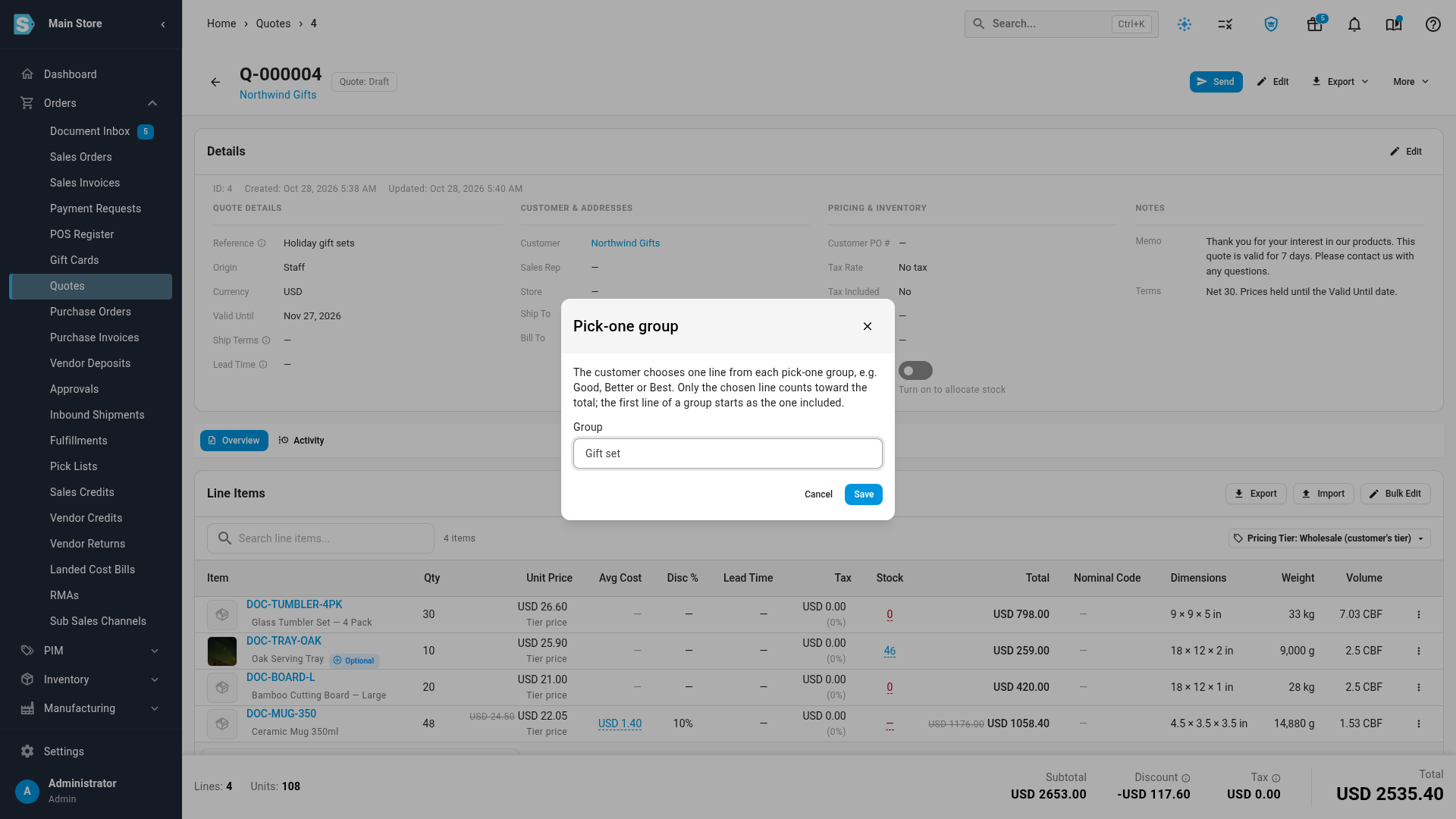
- Click Add to a pick-one group….
- In Group, type a name for the group, such as Finish, or pick a group that's already on the quote.
- Click Save. … is in pick-one group "Finish" confirms it.
- Repeat for each other line in the group, picking the same group name.
Optional lines show an Optional chip, and pick-one lines show Pick one: and the group name. An optional line counts toward the totals while it's included, and new optional lines start included. In a pick-one group, only one line counts, and the first line of the group starts as the one included. When the customer accepts, they choose, and the chips change to Chosen by customer or Not chosen. Read See how your customer answers a quote.
If you click Save without naming a group, the button stays greyed out with Name the group first.
Edit several lines at once
Bulk Edit appears when the quote has two or more product lines.
- Click Bulk Edit above the lines.
- Tick the lines you want to change.
- Pick a change:
- Warehouse sets the same warehouse on every ticked line. It appears only while the quote's Allocation is on.
- Discount sets the same percentage discount. Type it and click Apply.
- Tax sets the same tax rate. Clear it to have the lines use the quote's Tax Rate again.
- Lead Time sets the same lead time in days. Leave it blank and click Apply to clear it.
- Delete (N) removes the ticked lines straight away, without asking you to confirm.
- Click Done.
Reprice every line to a pricing tier
The Pricing Tier chip above the lines writes one pricing tier's prices onto every product line at once. Use it when you want to quote a customer at another tier's prices, for example a wholesale tier for a one-off order.
- Click the Pricing Tier chip.
- Under Reprice lines to tier, click the tier. SKU.io reports the result, such as Repriced 4 lines, 1 skipped. A line is skipped when the product has no price in that tier.
Each new price is saved as a typed price, so the lines become Manual. They no longer follow the customer's contract prices or volume breaks, even when you change the quantity. To go back, delete and re-add the lines.
When the page opens, the chip shows the tier the quote is priced from: the customer's own tier, such as Wholesale (customer's tier), or your default tier, such as Retail (default), when the customer has none. It's a shortcut for repricing, not a setting saved on the quote.
Add a revenue line
Use the Revenue Lines card for charges that aren't products, such as a handling fee or setup charge. To charge for shipping, use Quote shipping in the same card. See Charge shipping on a quote.
- In the Revenue Lines card, pick a Type in the empty row at the bottom. To add a type that doesn't exist yet, type its name and create it.
- Optionally, change the Description, Proration and Nominal Code.
- Enter the Qty and Amount.
- Optionally, enter a Disc % and pick a Tax rate.
- Click Add. It's available once the line has a Type and an Amount above zero. Revenue line added confirms it.
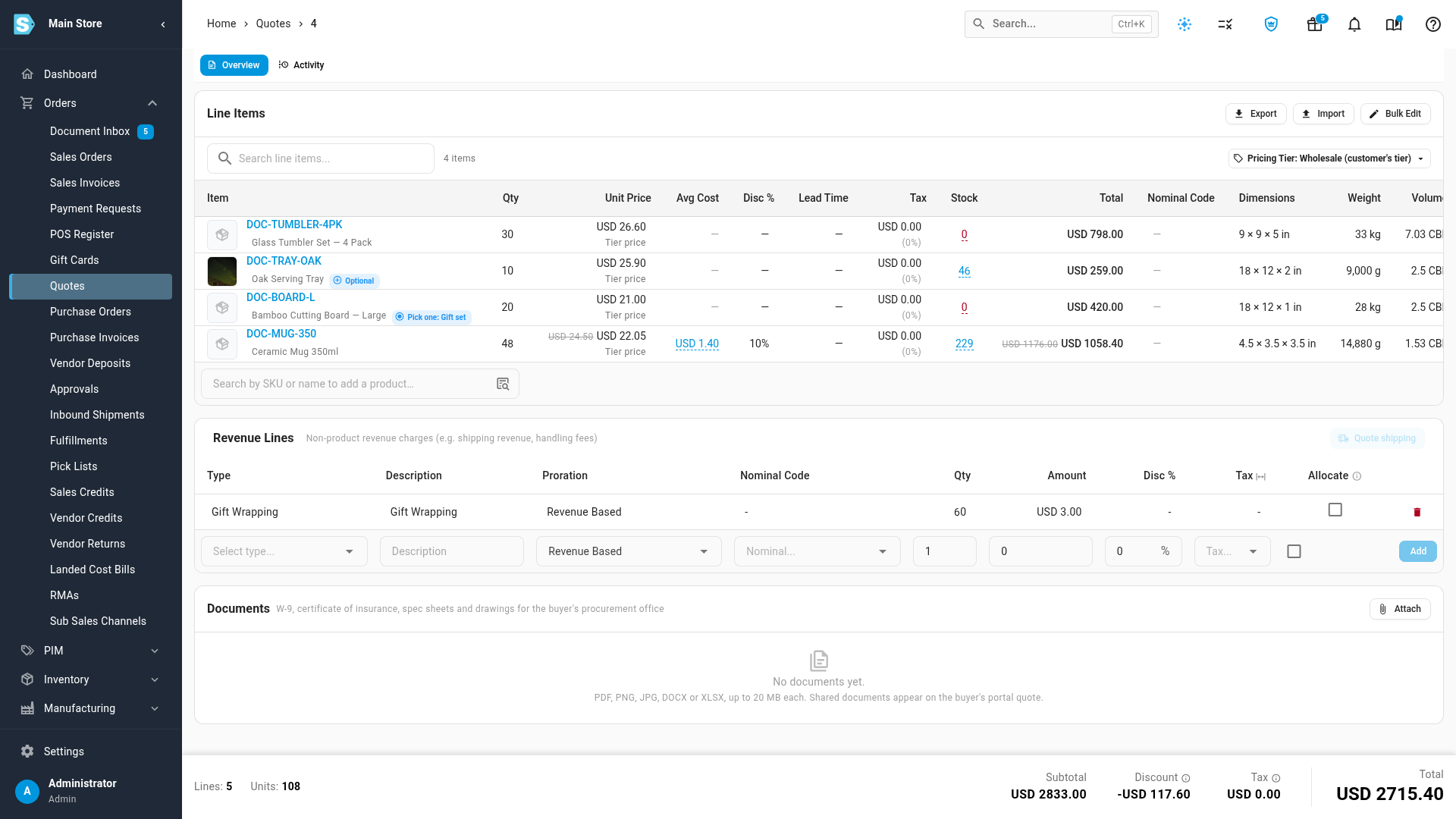
The card works the same way as on a sales order, including Proration and creating a type. See Add a charge line. Two things to know on a quote:
- The Allocate checkbox spreads the charge across the product lines by the Proration method. It has nothing to do with stock. Holding stock is the quote's Allocation switch.
- A revenue line with no tax rate of its own is taxed at the quote's Tax Rate.
Click a cell to change it. The delete icon at the end of the row removes the line straight away, without asking you to confirm. Lines you add with Add Revenue Line in the New Quote dialog, or with Convert to revenue line, appear in this card. Give each one a Type so it arrives on the sales order as a revenue line.
Discounts on lines
- A line discount you type is a percentage of the line. It can't be more than 100%. SKU.io refuses it with A percentage discount cannot be more than 100%.
- A line can also carry a fixed amount off, for example when it was added through the API. Its Disc % cell shows the amount instead of a percentage, and hovering over it says A fixed … off this line's total. Click it to change the amount. A fixed discount never takes the line below zero.
- To take a percentage or an amount off the whole quote, use Order Disc. in the quote's details. See Add an order discount.
- If the line and order discounts together come to more than 20% of the subtotal, the quote needs approval before it can be sent. See Approve a discounted quote.
Read the totals
The footer at the bottom of the quote updates as you edit.
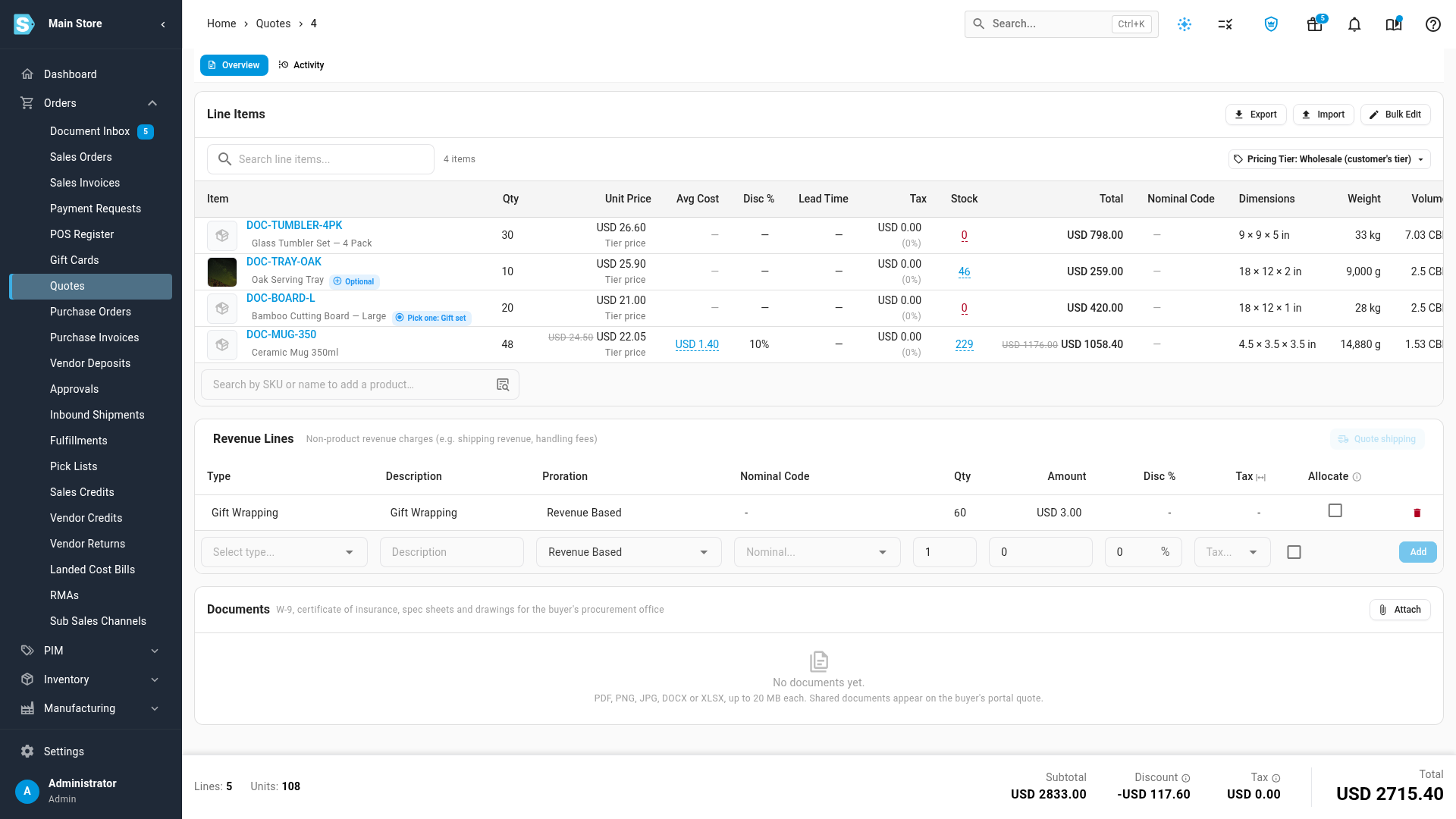
| Figure | What it shows |
|---|---|
| Lines and Units | How many lines the quote has, and the total quantity of its products. Charges in the Revenue Lines card count as lines but not as units. |
| Subtotal | Quantity × unit price for every line that counts toward the quote, before discounts. Optional lines that aren't included and pick-one lines that aren't chosen don't count. |
| Discount | Line discounts plus the order discount. Click it to see Line discounts and Order discount separately. It's hidden when there's no discount. |
| Tax | The tax on the lines, after discounts. Click it to see the rate and whether Prices include tax or Tax added on top. |
| Total | What the customer pays: the subtotal less discounts, plus tax unless prices include it. |
| Deposit Due | The deposit the customer pays up front, when the quote asks for one. See Ask for a deposit. |
The order discount is shared across the lines in proportion to their value, and tax is worked out on what's left. The sales order made from the quote is taxed the same way, so both come to the same total. See How discounts and charges affect the order.
Quotes where prices include tax
When Tax Incl. is on in the quote's details, your prices already contain tax. The tax is worked out from inside the price, and the Total isn't increased by it. The PDF shows the tax as included, and the setting carries over to the sales order.
Things to know
- Edits that can't be saved are dropped. A quantity, price or discount that isn't a number, or is below zero, isn't saved, and the cell goes back to its old value. A lead time that isn't a whole number of days shows Lead time must be a whole number of days.
- A quantity of 0 is allowed. The line stays on the quote but adds nothing to the totals, doesn't hold stock and is ordered at 0.
- Archived products stay on the lines they're already on. SKU.io doesn't warn you about them. You can't add an archived product through a line import.
- A revised quote that holds stock reallocates as you edit. Changing a line's quantity or warehouse on a Revised quote with Allocation on updates the stock it holds for that line.
- Lines can be loaded from a spreadsheet. Use Import and Export above the lines. See Import and export quote lines.
Next steps
- Create and send a quote: fill in the quote's details and send it.
- Charge shipping on a quote: estimate shipping and add it as a charge.
- Approve a discounted quote: get a large discount signed off.
- How quote prices are worked out: where each line's price comes from.
Video transcript
To change the lines on a draft quote, open Orders in the sidebar, and choose Quotes. Every quote is listed here, with its customer, status and total. Find the draft you need, and click its reference to see its lines. The quote's details are at the top, with its lines listed below them. Under Line Items, click the search row below the products. Type part of a product's name, and the matches appear in a list. Click the product you want, in the list of matches. It's added at a quantity of one, at this customer's price. To change the quantity, click the line's quantity cell. Type the new number, and press Enter. The line's total is worked out again from the new quantity. To give a discount, click the line's Disc cell, and type a percentage. Press Enter, and the original price is struck through beside the lower price. Each row ends with a menu, with options for moving or deleting the line. Click the menu on an add-on your customer might not need. Click Make optional, so the customer can choose to leave the line out. An Optional chip now appears next to the product's name. To offer alternatives instead, click the menu on another line, and choose Add to a pick-one group. Type a name for the set of choices, such as Gift set. Click Save, then do the same for each other alternative. When your customer accepts the quote, they choose just one of these lines. For charges that aren't products, scroll down to the Revenue Lines card. In the empty row at the bottom, click Type, and start typing. Then choose the type you want from the list, such as gift wrapping. Enter the quantity, and the price of each unit. Then click Add, at the far end of the row. The page reloads, and your new charge is listed at the bottom, in the Revenue Lines card. The footer at the bottom of the page keeps the totals up to date. Discount shows what your line discounts take off. Total is the amount your customer pays.