Order all or part of an accepted quote
Once your customer accepts a quote, you create a sales order from it. You can order every line at once, or order some lines now and the rest later. Each line goes onto one order only, at the price your customer accepted, and the quote stays as the record of the deal.
Before you begin
- The quote must be Accepted. Your customer accepts from their quote link or the customer portal, or you accept it for them.
- Your role needs Quotes → Create Order. Without it, the button is greyed out and its tooltip says "You don't have permission to create sales orders from quotes. Ask an admin to add "Quotes → Create Order" to your role."
- A quote your customer accepted in the customer portal already has its sales order. SKU.io creates it at acceptance, so there's nothing to order. See Quotes in the customer portal.
Steps
-
Go to Orders → Quotes and open the accepted quote.
-
Click Create Sales Order.
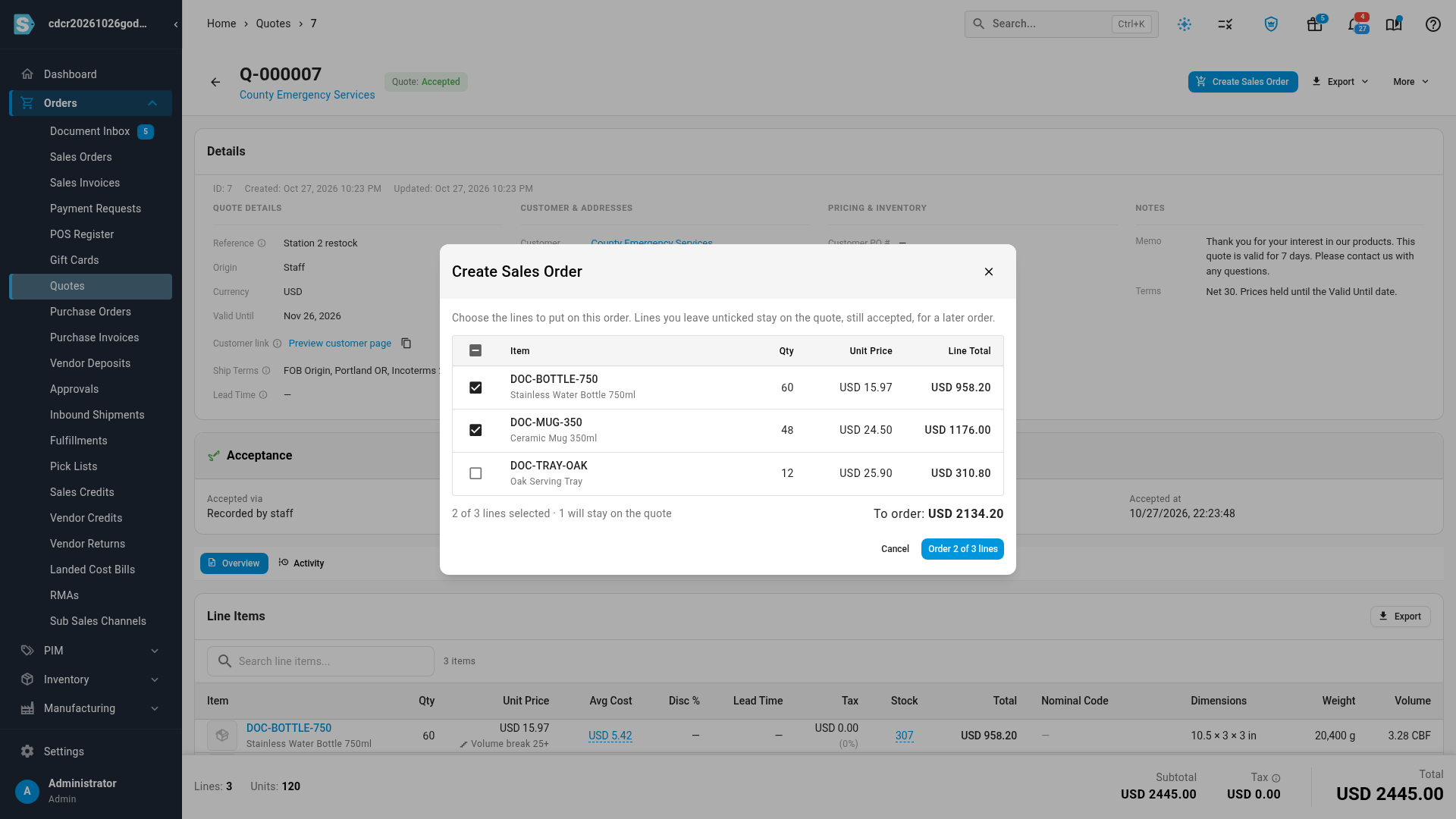
The Create Sales Order dialog lists every line your customer took, all ticked. Optional lines your customer didn't choose aren't listed.
-
Untick any line you don't want on this order.
Lines you leave unticked stay on the quote, still accepted, for a later order. The dialog shows how many lines are selected, how many will stay on the quote, and the running total next to To order.
-
Click Create order (N lines) to order every line, or Order N of M lines to order only the ones you ticked.
SKU.io creates a Draft sales order and shows "Sales order SO-… created.", adding how many lines are left to order when you ordered only some.
The new order is a draft, so it doesn't allocate stock or ship until it's approved. See Approve a sales order.
Order the remaining lines later
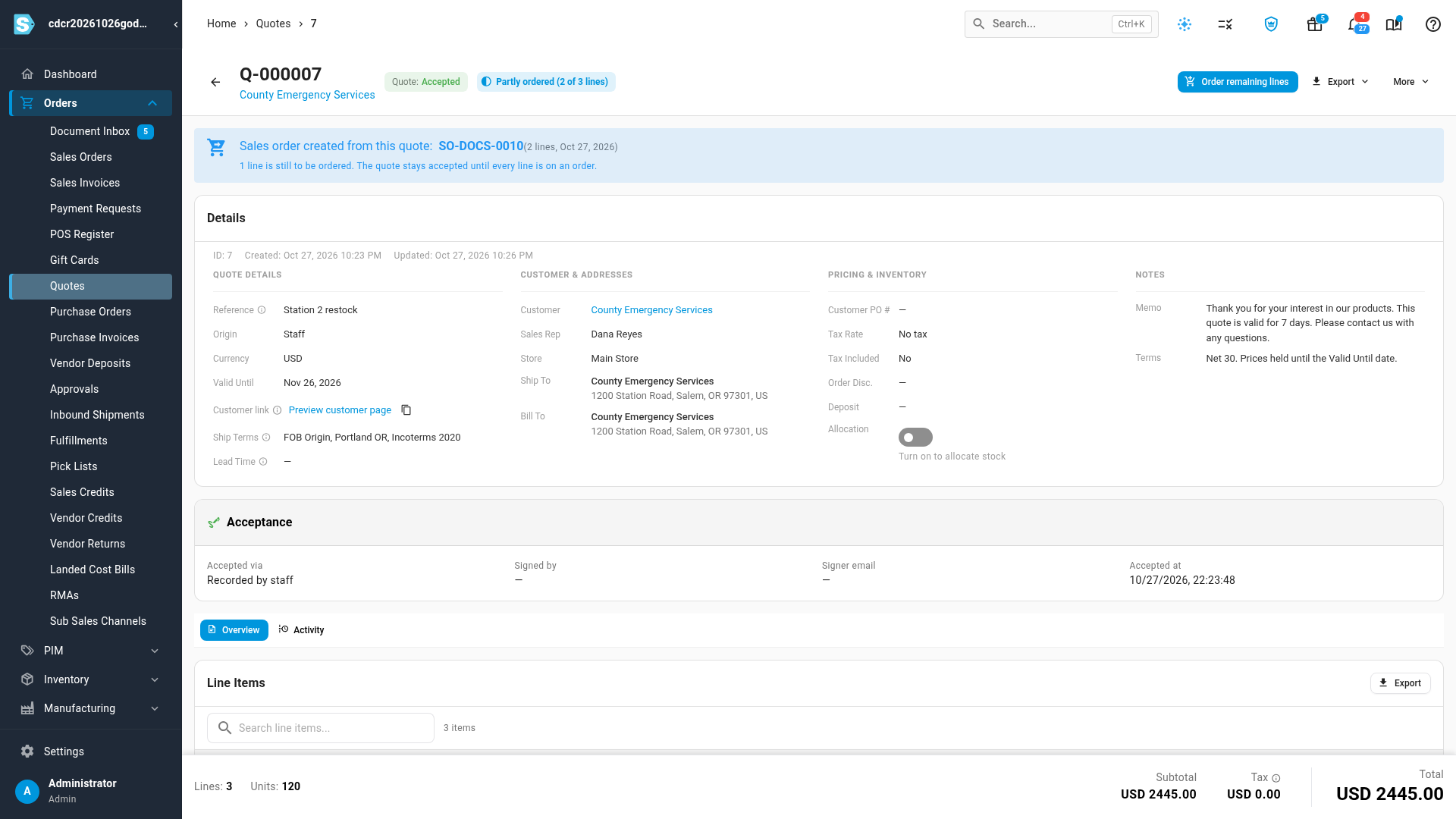
When you order only some lines, the quote stays Accepted and shows a Partly ordered (X of Y lines) chip. A banner lists every sales order created from the quote, with how many lines went onto each and when, and says how many lines are still to be ordered.
-
Open the quote.
-
Click Order remaining lines.
The Order remaining lines dialog says how many lines are already on a sales order and lists only the lines still to be ordered.
-
Tick the lines to order.
-
Click Create order (N lines) or Order N of M lines.
When every line your customer took is on a sales order, the quote moves to Ordered and the button disappears.
Move between the quote and its orders
- On the quote, each sales order number in the banner links to the order.
- Each ordered line shows an Ordered → SO-… chip that links to the order it's on.
- On the sales order, a From quote Q-… chip in the header links back to the quote.
What carries over to the sales order
The order is built from the quote as it was accepted. Prices aren't looked up again, so later changes to price lists or customer pricing don't affect it.
| Carries over | How |
|---|---|
| Customer and Customer PO # | As on the quote |
| Bill To and Ship To | The addresses picked on the quote |
| Sales Rep and Store | When set on the quote. Otherwise the order uses its usual defaults, such as the customer's sales rep |
| Ship Terms | The Incoterm and its named place |
| Shipping method | The method from the shipping rate you applied in the quote's shipping dialog. See Charge shipping on a quote |
| Currency, Tax Rate and Tax Included | As on the quote, including each line's own tax rate |
| Memo | As on the quote |
| Product lines | Quantity, warehouse and net unit price. Each line's own discount and its share of the quote's order discount are built into the unit price, so the order total matches what your customer accepted |
| Revenue lines, such as Shipping | Become the order's revenue lines at their net amount. A line with a fractional quantity arrives as quantity 1 at the line total |
| Deposits paid on the quote | Become payments on the first order only. See Deposits |
These stay on the quote and don't carry over: Valid Until, Reference, Terms, lead times, documents and comments.
Two more things to know:
- The order date is the day you create the order, not the day the quote was accepted.
- The order keeps the tax the quote shows. It doesn't apply the customer's tax exemption again, because the quote already did when it was created.
Deposits
Deposit payments recorded against the quote move to the first sales order you create from it, as payments on account. A deposit keeps its date and reference, and its payment type is Quote Deposit, or Stripe or PayPal when it was paid that way. If the deposits are more than that first order's total, the difference becomes credit for the customer. Orders you create later from the same quote carry no deposits.
A quote with a deposit payment can't be deleted. See Expire, archive or delete quotes.
Variations and edge cases
Accepted quotes don't expire
An accepted quote, including one that's partly ordered, never expires. You can order its remaining lines at the accepted prices after its Valid Until date, and any stock it holds for those lines stays held. See Hold stock for a quote.
Your customer chose between options
On an accepted quote, optional and pick-one lines show Chosen by customer or Not chosen, and the Acceptance card lists each choice. The line table still lists every line, but Subtotal and Total count only the chosen ones. Only the chosen lines appear in the Create Sales Order dialog. You can't change your customer's choice after they accept.
What you can't do to a partly ordered quote
A partly ordered quote is still Accepted, so you can't revise, decline or expire it. If the deal changes, order the lines you still need and make any other changes on the sales order.
Collecting payment with a PayPal pay link
PayPal pay links work on sales orders, not quotes. Create the sales order first, then send the pay link from the order. See Collect payment with a PayPal pay link.
Clicking twice
If you click the create button twice, or two people order the same quote at once, SKU.io creates one order. The second request finds the lines already ordered.
When creating the order is refused
| Message | What to do |
|---|---|
| "Quote Q-… must be accepted before a sales order can be created from it." | Wait for your customer to accept, or accept it for them |
| "Quote Q-… has no lines available to create a sales order." | Every line is already on an order. Open the orders from the banner |
| "… is a quote template and cannot be ordered. Create a quote from it first." | Start a quote from the template. See Copy a quote or start from a template |
| The order button is greyed out | Tick at least one line, or ask an administrator to add Quotes → Create Order to your role |
Next steps
- Approve a sales order: approve the draft order so it allocates stock and can ship.
- Record payments and store credit: take the rest of the payment on the order.
- How quotes work: how a quote stays on file as the record of the deal.
Video transcript
To turn an accepted quote into a sales order, open Orders in the sidebar, and choose Quotes. Each quote in the list shows its status, such as Accepted. Click the accepted quote to see its details. At the top of the quote, click Create Sales Order. Every line your customer took is listed, and all of them are ticked. Untick any line you want to order later. It stays on the quote, still accepted, ready for another order. Below the lines, the total next to To order shows what goes on this sales order. Click the Order button to create a draft sales order from the ticked lines. The quote stays accepted, and a chip shows it's Partly ordered. A banner lists the new sales order, with the number of lines still to be ordered. When you're ready for the rest, click Order remaining lines. Only the lines still waiting are listed. Click Create order at the bottom of the dialog, to put them on a second sales order. Now every line is on an order, so the status moves to Ordered. In the banner, each number links to its sales order. On the sales order itself, the From quote label in the header links back to the quote.