Import and export quote lines
When a buyer sends you a long parts list, you can import it onto a quote instead of adding each product by hand. You can also download any quote's lines as a CSV file to check them in a spreadsheet or pass them on.
Both work on one quote at a time. SKU.io has no import or export for quotes themselves: the Quotes list has no export, you can't create quotes from a file, and Report Builder has no quotes data. To share a whole quote, use Export → Download PDF on the quote.
Before you begin
- To import, the quote must be a Draft or Revised. Once it's sent, revise it first. See Revise or extend a quote.
- To import, you need the Quotes → Edit permission. Without it, the Import button doesn't appear.
- Anyone who can open a quote can export its lines, whatever its status.
- The products you import must already exist in SKU.io and must not be archived.
Steps
- Go to Orders → Quotes and open the quote.
- On the Overview tab, find the Line Items card and click Import. The Import Line Items dialog opens on Upload & Parse.
- Optionally, click Download Template to get a starter file,
quote-lines-template.csv, with the SKU, Quantity and Unit Price headers. - Drag a CSV, TSV or Excel file onto the dialog, click Choose File, or paste rows into the box below OR.
- Check the column mapping: SKU / Barcode Column, Quantity Column and Price Column (optional). SKU.io guesses them from your header names.
- Tick or clear First row is a header so your headers aren't read as a product.
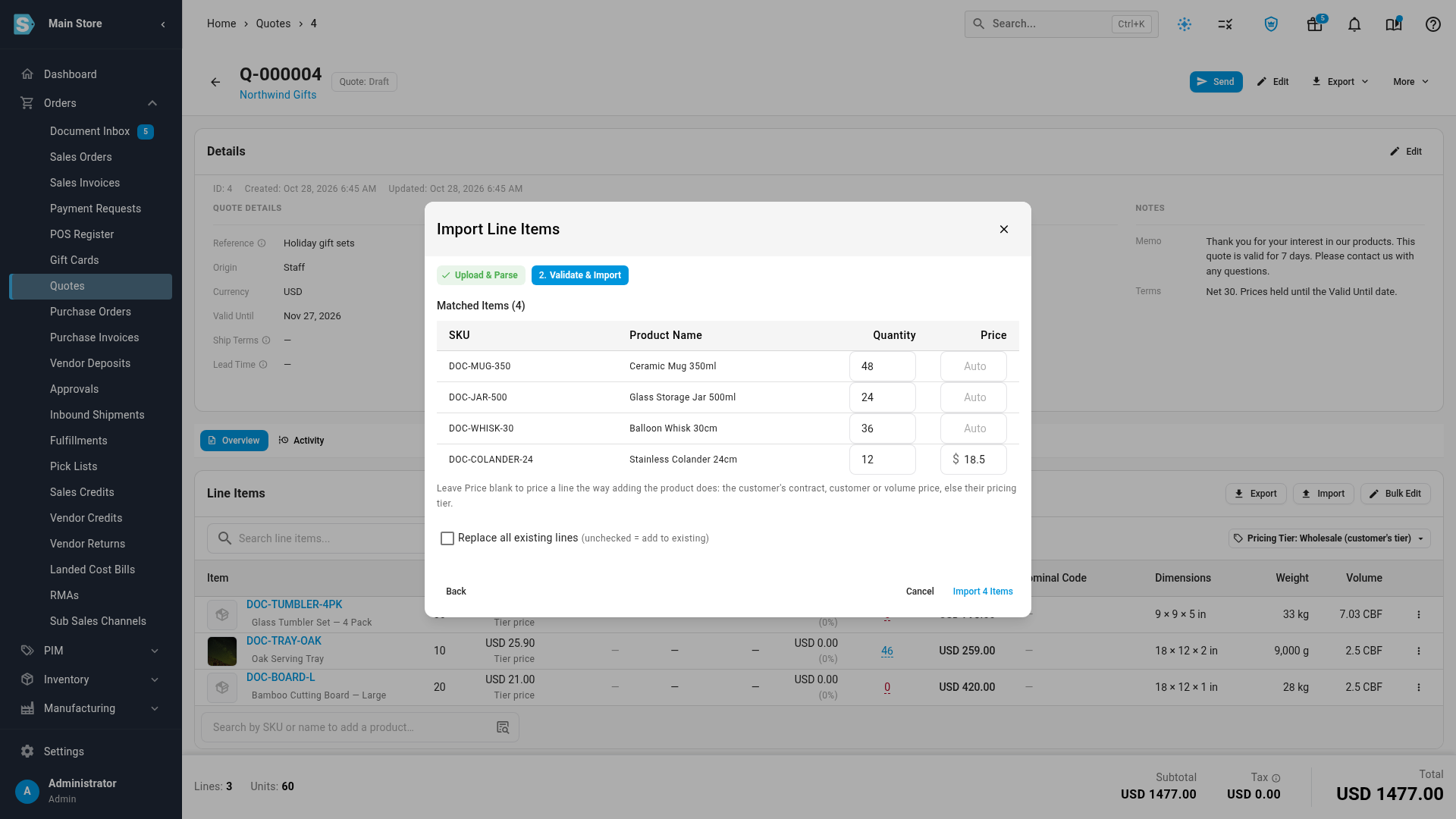
- Check the Preview, then click Validate. The dialog moves to Validate & Import and looks up each code.
- Under Matched Items, change any Quantity or Price you need to. Leave Price showing Auto to let SKU.io price the line.
- To swap out the products already on the quote, tick Replace all existing lines. Leave it clear to add the imported lines to the ones already there.
- Click Import n Items. SKU.io adds the lines and confirms, for example 12 lines imported.
Export a quote's lines
- Open the quote.
- On the Line Items card, click Export. Your browser downloads
<quote number>-lines.csv, for exampleQ-000012-lines.csv.
The Export button in the quote's header offers Download PDF, the customer-facing quote. The Export button on the Line Items card downloads the lines as CSV. On a phone, the lines export is in the ⋮ menu on the Line Items card.
Import file columns
The import reads one product per row. Column names are up to you, because you map them in the dialog, but headers named like the ones below are picked up automatically.
| Column | Required? | Format | What it does |
|---|---|---|---|
| SKU (or Barcode) | Yes | Text | Finds the product by its SKU or its barcode. Upper and lower case are treated the same. When a code is one product's SKU and another product's barcode, the SKU wins. |
| Quantity | No | Number above 0 | The line quantity. A blank or unreadable quantity imports as 1. |
| Unit Price | No | Number, 0 or more, no currency sign | The unit price, in the quote's currency. A row with a price imports as a Manual price that stays put when the quantity changes. Leave it blank to have SKU.io price the line. |
How the rows are read:
- Repeated SKUs become one line. Their quantities are added together, and the last price given for that SKU is used.
- Rows without a price are priced the way adding the product does: the customer's contract, customer or volume price, otherwise their pricing tier. If the customer's tier has no price for the product, the line shows No price set so you can type one. See How quote prices are worked out.
- Header detection: a first row containing words like SKU, Barcode, Product, Quantity, Qty or Price ticks First row is a header for you.
- Separators: files and pastes can use commas, tabs or semicolons.
- Limit: up to 5,000 lines in one import.
Export file columns
The export has one row for every line on the quote, in the order shown, including revenue lines such as shipping.
| Column | What it holds |
|---|---|
| SKU | The product's SKU. Blank on revenue lines. |
| Description | The line description. |
| Quantity | The line quantity. |
| Unit Price | The unit price before any discount. |
| Discount % | The line's percentage discount. Shows 0 when the line has a fixed-amount discount or none. |
| Discount Amount | The money the line's own discount takes off, whether it's a percentage or a fixed amount. |
| Tax % | The line's tax rate, or the quote's tax rate when the line has none of its own. 0 when no tax applies. |
| Line Total | Quantity × unit price, less the line's discount. It's before tax and before any order discount on the quote. |
The export doesn't mark optional lines or say which choice in a pick-one group is selected, so every line appears the same. Check the quote on screen if that matters.
When rows aren't imported
| What you see | What it means | What to do |
|---|---|---|
| n SKU(s) could not be matched to products, with the codes under Unmatched SKUs | No active product has that SKU or barcode. Archived products are never matched. | Click Copy to clipboard, fix the codes or unarchive the products, then import those rows again. |
| n product(s) skipped (matrix products can't be quote lines; import a variant) | The code belongs to a matrix product, which can't go on a quote. | Import the variant's SKU instead. |
| n line(s) imported. m row(s) could not be added: followed by each row and its reason | Some matched rows couldn't be added when you clicked Import, for example because the product was archived in the meantime. The other rows were added. | Read each reason, fix the product, and import those rows again. Click Close when you're done. |
| None of the rows could be imported, so Q-… was not changed. | Not one row could be added, so the quote was left exactly as it was. | Fix the rows listed in the message and try again. |
| Failed to parse Excel file. Please export as CSV and try again. | SKU.io couldn't read the spreadsheet. | Save it as CSV and upload that. |
| No matched items to import. | Nothing in the file matched a product. | Check the SKU / Barcode Column mapping and the First row is a header box. |
Replace all existing lines
Replace all existing lines removes every product line on the quote and puts the imported lines in their place. Revenue lines, such as a shipping charge, stay. If the quote was holding stock for the removed lines, that stock is freed. The confirmation says how many lines were replaced, for example 12 lines imported (replaced 8 lines).
Without the box ticked, the imported lines are added below the ones already on the quote, even when a product is already there.
Next steps
- Add and edit quote lines: adjust quantities, prices and discounts after the import.
- Import line items in bulk: the same dialog on a sales order.
- Create and send a quote: send the quote once its lines are right.
Video transcript
To load lines from a buyer's parts list, open Orders in the sidebar, and choose Quotes. Every quote is listed here, with its customer, status and total. Find the draft you need, and click its reference to see its lines. The quote's details are at the top, and its lines are further down the page. To add lines in bulk, click the Import button above the lines. You can drag a spreadsheet onto the dialog, choose a file, or paste rows into the box below. Choose your file, and the dialog reads each of its rows. Below the box, check that each column is matched to the right field. Then look over the preview, which shows the first rows of your file. Click Validate, and each code is looked up in your catalog. The products it found are listed under Matched Items. You can still change any quantity in this list. A row left blank under Price is priced for the customer, as if you'd added the product by hand. Leave Replace all existing lines clear, to add these lines to the ones already on the quote. Click Import, and the new lines are added below the quote's existing lines. A line that had a price in your file shows Manual, and keeps that price. To download a quote's lines as a spreadsheet file, use Export on the Line Items card. The file lists each line's quantity, price, discount and total.