Approve a discounted quote
A quote whose discount is more than 20% of its subtotal can't go to the customer until a second person signs off. The salesperson requests approval, SKU.io alerts everyone who can approve discounts, and an approver approves or rejects the request on the quote itself. The salesperson is alerted of the decision and can then send the quote.
Before you begin
- The quote is a Draft or Revised and already carries its discount. See Add and edit quote lines.
- To request approval, you need the Quotes → Edit permission.
- To approve or reject, you need the Quotes → Approve Discount permission. To give it to a role, go to Settings → Users & Permissions → Roles, open the role, and tick Approve Discount under Quotes. See Create a role.
- Approval needs two people: you can't approve or reject your own request.
How SKU.io decides a quote needs approval
SKU.io compares the quote's total discount with its Subtotal, both in the totals at the bottom of the quote. Line discounts and the order discount both count. Click Discount in the totals to see Line discounts, Order discount and the Total discount. When the total discount is more than 20% of the subtotal, the quote needs approval. The 20% limit is the same for every quote and every user.
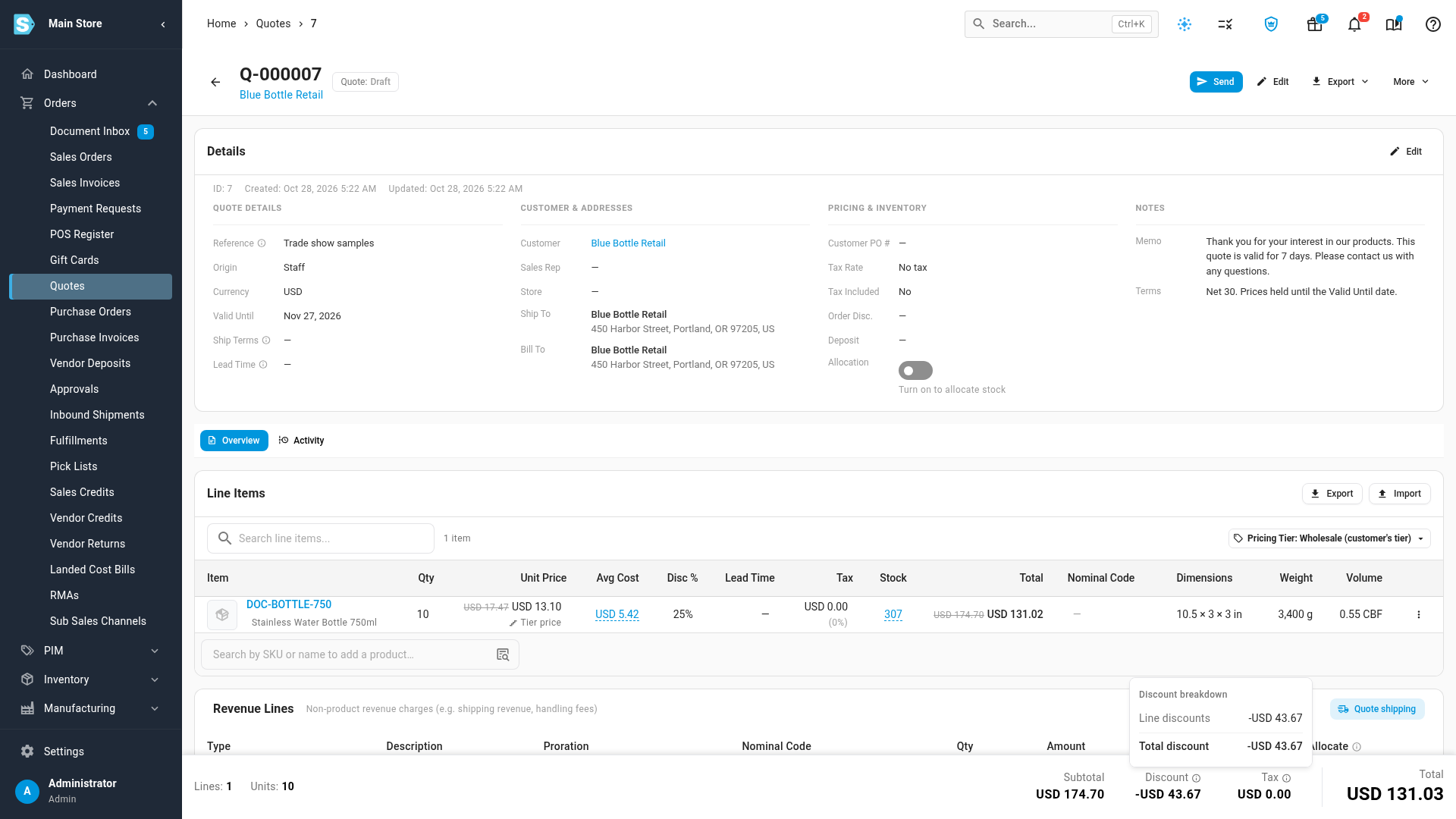
When you click Send on a quote that needs approval and doesn't have it, the Send Q-… dialog opens with a warning, and Send and Mark as sent without emailing are greyed out:
Quote Q-000012 requires discount approval before it can be sent. Request approval from More → Request Approval, then send it.
Steps
To request approval:
- Go to Orders → Quotes and open the quote.
- Click More → Request Approval. SKU.io confirms Approval requested — discount approvers have been alerted.
An orange banner appears at the top of the quote: Discount approval requested for a 25% discount. The quote can't be sent until it's approved by another approver. You'll get an alert when it's decided. Everyone who holds Approve Discount, except you, gets a Quote Discount Approval Requested alert with a link to the quote.
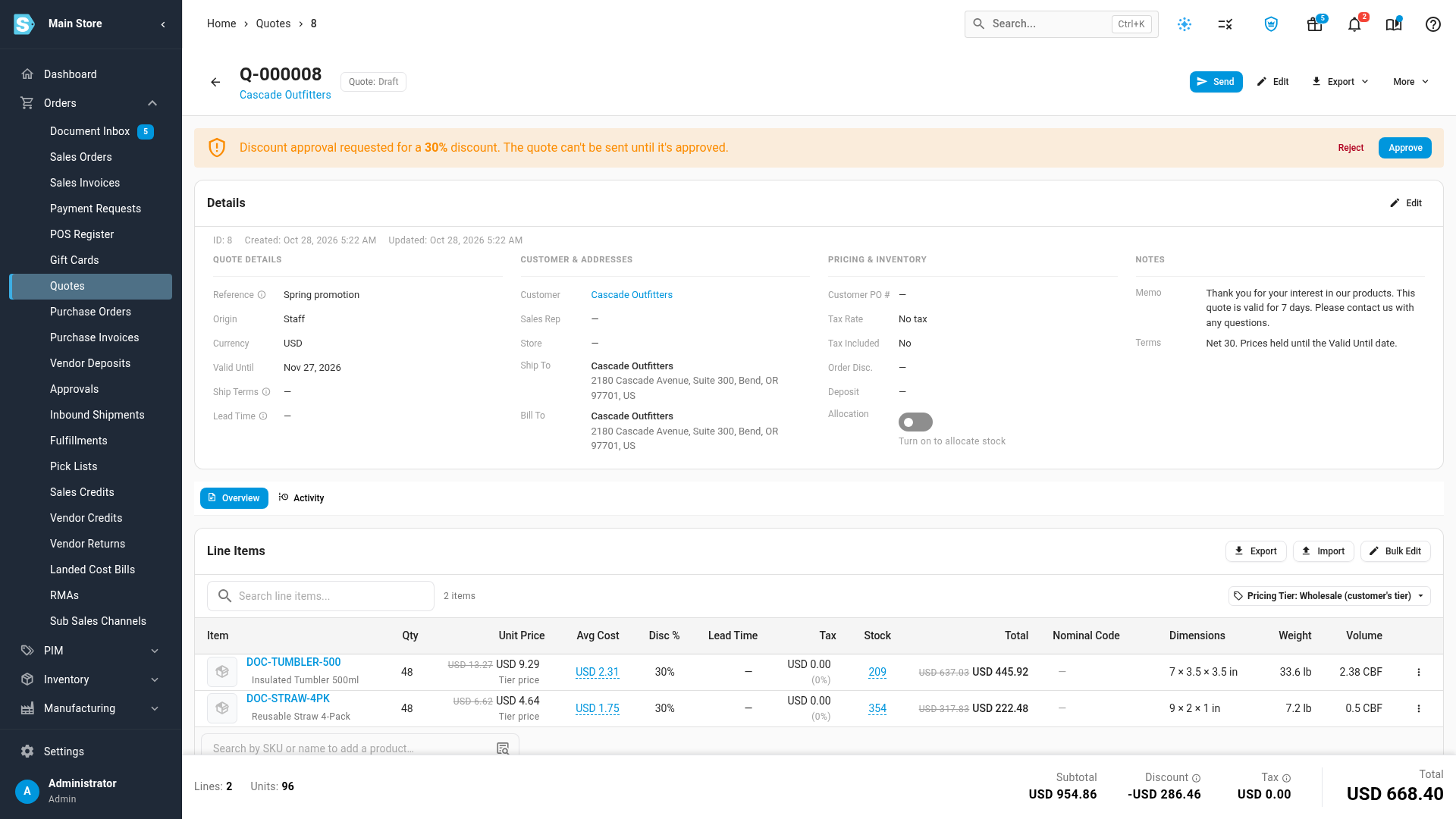
To approve the discount:
- Open the quote from the alert, or from Orders → Quotes.
- In the orange banner, click Approve. SKU.io confirms Discount approved — the quote can now be sent, and the banner disappears.
To reject the discount:
- In the orange banner, click Reject. The Reject Discount dialog opens.
- Optionally, type a Reason, for example Too deep for this account, offer 15% instead. The salesperson sees it.
- Click Reject.
A red banner replaces the request: The 25% discount was rejected: Too deep for this account, offer 15% instead. Lower the discount, or request approval again.
Either way, the person who asked gets a Quote Discount Approved or Quote Discount Rejected alert that names who decided, with the reason for a rejection.
Send the quote after approval
- Open the approved quote and click Send.
- Check the email in the Send Q-… dialog, then click Send, or Mark as sent without emailing if you're delivering it yourself.
See Create and send a quote for the Send dialog.
When the discount changes
| What happens | Result |
|---|---|
| Someone raises the discount after it was approved | The quote needs approval again before it can be sent. |
| The discount is lowered to 20% or less | No approval is needed, even while a request is still waiting. Send the quote. |
| A request was rejected | Lower the discount and send, or change it and click More → Request Approval again. |
| Someone tries to send while a request is pending | The Send dialog says Quote Q-… is awaiting discount approval and cannot be sent. Wait for the decision. |
What each person sees
| Who | In the orange banner |
|---|---|
| An approver who didn't ask | Reject and Approve |
| The person who asked, if they're also an approver | Reject and Approve greyed out. Hovering says You can't approve your own discount request. Ask another approver. |
| Anyone without Approve Discount | The message only, ending …until it's approved by someone with discount-approval permission. |
Messages you might see
| Message | Why | What to do |
|---|---|---|
| Quote Q-… already has a pending approval. | A request is already waiting. | Wait for an approver, or ask one to look at it. |
| You can't approve your own discount request. Ask another approver. | You made the request. | Ask another approver. |
| No pending approval for this quote. | Someone else approved or rejected it first. | Reload the quote to see the decision. |
| Request Approval isn't in the More menu | The quote has been sent, or it's a template. | Revise the quote first. Templates aren't sent, so they never need approval. |
Where approval requests show up
Discount requests live on the quote itself and in alerts. They don't appear on the Approvals page. See Approvals.
To choose whether these alerts also reach you by email, go to Settings → Alerts & Notifications → My Notifications and find Quote Discount Approval Requested or Quote Discount Approval Decision. See Set your own alert notifications.
Next steps
- Create and send a quote: send the approved quote.
- Add and edit quote lines: change line and order discounts.
- Create a role: decide who can approve discounts.
Video transcript
To get a deep discount signed off, open Orders in the sidebar on the left, and choose Quotes. Then find the draft that carries the discount, and click it to see the full quote. When the total discount is more than a fifth of the subtotal, the quote needs approval. Click Discount in the totals at the bottom to see how the discount adds up. If you click Send at the top now, the dialog that appears explains that approval has to come first. Its Send button stays greyed out until then, so click Cancel to close the dialog. Instead, click More at the top of the quote, and choose Request Approval from the menu. An orange banner now shows the request, and everyone who can approve discounts gets an alert. You can't approve your own request. An approver finds the quote from the link in their alert, or opens Quotes in the sidebar, and clicks it in the list. Their banner at the top of the quote has two buttons, Reject and Approve. Click Approve to sign off on the discount. The banner clears, and the quote can now be sent. Then click Send at the top, check the email in the dialog, and click Send again to send the quote to your customer. Its status moves to Sent, and the customer gets the email. To turn a request down instead, go back to Quotes in the sidebar, and click the other quote that's waiting for approval. In its orange banner, click Reject, and the Reject Discount dialog appears. Type a reason the salesperson will see, then click Reject in the dialog to turn the request down. A red banner shows your reason on the quote, and the salesperson gets an alert.