Map Shopify shipping methods
Each Shopify order carries the shipping option the customer chose at checkout, such as "Standard Shipping". SKU.io turns it into one of your own shipping methods, which is what your warehouse or fulfillment provider ships with. You set this up on the Shopify connection's Settings → Shipping tab: a default mapping for each Shopify method, rules that send some destinations elsewhere, and a fallback for orders that arrive with no shipping method at all.
Before you begin
- Connect your Shopify store.
- Your shipping methods exist in SKU.io, under Settings → General → Shipping Methods.
- You need permission to manage sales channel mappings to add rules or re-resolve orders, and permission to update integrations to save the mappings and the fallback method. Without it, Save Mappings and Save Settings don't appear.
How an order gets its shipping method
SKU.io checks these in order, and the first match wins:
- Rules on the Shopify method, top to bottom. A rule can match the method's name and the destination country.
- The method's default mapping in Shipping Method Mappings.
- Fallback rules, for orders that steps 1 and 2 left without a method.
- The fallback shipping method.
- Nothing. The order has no shipping method.
Changes apply to orders imported from now on. To apply them to open orders already in SKU.io, use Re-resolve open orders.
Map each Shopify method
- Go to Apps & Integrations, open your Shopify connection, then Settings and the Shipping tab.
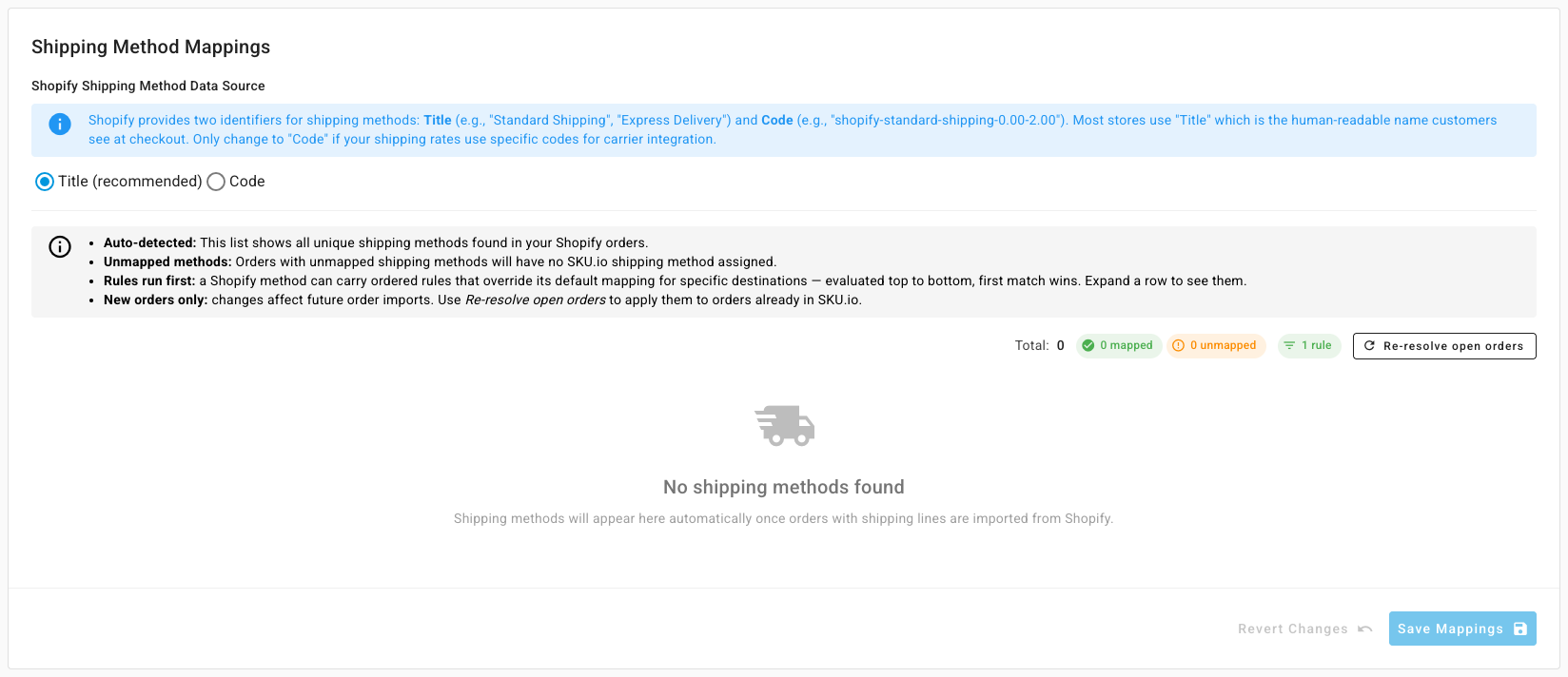
- Under Shipping Method Mappings, choose the Shopify Shipping Method Data Source. Keep Title (recommended), the name customers see at checkout, unless your rates use carrier codes.
- Every Shopify method found on your orders is listed, marked Unmapped until you map it. Pick a Default SKU.io Shipping Method for each.
- Click Save Mappings.
Add a rule for some destinations
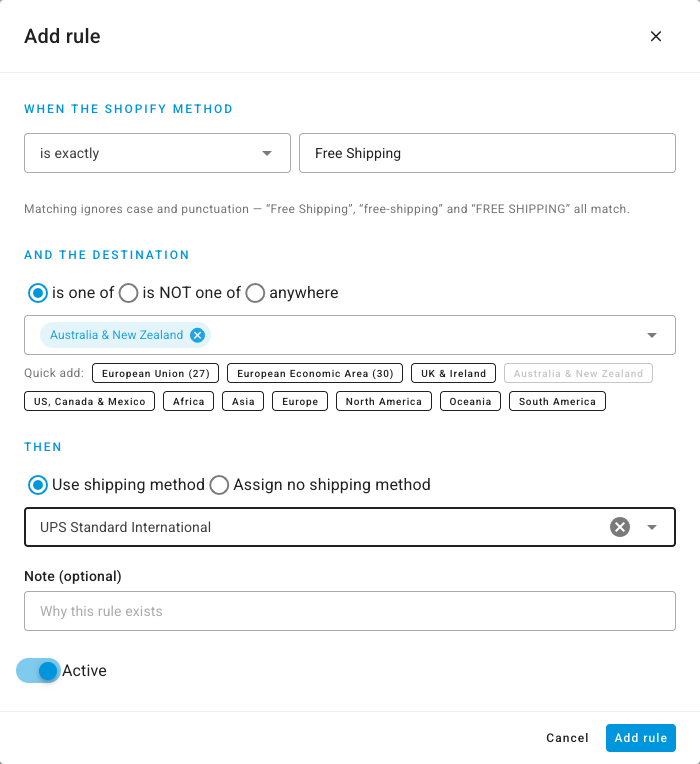
Use a rule when one Shopify method should ship differently to some countries, for example "Free Shipping" to Australia and New Zealand.
- On the Shopify method's row, click Add rule. For a method that hasn't appeared on an order yet, click Add rule under Other rules.
- Under When the Shopify method, choose is exactly, contains, starts with, or is anything, and enter the text. Matching ignores case and punctuation, so "Free Shipping" and "free-shipping" both match.
- Under And the destination, choose is one of, is NOT one of, or anywhere, and add countries. Quick add fills in a group, such as European Union (27) or US, Canada & Mexico.
- Under Then, choose Use shipping method and pick one. Assign no shipping method stops here: the order gets no method, and the fallback isn't used.
- Optionally, add a Note saying why the rule exists.
- Click Add rule. Rules save straight away.
Rules run top to bottom. Use the arrows to reorder them, the pencil to edit, and the bin to remove one. Removing asks you to confirm first, and orders already imported keep their method. A rule shows a warning when its shipping method doesn't serve those countries, when it points at an archived method, or when a rule above already catches everything it would.
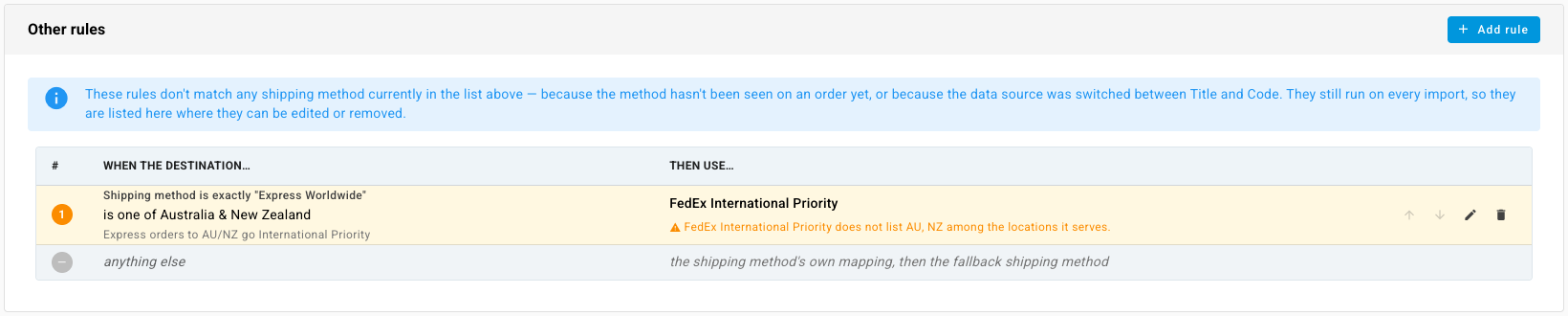
Other rules lists rules whose Shopify method isn't in the mapping list, because no order has used it yet or because you switched between Title and Code. Each row names the Shopify method it matches, such as Shipping method is exactly "Express Worldwide", above its destinations. They still run on every import.
Set a fallback for orders with no shipping method
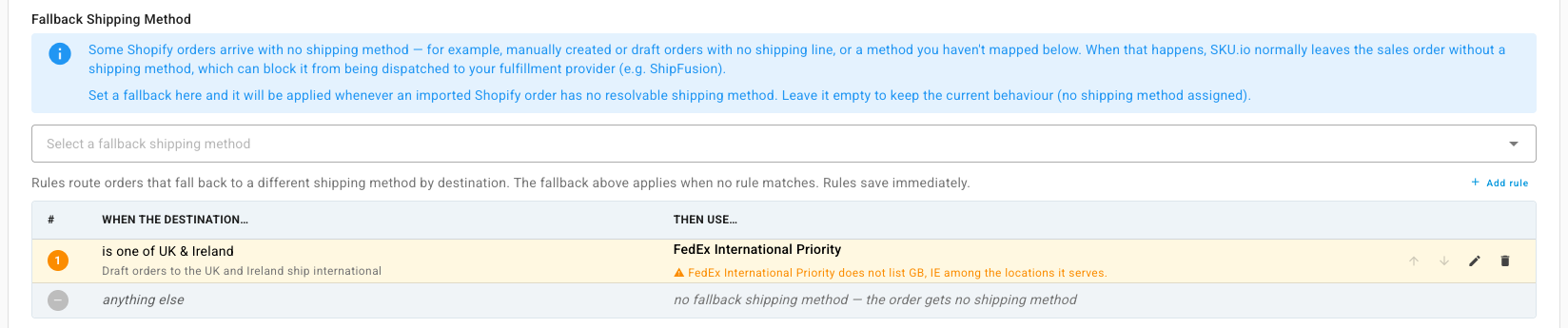
Some Shopify orders arrive with no shipping method you can map, such as draft or manual orders with no shipping line, or a method you haven't mapped. Without a method, the order can be held back from your fulfillment provider.
- Under Shipping Settings, pick a Fallback Shipping Method.
- Click Save Settings.

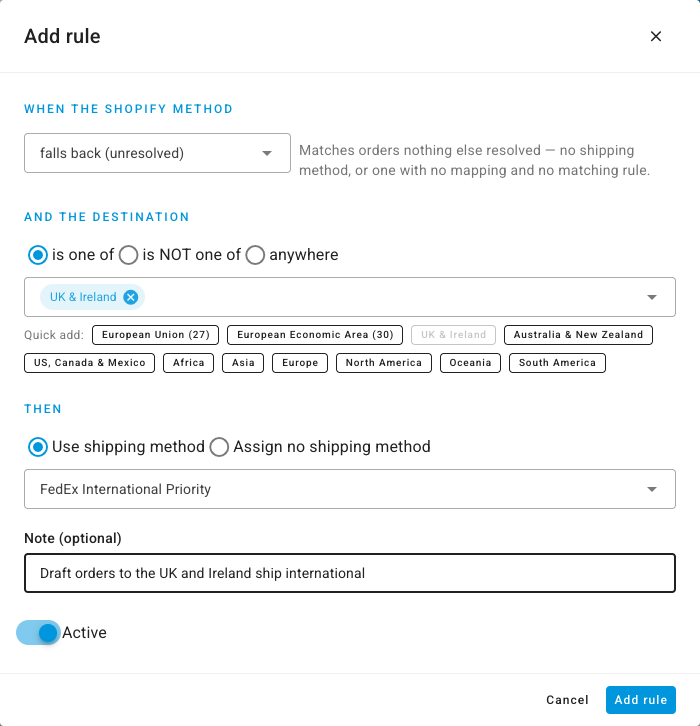
To send fallback orders to different methods by destination, click Add rule below the field. The rule starts as falls back (unresolved), which matches only orders nothing else resolved. Choose the countries and the method, then click Add rule. The fallback method applies when no fallback rule matches.
Test a combination
Under Test a combination, enter a Shopify shipping method and a Destination country. SKU.io walks the steps above and shows which one handles it and the shipping method the order would get.

What's actually arriving lists the method and country combinations on recent orders, and what each one resolves to. Change the window from Last 180 days to look further back.
Apply changes to open orders
- Under Shipping Method Mappings, click Re-resolve open orders. SKU.io works out what would change and shows how many open orders would get a different method, with examples.
- Click Re-resolve N orders. The work runs in the job tray.
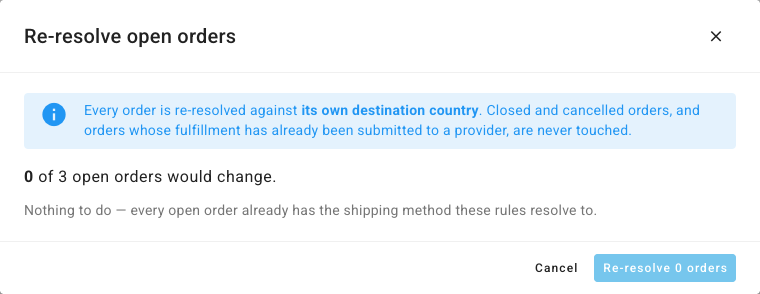
Each order is re-resolved against its own destination country. Closed and cancelled orders, and orders whose fulfillment has already gone to a provider, are never changed.