Push product costs to Shopify
Shopify works out profit from the Cost per item on each variant, and it records that cost at the moment of sale. If the cost in Shopify is missing or out of date, every profit report built on it is wrong. Cost sync keeps it right: SKU.io sends each product's average cost to Shopify's Cost per item, for every Shopify listing linked to a SKU.io product.
SKU.io stays the record of cost. It sends costs to Shopify but never reads Shopify's cost back into your products.
Cost sync is available for Shopify only.
Before you begin
- The Shopify store is connected, and its listings are linked to your SKU.io products.
- Your products have an average cost in SKU.io, which comes from receiving stock. Products without one are skipped unless you turn on the fallback described below.
- If your Shopify store sells in a different currency from your SKU.io base currency, add an exchange rate for the store's currency in your currency settings first. Without one, every product is skipped.
Turn on cost sync
-
Go to Apps & Integrations, open Shopify, and pick your store from the selector at the top.
-
Open Settings, then the Sync tab, and turn on Push costs. It's off until you turn it on. See Pause one direction or one kind of data for how that tab works.
-
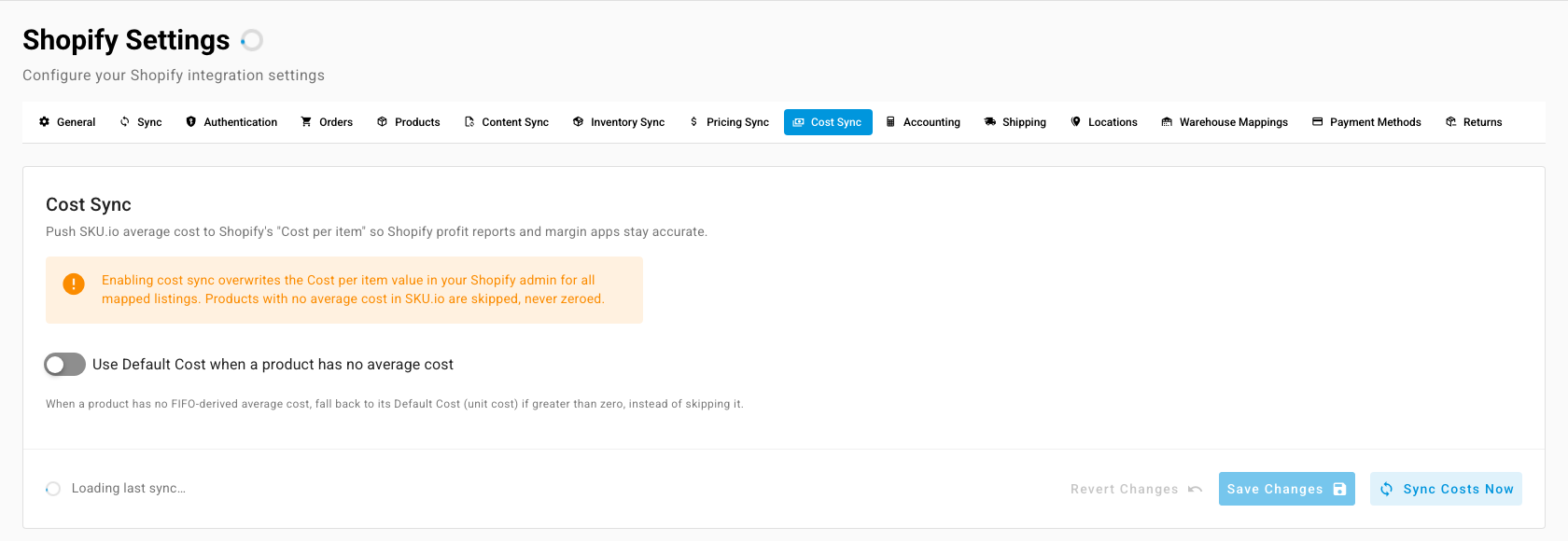
Open the Cost Sync tab.
-
Read the warning. Turning cost sync on overwrites Cost per item in your Shopify admin for every linked listing.
-
To cover products that have no average cost yet, turn on Use Default Cost when a product has no average cost. Those products then send their Default Cost instead, when it's above zero. Leave it off to skip them.
-
Click Save Changes.
When costs are sent
- When a cost changes. When a product's average cost changes, for example when you receive stock at a new price, SKU.io sends the new cost to Shopify straight away, along with every bundle that contains that product.
- Once a day. A daily run sends anything that's out of step.
- When you ask. Click Sync Costs Now to send every linked listing now. The run appears in the job tray, and the line beside the buttons shows when the last sync ran and what it did. If a sync is already running, the button is unavailable and its tooltip says so.
Only costs that differ from what Shopify already holds are sent, so a run over a settled catalogue changes nothing.
What's skipped
| Situation | What happens |
|---|---|
| The product has no average cost (and the fallback is off), or its cost is zero or less | Skipped. Shopify's cost is never set to zero. |
| A bundle with a component that has no cost | The whole bundle is skipped. A bundle's cost is the sum of its components, so it's sent only when every component has one. |
| The store's currency has no exchange rate | Skipped, and the Cost Sync tab shows a red notice naming the currency. With a rate in place, a blue notice shows the rate used to convert. |
| The cost already matches Shopify | Skipped, because there's nothing to change. |
Next steps
- Connect a Shopify store — the connection this depends on.
- Sync prices with your sales channels — keep Shopify's selling prices in step too.