Subscribe to webhooks
A webhook is SKU.io telling your system something happened, instead of your system asking over and over. You give us an event and an HTTPS URL; when that event fires, we POST a signed JSON payload to it. This guide creates a subscription, explains which events are batched, verifies the signature, and reads a real delivery.
To send a retailer's own system updates about the dropship orders you ship for it, set the webhook up on the retailer's Dropship tab instead. See Send dropship updates to a retailer's system.
Before you begin
- You need somewhere to receive the POST — an HTTPS URL on a host that
resolves publicly. A
http://address, alocalhostaddress, or anything on a private network is refused at creation. - One subscription is one event to one URL. To receive three events, create three subscriptions; to fan one event out to two systems, create two.
- The signing secret is shown once, when the subscription is created. Have your secret store open.
- Doing this over the API instead needs a token carrying
webhooks:manage. See the API scopes reference. - The screenshots below come from a demonstration account with sample subscriptions and a seeded delivery history. Your own events, URLs, and timings will differ.
Steps
1. Open the webhooks page
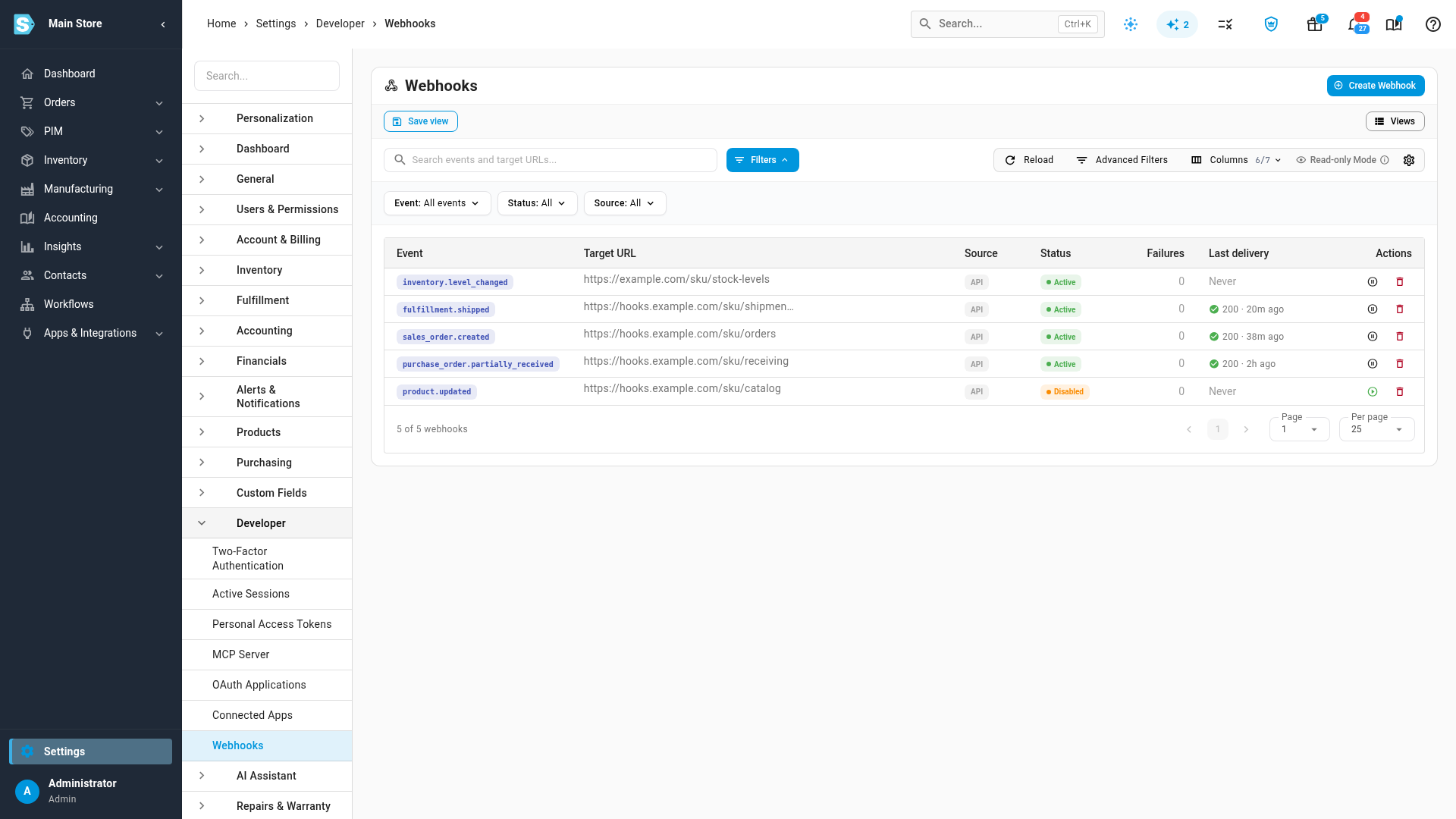
Go to Settings → Developer → Webhooks: open Settings at the bottom of the left sidebar, click the Developer card, then choose Webhooks.
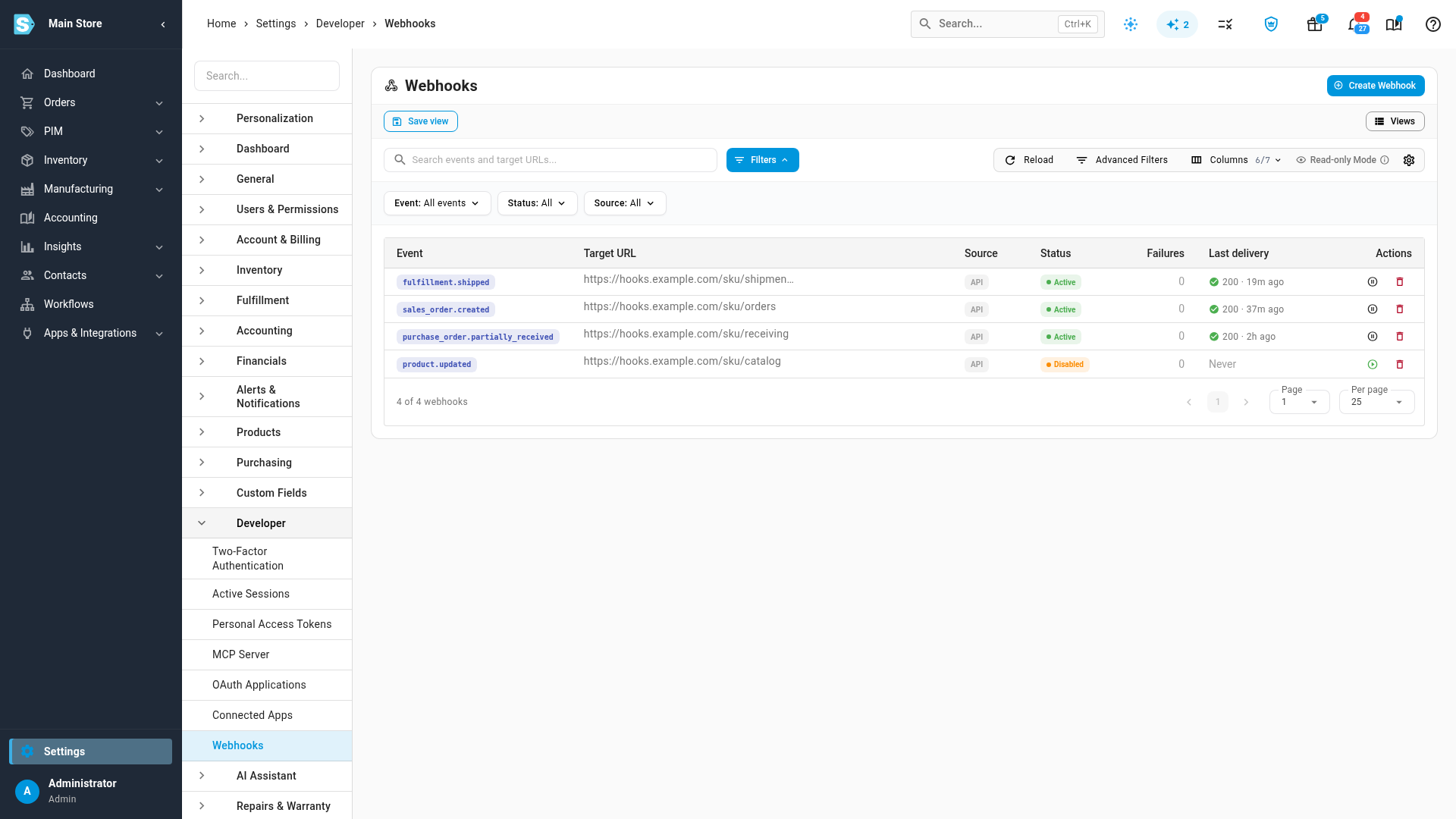
Every subscription on the account is listed here, whether you created it yourself or an app created it on your behalf during an OAuth authorization — the Source column tells you which. A subscription you've paused shows Disabled.
2. Start a new subscription
Click Create Webhook.
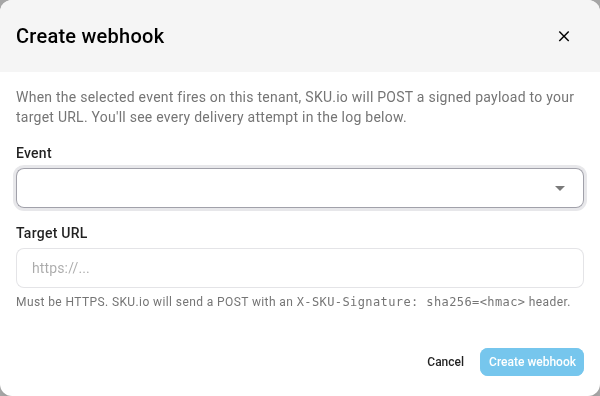
The dialog states the deal up front: when the selected event fires on this tenant, SKU.io sends a signed payload to your target URL in a POST request, and every attempt lands in the delivery log.
3. Pick an event
Open Event and choose from the catalog. Events are grouped by the part of the product they come from.
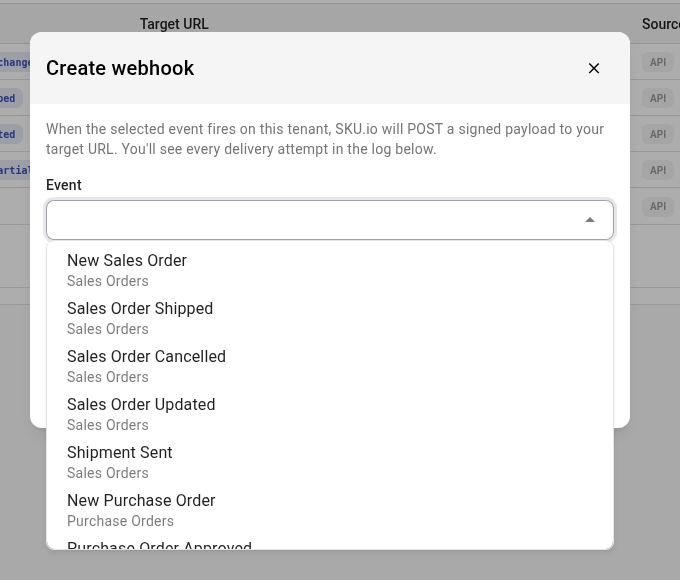
The core events:
| Group | Event | Fires when | Read scope |
|---|---|---|---|
| Sales Orders | New Sales Order sales_order.created | A sales order is created, on any channel or manually | orders:read |
Sales Order Updated sales_order.updated | An order's own details change: status, fulfillment or payment status, customer, shipping address, shipping method or dates. Batched (see below) | orders:read | |
Shipment Sent fulfillment.shipped | Each shipment of an order ships, with its tracking number | orders:read | |
Sales Order Shipped sales_order.shipped | The whole order has shipped | orders:read | |
Sales Order Cancelled sales_order.cancelled | A sales order is cancelled | orders:read | |
| Purchase Orders | New Purchase Order purchase_order.created | A purchase order is created | purchase-orders:read |
Purchase Order Approved purchase_order.approved | A purchase order is approved | purchase-orders:read | |
Purchase Order Submitted purchase_order.submitted | A purchase order is sent to the supplier | purchase-orders:read | |
Goods Received purchase_order.received | Goods are received against a purchase order, partly or in full | purchase-orders:read | |
Purchase Order Partially Received purchase_order.partially_received | A receipt leaves some of the purchase order still to come | purchase-orders:read | |
| Inventory | Inventory Adjusted inventory.adjusted | Stock is adjusted by hand or by the system | inventory:read |
Stock Level Changed inventory.level_changed | A product's stock at a warehouse changes for any reason. Batched (see below) | inventory:read | |
| Products | New Product product.created | A product is created | products:read |
Product Updated product.updated | A product's SKU, name, barcode, MPN, brand, type, parent, weight or dimensions change. Batched | products:read | |
| Customers | New Customer customer.created | A customer is created | customers:read |
Customer Updated customer.updated | A customer's name, email, phone, company, store, pricing tier or email opt-out changes. Batched | customers:read |
More groups appear when you use the matching part of SKU.io: Advertising, Exports, Repairs and TikTok Posting.
Sales Order Shipped and Shipment Sent differ in timing: an order shipped in two boxes sends Shipment Sent twice, once per box, and Sales Order Shipped once, when the last box goes. Pick Shipment Sent when you need each tracking number as it happens.
4. Read the chips: scope and batching
Once you pick an event, chips appear under its description.
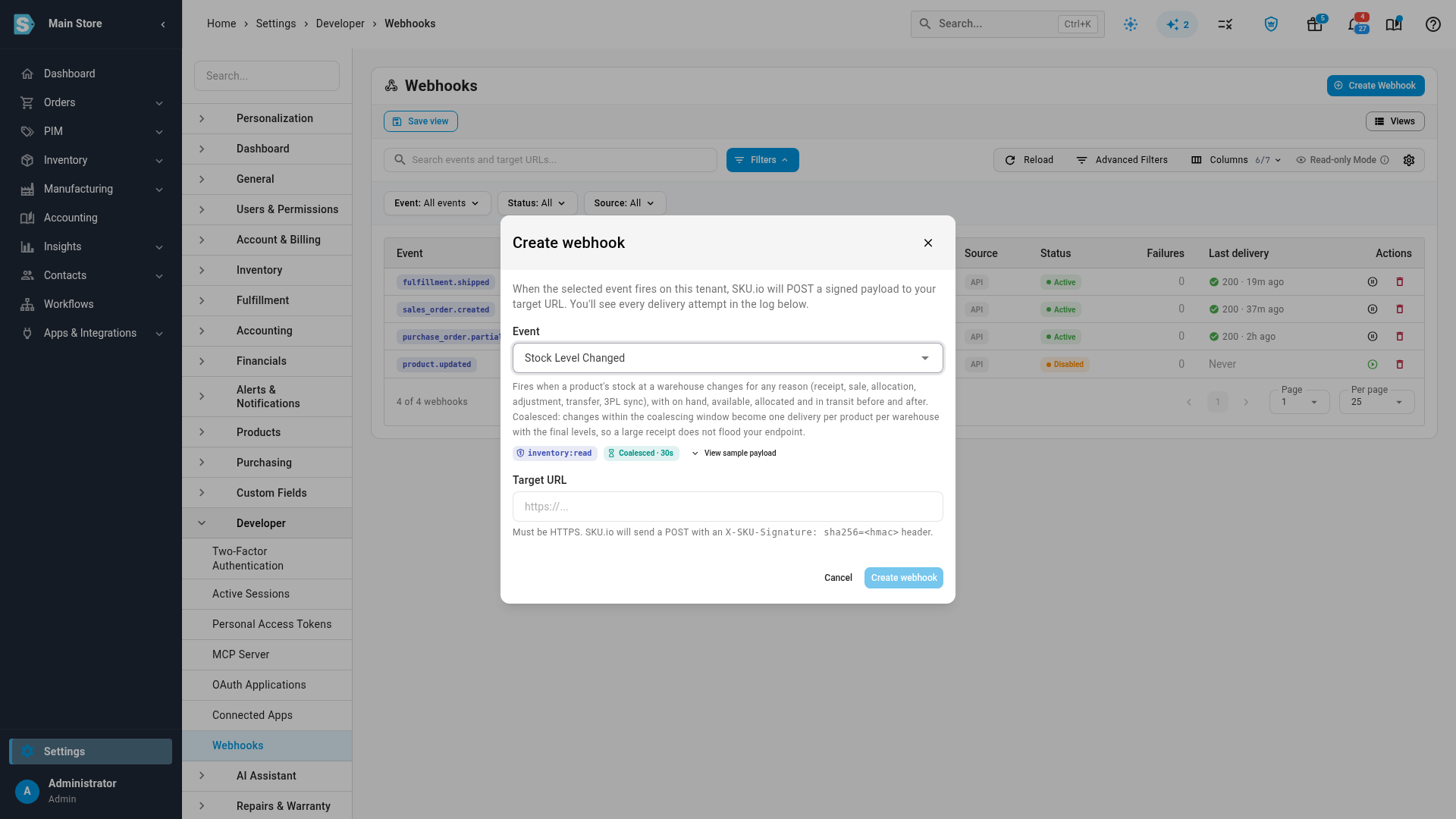
- The first chip is the read scope a token must carry to receive this
event's payload. Creating the subscription in the browser doesn't require it,
but a token creating it over the API does: asking for
sales_order.createdwith a token that can't read orders is refused. - A Coalesced chip means the event is batched, and gives the window. Hover it for a one-line explanation.
Batched events
| Event | Window | What you receive |
|---|---|---|
| Stock Level Changed | 30 seconds | One delivery per product per warehouse whose stock moved, with the final levels when the window closes. |
| Product Updated, Customer Updated, Sales Order Updated | 10 seconds | At most one delivery per record, with the record as it is when it's delivered. |
Batching keeps a busy moment from flooding your endpoint. Receiving a 2,000-line purchase order sends one stock delivery per product and warehouse, not one per line. A product whose stock moves and moves back inside the window sends nothing, and neither does an internal recalculation that leaves the numbers where they were. The first change starts the window, so a delivery can arrive up to the window's length after the change that caused it.
Every other event is sent as it happens.
5. Check the sample payload
Click View sample payload to see the exact shape your endpoint will receive, built from a real record on your own account.
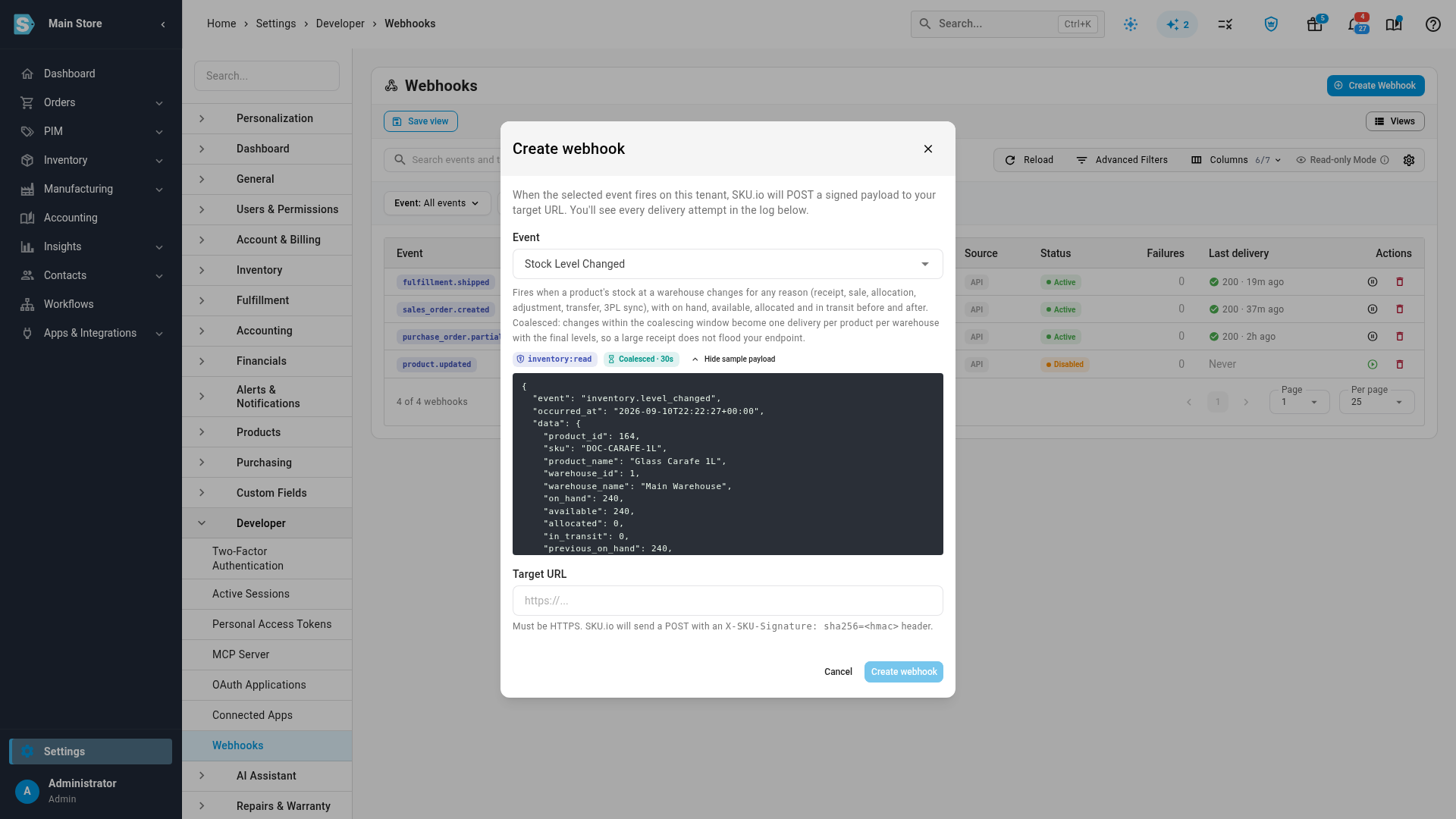
Build your handler against this rather than against a guess. If your account has no matching records yet, the dialog says so — the subscription still works, there is nothing to preview yet. A Stock Level Changed sample shows the current levels with the previous ones equal to them, because nothing has changed yet.
Every payload uses the same envelope:
{
  "event": "inventory.level_changed",
  "delivery_id": "9f1c4a6e-2f4d-4b21-9a8e-6c0a1d3e5f70",
  "occurred_at": "2026-11-13T14:02:11+00:00",
  "data": { }
}
data carries the record itself and changes per event. The three fields around
it never do. The preview shows event, occurred_at, and data;
delivery_id is minted per delivery, so it only appears on a real one.
6. Enter your target URL
Type the endpoint into Target URL.
SKU.io checks it before saving, and again on every delivery, so a URL that stops being safe stops receiving:
| Rule | Refusal |
|---|---|
| Must be a valid URL | Target URL is not a valid URL. |
| Must use HTTPS | Target URL must use HTTPS. |
| Must include a host | Target URL must include a host. |
| The host must resolve | Target URL host cannot be resolved: {host}. |
| It must not resolve to a private or reserved address | Target URL must not resolve to a private or reserved IP. |
The last one rules out localhost, 127.0.0.1, 10.x, 192.168.x, link-local
addresses, and anything else inside your own network. It's re-checked at send
time as well, so a public hostname that later points somewhere private is
refused then too.
Testing from a laptop? Use a tunnelling service that gives you a public HTTPS hostname, and point the subscription at that.
7. Create it and copy the signing secret
Click Create webhook. The secret appears once.
Copy it into your secret store now — there's no way to reveal it again. Tick I have copied this signing secret and stored it safely, then click Done.
A signing secret can't be re-shown or replaced in place. If you lose one, delete the subscription and create it again — you'll get a fresh secret, and the delivery history of the old one goes with it.
8. Send a test delivery
Open the new subscription from the list. Until a real event fires, the delivery log is empty.
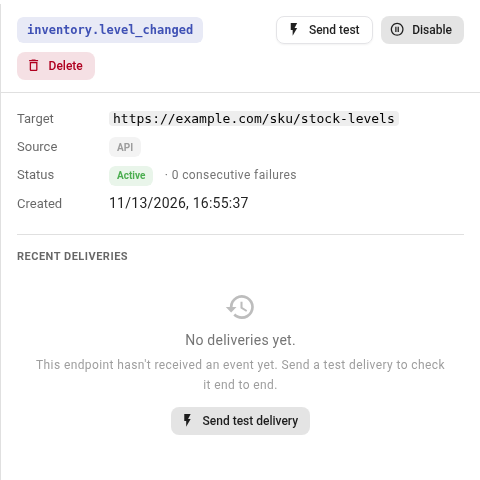
Click Send test delivery. SKU.io sends it immediately — signed with your real secret, to your real URL, with the real headers — and shows you the result in the log without waiting for a queue.
A test payload is marked so your handler can tell it apart:
{
  "event": "inventory.level_changed",
  "delivery_id": "c8f0a2b4-7d31-4c8e-b6a9-2e5f7180d4c3",
  "occurred_at": "2026-11-13T14:06:44+00:00",
  "data": {
    "_test": true,
    "message": "This is a test delivery from SKU.io."
  }
}
A failed test still records a row with the status code and the error, which is what you want — it's the fastest way to find a firewall rule or a bad path.
9. Read a delivery
Once real events fire, open the subscription again: each delivery is listed with its result, and View payload shows exactly what was sent.
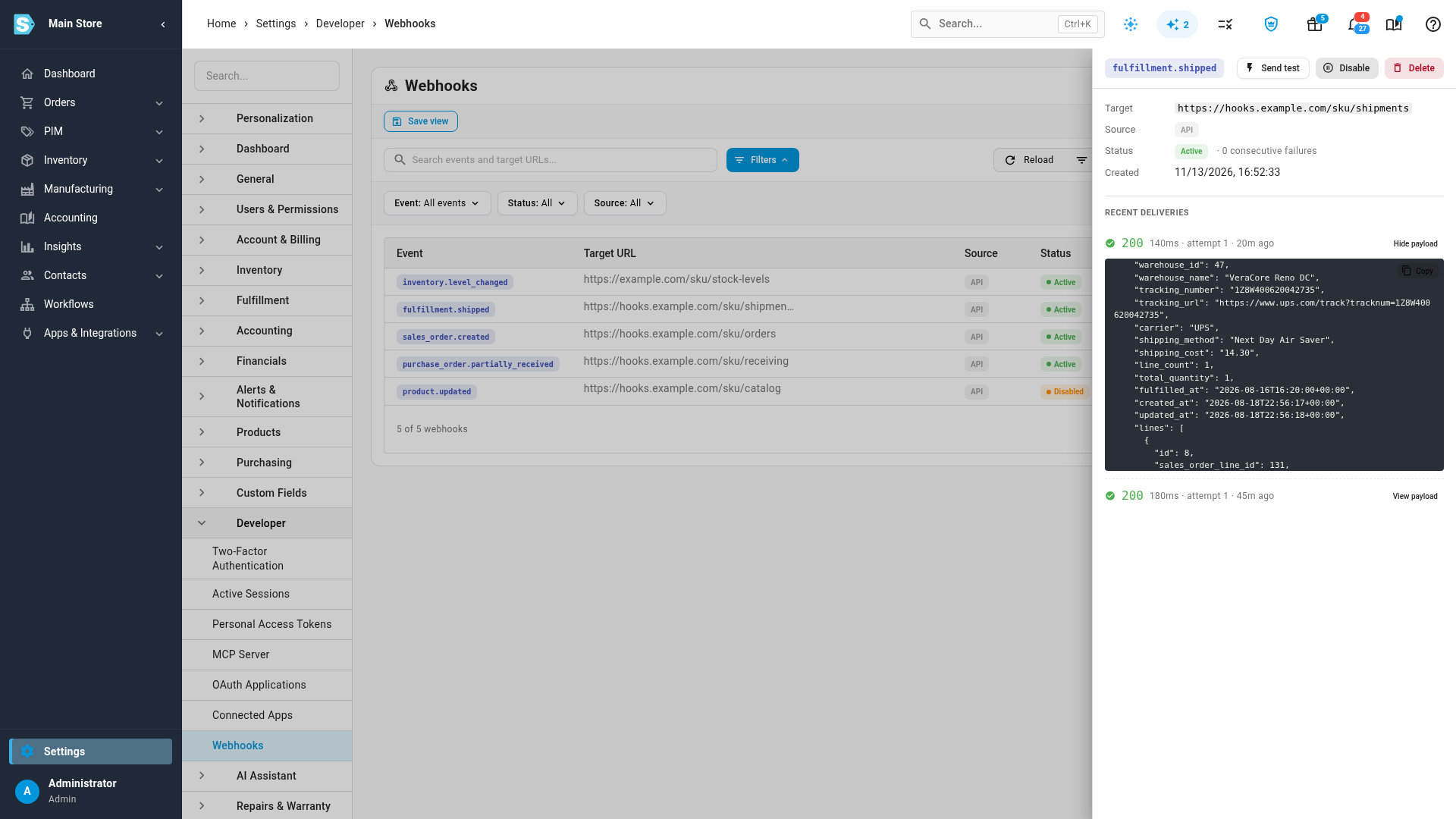
For filtering the log, diagnosing failures, and re-enabling a disabled subscription, see Monitor webhook deliveries.
What the newer events send
Stock Level Changed — one product at one warehouse:
{
  "product_id": 164,
  "sku": "DOC-CARAFE-1L",
  "product_name": "Glass Carafe 1L",
  "warehouse_id": 1,
  "warehouse_name": "Main Warehouse",
  "on_hand": 264,
  "available": 252,
  "allocated": 12,
  "in_transit": 0,
  "previous_on_hand": 240,
  "previous_available": 240,
  "previous_allocated": 0,
  "previous_in_transit": 24,
  "on_hand_change": 24,
  "available_change": 12,
  "coalescing_window_seconds": 30,
  "changed_at": "2026-11-13T14:02:11+00:00"
}
on_handis what is physically in the warehouse; units still on their way in are inin_transit, noton_hand.allocatedis reserved for open orders, andavailableis what can still be sold.previous_*are the levels in the last delivery you received for that product and warehouse. Before the first one, they're the levels when you subscribed. A product with no stock at a warehouse before reports0.- One subscription covers every warehouse. Add the warehouses up yourself when you need a total.
Shipment Sent — one box: the order number, a fulfillment_number such as
SO-1042.1 (the order number plus the shipment's sequence), the warehouse it
left from, tracking_number, tracking_url, carrier, shipping_method,
shipping_cost, and lines with each product's SKU, name and quantity in this
box. tracking_url is the carrier's tracking page when the shipment has no link
of its own.
Purchase Order Partially Received — the same payload as the other purchase
order events. Each line's quantity_received is the total received so far,
across every receipt.
Product Updated, Customer Updated, Sales Order Updated — the same payloads as New Product, New Customer and New Sales Order. Sales Order Updated also fires alongside Sales Order Shipped and Sales Order Cancelled, because those change the order's status.
What SKU.io sends
Every delivery is a POST with a JSON body and these headers:
| Header | Value |
|---|---|
Content-Type | application/json |
X-SKU-Signature | sha256= followed by the HMAC of the body |
X-SKU-Event | The event name, for example inventory.level_changed |
X-SKU-Delivery-Id | A UUID unique to this delivery |
User-Agent | SKU.io-Webhook/1.0 |
Verify the signature
Treat any request without a valid signature as hostile. Your URL is reachable by anyone; the signature is what proves the payload came from SKU.io.
The signature is an HMAC-SHA256 of the raw request body, keyed with your signing secret. Compute it over the bytes you received — not over a re-encoded version of the parsed JSON, which will not match.
$body = file_get_contents('php://input');
$expected = 'sha256='.hash_hmac('sha256', $body, $signingSecret);

if (! hash_equals($expected, $_SERVER['HTTP_X_SKU_SIGNATURE'] ?? '')) {
    http_response_code(401);
    exit;
}
const crypto = require("crypto");

const expected =
  "sha256=" +
  crypto.createHmac("sha256", signingSecret).update(rawBody).digest("hex");

const ok = crypto.timingSafeEqual(
  Buffer.from(expected),
  Buffer.from(req.headers["x-sku-signature"] ?? "")
);
import hashlib, hmac

expected = "sha256=" + hmac.new(signing_secret.encode(), raw_body, hashlib.sha256).hexdigest()
ok = hmac.compare_digest(expected, request.headers.get("X-SKU-Signature", ""))
Compare in constant time — hash_equals, timingSafeEqual, compare_digest, or
your language's equivalent — rather than with ==.
What your endpoint should do
| Do | Why |
|---|---|
| Respond 2xx within 15 seconds | Anything slower is treated as a failure and retried. Acknowledge first, process afterwards. |
| Verify the signature before trusting the body | The URL is public; the signature isn't. |
Deduplicate on delivery_id | A retry re-sends the same delivery_id. Handlers must be idempotent. |
| Return 410 Gone to unsubscribe | It's the one status that makes SKU.io stop immediately and disable the subscription — no retries, no waiting for the failure count. Use it when the endpoint is permanently retired. |
Anything else non-2xx is a failure: SKU.io retries up to three times, waiting 30 seconds and then 5 minutes. After 25 consecutive failures the subscription is disabled automatically and the account owner is emailed. Every attempt — success or failure — is written to the delivery log.
Deliveries can arrive out of order, especially around a retry. For Stock Level
Changed, trust changed_at and the levels in the payload rather than the order
the requests reached you.
The webhooks guide on developer.sku.io covers the same contract from the receiving end, alongside the rest of the API reference.
Duplicates are blocked
The same event pointed at the same URL twice is refused, with a link to the subscription that already exists. If that one is disabled, the dialog says so and offers to open it — enable it rather than creating a second subscription alongside it.
This is deliberate: two live subscriptions on the same event and URL means double the deliveries, and the duplicate is almost always an accident.
Next steps
- Monitor webhook deliveries — read the log, retry, disable, and delete.
- API scopes reference —
webhooks:manageand the read scope each event needs. - Create a personal access token — a credential for managing subscriptions over the API.
- Connect SKU.io to Zapier — start Zaps from these events without writing an endpoint.