Invite buyers to the Customer Portal
To give a wholesale customer self-service ordering, invite one of their people as a buyer. The first invitation puts the customer on the Customer Portal. The customer's pricing tier, payment terms and credit limit become their portal ordering terms.
Before you begin
- You need the portal.manage permission.
- The customer exists in CRM → Customers. See Create & edit a customer.
- You have the buyer's name and work email.
- Decide which role each buyer gets. See the roles table in How the Customer Portal works.
Invite the first buyer
-
Go to CRM → Customers and open the customer. You can also click Invite to Portal in the customer's Portal column on the list.
-
Click the Customer Portal tab. A customer that isn't enrolled yet shows Not on the Customer Portal.
-
Click Invite Buyer.
-
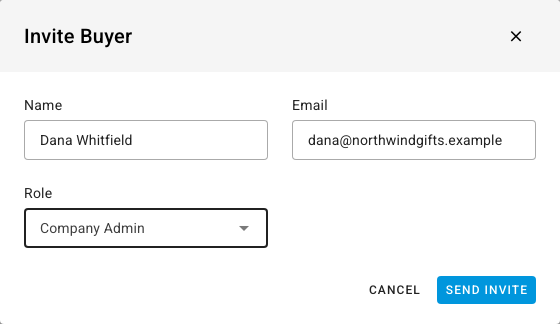
Enter the buyer's Name and Email, and choose a Role. Make the first buyer a Company Admin if they should be able to approve orders and manage the account.
-
Click Send Invite.
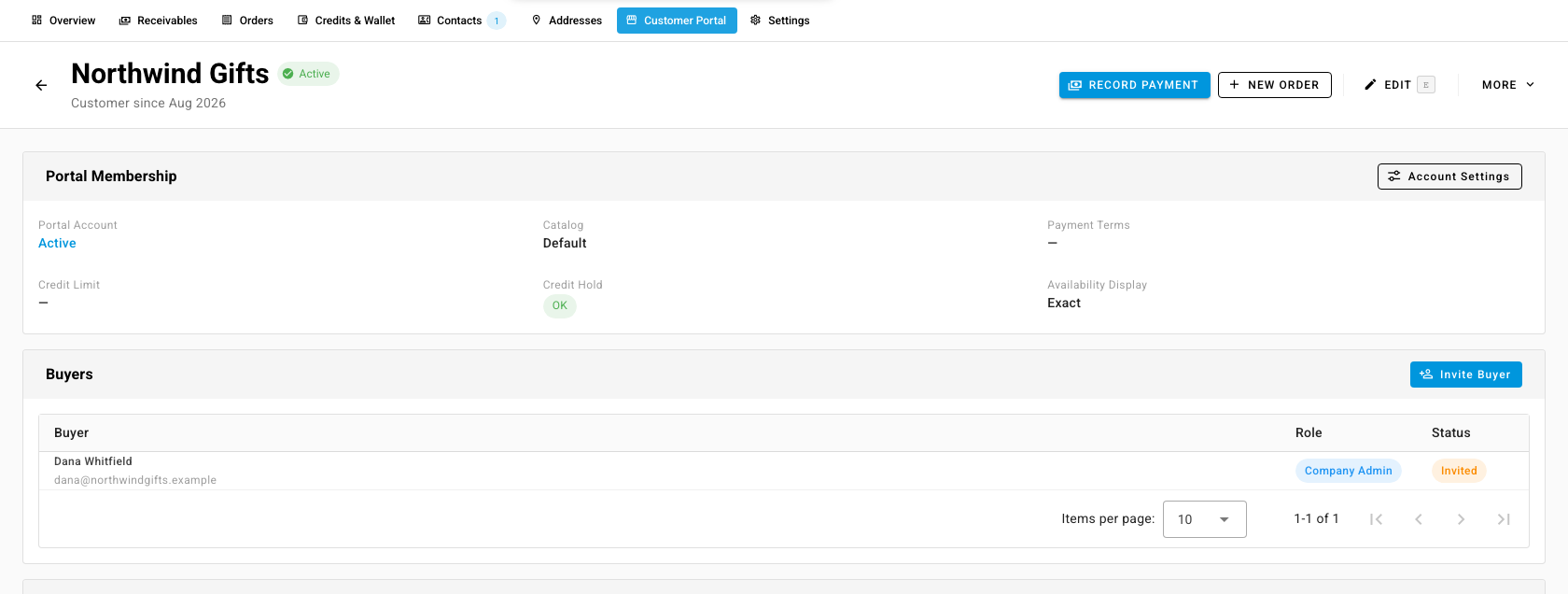
The customer is now a portal account. The tab shows its Portal Membership (status, catalog, payment terms, credit limit, credit hold and availability display) and a Buyers table where the new buyer is listed as invited.
What the buyer does
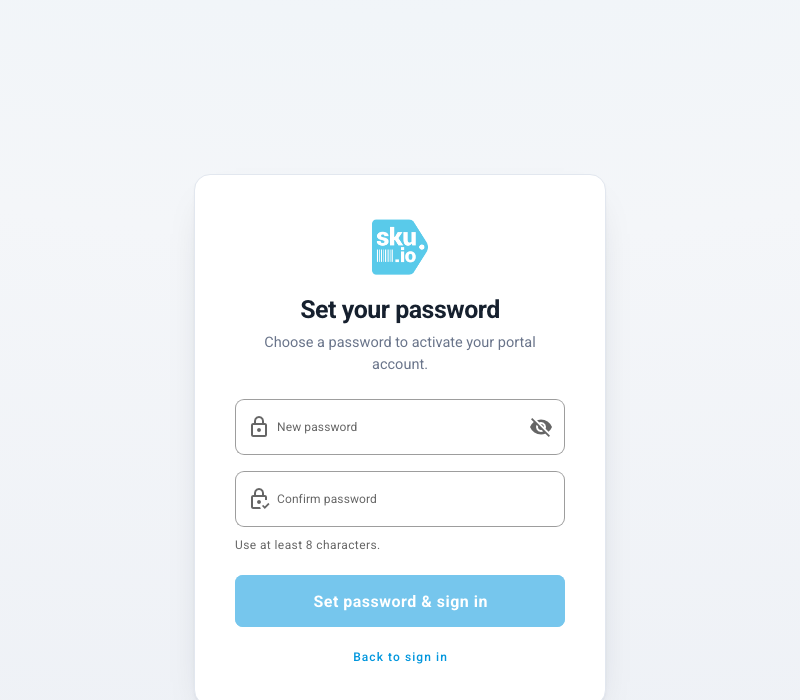
The buyer receives an email with a link that's valid for 72 hours. The link opens Set your password on the portal. They choose a password and click Set password & sign in, and land on the catalog. Their status changes to active.
If the link expires, send a new one (below).
Add more buyers
On the customer's Customer Portal tab, click Invite Buyer again for each colleague. Everyone on the account shares one cart and the same catalog and prices.
Manage buyers and accounts
Go to CRM → Customers → Portal → Accounts to see every portal account with its Status, number of Buyers and Invitation state. Search matches every word you type, in any order, across the account's name, company and email. If a search finds no accounts but a pending application matches it, the list says so, for example 1 pending portal application matches this search. Click Review in Applications to open those applications. Open an account to work with its buyers:
- Edit a buyer to change their role or status.
- Resend invitation to a buyer who hasn't set a password yet.
- Disable a buyer to stop them signing in, without affecting the rest of the account.
Remember me on the portal's sign-in page keeps a buyer signed in on that device for 90 days. Without it, a sign-in lasts 30 days. Buyers who were remembered before November 24, 2026 stay signed in until February 22, 2027.
When a buyer resets their password with Forgot password on the portal, they're signed out on every device and sign in again with the new password.
To change the account's catalog, availability display, minimum order value, discounts, backorders or approval rules, click Account Settings on the Customer Portal tab. It opens the customer's Settings at the Customer Portal section.
Next steps
- Let buyers join with an invite code — let many new buyers, or a whole team at one customer, sign themselves up instead of inviting each one.
- Restrict what buyers see with portal catalogs
- Require approval for portal orders
- Keep a contact book for customers, suppliers, and warehouses — you can also invite a contact from there.