How the Customer Portal works
The Customer Portal is a second, buyer-facing site that sits next to SKU.io. Your wholesale customers sign in to it, browse the products you've opened to them, see their own prices and your stock, and place orders that land in SKU.io as sales orders. You never share your SKU.io login with them, and they never see your other customers, your costs, or your full stock.
Accounts and buyers
A portal account is one of your customers. Everything you've already set on that customer carries over: its pricing tier, payment terms, credit limit and sales rep. The people who sign in are its buyers. A customer can have as many buyers as it needs, and each buyer has a role:
| Role | Browse and see prices | Place orders | Approve colleagues' orders | Manage the account |
|---|---|---|---|---|
| Company Admin | Yes | Yes | Yes | Yes |
| Approver | Yes | Yes | Yes | No |
| Buyer | Yes | Yes | No | No |
| Viewer | Yes | No | No | No |
A customer joins the portal in one of two ways:
- You invite them. Open the customer, invite a buyer, and the customer becomes a portal account. See Invite buyers to the Customer Portal.
- They apply. A business fills in the public Apply for a wholesale account form, and you approve it. See Review portal account applications.
What a buyer sees
The portal opens at /portal/customers on your SKU.io web address. The Open
Portal button on Contacts → Customers → Portal opens its sign-in page in a new
tab. After signing in, a buyer works from a left-hand menu:
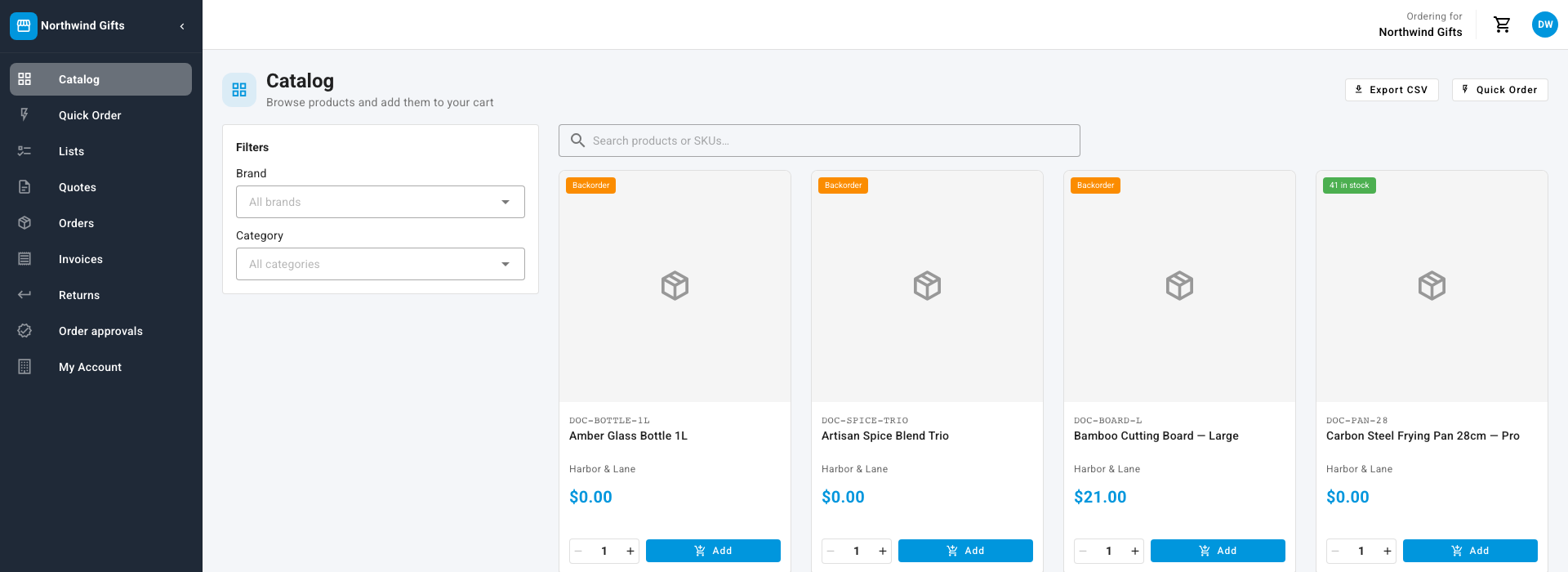
- Catalog — the products their account may buy, with search and Brand and Category filters. Each product shows the buyer's price and its stock.
- Quick Order — add items by SKU instead of browsing.
- Lists — reusable order lists the whole account shares.
- Quotes — ask you for a price, then accept, decline or counter your quote.
- Orders — their order history, with documents and a Reorder button.
- Invoices and Returns — what they owe, and return requests against past orders.
- Order approvals — orders waiting for their own company's sign-off. Only Company Admins and buyers with the Approver role see it.
- My Account — their addresses, terms, notification choices and inventory feed link.
The top bar shows Ordering for with the account's name, and the cart. Everyone on an account shares one cart, so a colleague can pick up where another left off.
Which products and prices
- Products: every active product that holds stock, narrowed by the account's catalog if it has one. See Restrict what buyers see with portal catalogs.
- Prices: the account's own price when you've set a customer price override or a quantity break for it on Portal → Pricing. Otherwise the price on the customer's pricing tier, less any Discount % on the customer's portal settings. A product with no price on that tier can't be checked out.
- Stock: shown the way the customer's Availability Display setting says: an exact quantity, a stock status (in, low or out of stock), or a status with a restock date.
How a portal order reaches you
At checkout the buyer picks a delivery address and a shipping method, and can add their own PO number and an Order note. Before the order goes through, the portal checks:
- that every line can still be bought at its price and quantity,
- that the subtotal meets any Min Order Value you've set,
- that the account has credit room and isn't on credit hold when it pays on account,
- whether the account's Order Approval rules need a colleague to sign off first. See Require approval for portal orders.
When it passes, the order arrives in SKU.io as a Draft sales order for that customer, on the Customer Portal sales channel, and the cart empties. The PO number and note come across with it. From there it's an ordinary sales order: review it, then approve it to allocate stock and ship it. Portal orders count in portal reporting once they're out of Draft. See Track portal and B2B sales.