Control where buyers can ship
Each portal account has a ship-to policy: Where buyers may ship. It decides what a buyer can do with the delivery address at checkout: pick only from the addresses you've approved, add new ones to the account, or also type an address that's used for one order only. Use it to keep a dealer shipping only to its own stores, or to let a reseller send an order straight to a job site without filling its address book.
Before you begin
- You need permission to manage the Customer Portal.
- The customer is a portal account. See Invite buyers to the Customer Portal.
- An account's saved addresses are the addresses on its customer record. For an account you'll set to Saved addresses only, add its delivery addresses there first. See Manage addresses.
The four choices
| Choice | What the buyer can do at checkout |
|---|---|
| Use portal default (Can add saved addresses) | Follow the portal-wide setting, which is always Can add saved addresses. This is what every account starts with. |
| Saved addresses only | Buyers pick from approved addresses; Add address is hidden. |
| Can add saved addresses | Buyers add addresses, and each one is saved to the account. |
| Can also ship to one-time addresses | Buyers can type an address that's used for that order only, unless the buyer chooses to save it. |
A one-time address never joins the account's address book. Dropship orders always ship to the retailer's customer's address, whatever this setting says. See Dropship orders reference.
Set the policy for one account
-
Go to Contacts → Customers, click Portal, then Accounts.
-
Click the account, for example Northwind Gifts. The Dealer hub tab opens on What this dealer sees.
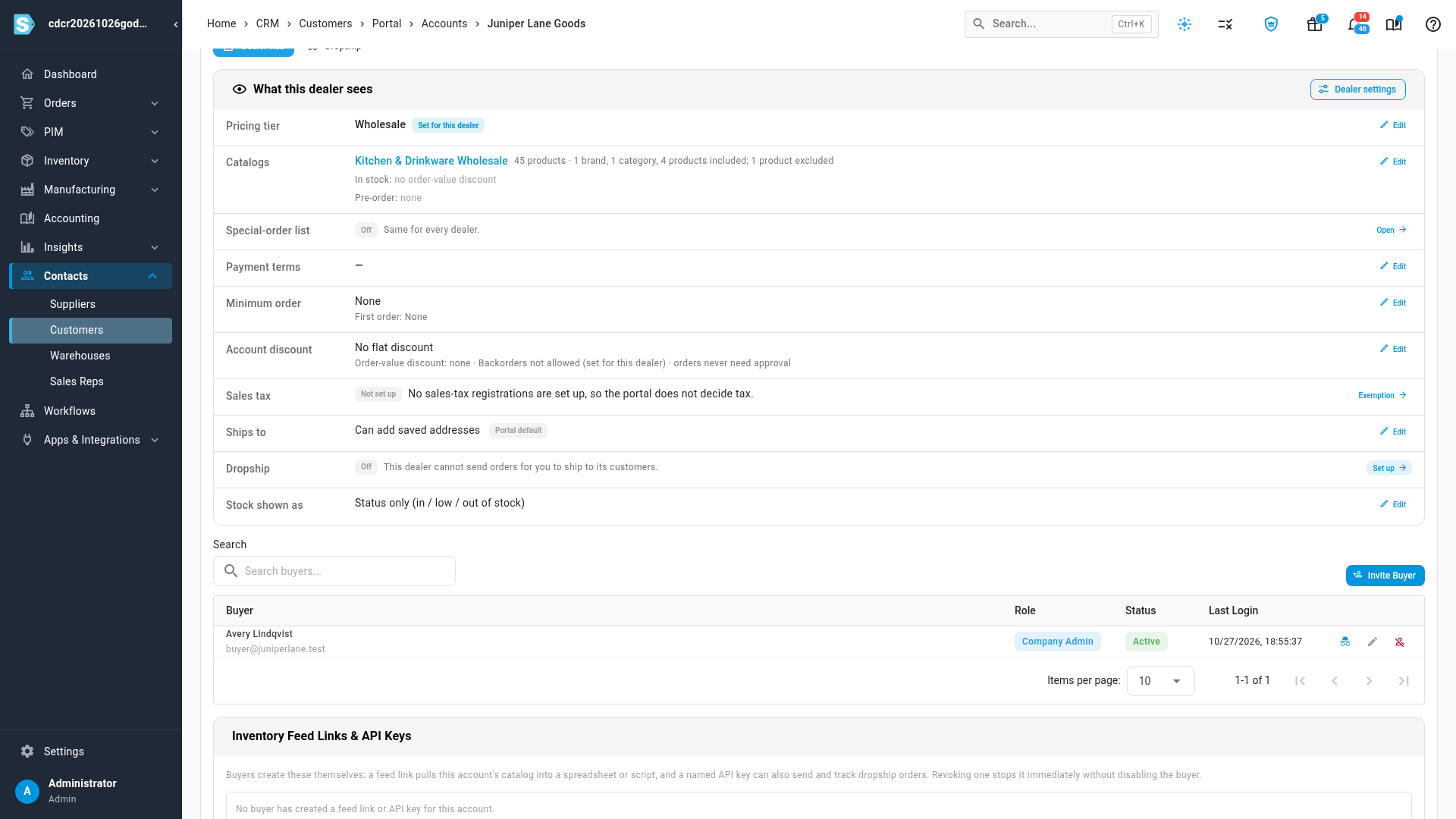
The Ships to row shows the account's current policy. A Portal default chip means the account follows the portal-wide setting; Set for this dealer means it has its own.
-
On the Ships to row, click Edit. Dealer settings opens at Where buyers may ship.
-
Open the Where buyers may ship list and choose a policy.
-
Click Save.
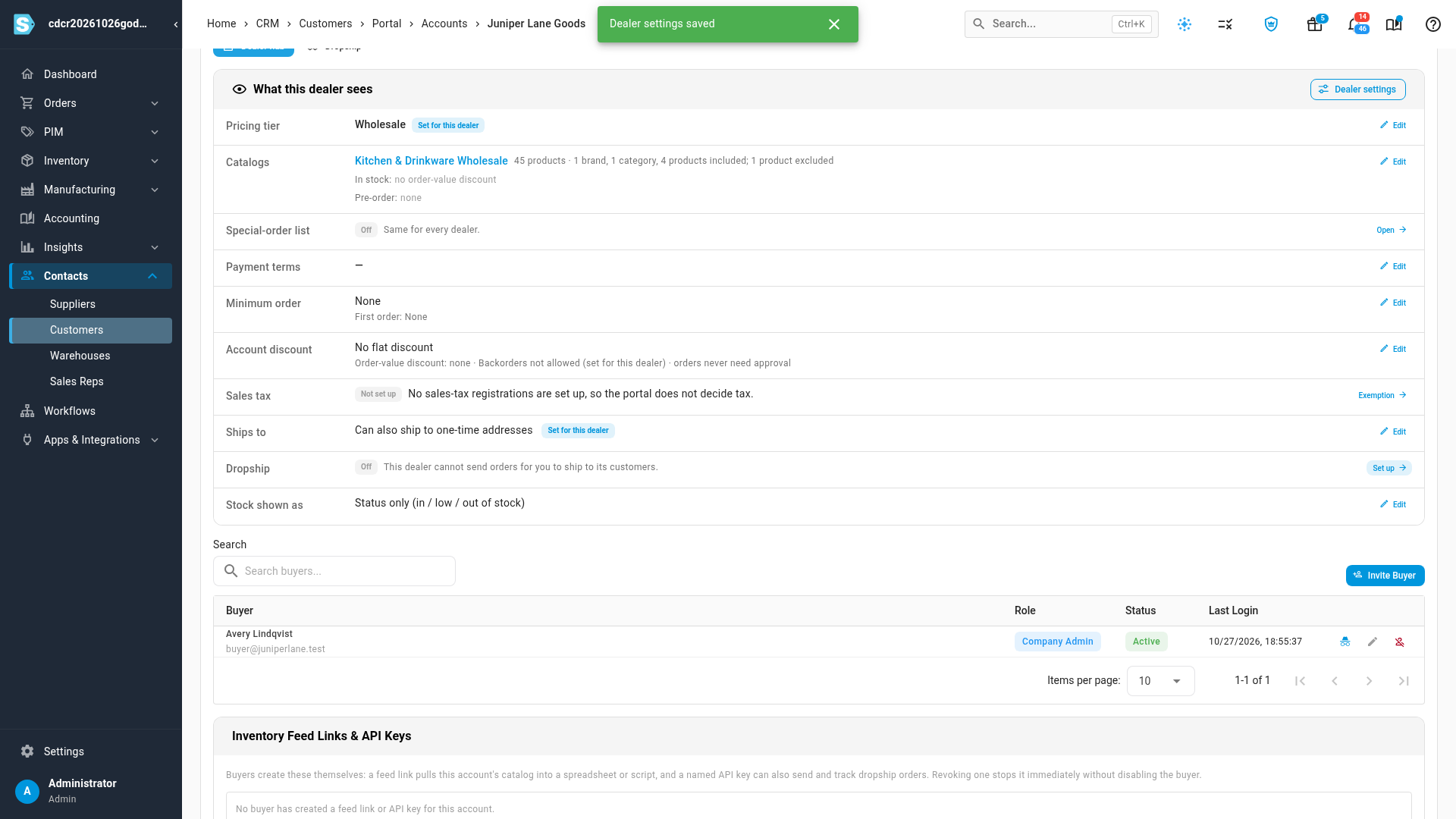
The new policy applies to the account's next checkout. The Ships to row shows it, with the Set for this dealer chip. To put the account back on the portal-wide setting, choose Use portal default (Can add saved addresses) and save.
Set the policy for many accounts
-
Go to Contacts → Customers, click Portal, then Accounts.
-
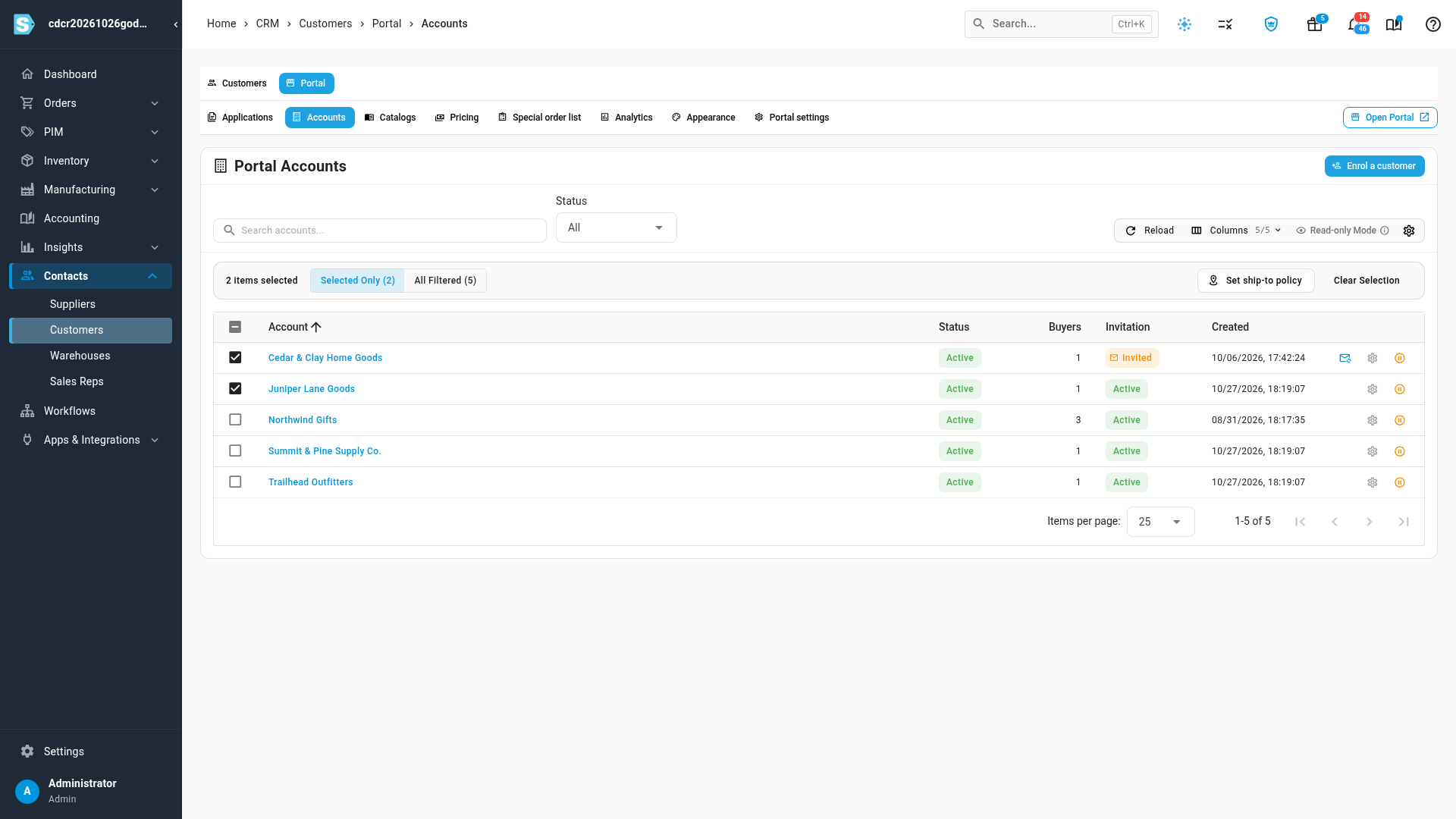
Tick the accounts you want to change. To change every account that matches your search and filters, tick one, then click All Filtered in the bar that appears.
-
Click Set ship-to policy. The dialog says how many accounts it applies to.
-
Choose a policy. Use portal default (Can add saved addresses) clears each account's own setting, so it follows the portal-wide default.
-
Click Apply to 2 accounts (the button names the count). It stays greyed out until you've picked a policy.
A message confirms how many accounts were updated, for example Ship-to policy updated on 2 accounts. Only portal accounts are changed. If the change fails, the dialog shows The ship-to policy could not be updated.
What the buyer sees at checkout
Under Shipping address at checkout, the buyer sees:
| Policy | At checkout |
|---|---|
| Saved addresses only | A Deliver to list of the account's addresses, and no Add address button. With no address on file, the card says Your account ships only to approved addresses, and none is on file yet. Contact your sales rep to add one. |
| Can add saved addresses | The Deliver to list, plus Add address. Add delivery address asks for Full name, Company, Phone, Address line 1, Address line 2, City, State / province, ZIP / postcode and Country. The address is saved to the account. |
| Can also ship to one-time addresses | A choice between Ship to a saved address and Ship to a new address — this order only. A new address is used for that order only, unless the buyer ticks Save to my addresses. With no saved address, the new-address form opens straight away. |
The same address checks run on a one-time address as on any other, such as a ZIP code in the wrong format or a PO Box the carrier can't deliver to. A one-time address used on an order that needs approval stays with that order through approval, and still doesn't join the address book.
The buyer can't place the order until the address is set. Hovering over the greyed-out Place order button says why: Complete the delivery address., Add a delivery address. or Your account ships only to approved addresses.
If you change the policy while a buyer is checking out, and their address no longer fits it, the order is refused with Your account ships only to approved addresses. Contact your business name to add one. Checkout reloads the policy and switches the buyer back to a saved address.
Next steps
- Require approval for portal orders
- Restrict what buyers see with portal catalogs
- View the portal as a buyer, to check what an account's buyers see.
Video transcript
Each portal account has its own rule for where its buyers may ship. Open Contacts, then Customers, and click the Portal tab. Then open the account you want to change. On its Dealer hub tab, the Ships to row shows the rule it follows now. On the Ships to row, click Edit. Open the list, and choose Can also ship to one-time addresses. Then click Save. To change several accounts at once, go back to the Accounts list. It lists every portal account you have. Tick the box beside each account you want to change. Then click Set ship-to policy. Pick a policy in the dialog, and apply it to all of them. Here is that account's buyer at checkout. They can now ship to a new address, for this order only. It joins the account's address book only if they tick Save to my addresses.