Send a payment request
A payment request asks a customer for money before you invoice them, for example a prepayment, or the balance of an order before it ships. It's a numbered pro forma with a PDF and pay links, but it never posts to your books: money the customer pays lands on the order's account, and the order's invoice takes it into account when it's issued.
Payment requests are raised by a payment term's billing schedule (see Bill customers on a schedule). You can also add one by hand from an order's Billing panel.
Before you begin
| Requirement | Detail |
|---|---|
| Permission | Sending needs the Payment Requests → Send permission. |
| Billing email | The customer needs an invoice or billing email. Without one, the request is raised but not emailed, and its page says why. |
| Pay links (optional) | To let customers pay online, connect Stripe (with charges enabled) or PayPal under Apps & Integrations. |
Find payment requests
-
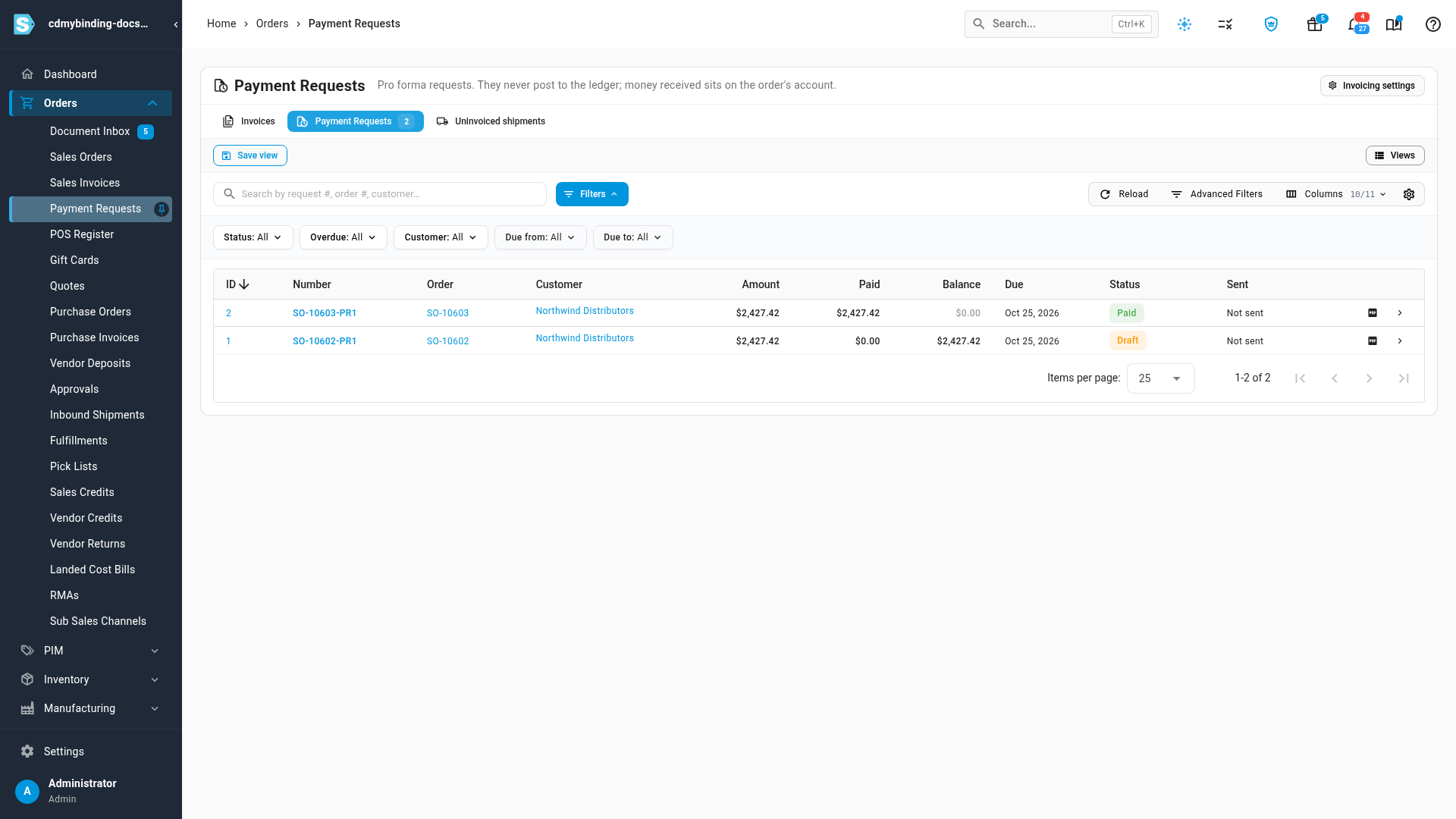
Go to Orders → Payment Requests. Each row shows what was requested, what's been paid, the balance, the due date and whether it's been sent.
-
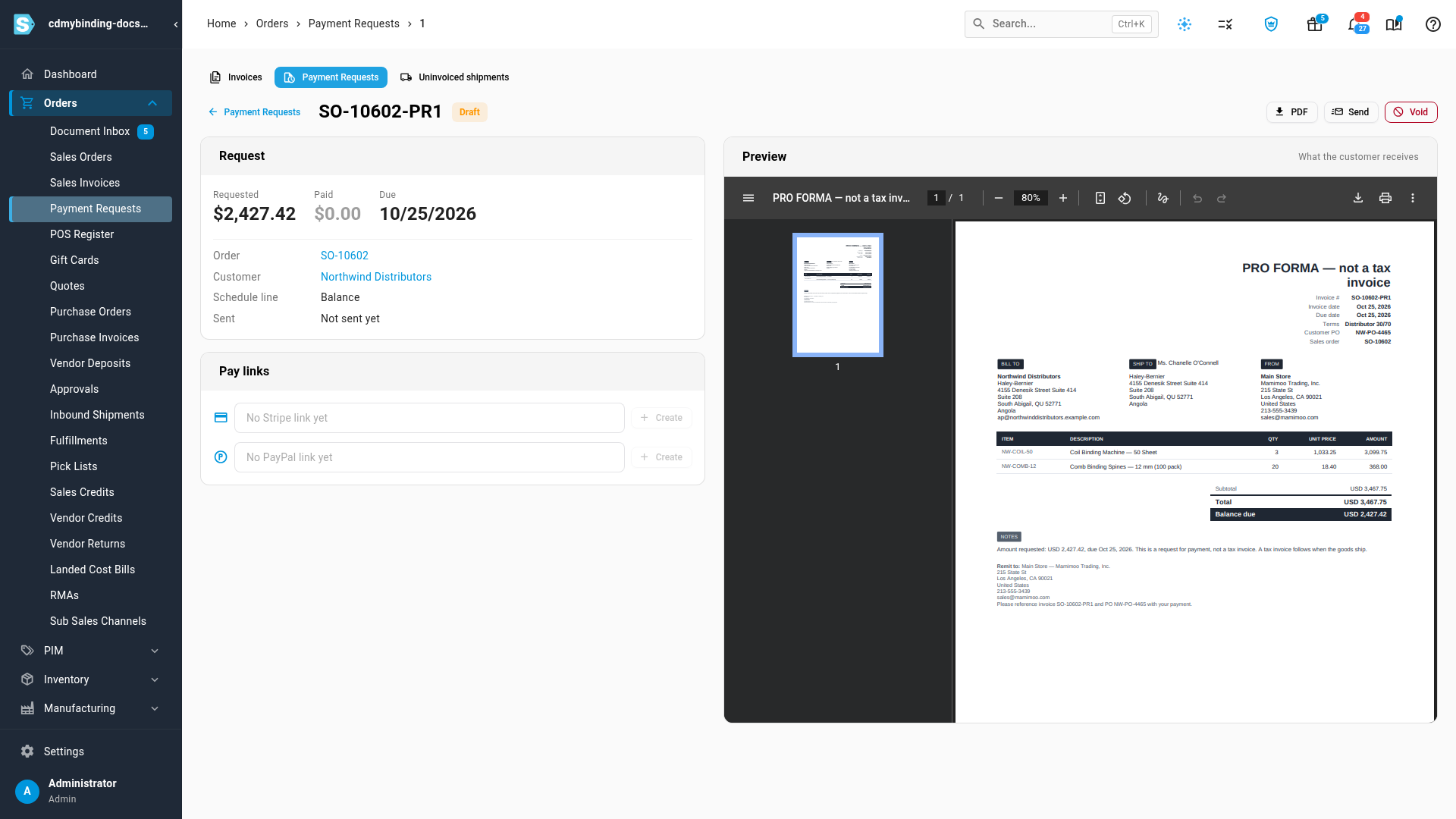
Open a request. Its page shows the amount, the order and customer, and the Schedule line that raised it.
You can also open a request from its order: on the order's Invoices & billing tab, the request is linked from its line in the Billing panel.
Send it
-
On the request's page, click Send.
-
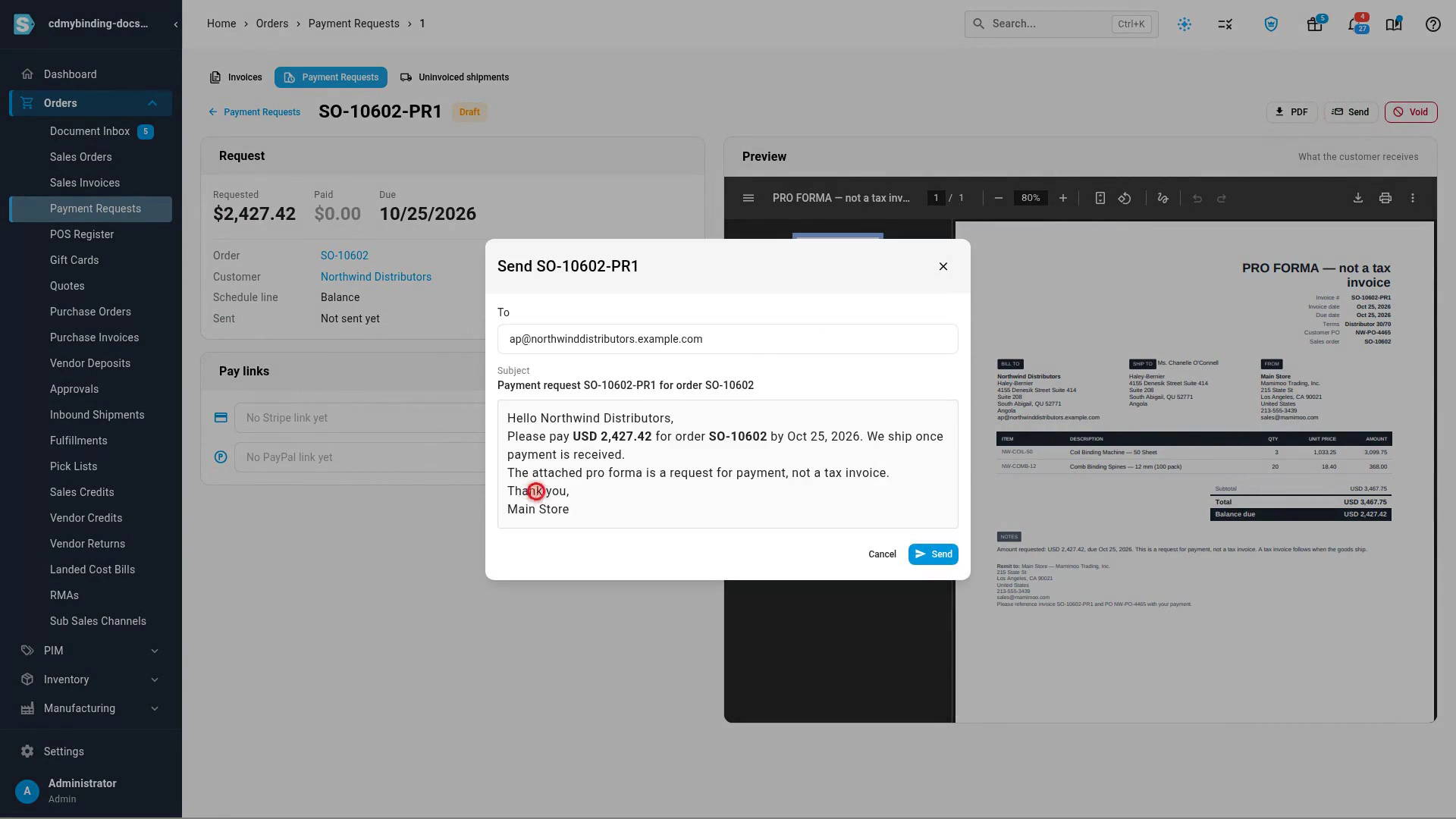
Check the recipient in To (it defaults to the customer's billing email; separate several addresses with commas) and the message.
-
Click Send.
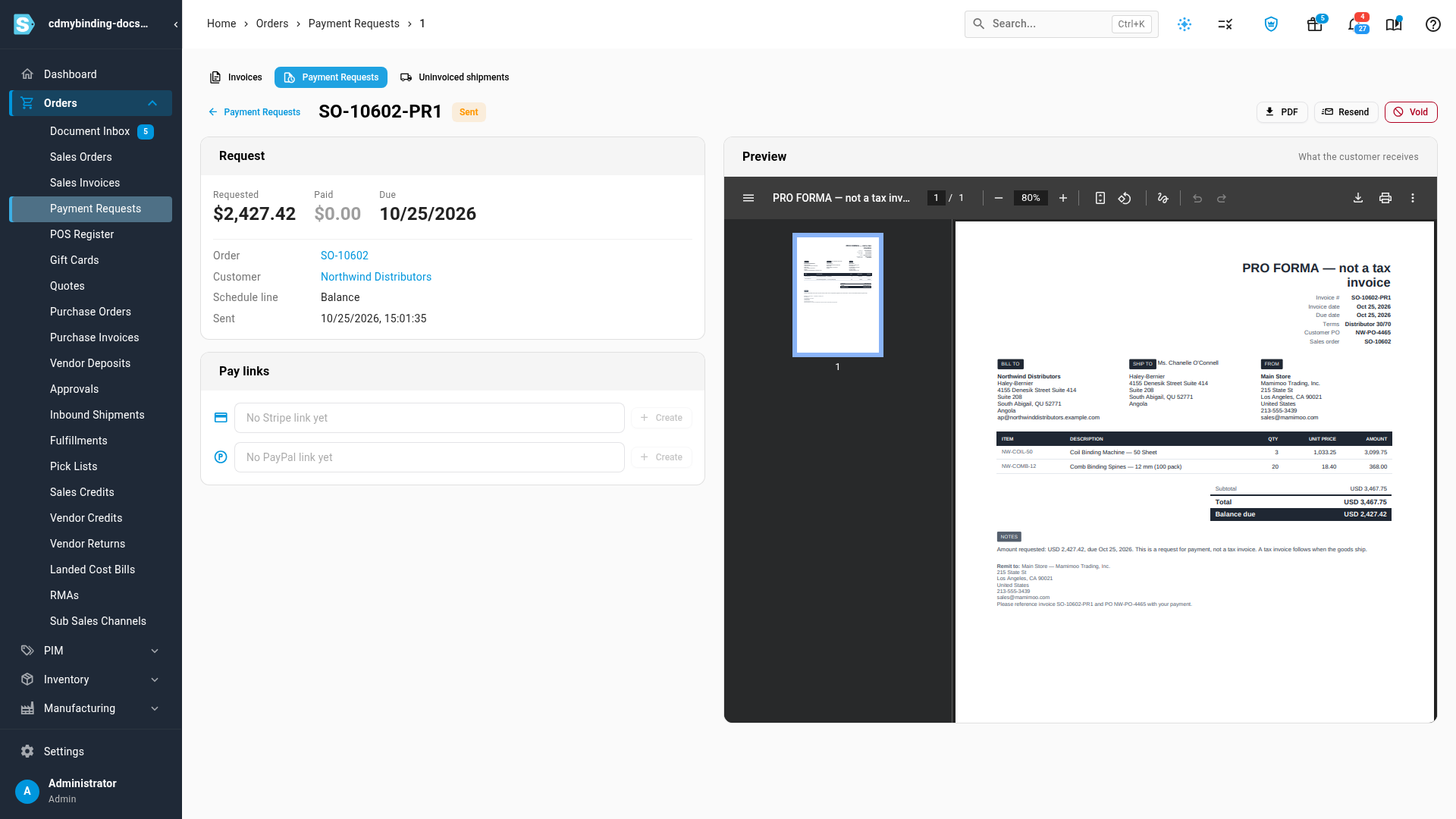
What you'll see: the request's status changes from Draft to Sent, and the PDF is attached to the email. Click PDF to download the same pro forma.
Let the customer pay online
Under Pay links, click Create beside Stripe or PayPal to make a link for the request's balance. The link is included in the email and on the request's PDF. When the customer pays:
- the money lands on the order, and the request is marked Partially paid or Paid on its own;
- a held order releases itself when its payment condition is met (see Hold an order until it's paid).
A request never asks for more than the order still owes. If part of the order is paid another way, for example straight onto its invoice, a link for more than what's left is closed; create a new one for the remaining amount.
Customers with buyer portal access also see open requests on the portal's Invoices page, with a Pay button.
How a request is settled
Payments recorded on the order count toward its requests, oldest request first. A request also closes without being paid directly when the order's invoices are fully paid, for example when the customer pays the final invoice instead. It then shows as Superseded.
Void a request
Click Void on the request's page. A request that has money against it can't be voided: refund or move the payment first. Voiding closes the request's pay links. Cancelling an order voids its unpaid requests.
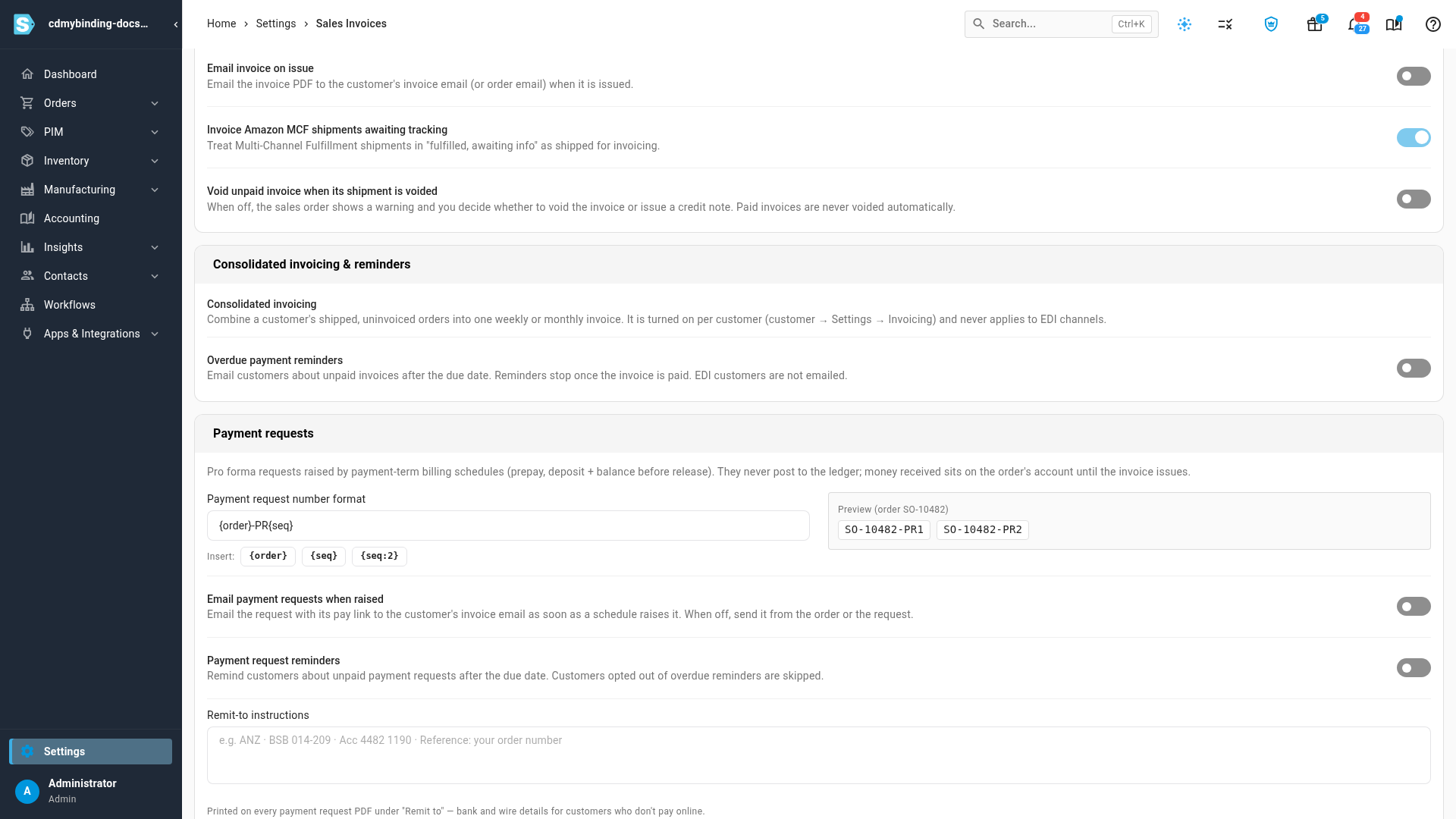
Settings for payment requests
In Settings → Invoicing, the Payment requests card sets:
| Setting | What it does |
|---|---|
| Payment request number format | How requests are numbered, for example the order number followed by -PR1, -PR2. |
| Email payment requests when raised | Emails each request with its pay link as soon as a billing schedule raises it. When off, send it from the order or the request. |
| Payment request reminders | Days after the due date to remind customers about unpaid requests. Customers who opted out of overdue reminders are skipped. |
| Remit-to instructions | Bank and wire details printed on every payment request PDF, for customers who don't pay online. |
Next steps
Video transcript
Payment requests ask a customer for money before the invoice. They never post to your books. To see them all, open Orders, then Payment Requests. Each request appears here with its order, customer and due date. Each row shows what was asked for, what's been paid, and when it's due. Open a request to see its order and the schedule line behind the request. Click Send to start an email to the customer. Check the recipient and the message. Then click Send at the bottom of the dialog. The pro forma goes out attached, along with the pay links on the request. Once it's on its way, the request shows as Sent. Add a Stripe or PayPal pay link so the customer can pay online. Money they pay lands on the order, and the request marks itself paid. The Payment requests settings choose whether new requests go straight to the customer. You can also send reminders after the due date, and print your bank details on every pro forma.