Collect payment with an Authorize.net pay link
An Authorize.net pay link lets your customer pay a sales order on a secure SKU.io payment page, by card or from their US bank account (eCheck), through your Authorize.net account. You create the link on the order and send it however you like. When the customer pays, the payment is recorded on the order, and they can save their card for next time.
Before you begin
- Connect Authorize.net, with Card entry showing Ready.
- To offer eCheck, turn on Offer eCheck (ACH) in the account's Payment settings.
- The order must be approved, have a balance due, and be in a currency your Authorize.net account takes.
- To create and void links, your role needs Sales Orders → Manage payments (
sales_orders.manage_payments).
Steps
-
Open the sales order, and click its Payments tab.
-
Click Add Payment, and choose Create Payment Link.
-
If you've connected both Stripe and Authorize.net, choose Authorize.net, and click Continue. Your default card processor is selected for you.
-
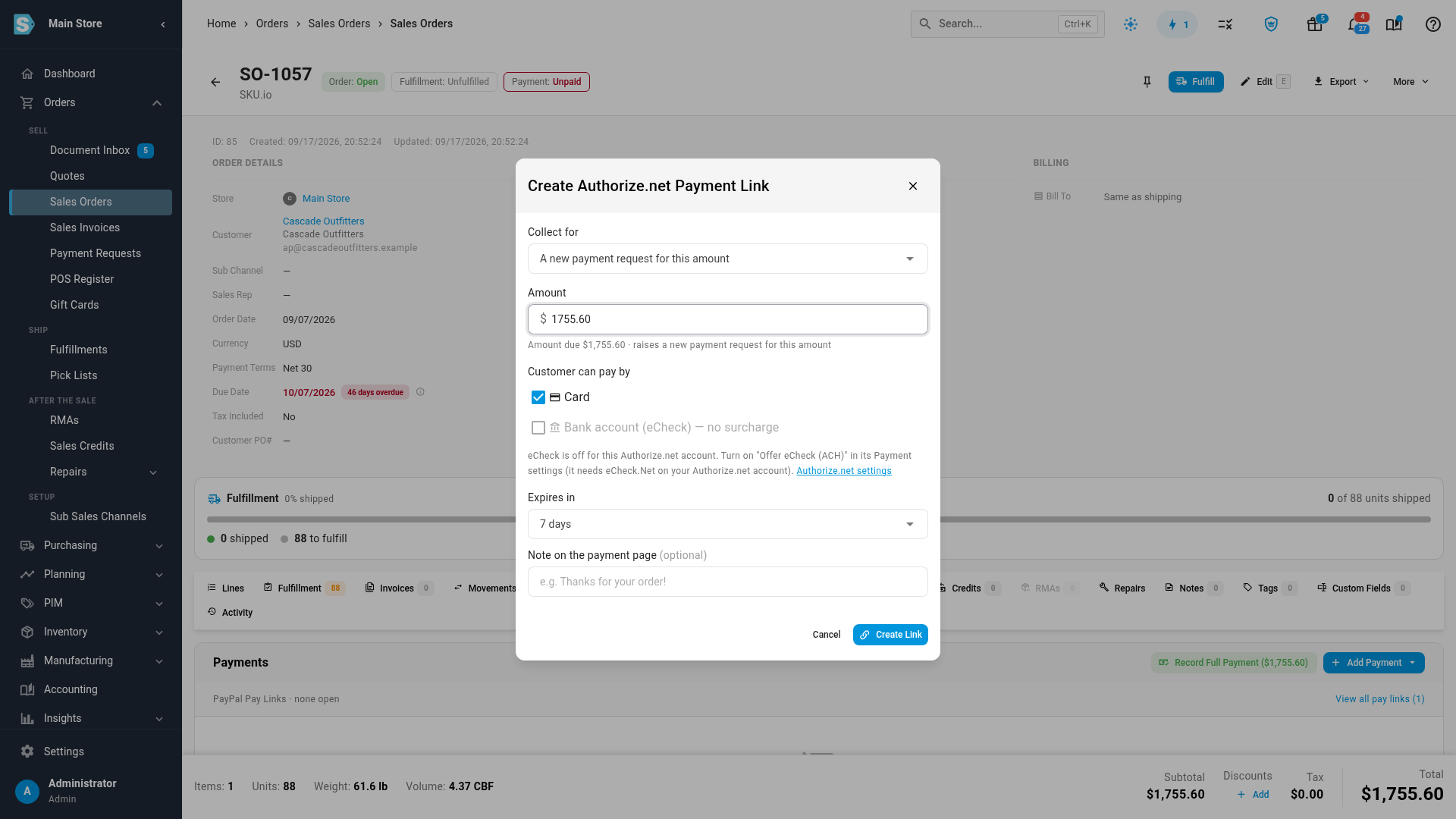
Check the Amount. It starts at the balance due.
-
Under the ways to pay, tick Card, Bank account (eCheck) — no surcharge, or both.
-
Choose how long the link stays payable, and optionally type a Note on the payment page (optional).
-
Click Create Link.
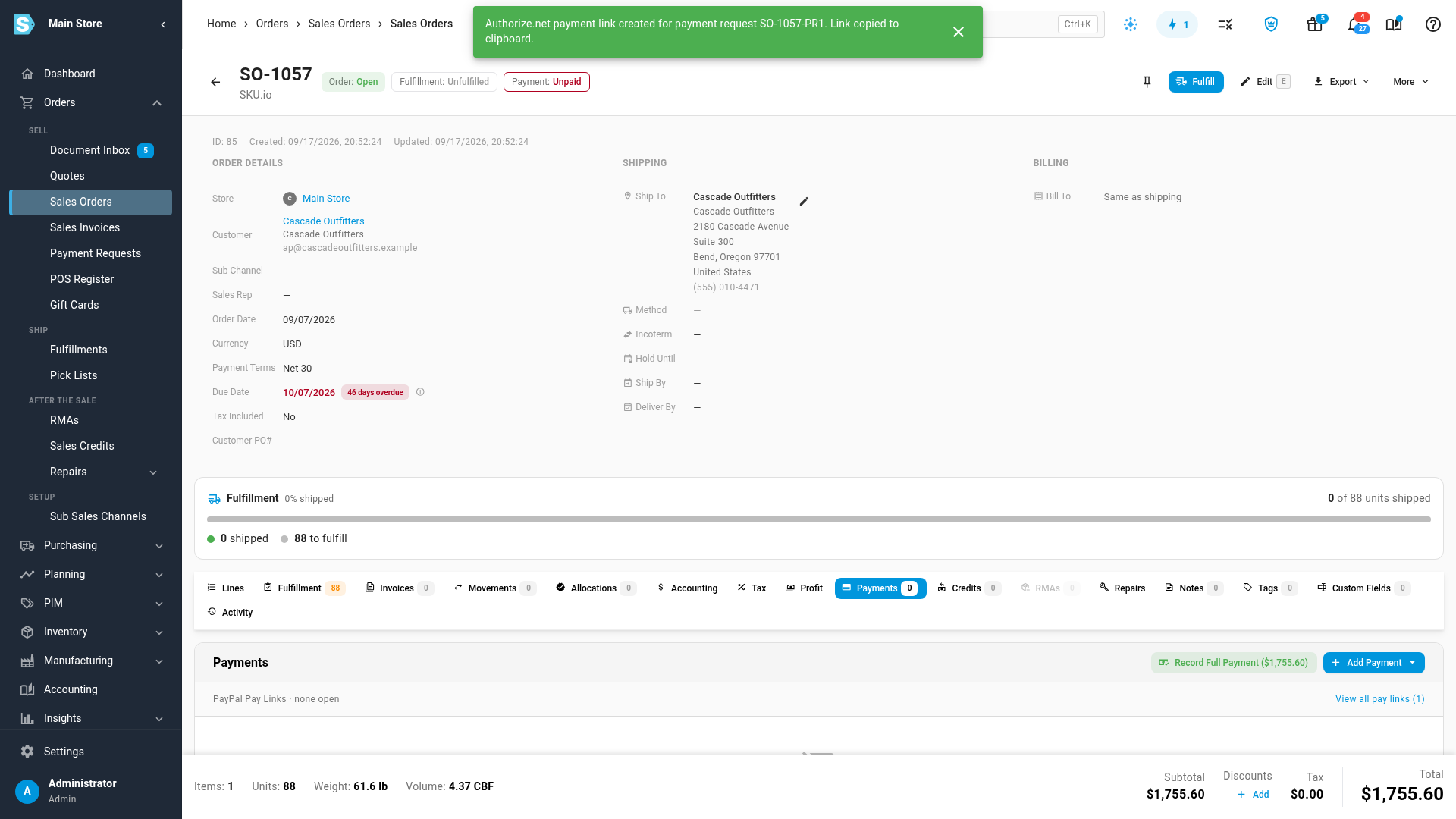
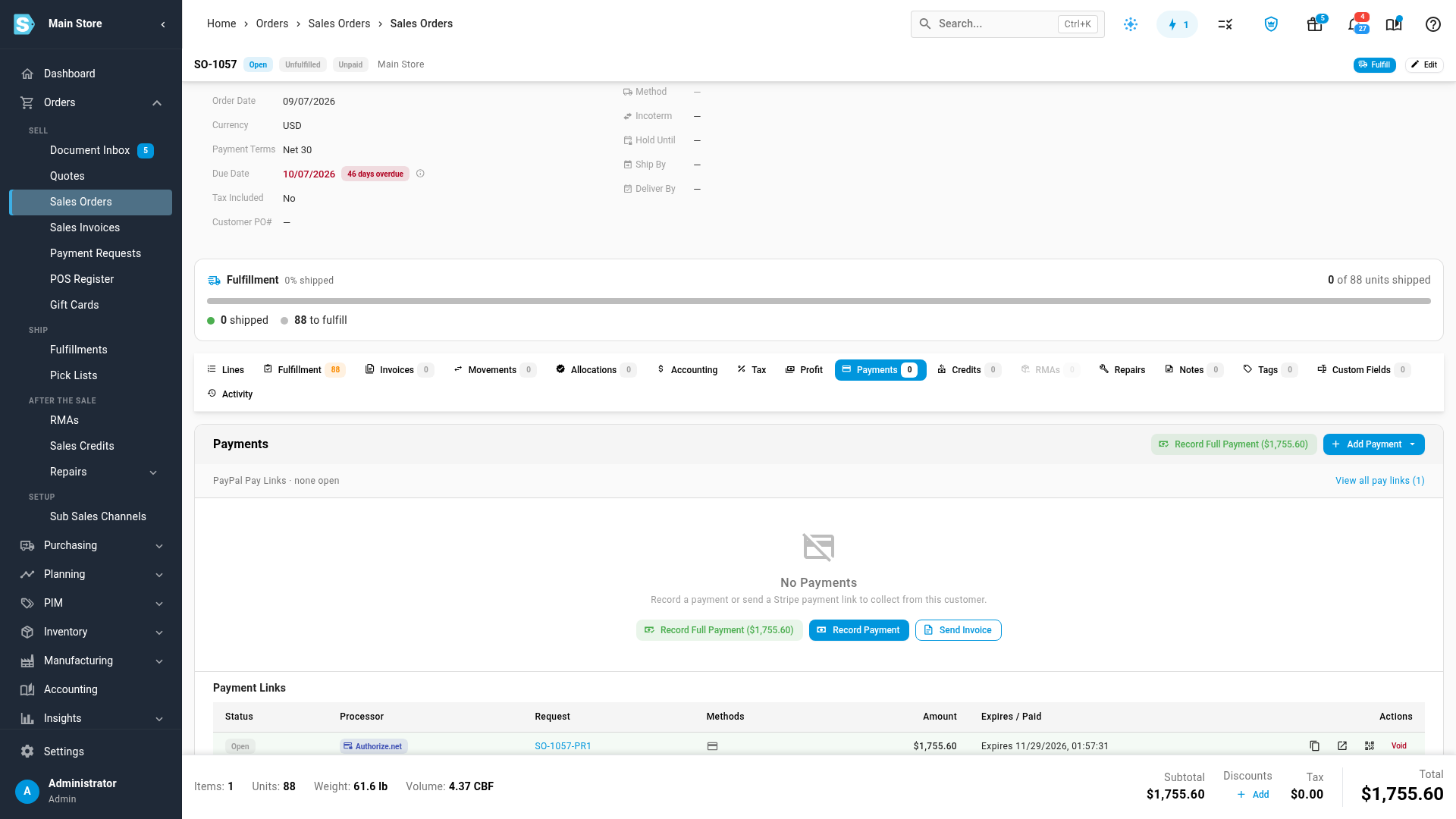
What you'll see: the link is copied for you, and listed under Payment Links with the processor Authorize.net, marked Open. Send it to your customer by email or message. Its buttons copy it again, open the payment page, or show a QR code.
What your customer sees
The payment page shows your logo and name, the order, the amount due and your note, and asks How would you like to pay?
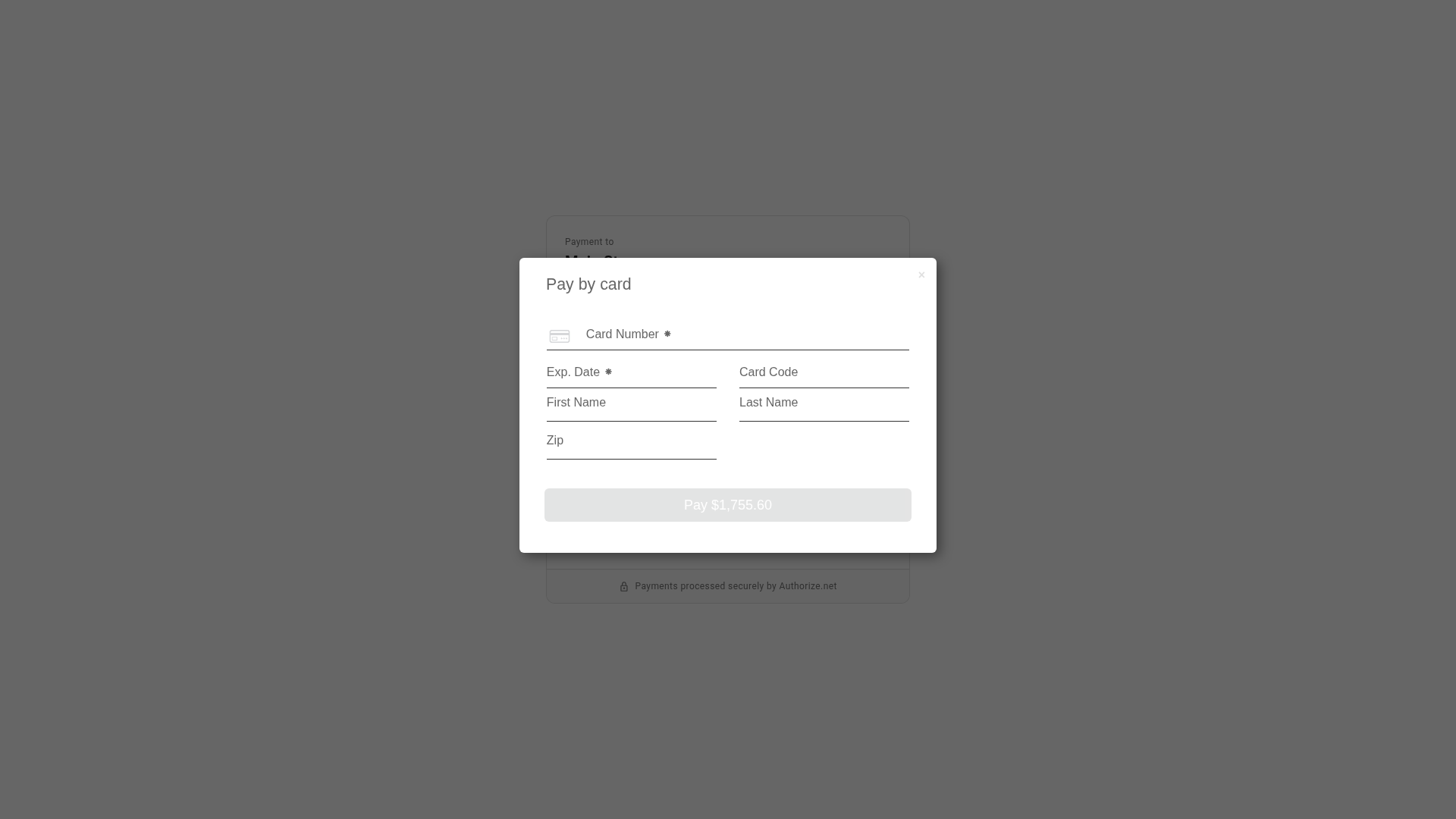
- Card: the customer clicks the pay-by-card button and enters the card in Authorize.net's secure form, so the card number never reaches SKU.io. With Save this card for future orders ticked, they agree to you saving it, and it's added to their payment methods in SKU.io.
- Bank account (eCheck): the customer enters the name on the account, routing number, account number and account type, and agrees to a one-time debit. SKU.io keeps only the last four digits.
- With a card surcharge on, the card option shows the surcharge and your disclosure. eCheck payments are never surcharged.
When the payment goes through, the page shows Payment complete with a receipt: the amount, what it was paid with, the transaction and the date.
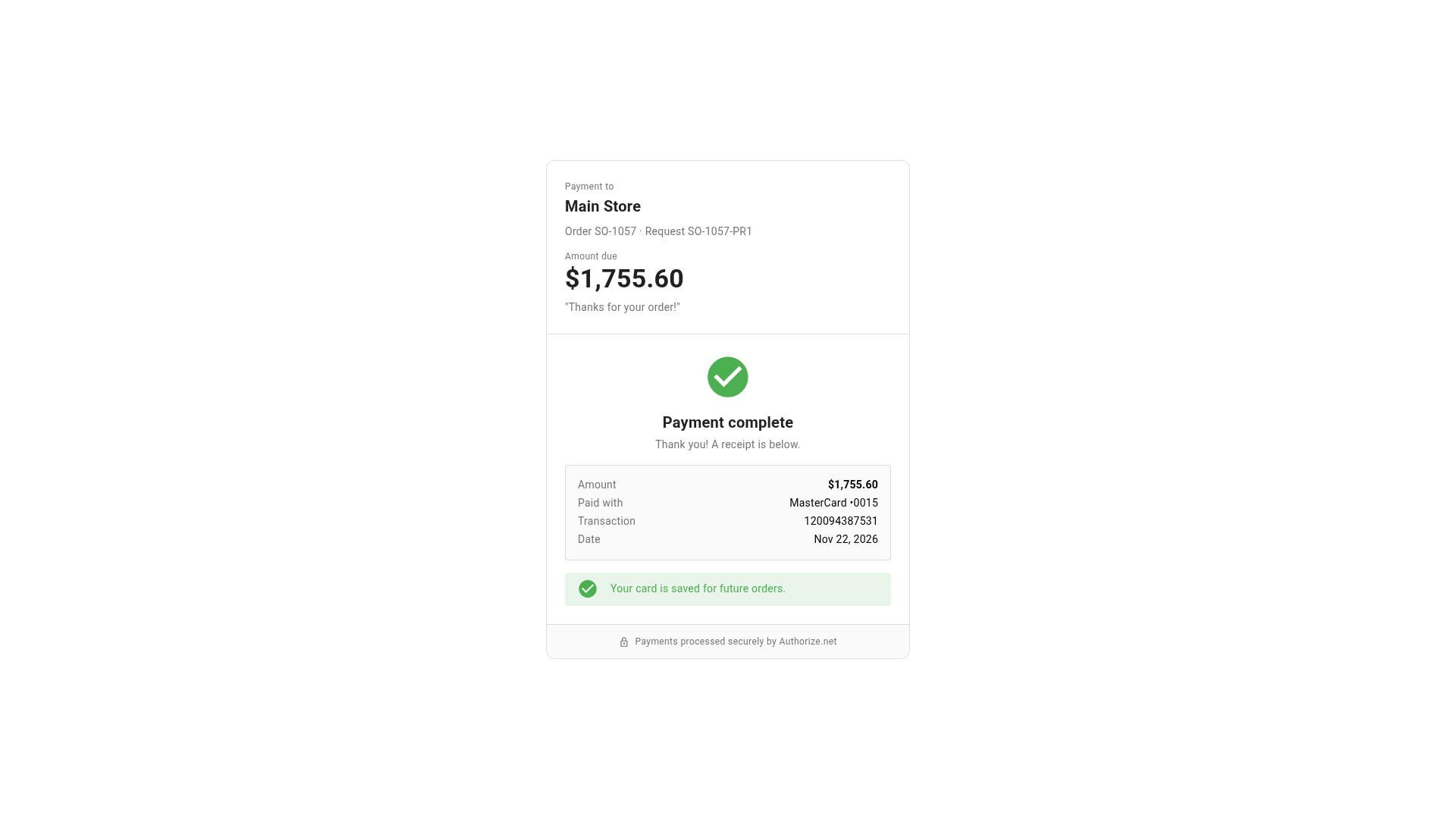
If the card is declined, the page says so and the customer can try another card. A link that's expired, voided, or for an order that has changed explains why it can't take payments.
When the customer pays
- Card: the link shows Paid, and the payment is recorded on the order with its Authorize.net transaction ID.
- eCheck: the link shows Processing, eCheck settling — recorded when it settles. The payment is recorded when the bank payment settles, usually in a few business days. If the bank returns it after that, the payment is reversed.
- Saved card: if the customer ticked Save this card, it's added to the customer's Payment Methods, ready for Charge Card on File.
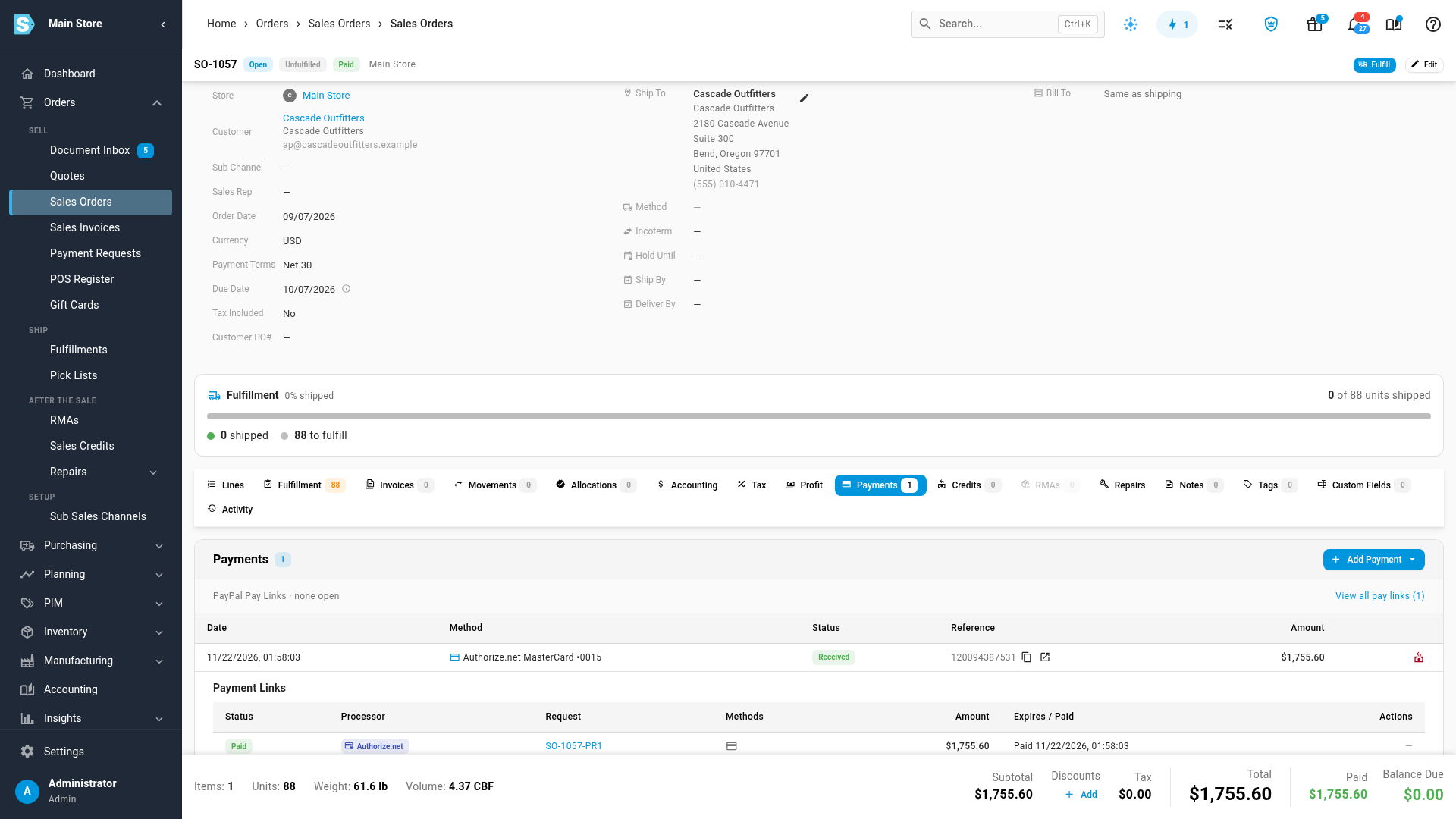
To stop a link before it's paid, click Void on its row. Disconnecting the Authorize.net account, or cancelling the order, voids its open links too.
When you can't create a link
Create Payment Link names the reason when Authorize.net can't take the payment, for example:
- no Authorize.net account is connected,
- the account takes a different currency from the order's,
- the account has no Public Client Key, so card entry isn't ready.
Next steps
- Authorize, capture and refund card payments
- Let portal buyers pay by card
- Track Authorize.net transactions
Video transcript
A pay link lets your customer pay an order on a secure page, through your Authorize.net account. On the order's Payments tab, click Add Payment, and choose Create Payment Link. A dialog opens to set up the link. With two processors connected, SKU.io asks which one takes the payment. Your default card processor is already selected. Choose Authorize.net, and click Continue. The amount starts at the balance due. Choose whether the customer can pay by card, eCheck, or both, and how long the link stays open. Add a note for the payment page, and click Create Link. The link is ready in a moment. The link is copied for you, and it's listed under the order's Payment Links. Its buttons copy it again, open the payment page, or show a code to scan. Your customer opens the link and sees the amount, your note, and how they can pay. To keep the card for next time, they tick Save this card. Then they click Pay by card. The customer types the card into the secure payment form. Then they click Pay to finish. Authorize.net checks the card, and the payment goes through. A receipt confirms the payment, with the card used and the transaction number. Back on the order, the link shows Paid, and the payment is recorded with its transaction ID. The saved card is added to the customer's payment methods, ready for the next order.