What your customer sees on the PayPal pay page
When you send a customer a PayPal pay link, they open it on a pay page that SKU.io hosts. Use this page to know what they see, what each message means, and what to do when a customer tells you something went wrong. To create and send a link, see Collect payment with a PayPal pay link.
Who can open the pay page
- Anyone with the link can pay it. The customer doesn't sign in to SKU.io, and they don't need a Customer Portal account. The pay page is separate from the Customer Portal.
- Treat the link like an invoice: send it only to the person who should pay it. If it goes to the wrong person, cancel it and create a new one.
- The page works on a phone as well as a computer.
What's on the pay page
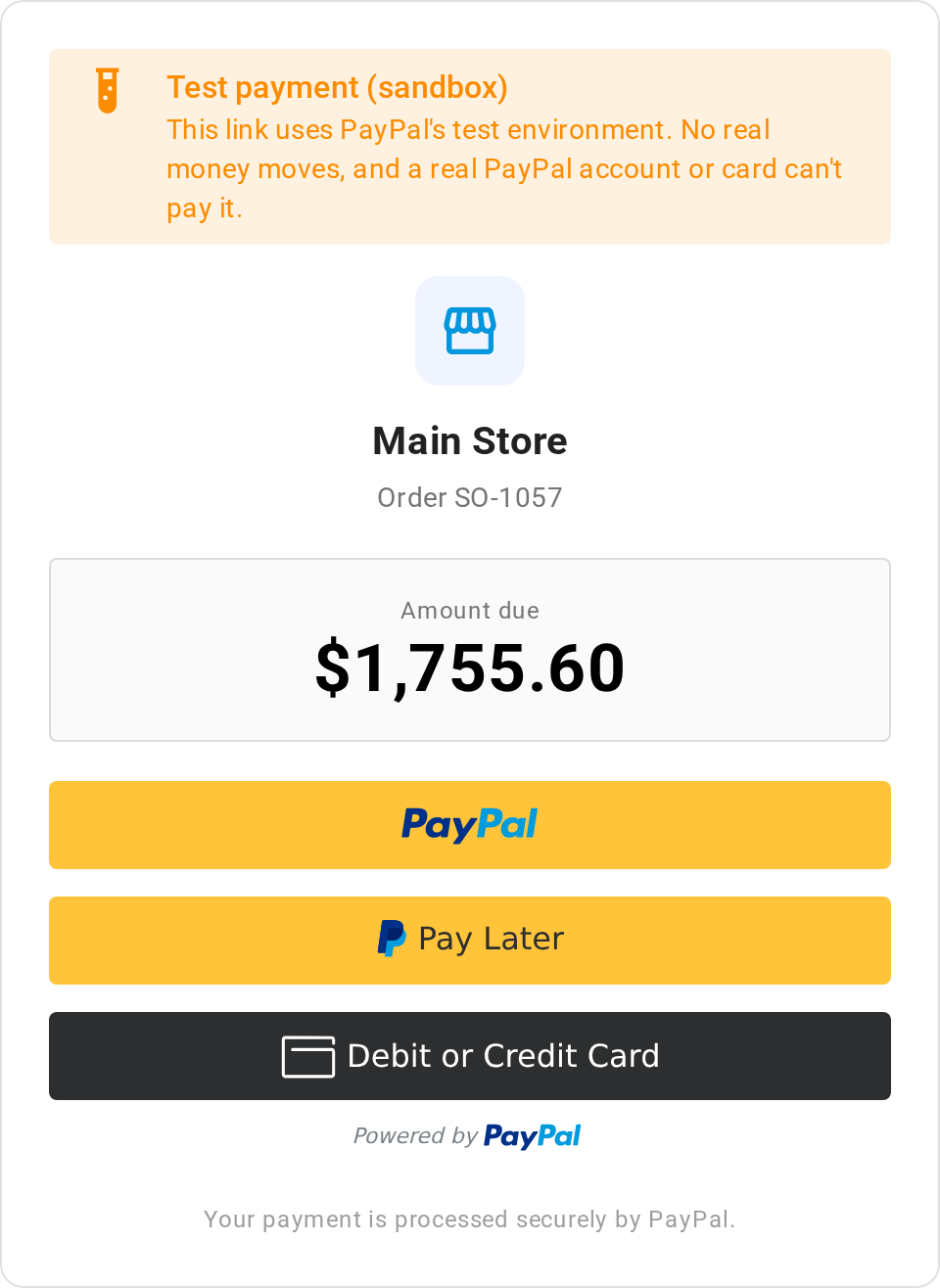
| What the customer sees | Where it comes from |
|---|---|
| Store name (the heading) | The name of the store the sales order belongs to, for example Main Store. If the store has no name, the heading shows SKU.io instead. |
| Order and the order number | The sales order the link was created on, for example Order SO-1057. |
| Amount due | The amount of this link, in the order's currency. For a deposit, it's the deposit amount, not the order total, and a line under it says Part payment towards your order total of followed by the order total. A link for everything the order still owes has no such line. The customer's browser sets the number format. |
| PayPal buttons | PayPal's own buttons, such as PayPal, Pay Later and Debit or Credit Card. PayPal decides which ones appear for each customer. |
| Your payment is processed securely by PayPal. | A fixed footer. The customer's card or PayPal details go to PayPal, never to SKU.io. |
The page doesn't show the order's line items, your logo, or your address. The customer sees the products in PayPal (see How the payment appears in PayPal).
The Test payment (sandbox) notice
When the link's PayPal account is set to Sandbox, the page shows a Test payment (sandbox) notice above the store name: "This link uses PayPal's test environment. No real money moves, and a real PayPal account or card can't pay it." Only a PayPal sandbox test buyer can pay these links. If a customer sends you this notice, you created the link on a Sandbox account: create a new link on your Live account. See Sandbox and Live.
After the customer pays
The customer clicks a PayPal button, pays in PayPal, and returns to the pay page, which shows one of these. Like every screen below, it names the store and the order, for example Main Store · Order SO-1057, so the customer knows which order it's about.
| Heading | Message | What it means |
|---|---|---|
| Payment received | A thank-you saying "Your payment has been received and the order is being processed.", then "You can safely close this window." | PayPal completed the payment. SKU.io records it on the order's Payments tab, and the link shows Paid. |
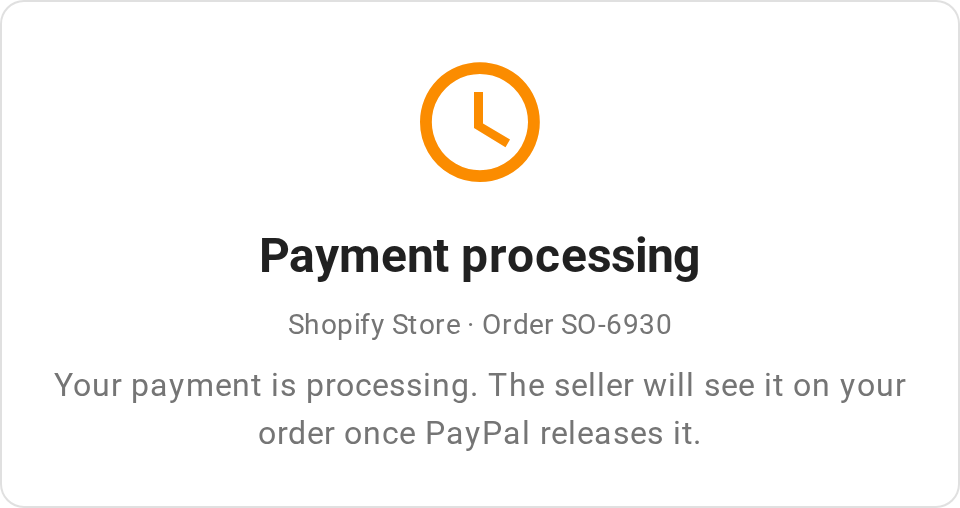
| Payment processing | "Your payment is processing. The seller will see it on your order once PayPal releases it." | PayPal accepted the payment but is holding the money, for example for an eCheck, a currency your PayPal account doesn't hold, or a review. The link shows Pending. SKU.io records the payment when PayPal releases it. |
SKU.io doesn't email you or the customer when a payment arrives or clears. Check the order's Payments tab or the PayPal account's Pay Links tab. If a payment stays in processing, check it in your PayPal account; PayPal may need you to accept it. To learn how SKU.io picks up payments that clear later, see How PayPal payments reach SKU.io.
When the customer opens the link
If the link can't take a payment, the page shows a message instead of the PayPal buttons.
| Heading | Message | Why | What to do |
|---|---|---|---|
| Payment complete | "This payment has been made — thank you." | The link is already Paid. | Nothing. Reassure the customer that they paid. |
| Payment processing | "Your payment is processing. The seller will see it on your order once PayPal releases it." | The customer already paid and the payment is still clearing (the link is Pending). | Check the payment in your PayPal account. |
| Link unavailable | "This payment link has expired. Please contact the seller for a new one." | The link passed its expiry date. | Create a new link. |
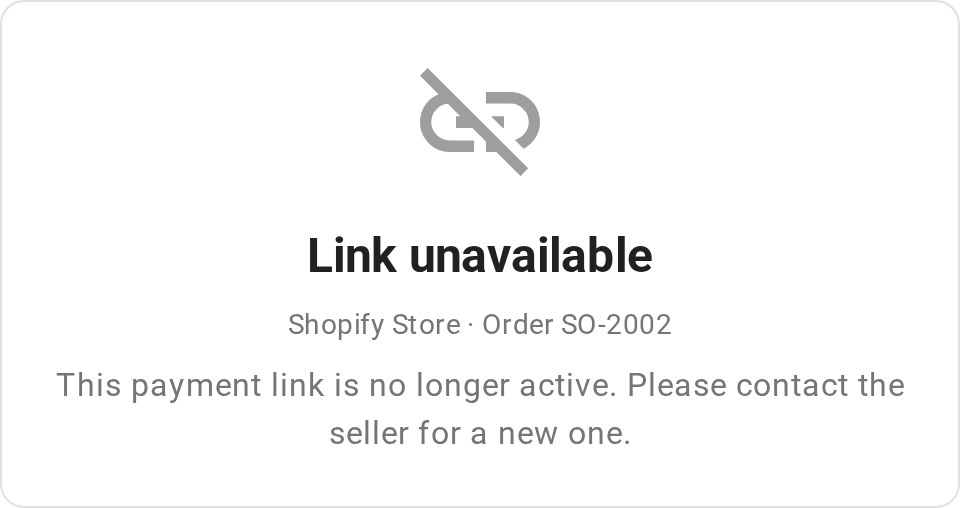
| Link unavailable | "This payment link is no longer active. Please contact the seller for a new one." | The link was cancelled: someone cancelled it or created a newer link, the order was cancelled or deleted, or the PayPal account was disconnected. | Send the order's current link, or create a new one if there isn't one. |
| Link unavailable | "The seller's PayPal account needs attention, so this link can't take payments right now. Please contact the seller." | PayPal no longer accepts the account's API keys. | Update the keys. See When the saved keys stop working. The link works again once the account is ready. |
| Link unavailable | "PayPal payments aren't available for this store right now. Please contact the seller." | SKU.io can't take payments on this PayPal account, for example because it was disconnected. | Check the account's connection under Apps & Integrations → All Integrations → PayPal. See Check an account's connection. |
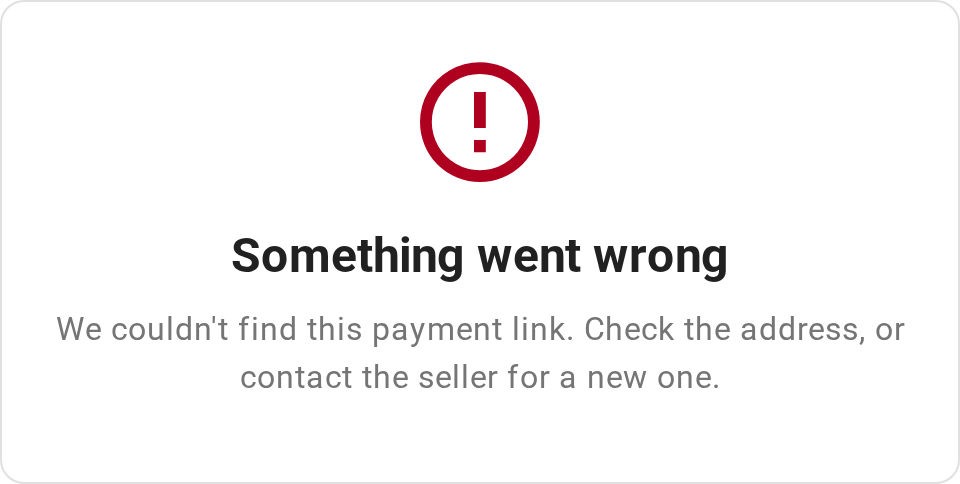
| Something went wrong | "We couldn't find this payment link. Check the address, or contact the seller for a new one." | The address is incomplete or mistyped, often from a broken line in an email. | Copy the link again and send it, or email it from SKU.io. |
| Something went wrong | The same message | The link's PayPal account was deleted, which removes its links. | Create a new link on another PayPal account. |
| Something went wrong | "We couldn't load PayPal. Check your internet connection, then try again." with a Try Again button | The customer's browser couldn't load PayPal's buttons, often because of a weak connection, a strict network or an ad blocker. | Ask the customer to click Try Again, or to open the link on another network or browser. |
| Something went wrong | "We couldn't load this payment link. Check the address, or contact the seller for a new one." or "This payment link can't take payments right now. Please contact the seller." | The page couldn't load the link's details, or the link's PayPal account isn't set up to take payments. | Check the account under Apps & Integrations → All Integrations → PayPal, click Re-check, then send the link again. |
For what each link status means and how a link moves between them, see Pay link statuses.
When the customer clicks a PayPal button
A customer can open the page while the link still works, and click a button later. SKU.io checks the link again at that moment. If something has changed, a red message appears above the buttons, and the page then switches to the link's current state, such as Link unavailable or Payment complete.
| Message | Why | What to do |
|---|---|---|
| "This order has already been paid." | The link was paid in another browser tab or by someone else. | Nothing. |
| "This payment link has been cancelled. Please contact the seller if you still need to pay." | The link was cancelled after the customer opened the page. Disconnecting the PayPal account also cancels its links. | Send the order's current link. |
| "This payment link has expired. Please contact the seller for a new one." | The link expired while the page was open. | Create a new link. |
| "This payment link is no longer active." | The order was cancelled or deleted, or the link can no longer be paid for another reason. | Check the order. Create a new link only if the customer still owes money. |
| "The order amount has changed — please request a new payment link." | The order's amount due is now less than the link's amount, for example after an edit or another payment. SKU.io cancels the link so the customer isn't overcharged. | Create a new link for the current amount due. |
| "This link can't take payments right now. Please contact the seller for a new one." | SKU.io can't reach the link's PayPal account, for example because it isn't connected. (Disconnecting an account normally cancels its links, so the customer then sees the cancelled message above instead.) | Check the account under Apps & Integrations → All Integrations → PayPal, then create a new link. |
| "The seller's PayPal account needs attention, so this link can't take payments right now. Please contact the seller." | PayPal no longer accepts the account's API keys. | Update the keys. |
| "PayPal payments aren't available for this store right now. Please contact the seller." | SKU.io can't take payments on this PayPal account. | Check the account under Apps & Integrations → All Integrations → PayPal. |
| "We couldn't start the PayPal payment. Please try again in a few minutes. If it keeps happening, contact the seller." | SKU.io couldn't reach PayPal, or PayPal refused to start the payment. | Ask the customer to try again later. If it keeps happening, click Re-check on the account. |
Declined payments and other errors
These messages appear in red above the PayPal buttons after the customer approves the payment in PayPal. In every case, nothing is recorded on the order and the link stays Active, so the customer can try again on the same page. A retry never charges the customer twice.
| Message | What happened | What the customer does |
|---|---|---|
| "Your card or bank was declined. Please choose another way to pay." | The card or bank turned the payment down. PayPal reopens so the customer can pick another card or funding source. | Choose another way to pay in PayPal. |
| "PayPal declined this payment. Please try again with a different payment method." | PayPal turned the payment down after it was approved. | Click a PayPal button again and choose a different payment method. |
| "PayPal didn't complete this payment. Please try again with a different payment method." | PayPal returned the payment without completing it. | Click a PayPal button again and choose a different payment method. |
| "Your payment wasn't completed. Please try again, or choose another way to pay in the PayPal window." | PayPal couldn't complete the charge. | Click a PayPal button again. |
| "Your PayPal checkout didn't finish. Please click the PayPal button again to pay." | The PayPal checkout was interrupted before the customer approved it. | Click a PayPal button again. |
| "We couldn't confirm your payment with PayPal. Check your PayPal account before you try again, or contact the seller." | PayPal answered, but without a confirmed payment. | Check their PayPal account first. If PayPal shows the payment, they shouldn't pay again: SKU.io's 15-minute check records it on the order. |
| "We couldn't complete your payment. Please try again." | Something else stopped the payment. | Click a PayPal button again. |
| "PayPal ran into a problem. Please try again in a few minutes. If it keeps happening, contact the seller." | PayPal's buttons reported an error. | Try again in a few minutes. |
When a customer reports one of these more than once, check the PayPal account's connection under Apps & Integrations → All Integrations → PayPal, and look for the payment in your PayPal account.
When the customer closes the PayPal window
If the customer closes the PayPal window without paying, the pay page shows no message. Nothing is recorded, and the link stays Active. The customer can click a PayPal button again, or open the link later.
If the customer approved the payment in PayPal and then closed the pay page before it finished, SKU.io's 15-minute check completes the payment and records it on the order. See SKU.io's 15-minute check.
How the payment appears in PayPal
PayPal shows these details on the payment, to the customer and in your PayPal account:
| PayPal field | What SKU.io sends | Example |
|---|---|---|
| Invoice ID | The order number, then -L and the link's number from the Pay Links tab. | SO-1057-L1 |
| Item | Order and the order number when the link is for the order total. Partial payment – before it when the link is for less than the order total. | Order SO-1057, or Partial payment – Order SO-1042 |
| Item description | The order's products with their quantities, shortened if the list is long. | For example, 2 × Blue Widget, 1 × Red Widget |
- Each link has its own invoice ID, so a deposit link and a later balance link on the same order don't clash in PayPal.
- A link for the remaining balance after a deposit is also labelled Partial payment, because it's for less than the order total.
- Use the invoice ID to find a pay link's payment in your PayPal account, or to match a payment on the PayPal account's Transactions tab.