Save a customer's card and charge it
When a customer pays by card regularly, save their card once, with their consent, and charge it from any of their sales orders. The card is kept by your payment processor, Stripe or Authorize.net. SKU.io stores only its brand, last four digits and expiry, so you can recognize it, and never sees the full card number.
Before you begin
- Connect Stripe or Authorize.net. An Authorize.net account must show Card entry as Ready before you can save a card with it.
- Get the customer's permission to save the card and charge it for future orders. You confirm that consent when you save the card, and SKU.io records it.
- To save or remove cards, your role needs Customers → Edit (
customers.update). To charge them, it needs Sales Orders → Manage payments (sales_orders.manage_payments).
Save a card
-
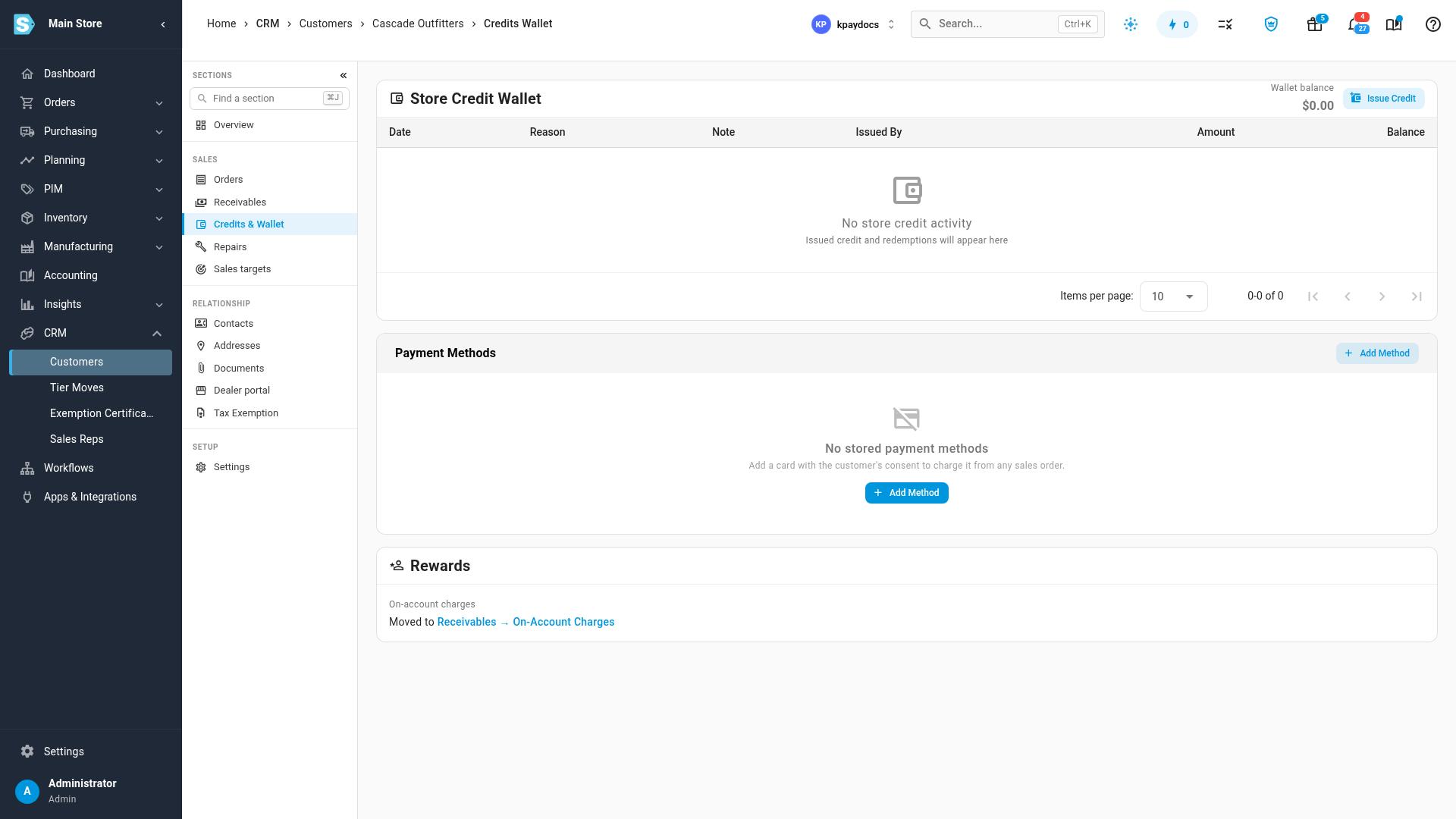
Open the customer from CRM → Customers, and choose Credits & Wallet in the customer's sections.
-
Under Payment Methods, click Add Method.
-
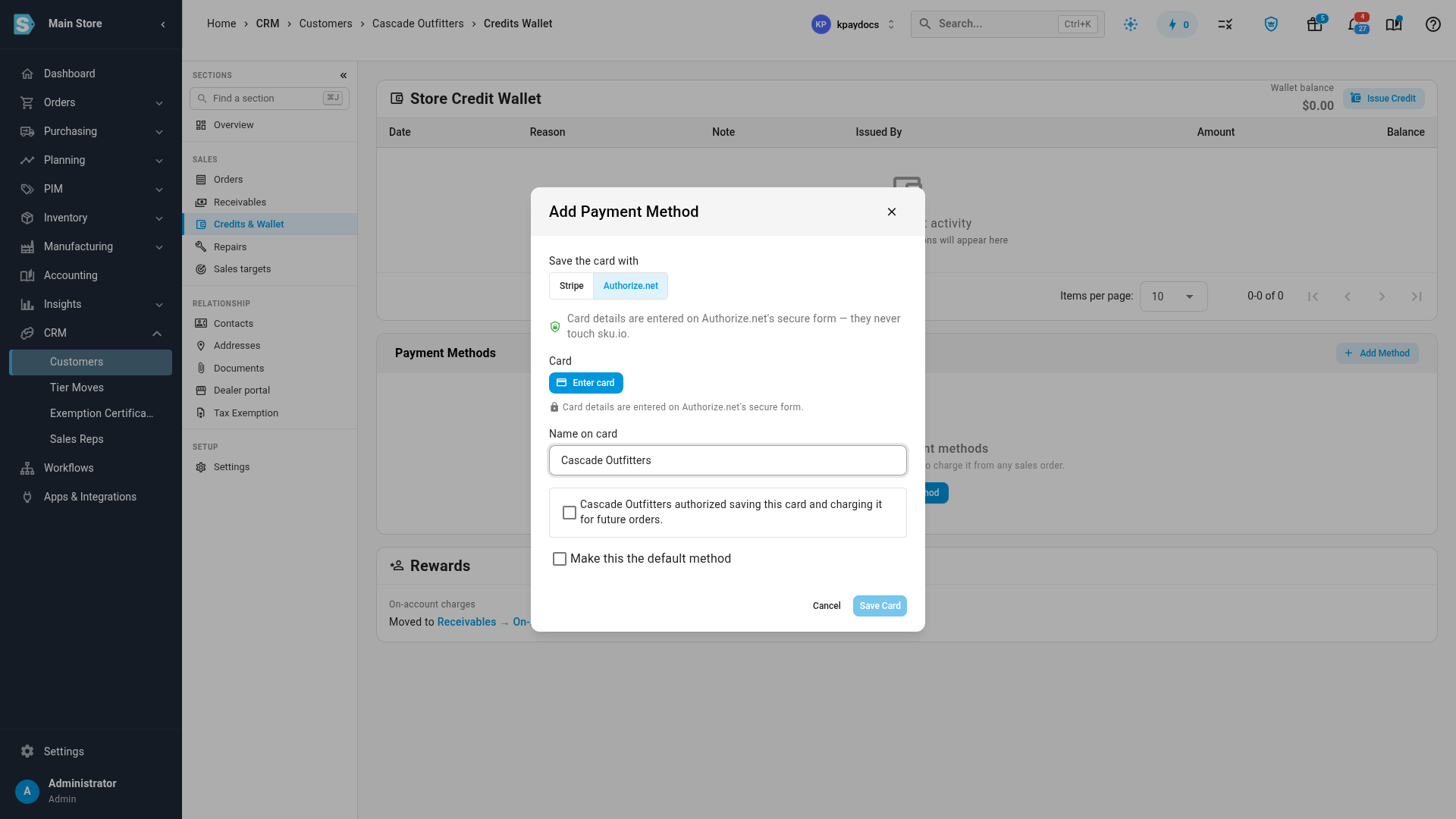
If you've connected both processors, choose the one to keep the card under Save the card with. It starts on your default card processor.
-
Enter the card:
- Authorize.net: click Enter card, type the card number, expiry and security code in Authorize.net's secure form, and click Use this card. The dialog shows Card ending … with the expiry.
- Stripe: type the card in the Card box, which is Stripe's own secure field.
-
Check Name on card.
-
Tick the box that says the customer authorized saving the card and charging it for future orders.
-
Optionally, tick Make this the default method.
-
Click Save Card.
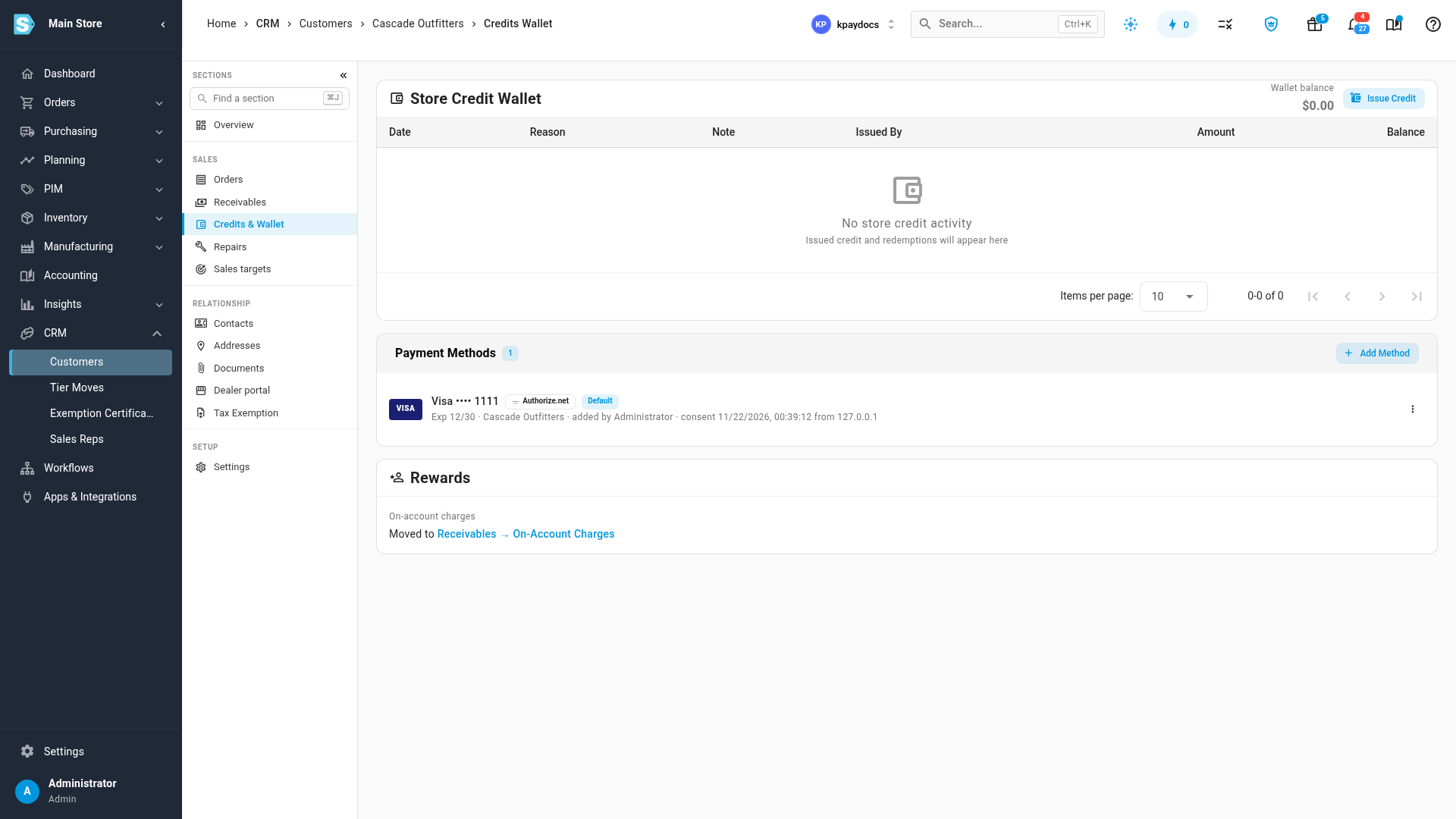
What you'll see: … saved on file. The card is listed under Payment Methods with its brand, last four digits, expiry, the processor that keeps it, who added it, and when and where the consent was given.
Charge a saved card
-
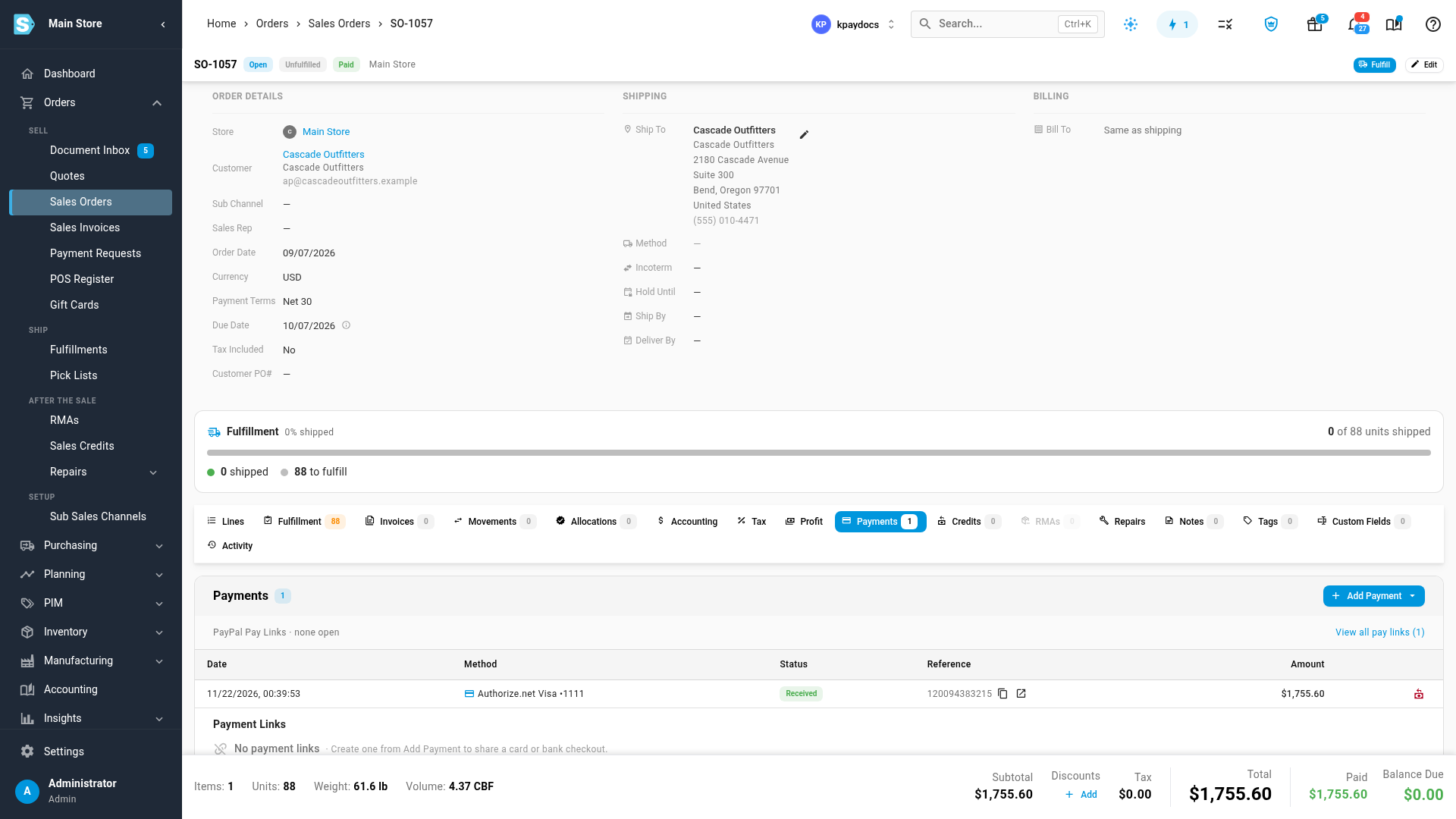
Open one of the customer's sales orders, and click its Payments tab.
-
Click Add Payment, and choose Charge Card on File. Its subtitle names the default card and how many others the customer has.
-
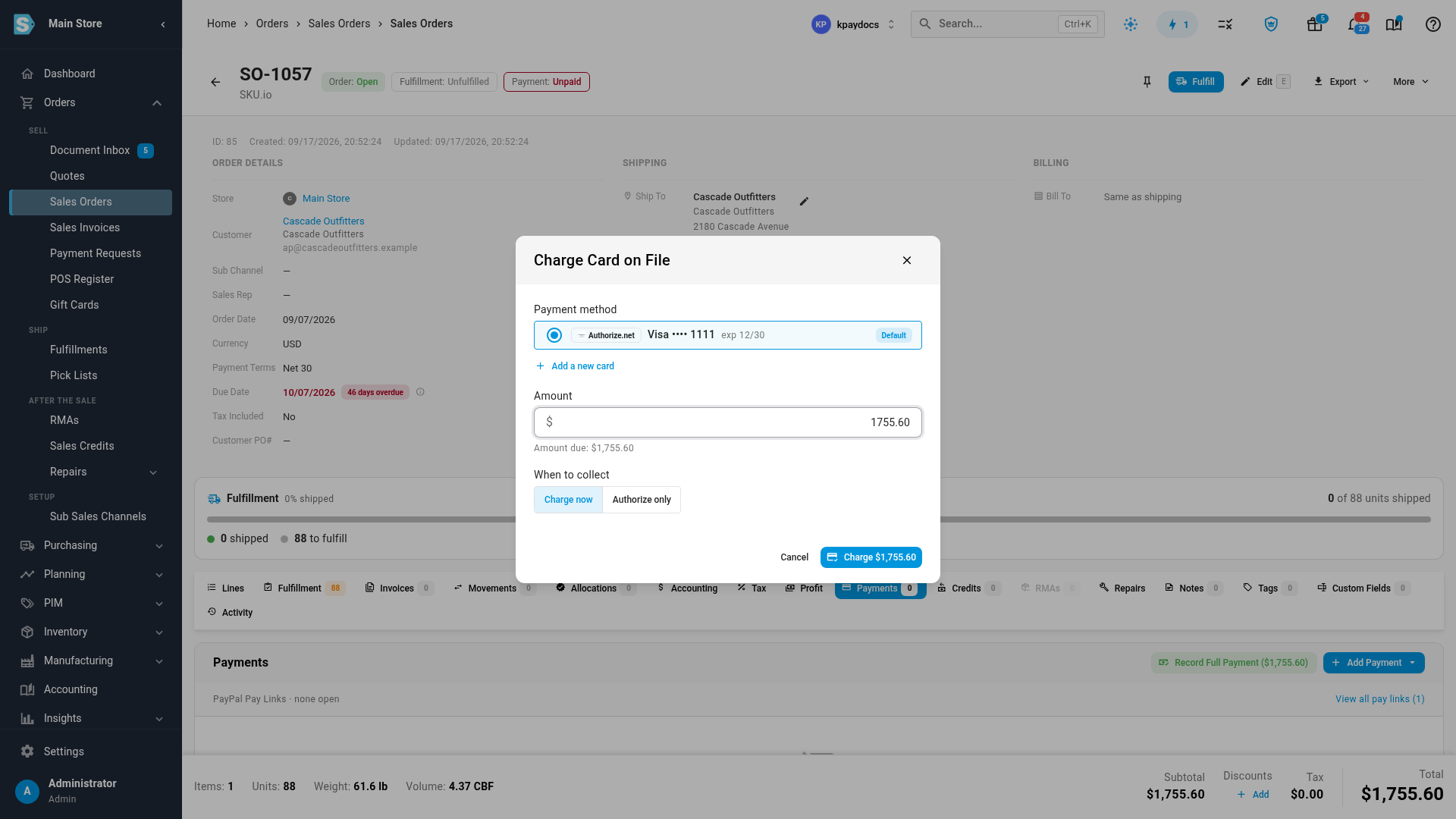
Under Payment method, check the card. The customer's default card is selected.
-
Check the Amount. It starts at the amount due, and can't be more.
-
For an Authorize.net card, choose under When to collect: Charge now to collect the money, or Authorize only to hold it on the card and capture it later. See Authorize, capture and refund card payments.
-
If you add a card surcharge, the dialog shows the Card fee and what the Customer is charged, with your disclosure. Untick the fee to waive it for this charge.
-
Click Charge (or Authorize).
What you'll see: Card charged …. The payment is listed on the Payments tab with the processor's transaction ID, and the order's payment status updates.
If the card is declined, the dialog shows the reason, and no payment is recorded. Try another card, or ask the customer for one. If Authorize.net holds the payment for review, the dialog says so: approve or decline it in your Authorize.net Merchant Interface.
When you can't charge a card
Charge Card on File is greyed out, with the reason beside it, when:
- no processor is connected,
- the order has no customer, or nothing is due,
- the customer has no saved cards, or every card has expired,
- the balance is already authorized on a card. Capture or void that hold first.
In the dialog, an expired card is marked Expired, and a card whose processor is disconnected is marked Unavailable. You can't choose either. To add a card without leaving the order, click Add a new card in the dialog.
Manage saved cards
On the customer's Payment Methods card, open a card's ⋮ menu:
- Set as default makes it the card the charge dialog selects first.
- Remove stops future charges from using it. A card saved with Authorize.net is also deleted from the customer's profile in Authorize.net. The consent record is kept for your audit trail.
A card marked Can't be charged belongs to a processor account that's disconnected. Reconnect the account to use it again. A saved card always charges on the processor it was saved with.
Next steps
- Authorize, capture and refund card payments
- Collect payment with a Stripe payment link
- Record payments and store credit
Video transcript
Cards you save for a customer live on their customer page. Open the customer, and choose Credits and Wallet. Payment Methods lists the cards on file. Click Add Method, at the top right of the Payment Methods card. Choose the processor that keeps the card. Card details go straight to that processor, and never touch SKU.io. Click Enter card, and type the card number, expiry and security code on the secure form. Then confirm the card at the bottom of the form. The form closes, and the dialog shows the card's last four digits and expiry. Tick the box to confirm the customer authorized you to save and charge the card. Make it their default if you like, and click Save Card. SKU.io saves the card with the processor, and adds it to the list. The card now shows its brand, last four digits and expiry, with the processor that keeps it. The consent is recorded too, with who added it and when. To charge the card, open one of the customer's sales orders, and its Payments tab. Click Add Payment, and choose Charge Card on File. The Charge Card on File dialog opens, ready to charge. The default card is selected, and the amount is the balance due. Choose Charge now to collect it, or Authorize only to hold it on the card. Then click Charge, and Authorize.net approves the payment in a moment. The payment appears on the order straight away, with the processor's transaction ID. The order's payment status updates to match.